
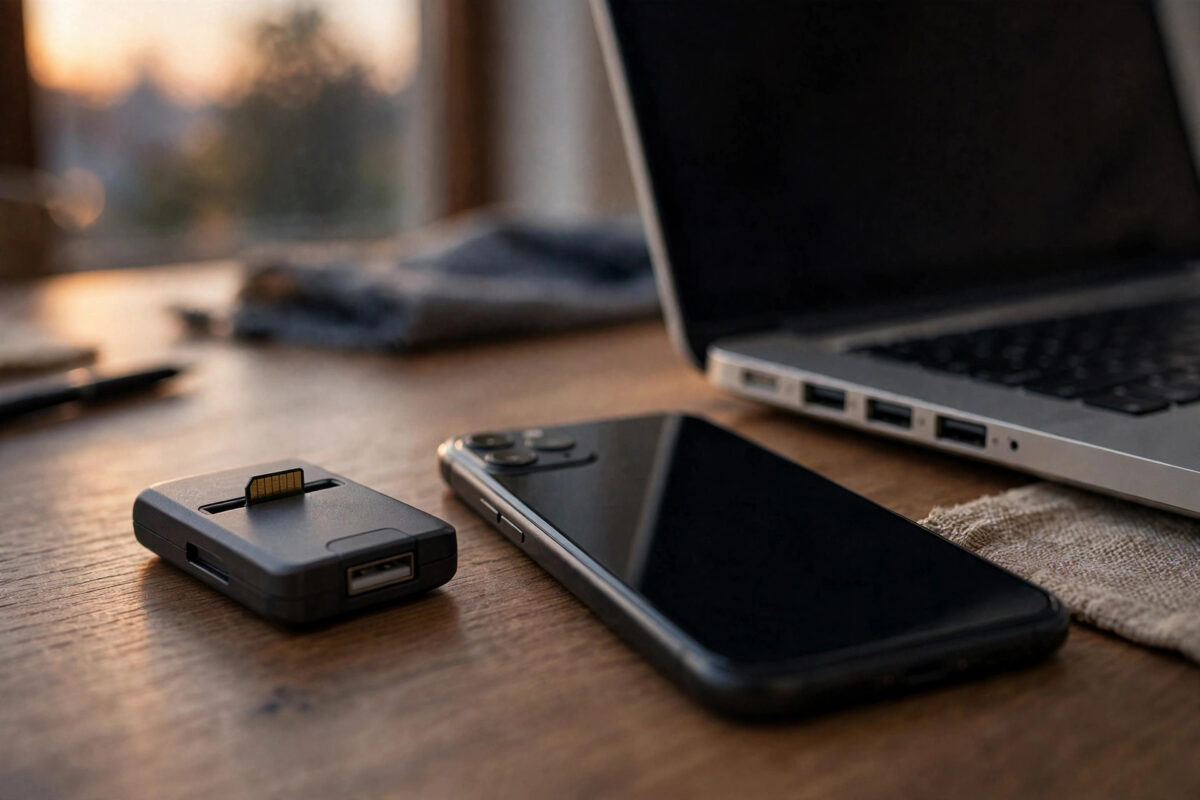
The card is clearly fine — your phone reads it, your photos are all there. But plug it into your PC’s card reader and nothing: no drive letter, no prompt, sometimes not even a sound. It is natural to suspect the card, yet the card has already proven itself in the phone.
When a card works in one device and not another, the fault almost always sits in the gap between them: the reader’s age, the file system, the adapter, or the way the phone set the card up. Work through these checks in order and you will find it.
Quick Answer
The most likely causes are an old reader that cannot handle SDXC cards over 32GB, a poor microSD-to-SD adapter, dirty contacts, or a card your phone formatted as internal (adopted) storage, which encrypts it to that phone alone. Try a modern USB reader, clean the contacts, and check Disk Management to see whether the PC detects the card without assigning a letter. If the card is adopted storage, only the phone can read it — copy files through the phone instead.
Check 1: Your Reader May Be Too Old for the Card
microSD cards come in three generations: SD (up to 2GB), SDHC (4–32GB) and SDXC (64GB and up). An older reader built for SDHC physically cannot read an SDXC card, no matter how healthy the card is — the PC may show nothing at all, or ask to format a card it cannot understand. This is the single most common cause when the card is 64GB or larger and the reader is more than a few years old. The fix is a current USB 3.0 reader that explicitly lists SDXC support; they are inexpensive and solve the problem outright. Newer UHS-II cards in a UHS-I reader still work, just at slower speeds, so bus type is rarely the blocker — capacity generation is. The SD Association explains the SD, SDHC and SDXC generations on its site and publishes the standard card formatter.
Check 2: The Adapter and the Contacts
Most microSD cards reach a PC through a full-size SD adapter, and those adapters are flimsy. Try these quick steps:
- Reseat the card in the adapter and make sure the lock switch on the adapter’s side is not halfway — a partially engaged switch can make the card act read-only or invisible.
- Clean the contacts on the card with a dry, lint-free cloth. Pocket lint and oxidation are surprisingly effective insulators.
- Try a different adapter or a USB reader that takes microSD directly, removing the adapter from the equation entirely.
- Try another USB port, preferably one directly on the PC rather than a hub or monitor pass-through.
Check 3: Look in Disk Management, Not Just Explorer
Sometimes the PC sees the card perfectly well but never gives it a drive letter, so File Explorer stays silent. Open Disk Management and look for a disk of the right size. If it appears with a healthy partition but no letter, right-click the partition and assign one. If it appears as RAW or unallocated, stop: do not let Windows format it. A RAW reading here usually means the PC cannot interpret the file system — which leads directly to the next check.
Check 4: Did Your Phone Adopt the Card as Internal Storage?
Android offers two ways to use a card: portable storage, which any device can read, and internal (adopted) storage, which formats and encrypts the card as an extension of that specific phone. An adopted card is unreadable in every other device by design, and a PC will typically see an unreadable or unformatted disk. If you chose “Format as internal” when you inserted the card, no reader will ever open it — the encryption key lives in the phone. Your options are to copy the files through the phone itself (USB cable, or a cloud or local transfer app), or, if you no longer need the data in that arrangement, reformat the card as portable storage in the phone, accepting that this erases it.
Related trap: phones format cards as exFAT or FAT32 for portable use, both of which PCs read happily — so a standard portable card that still will not read points back to the reader, the adapter, or early card failure. A card behaving inconsistently across devices is also worth a health check using the method in our guide to testing a microSD card’s true capacity before using it, since marginal cards often fail first in the least tolerant reader.
Check 5: Reader Drivers and Power
Built-in laptop card readers occasionally lose their driver after a Windows update, showing up in Device Manager with a warning icon. Updating or reinstalling the driver from the laptop manufacturer’s site restores them. USB readers that intermittently disconnect may be starved by a low-power port or hub — move them to a direct port. Finally, confirm the reader works at all by testing a different, known-good card in it; dividing the suspects in half is the fastest troubleshooting move there is.
Common Mistakes to Avoid
- Accepting the format prompt. If Windows offers to format a card full of phone photos, refuse. The card is fine; the PC is the confused party.
- Blaming the card and buying another. A second SDXC card will fail in the same old SDHC reader in exactly the same way.
- Formatting an adopted card in the PC. It will “work” afterwards, but every photo on it is permanently lost, because the encryption key is destroyed with the format.
- Forcing a stuck adapter. If the card will not seat smoothly, check for a bent contact or debris instead of pushing harder.
The Bypass: Skip the Reader Entirely
If the reader fight is eating your evening, remember the card does not have to visit the PC at all — the phone can deliver the files itself. Connect the phone to the PC with a USB cable, set the phone’s USB mode to File Transfer, and the phone’s storage, including a portable-format card, appears in File Explorer with the card as a folder inside it. The transfer is slower than a good reader, but it works with zero additional hardware and completely sidesteps reader generations, adapters and drivers.
For a one-off transfer, a Wi-Fi file transfer app or a shared network folder achieves the same bypass wirelessly. The reader only becomes essential when you regularly move large volumes — at which point a modern, named-brand USB 3.0 reader that explicitly supports SDXC and UHS-I is a small, permanent cure rather than a recurring argument between you and a card that has done nothing wrong.
Conclusion
A card that reads in your phone has already passed the hardest test. The problem lives in the reader’s generation, the adapter, a missing drive letter, or an adopted-storage format that locks the card to the phone. Identify which one, and the fix is either a modern reader, a two-minute Disk Management tweak, or copying the files through the phone itself.
Frequently Asked Questions
Why does my PC ask to format a card that works in my phone?
Either the reader cannot handle the card’s capacity generation, or the phone formatted it as adopted internal storage. Both make the file system unreadable to Windows, which responds by offering a format. Always decline.
How can I tell if my card is adopted storage?
On the phone, open Settings, then Storage. If the card appears merged with internal storage rather than as a separate portable device — and apps and data live on it — it is adopted. PCs cannot read adopted cards at all.
The card shows in Disk Management as RAW. Are my files gone?
Not necessarily. RAW here usually means the PC cannot read the file system, often because the card is adopted storage or formatted in a way the reader mishandles. Read it in the phone and copy the files out through the phone.
Do I need a special reader for a 512GB card?
You need any modern reader that lists SDXC support. Capacity generation matters more than brand: an SDHC-only reader stops at 32GB no matter who made it.
Can I convert adopted storage back without losing files?
Only by first copying everything off through the phone. Converting to portable storage reformats the card, which erases it — the copy-through-the-phone step is what saves your data.



Leave a Reply