
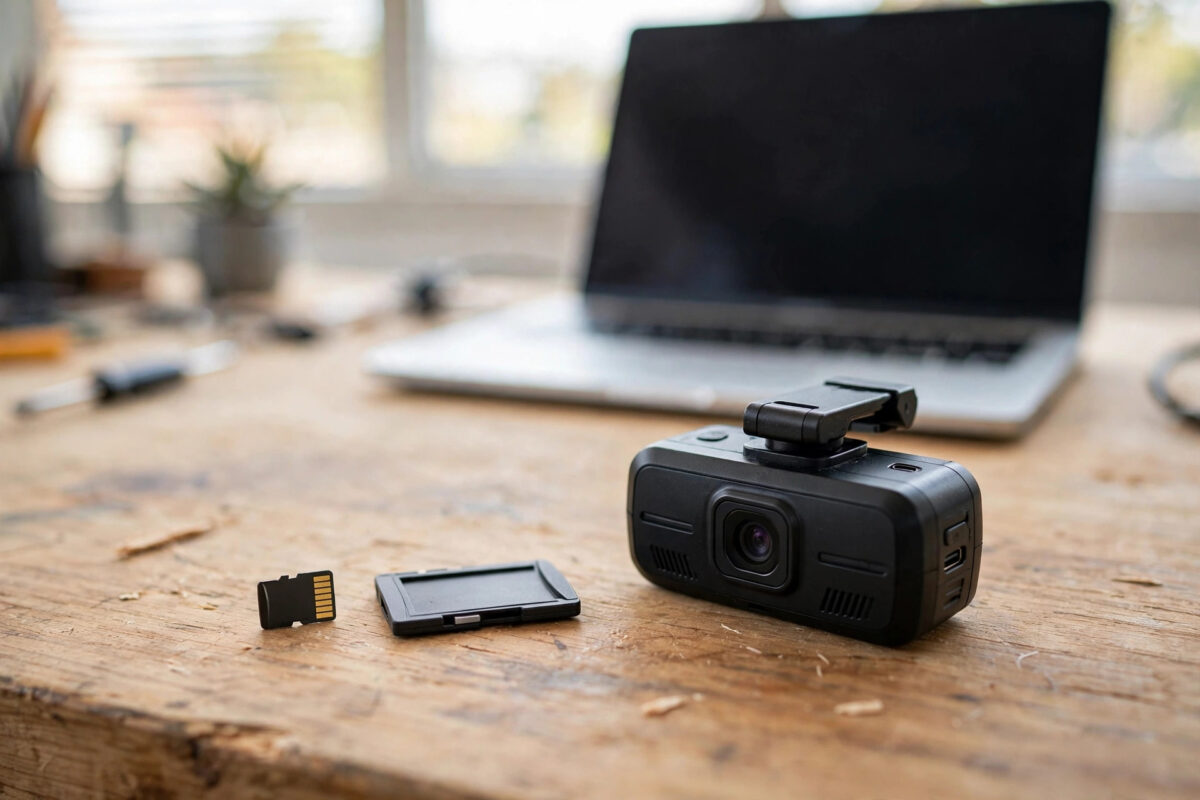
A dashcam only matters on the worst day — the accident, the near miss, the disputed claim. If the card inside it is a counterfeit that silently overwrote last week’s footage, you find out exactly when you can least afford to. Fake cards are common, even from sellers that look legitimate.
Testing a new card takes one free tool and some patience, and it has to happen before the card goes into the camera, because the test fills the card completely. Here is the process that separates a genuine card from a costume.
Quick Answer
Put the new card in a card reader, run H2testw on Windows (or F3 on Mac and Linux), and let it write and verify the card’s entire capacity. A genuine card verifies at close to its labelled size with no errors. A fake reports far less usable space — a “256GB” card that verifies only 30GB is counterfeit. Afterwards, format the card inside the dashcam itself, and choose a high-endurance card for daily dashcam duty.
Why Dashcams Expose Fakes So Brutally
Dashcams record in a loop, constantly writing new footage over the oldest. On a genuine card that works beautifully. On a fake card — real capacity 32GB dressed up as 256GB — the card’s controller starts overwriting or discarding data far sooner than the camera believes, and the footage index no longer matches what is actually stored. Clips listed on the card turn out to be corrupt, truncated, or missing entirely. Exactly the same fraud pattern affects cheap USB drives, as explained in our guide to fixing a fake 1TB USB drive that loses files after 32GB.
Capacity is only half the story. Dashcams also need sustained write speed: a card that benchmarks fast for ten seconds but throttles when hot will drop frames on a long drive. A full write-and-verify test doubles as a stamina test, because it writes continuously across the whole card.
Test the Card with H2testw (Windows)
- Use a decent card reader. A slow or faulty reader can cause false errors. Plug it directly into the PC, not through a hub.
- Download H2testw from the H2testw page on heise online, the long-standing home of this free tool.
- Select the card as the target — double-check the drive letter — and choose Write + Verify using all available space.
- Let it finish. A large card can take an hour or more. The tool writes test files until the card is full, then reads every byte back and compares.
- Read the verdict. “Test finished without errors” plus a verified amount close to the labelled capacity (a 256GB card verifies around 244,000 MB, since manufacturers count in decimal) means the card is genuine. Errors early in the test, or a verified amount that is a small fraction of the label, mean it is fake.
- Screenshot the result if the card failed. It is the evidence you need for a refund.
Testing on Mac or Linux: F3
The F3 toolset (Fight Flash Fraud) does the same job on macOS and Linux. The command f3write fills the card with numbered test files and f3read verifies them, reporting the real usable capacity and any corrupted regions. For a quicker check, f3probe tests the card in minutes by probing strategically instead of filling it completely — useful for a first screen, but the full write-and-read remains the gold standard before a card goes into service.
After the Test: Prepare the Card Properly
- Format with the SD Card Formatter from the SD Association’s official formatter page if you want a factory-fresh file system, or skip straight to the camera.
- Format again inside the dashcam. Cameras prefer their own folder structure and allocation settings. This final in-camera format is the step people skip, and it prevents a class of “card error” complaints.
- Pick the right card type next time. For dashcams, buy cards explicitly rated High Endurance or Max Endurance. Standard cards wear out quickly under constant rewriting; endurance cards use flash rated for many more write cycles.
- Record the test date. Re-test the card every few months. A genuine card that starts failing verification is wearing out, and it is far better to learn that in your PC than after an incident. Keeping a note of the write speeds and warning signs that tell you an SD card is about to fail helps you judge when a genuine card is simply wearing out.
Common Mistakes to Avoid
- Trusting the size shown in Windows. The computer reports what the card’s controller claims. Fakes lie at exactly this level, which is why only a write-and-verify test counts.
- Testing with the card half full of footage. H2testw can only verify free space unless you let it use the whole card. Test new, empty cards.
- Skipping the in-dashcam format. A card formatted only in a PC sometimes behaves oddly in a camera. Always finish with the camera’s own format function.
- Buying on price alone. A 256GB card selling for the price of a genuine 64GB card is not a bargain; it is a warning.
- Testing once and forgetting. Dashcam cards are consumables. Heat, cold and constant writes age them; plan to replace every 12–24 months of daily use.
Speed Matters Too: Test What the Dashcam Actually Needs
A card can be genuine and still wrong for your dashcam. Capacity tests prove size; speed tests prove stamina. After the capacity check, run a quick benchmark — CrystalDiskMark on Windows, Blackmagic Disk Speed Test or AmorphousDiskMark on a Mac — and look at the sequential write figure, not the headline read speed. A 4K dashcam recording two or three channels needs a card that sustains roughly 30–60 Mbps of writes indefinitely, in a hot car, without throttling. Cards marked V30 promise a minimum sustained 30 MB/s write, which is a comfortable floor; the U3 symbol means the same class in older labelling.
Application ratings (A1, A2) matter less here — they describe random access for phone apps, not the dashcam’s steady sequential stream. And beware the card that benchmarks brilliantly for thirty seconds: cheap cards use fast cache tricks and collapse on long writes, which is precisely the dashcam workload. The full H2testw write you already ran is secretly your best speed-stamina evidence — if it wrote the entire card at a steady, sensible rate without errors, the card has the endurance profile your camera needs. Note the test’s average write speed in your records; a card that slows dramatically between quarterly re-tests is telling you its remaining life in plain numbers.
Conclusion
Ten minutes of setup and an hour of unattended testing buys you certainty. Run H2testw or F3 across the full capacity, format the card in the dashcam, and keep a screenshot if it fails. Your future self, standing at the side of the road needing that footage, will be grateful.
Frequently Asked Questions
How long does a full capacity test take?
It depends on the card size and reader speed. A 128GB card typically takes 30–60 minutes to write and verify; a 512GB card can take several hours. The quick F3 probe finishes in minutes but is less thorough.
The verified capacity is slightly less than the label. Is that normal?
Yes. A “256GB” card uses decimal gigabytes, so a computer sees about 238 GiB, and a small amount of space goes to file system structures. What matters is that the test finishes without errors near that figure — not that a 256GB card verifies only 30GB.
Can I test the card while it is in the dashcam?
No. The test needs the card in a reader attached to a computer, and it fills the card completely. Always test before installing the card in the camera, or with a spare card swapped in.
What speed class does a dashcam need?
Look for UHS-I U3 / V30 as a comfortable minimum for 4K dashcams, and prefer the manufacturer’s high-endurance line. A slow card causes dropped frames and gaps even if its capacity is genuine.
My card passed last year but fails now. Is it fake?
Probably not fake — probably worn out. Constant loop recording is one of the hardest jobs a card can do. Replace it; a failing card only gets worse.



[…] inconsistently across devices is also worth a health check using the method in our guide to testing a microSD card’s true capacity before using it, since marginal cards often fail first in the least tolerant […]