
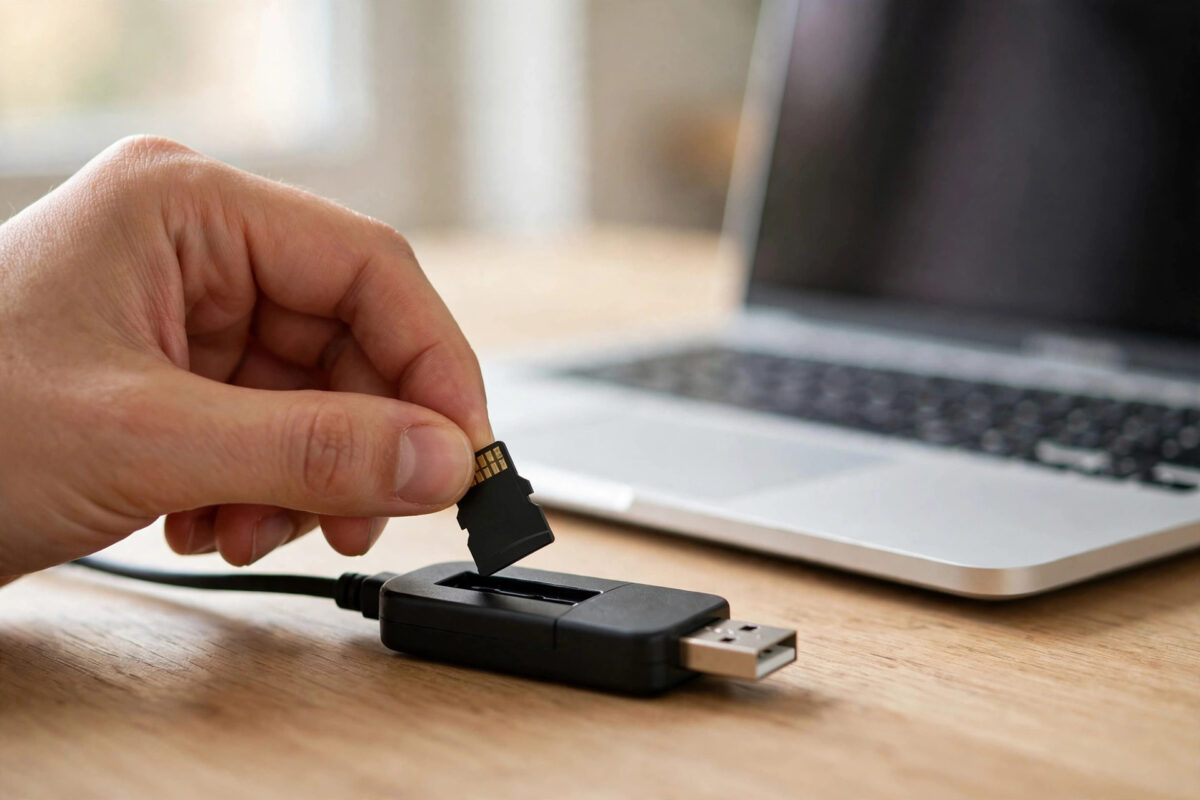
You bought a SanDisk microSD or SD card at a price that looked too good to be true. The label says 512GB or 1TB, your computer shows the same size, and yet photos disappear or files turn corrupt after a few weeks. That is the classic sign of a counterfeit card, and the free Windows tool H2testw is the most reliable way to prove it before you lose real data.
Counterfeit cards are not just cheap copies with a fake logo. Inside, they often contain a much smaller memory chip, sometimes only 8GB or 16GB, that has been reprogrammed to report a far larger size to your phone, camera, or computer. Everything seems fine until you write past the real capacity. Then new files overwrite old ones, and the damage is silent until you try to open something important.
Quick Answer
Back up anything on the card, format it, insert it in a reliable card reader, and run H2testw with the option to write and verify all available space. A genuine card finishes with no errors and shows its true capacity. A counterfeit card reports errors, lost data, or a much smaller verified size than the label claims, even though Windows showed the full size at the start.
Why Fake Cards Pass Normal Checks
Most people test a new card by inserting it and looking at the size in File Explorer. That check proves almost nothing. The size shown by Windows comes from information the card itself reports, and counterfeiters change that information. A card can happily claim to be 1TB while physically storing far less.
The same problem affects quick copy tests. If you copy 5GB of music to a fake 512GB card that really holds 16GB, the copy will succeed and the files will play. The fraud only appears when the total written data passes the real limit. At that point the card wraps around and starts overwriting the beginning, or it simply discards new data while pretending to save it.
Common Warning Signs Before You Test
- The price was far below normal SanDisk prices from major retailers.
- The printing on the card or packaging looks blurred, misaligned, or slightly the wrong colour.
- The serial number is missing, repeated, or printed in a strange font.
- Write speeds are extremely slow for a card sold as high speed.
- Files copied one day are corrupt, missing, or changed the next day.
None of these signs alone proves a card is fake. That is why a full write and verify test matters. It checks the actual memory, not the label.
What You Need Before Testing
H2testw is a small free program created for exactly this job. It writes test data across the whole card and then reads it back to confirm every part was stored correctly. You do not need to install it, and it does not need an account.
- A Windows computer, because H2testw is a Windows tool.
- A good quality USB card reader, not a very cheap unbranded reader that may cause its own errors.
- Enough free time, because a full test on a large card can take several hours.
- A safe copy of any important files already on the card, stored somewhere else.
Important: H2testw writes over free space and, if you use the full test, it can remove existing data. Never run it on a card that holds the only copy of your photos or work. Copy everything off first, and treat the test as a formatting process.
How to Test a SanDisk Card With H2testw Step by Step
Step 1: Back Up and Format the Card
- Copy any files you want to keep to your computer or another trusted drive.
- Insert the card into your reader and note its drive letter in File Explorer.
- Format the card using its normal file system, exFAT for large cards and FAT32 for smaller ones.
- Close other programs that might write to the card during the test.
Step 2: Download H2testw From a Trusted Source
Download the tool only from a trusted publisher. The original developer distributes it through the German computer magazine Heise, and you can read background about the tool on the official H2testw download page on Heise. Avoid random download sites that bundle extra software. After downloading, unzip the file and run the program directly. The interface may open in German on some versions, so look for the language option and switch it to English if needed.
Step 3: Select the Correct Drive
- Open H2testw and choose Select Target.
- Pick the drive letter that matches your memory card, and double-check it.
- Make sure you have not selected your main hard drive or another USB drive.
- Under Data Volume, choose all available space for a complete test.
This is the most important safety check in the whole process. If you select the wrong drive, the test could overwrite files you need. Take ten extra seconds to match the drive letter, size, and name before you continue.
Step 4: Run the Write and Verify Test
- Click Write + Verify and let the test run without removing the card.
- Do not put the computer to sleep and do not use the card for anything else.
- Wait for the test to finish, even if it takes a long time on a large card.
- Read the final report carefully and save or screenshot it if you need evidence for a refund.
During the writing stage, H2testw fills the card with numbered test files. During verification, it reads those files back and checks that the contents match exactly. A healthy card passes both stages at close to its advertised usable capacity, allowing for the small normal difference between marketed size and formatted size.
How to Read the H2testw Results
A Genuine Card Result
A genuine card shows a message that the test finished without errors. You may see a small difference between the label size and the tested size, which is normal because formatting and system files use some space. The read and write speeds shown also give a useful guide, although speeds depend heavily on your reader and USB port.
A Counterfeit Card Result
A fake card produces errors such as data lost, corrupted sectors, or verification failures after a certain amount of data. For example, a card sold as 512GB might verify only the first 14GB correctly and then report errors for everything after that point. That smaller number is close to the real physical capacity. The rest of the claimed space does not truly exist in a usable form.
What to Do If the Card Is Counterfeit
- Stop using the card for photos, documents, or backups immediately.
- Copy off any files that still open correctly, while you still can.
- Take clear photos of the card, packaging, and your H2testw report.
- Contact the marketplace seller and request a refund within the return window.
- Open a dispute with the marketplace if the seller refuses or argues.
- Report the listing if the platform offers a counterfeit reporting option.
If you are choosing a replacement, buy from an authorised retailer and check the card again when it arrives. You can also follow the same careful approach described in our guide to checking the real capacity of a USB flash drive before trusting it with files, because counterfeiters use the same tricks on USB sticks.
Mistakes to Avoid When Testing Memory Cards
- Testing only a small part of the card: A partial test can pass on a fake card because it never reaches the fake area.
- Leaving important files on the card: The full test needs free space and can overwrite data, so back up first.
- Using a damaged reader: A bad reader creates errors that make a good card look faulty.
- Trusting the size in File Explorer: That number comes from the card itself and is exactly what counterfeiters fake.
- Waiting too long to test: Test a new card on the day it arrives, while returns and refunds are still easy.
- Judging by speed alone: Slow speed is a warning sign, but capacity verification is the real proof.
Tips for Buying Genuine SanDisk Cards Online
Price is the simplest filter. A card sold for a fraction of the normal price, with huge capacity and free extras, deserves extra suspicion. Check the seller history, read recent negative reviews, and avoid listings that use copied product photos with no real shop details. Genuine discounts do happen during sales, but they rarely turn a premium 1TB card into a bargain-bin purchase.
Conclusion
H2testw gives you a clear, honest answer that packaging and File Explorer cannot. By backing up first, testing all available space, and reading the verify report carefully, you can prove whether a SanDisk card from an online marketplace is genuine or counterfeit. If it fails, stop trusting it, gather your evidence, and claim your money back while you still can.
Frequently Asked Questions
Does H2testw delete my files?
It can overwrite free space and, during a full test, it may remove existing data. Always copy important files to another drive before you start, and treat the card as if it will be formatted.
How long does an H2testw test take?
It depends on the card size, its real speed, and your reader. A small card may finish in under an hour, while a large or very slow fake card can take many hours to write and verify fully.
Can a counterfeit card be fixed to its real size?
Sometimes it can be resized, but the chip remains low quality and unreliable. That approach is only suitable for unimportant test files, never for backups or irreplaceable photos.
Is a small capacity difference normal on a real card?
Yes. A genuine card shows slightly less usable space after formatting, and makers measure capacity differently from Windows. A small difference is normal, but losing most of the claimed space is not.
What if H2testw passes but my files still corrupt?
Try a different reader, cable, and device, and check the card for physical damage. If corruption continues after a full pass, stop using the card and replace it, because other faults may be developing.



Leave a Reply