
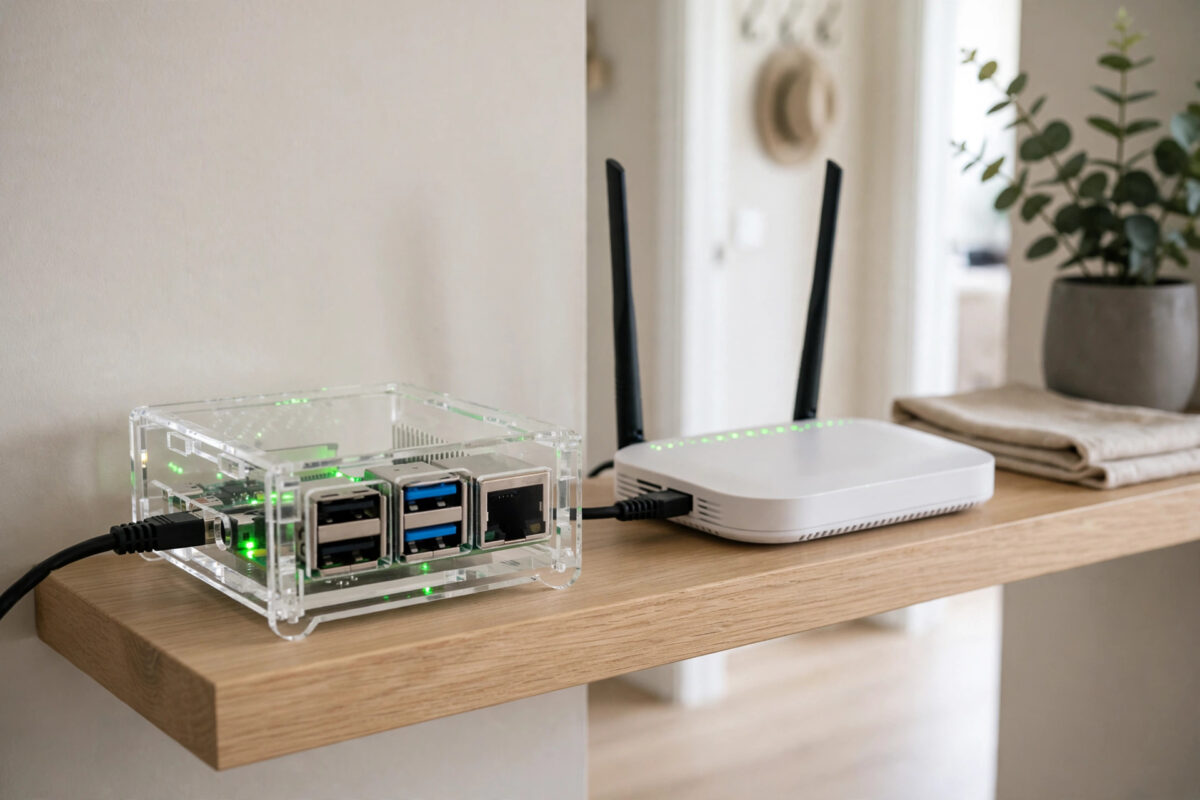
Adverts on smart TVs, trackers in phone apps, and pop-ups on devices where you cannot install a browser extension — network-level blocking solves all of them at once. Pi-hole runs beautifully on a Raspberry Pi 4, quietly filtering DNS requests for every device in your home. The setup has two halves: installing Pi-hole on the Pi, and then the step people forget, pointing your router’s DNS to it so the whole network actually uses it.
Quick Answer
Install Raspberry Pi OS on a Raspberry Pi 4, give it a fixed IP address, run the official Pi-hole installer, and note the admin password it shows. Then log into your router, set its LAN DNS server to the Pi’s IP address, and reboot or reconnect your devices. Once clients renew their network settings, Pi-hole will block ads and trackers for the whole home.
What You Need
- A Raspberry Pi 4 with a decent power supply. Even the 2 GB model is far more than Pi-hole needs.
- A microSD card of 16 GB or more, ideally a high-endurance card.
- A network cable. Ethernet is strongly recommended, because a DNS server on flaky Wi-Fi causes home-wide problems when it drops.
- Access to your router’s admin page, including its username and password.
- A computer for flashing the card and for the initial setup.
Step 1: Install the Operating System and Connect the Pi
- Download Raspberry Pi Imager on your computer and insert the microSD card.
- Choose Raspberry Pi OS Lite (64-bit). Lite has no desktop, which is perfect for a small server and leaves more resources free.
- Use the Imager’s settings to set a hostname such as
pihole, create your user and password, and enable SSH. - Write the card, insert it into the Pi, connect the Ethernet cable, and power it on.
- Find the Pi’s IP address in your router’s connected devices list, then connect from your computer:
ssh youruser@pihole.localor use the IP address directly. - Update the system fully:
sudo apt update && sudo apt full-upgrade -y, then reboot withsudo reboot.
Our general Raspberry Pi home server first setup guide covers imaging and SSH in more detail if this is your first Pi project.
Step 2: Give the Pi a Fixed IP Address
A DNS server that changes address breaks the whole network, so this step matters. The cleanest method is a DHCP reservation in your router: find the Pi in the router’s device list and reserve its current address permanently for its MAC address.
Alternatively, set a static address on the Pi itself, outside your router’s automatic DHCP range. Whichever method you choose, write the address down. Every later step depends on it, and so will every device in your home.
Step 3: Run the Pi-hole Installer
Pi-hole provides an official automated installer, documented on the official Pi-hole installation documentation. Run it with:
curl -sSL https://install.pi-hole.net | bash
- The installer checks your system and then opens a friendly setup wizard.
- Confirm the network interface, which should be the Ethernet connection, usually
eth0. - Confirm the fixed IP address you arranged in Step 2.
- Choose an upstream DNS provider, such as Cloudflare or Quad9, which Pi-hole will ask for queries it does not block.
- Accept the default blocklist to start with. You can tune lists later.
- Keep the Admin Web Interface and the query log enabled, so you can see what is being blocked.
- At the end, the installer shows the admin password. Save it immediately. You can change it later with
pihole -a -p.
When it finishes, open http://YOUR-PI-IP/admin in a browser and log in. You should see the dashboard with graphs for total queries and blocked queries, still quiet until devices start using it.
Step 4: Point Your Router’s DNS to Pi-hole
This is the step that makes Pi-hole protect the whole home instead of one device.
- Log into your router, usually at an address like
192.168.0.1or192.168.1.1printed on its label. - Find the LAN or DHCP settings section. Menu names differ by brand, but look for DHCP Server settings.
- Set the Primary DNS field to your Pi’s fixed IP address.
- Leave the secondary DNS blank if possible. Putting a public DNS such as 8.8.8.8 as secondary lets devices bypass Pi-hole whenever they feel like it.
- Save the settings. Some routers reboot at this point, which briefly drops the internet for everyone.
- Reconnect a test device, or toggle its Wi-Fi off and on, so it picks up the new DNS setting.
On your test device, confirm it received the right server. On Windows, ipconfig /all shows the DNS server. On Linux or macOS, check the network settings or run cat /etc/resolv.conf on Linux. Then browse a few advert-heavy pages and watch the Pi-hole dashboard numbers climb. The official Pi-hole documentation also explains the alternative per-device setup if your router will not let you change DNS.
Step 5: Test and Tune Your New Setup
- Open the Query Log in the admin panel. Blocked domains appear marked, and you can see which device asked for them.
- If a site or app breaks, find its blocked query in the log and whitelist that single domain rather than disabling Pi-hole.
- Update blocklists regularly with Tools, Update Gravity, or let the built-in weekly schedule handle it.
- Keep the Pi itself updated like any other server, with regular
sudo apt updateruns, and update Pi-hole withpihole -up. - Back up your settings from the Teleporter section of the admin panel after tuning, so a failed SD card does not erase your work.
What If Your Router Will Not Let You Change DNS?
Some provider-supplied routers lock DNS settings. You still have two good options. First, you can set DNS manually on each important device, pointing it at the Pi. Second, and better, you can disable the router’s DHCP server and let Pi-hole handle DHCP instead, an option built into Pi-hole’s Settings under DHCP. With Pi-hole giving out addresses, it naturally gives out its own address as DNS. Only run one DHCP server on the network, so the router’s must be fully off if you choose this route.
Common Mistakes and Useful Tips
- Running the Pi on Wi-Fi: It works until it does not, and then every lookup in the house stalls. Use a cable.
- Skipping the fixed IP: The Pi’s address changes, the router still points at the old one, and the internet appears broken. Reserve the address first.
- Adding a public secondary DNS: Devices happily use the unfiltered backup. Pi-hole should be the only DNS server clients receive.
- Losing the admin password: The installer shows it once at the end. Reset it any time with
pihole -a -pover SSH. - Expecting YouTube ads to vanish: Pi-hole blocks domains, and ads served from the same domains as the video itself cannot be separated this way. It excels at trackers, app ads, and smart TV telemetry instead.
Conclusion
A Raspberry Pi 4 running Pi-hole is the single best small upgrade you can give a home network. Install the OS, fix the Pi’s address, run the official installer, and then complete the job by setting your router’s LAN DNS to the Pi so every phone, TV, and laptop benefits without individual setup. Keep the Pi wired, updated, and backed up, and it will sit quietly blocking ads and trackers for years.
Frequently Asked Questions
Will Pi-hole slow down my internet?
No. DNS lookups are tiny and heavily cached by Pi-hole, so pages often load slightly faster because ad and tracker requests never leave your network at all.
Can I still visit a site that Pi-hole blocks by mistake?
Yes. Find the blocked domain in the Query Log and whitelist it, or use the Whitelist page in the admin panel. Changes apply within moments.
What happens if the Pi goes offline?
Devices cannot resolve names, so the internet appears down even though the connection is fine. That is why a wired connection, a fixed IP, and a reliable power supply matter so much for this role.
Does Pi-hole work for devices with hard-coded DNS?
Some devices ignore the DNS they are given. Advanced users block or redirect outbound DNS at the router firewall, but for most homes the standard setup covers the vast majority of traffic.
Is a Raspberry Pi 4 powerful enough for a busy household?
Easily. Pi-hole is very light, and a Pi 4 can handle DNS for dozens of devices while barely using its CPU or memory.



Leave a Reply