
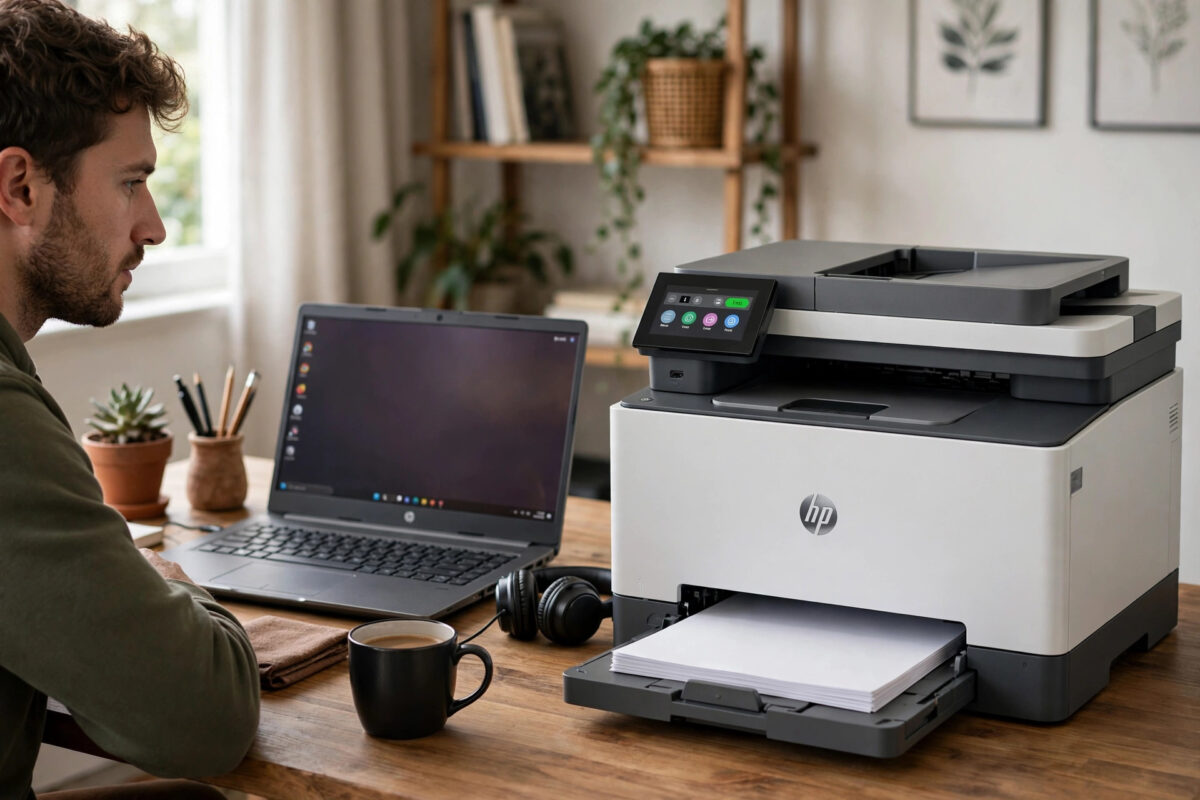
Your HP printer shows up in Ubuntu settings, the test job leaves the queue on screen, and then nothing happens. The job sits at Processing forever, the printer stays silent, and cancelling and retrying changes nothing. This is one of the most common HP printing problems on Ubuntu, and it is almost always a software issue, not a broken printer.
This guide works through the fixes in the order that solves most cases: restarting and clearing the print system, checking the backend and connection, fixing driver and HPLIP issues, and correcting the queue settings that quietly block jobs.
Quick Answer
Cancel all stuck jobs with cancel -a, restart CUPS with sudo systemctl restart cups, and make sure the printer queue is enabled and accepting jobs with cupsenable and cupsaccept. If jobs still stick at Processing, remove the printer and add it again using the HP driver from HPLIP, and check the error log with journalctl -u cups for the exact failing filter or backend.
Why Jobs Get Stuck at Processing
Printing on Linux goes through CUPS, the Common UNIX Printing System. When you print, your application creates a document, CUPS converts it through a chain of filters into a language your printer understands, and a backend sends the result over USB or the network. The Processing message simply means CUPS accepted the job but one step in that chain has not finished.
The chain can stall in several places. A crashed or paused queue holds every job behind it. A wrong driver produces data the printer cannot use, so the job never completes. The HP plugin, a small proprietary add-on some HP models require, may be missing or broken after a system update. USB permissions, a sleeping printer, a changed Wi-Fi network address, or a firewall can break the final delivery step. Even a single corrupt job at the front of the queue can block everything behind it while looking like a printer fault.
First Fixes: Clear the Queue and Restart CUPS
Start here even if you have already retried printing several times. A clean queue and a fresh CUPS service solve a surprisingly large share of stuck jobs.
- Cancel everything with
cancel -ato clear all jobs from all queues, or open the printer settings and remove each stuck job manually. - Restart the printing service with
sudo systemctl restart cupsand confirm it is running withsystemctl status cups. - Check the queue state with
lpstat -p. If it says the printer is disabled, re-enable it withsudo cupsenable YOUR_PRINTER_NAME, replacing the name with the one lpstat shows. - Make sure the queue accepts new work with
sudo cupsaccept YOUR_PRINTER_NAME. A queue set to reject jobs accepts nothing, no matter how healthy the printer is. - Check for a paused state in Settings under Printers. If the queue is paused, resume it, because one accidental pause holds all future jobs at Processing.
- Send a simple test with
echo "test" | lp -d YOUR_PRINTER_NAMEor use the Print Test Page button in settings, and watch whether the job clears.
If the test page prints, your original document may be the problem. Print it to a new PDF first, then print that file.
Check the Connection and the Backend
If a clean queue still sticks, verify that Ubuntu can actually reach the printer right now, not just that it could when the printer was first added.
- For USB printers, run
lsusb | grep -i hpto confirm the printer is detected, and try a different USB port and cable. Runlpinfo -vto see the device URIs CUPS can use. - For network printers, find the printer’s current IP address from its control panel or your router, then test it with
ping -c 3 PRINTER_IP. Printers on DHCP often change address, leaving the old queue pointing at nothing. - Compare the queue’s address with
lpstat -v. If the IP in the device URI no longer matches the printer, delete the queue and add the printer again at its correct address. - Wake the printer fully before testing. A printer in deep sleep can appear online while ignoring jobs. Print a configuration page from the printer’s own menu to prove the hardware itself works.
- Check group permissions for USB access. Your user should be in the
lpadmingroup for printer administration, which you can verify withgroupsand fix withsudo usermod -aG lpadmin $USER, followed by logging out and back in.
The HP Linux Imaging and Printing support pages list which connection types and features each HP model supports under HPLIP, which helps you confirm whether your model needs the additional HP plugin for printing or scanning to work at all.
Fix Driver, Filter, and HPLIP Problems
When the connection is fine, the cause is usually the driver chain. Ubuntu may have added your printer with a generic or driverless setup that mostly works but stalls on real documents, or an HPLIP component may be damaged.
- Read the real error. Run
sudo journalctl -u cups -n 100or open/var/log/cups/error_logand look for lines naming a filter, such as a filter failed or stopped message, after a failed job. - Check your HPLIP version with
dpkg -l | grep hplipand confirm the HP tools respond withhp-check. Missing dependencies reported by hp-check are frequent culprits. - Install or refresh the HP plugin if your model needs it with
sudo hp-pluginand follow the prompts. Many LaserJet and OfficeJet models refuse to finish jobs without this plugin. - Remove the existing queue completely in Settings, then run
sudo hp-setupto add the printer again using HP’s own tool, choosing the connection type you verified earlier. - Prefer the recommended driver hp-setup selects. Avoid picking a similar model number from the list, because near matches often cause exactly this Processing stall.
- Print the test page from
hp-testpageor system settings before returning to real documents.
If your printer is a newer model and Ubuntu’s packaged HPLIP is old, the packaged driver may not know your printer properly. In that situation, adding the printer as a driverless IPP printer can work well for network models, or you may need a newer HPLIP release. Our related guide on installing HP printer drivers correctly on Ubuntu explains how to choose between the packaged driver, driverless printing, and a manual HPLIP install.
Advanced Checks When Nothing Else Works
A few stubborn cases survive the standard fixes. Work through these before concluding the printer is faulty. Set CUPS logging to a more detailed level temporarily by editing /etc/cups/cupsd.conf and changing LogLevel to debug, restart CUPS, print one small job, and read the error log again. The debug output names the exact filter and its exit status. Remember to return LogLevel to warn afterwards so the log does not grow endlessly.
Also test with a brand-new queue under a different name. Old queues can carry a damaged configuration that a same-name recreation keeps. Add the printer fresh, set it as default with lpoptions -d QUEUE_NAME, and test. Finally, try printing from a different application and from the command line. If command-line printing works but one application fails, the problem belongs to that application, not CUPS or the printer.
Common Mistakes and Useful Tips
- Retrying the same stuck job: A corrupt first job blocks the whole queue. Always cancel all jobs before testing a fix.
- Adding the printer twice: Duplicate queues with similar names cause jobs to go to a dead queue. Keep one working queue and delete the rest.
- Ignoring the queue state: Disabled, paused, or rejecting queues look exactly like driver failures. Check
lpstat -pearly. - Skipping the HP plugin: Many HP models need
hp-pluginafter installation and sometimes again after major updates. Its absence is a classic cause of endless Processing. - Trusting the old IP address: Network printers move. Confirm the current IP before deep troubleshooting.
- Testing with a huge document: Use a one-line text job or test page while diagnosing, so document problems do not confuse printer problems.
Conclusion
A job stuck at Processing means one link in the CUPS chain has stopped, and the chain can be checked link by link. Clear the queue, restart and re-enable CUPS, verify the connection and address, then repair the driver and HP plugin with HP’s own tools, reading the CUPS log whenever you need the exact cause. In most homes and offices, one of those steps gets the printer moving again within minutes.
Frequently Asked Questions
Why does my HP printer say Processing but never print?
CUPS accepted the job but a later step stalled, usually a disabled queue, a failing filter, a missing HP plugin, or a wrong network address. Clear the queue, restart CUPS, and check the error log for the named filter or backend.
How do I clear all stuck print jobs in Ubuntu?
Run cancel -a in a terminal to cancel every job on every queue. You can also open Settings, go to Printers, view the jobs for your printer, and remove them there.
Do all HP printers need the HPLIP plugin?
No. Only certain models need the proprietary plugin for printing or scanning. Running hp-check and sudo hp-plugin will tell you whether your model requires it and will install it if needed.
My printer worked before an Ubuntu update and now jobs stick. What changed?
Updates can replace HPLIP components, reset the HP plugin, or change the queue to a generic driver. Re-run sudo hp-plugin, remove the queue, and add the printer again with sudo hp-setup.
Should I use driverless printing or HPLIP for my HP printer?
Driverless IPP printing works well for many modern network printers and is simple to maintain. HPLIP is the safer choice when you need full features, USB support, scanning tools, or when driverless jobs stall on your model.



Leave a Reply