
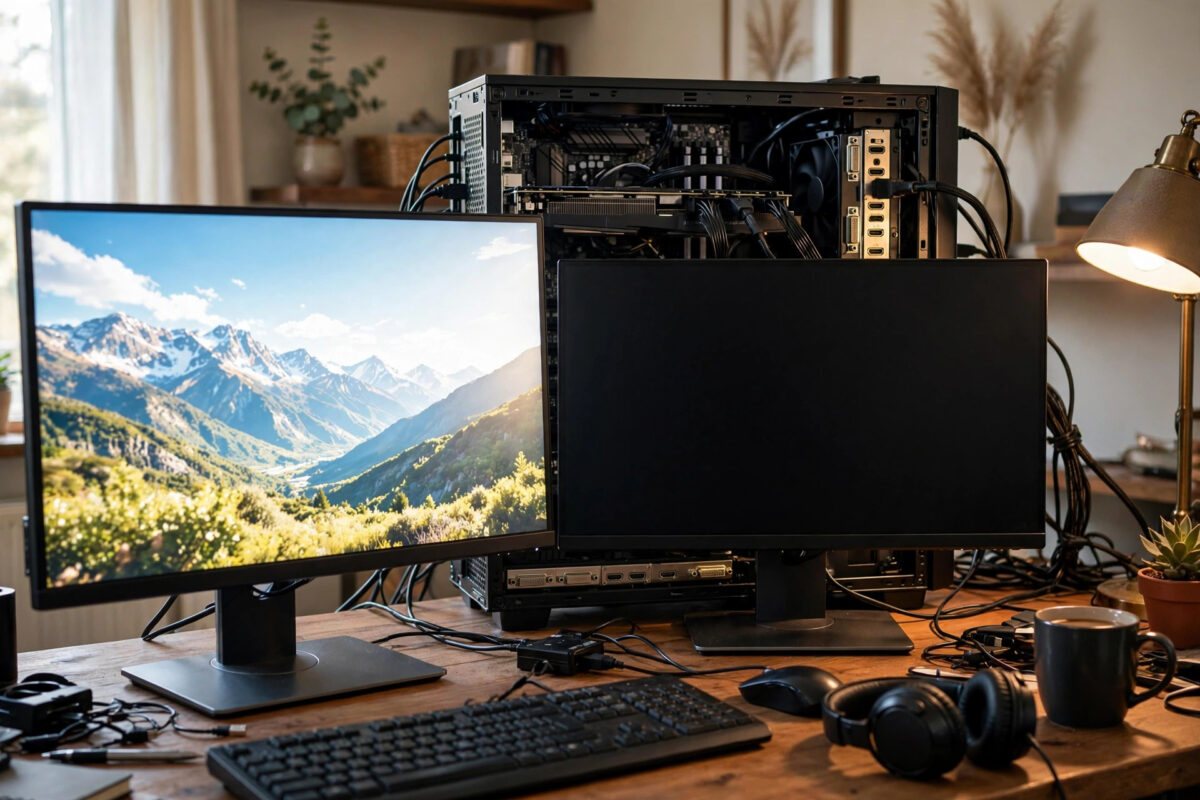
Your second monitor problem on Fedora has a very specific flavor of annoyance. Fedora clearly knows the monitor exists. It shows up in display settings with the right name and resolution, you can arrange it next to your main screen, and yet the monitor itself just sits there showing a floating “no signal” message before going to sleep. The system sees it, the screen is plugged in, and still there is no picture.
With an NVIDIA graphics card involved, this has several well-known causes, and most of them are software, not a dead monitor. The open-source driver Fedora ships by default, the Secure Boot setting in your BIOS, a sleeping display port, or a bad cable can all produce exactly this symptom. This guide works through them starting with two-minute checks and ending with a clean driver setup that makes dual monitors reliable.
Quick Answer
If Fedora detects your second monitor but it shows “no signal” with an NVIDIA card, the most likely cause is the default Nouveau driver struggling with the second output, or the NVIDIA driver being blocked by Secure Boot. Install the proper NVIDIA driver from RPM Fusion, enroll the security key if asked, and restart. Also swap the cable, wake the monitor manually, and set it to the correct input source, because a monitor waiting on the wrong input looks identical to a driver failure.
Why Fedora Can Detect a Monitor It Cannot Light Up
Detecting a monitor and displaying on it are two separate jobs. Your graphics card constantly asks each connected screen to identify itself, and the screen answers with its name and supported resolutions. That conversation works even with a basic driver, which is why Fedora lists the monitor correctly.
Actually pushing a picture is harder. The driver must set the exact timing, resolution, and refresh rate for that output and keep sending frames. If the driver is incomplete, blocked from loading, or confused by a dock or adapter, the picture never starts, and the monitor correctly reports that it has no signal. On NVIDIA hardware this gap appears often because Fedora installs the open-source Nouveau driver by default. Nouveau is fine for one simple screen on many cards, but dual monitors, high refresh rates, and DisplayPort outputs expose its limits quickly. The official NVIDIA driver from RPM Fusion is the normal setup for serious NVIDIA use on Fedora.
Step 1: Rule Out the Monitor, the Input, and the Cable
Always start here, because these checks take two minutes and solve a surprising number of cases.
- Press the monitor’s input button and manually select the exact input you are using, such as DisplayPort or HDMI 1, instead of relying on auto-detect.
- Unplug the display cable at both ends and plug it back in firmly.
- Swap in a different, known-good cable, ideally a direct DisplayPort cable with no adapters.
- Try a different port on the graphics card, and if you use a dock, connect the monitor directly to the card for testing.
- Test the monitor and cable with another computer or a game console if you have one.
Also check where your cables are plugged in. On a desktop with both a motherboard video output and an NVIDIA card, both monitors normally need to be connected to the NVIDIA card itself. Plugging the second screen into the motherboard often leads Fedora to detect it in confusing ways, or not drive it at all. If the monitor lights up instantly with another device, the screen and cable are healthy, and you can focus entirely on Fedora and the driver.
Step 2: Wake the Display and Recheck Fedora Settings
Sometimes the second screen is simply asleep or disabled at the desktop level. Open Settings and go to Displays. Make sure both monitors appear, select the second one, and confirm it is switched on rather than disabled. Set it to its native resolution and a standard 60Hz refresh rate for the first test, even if it is a high-refresh gaming monitor. Exotic combinations can fail on a weak driver, so a plain, safe mode is the right starting point.
Power the monitor on before booting Fedora during tests, because some displays stop answering once they fall into deep sleep.
Step 3: Check Which NVIDIA Driver Is Actually Running
Now confirm the driver situation, which is where most Fedora NVIDIA dual-monitor problems live.
- Run
lspci -k | grep -A 3 -i vgato see which driver is in use for your card. - If it says nouveau, Fedora is using the basic open-source driver.
- Run
lsmod | grep nvidia. If nothing appears, the NVIDIA driver is not loaded at all. - Run
mokutil --sb-stateto check whether Secure Boot is enabled.
If Secure Boot is on and you previously installed the NVIDIA driver without enrolling its signing key, the system silently refuses to load it at boot, and Fedora falls back to Nouveau. The second monitor failure is often the first visible symptom of that silent fallback. The Fedora guide to NVIDIA drivers explains how Fedora expects these drivers to be installed and signed.
Step 4: Install the Proper NVIDIA Driver From RPM Fusion
Installing the official driver the Fedora way fixes the majority of these cases. Allow about fifteen minutes and a couple of restarts.
- Update everything first with
sudo dnf updateand restart if the kernel changed. - Enable the RPM Fusion free and nonfree repositories if you have not already.
- Install the driver with
sudo dnf install akmod-nvidia. - Wait at least five minutes after installation, because the driver module builds in the background. Running
modinfo -F version nvidiashould eventually return a version number. - Restart and watch for a blue MOK enrollment screen if Secure Boot is enabled. Choose Enroll MOK and enter the password the installer asked you to create.
- After booting, run
nvidia-smi. If it lists your card and driver version, the proper driver is working.
The MOK enrollment step is the one people miss. If you skip that blue screen, Secure Boot keeps blocking the driver and nothing improves. The RPM Fusion NVIDIA how-to documents the exact commands for each card generation, including older cards that need legacy driver branches.
Once the driver is active, confirm both monitors in NVIDIA Settings, then set resolutions in Fedora’s Displays settings at 60Hz first.
Step 5: Handle DisplayPort Sleep, Docks, and Wayland Quirks
A few stubborn patterns remain even on a correct driver. DisplayPort monitors sometimes refuse to wake after the PC sleeps, showing no signal until the cable is reseated. Turning off the monitor’s deep sleep option in its own menu helps in many cases. Trying HDMI for the second screen is also a valid test, since some combinations disagree on DisplayPort handshakes while working perfectly over HDMI.
Connect the second monitor directly to the card while troubleshooting, and only reintroduce a USB-C dock once both screens work.
Finally, consider the session type. Fedora’s NVIDIA support on Wayland is now good on current drivers, but if your second monitor works on Xorg and fails on Wayland, staying on Xorg for a while is a reasonable choice. You can pick the session from the gear menu on the login screen. If your displays also flicker after sleep, our guide on fixing a Fedora external monitor that will not wake after sleep covers the matching power settings.
Common Mistakes to Avoid
- Installing the driver from NVIDIA’s website directly. The manual installer conflicts with Fedora updates. Use RPM Fusion instead.
- Skipping the MOK enrollment screen. With Secure Boot on, an unenrolled key means the driver never loads.
- Restarting too early. The akmod build takes several minutes. Rebooting mid-build leaves no module for the new kernel.
- Plugging one monitor into the motherboard. Connect both displays to the NVIDIA card unless you deliberately set up hybrid output.
- Trusting auto input on the monitor. Always select the input manually during testing.
- Testing only at maximum refresh rate. Prove the screen works at 60Hz first, then step up.
Conclusion
A second monitor that Fedora detects but shows no signal on is rarely a dead screen. Work from the outside in: prove the monitor, input, and cable are healthy, confirm the display is enabled at a safe resolution, then check the driver honestly. On NVIDIA systems the real fix is usually the proper RPM Fusion driver, fully built and properly enrolled with Secure Boot, followed by a clean restart. Handle DisplayPort sleep settings and docks last, once the basics are solid, and your dual-monitor setup will become the reliable extra workspace it was supposed to be.
Frequently Asked Questions
Why does my second monitor work on Windows but not on Fedora?
Windows uses NVIDIA’s full official driver by default, while Fedora starts with the basic open-source Nouveau driver. Installing the NVIDIA driver from RPM Fusion gives Fedora the same level of hardware support, and it resolves most cases where dual monitors work in Windows but fail in Fedora.
What is the blue MOK screen after installing the NVIDIA driver?
It is the Secure Boot key enrollment screen. The driver is signed with a local key, and your system must approve that key once before it will load the driver. Choose Enroll MOK, follow the prompts, and enter the password created during installation. Skipping it leaves the driver blocked.
Should I disable Secure Boot instead of enrolling the key?
You can, and it does make the driver load, but enrolling the key is better. It keeps Secure Boot’s protection active while allowing your driver. Disabling Secure Boot is best treated as a quick test to confirm the diagnosis, not the permanent solution.
Why does the second monitor show no signal only after sleep?
This is usually a DisplayPort wake-up disagreement between the monitor and the card, or the monitor entering deep sleep. Disable deep sleep in the monitor’s menu, try a different port or HDMI, and keep the driver and Fedora fully updated.
How do I know the NVIDIA driver is really loaded?
Run nvidia-smi in a terminal. If it prints your graphics card name, temperature, and driver version, the official driver is loaded and in control. If the command fails or is missing, the system is still on the fallback driver.



Leave a Reply