
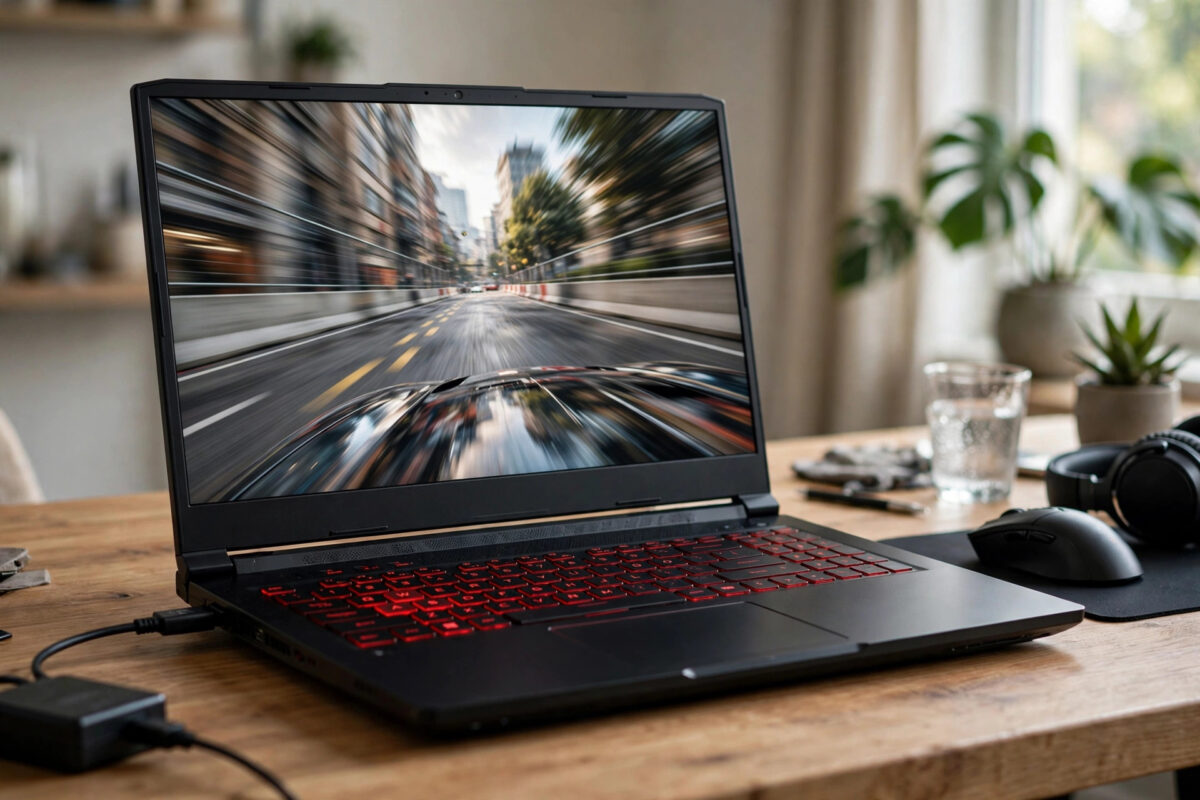
The Acer Nitro 5 is a popular gaming laptop, but on Ubuntu it often runs the desktop and games on the weak integrated graphics by default. Battery life looks good, yet performance suffers and external monitors can behave strangely. If your Nitro 5 is always plugged in for gaming, switching it to use only the dedicated NVIDIA GPU makes everything simpler and faster.
This guide covers the two ways to do it on Ubuntu: the software PRIME method that any Nitro 5 can use, and the BIOS MUX option available on newer models. It also covers the driver setup you must get right first, and how to undo the change if you need battery life back.
Quick Answer
Install the recommended NVIDIA driver on Ubuntu, open NVIDIA X Server Settings, go to PRIME Profiles, select Performance Mode (NVIDIA only), apply, and reboot — or run sudo prime-select nvidia in a terminal and reboot. On newer Nitro 5 models you can also enter the BIOS, set the display mode to Discrete GPU Only or dGPU Only if the option exists, save, and exit. After rebooting, glxinfo | grep "OpenGL renderer" should show your NVIDIA card.
Before You Switch: Important Trade-Offs
Dedicated GPU only mode is not free. Understand the trade-offs before you commit:
- Battery life drops a lot. The NVIDIA GPU may use two to three times more power at idle than the integrated GPU. Expect noticeably shorter unplugged time.
- Heat and fan noise increase at idle. The fans will run more often even when you are only browsing.
- Games and 3D apps get simpler and faster. No offload commands, no wrong-GPU launches, and fewer issues with capture software and external displays.
If you travel with your Nitro 5 often, consider NVIDIA On-Demand mode instead, which keeps the integrated GPU for the desktop and offloads games only. Dedicated only mode is best for a laptop that lives on a desk plugged in.
Step 1: Install and Verify the NVIDIA Driver
Never change PRIME modes on a broken driver install. Get this step right first.
- Connect your laptop to power and the internet.
- Open Software & Updates and go to the Additional Drivers tab, or open a terminal.
- See what Ubuntu recommends by running
ubuntu-drivers devices. - Install the recommended driver automatically with
sudo ubuntu-drivers autoinstall, or install a specific version such assudo apt install nvidia-driver-550if that is the recommended branch for your system. - Reboot the laptop.
- After reboot, run
nvidia-smi. You should see your GPU name, driver version, and temperature with no error.
If nvidia-smi says it could not communicate with the driver, do not continue. Reinstall the driver and check Secure Boot — unsigned NVIDIA modules are a common failure on Ubuntu with Secure Boot enabled. Either enrol the module key during install or disable Secure Boot in the BIOS for testing. General driver guidance is in the official Ubuntu documentation for installing NVIDIA drivers.
Step 2: Switch to NVIDIA Only with PRIME (Software Method)
This method works on every Nitro 5 running Ubuntu, regardless of BIOS options.
Using the Graphical Settings App
- Open NVIDIA X Server Settings from the applications menu.
- Click PRIME Profiles in the left panel.
- Select Performance Mode. Ubuntu describes this as using the NVIDIA GPU as the primary and only renderer for the session.
- Click Apply.
- Reboot the laptop fully. Logging out is not enough.
Using the Terminal
- Open a terminal with
Ctrl + Alt + T. - Check the current mode with
prime-select query. - Switch to NVIDIA only with
sudo prime-select nvidia. - Reboot with
sudo reboot.
After the reboot, your whole desktop session runs on NVIDIA. Steam, browsers with hardware acceleration, and all games will use the dedicated card without any launch options.
If you also play through Steam and still see odd behaviour in a single title, our troubleshooting notes on fixing a game that uses the integrated GPU instead of NVIDIA on Linux cover per-game checks that still apply.
Step 3: Use the BIOS Discrete GPU Option on Newer Models
Some newer Nitro 5 models include a MUX switch or a BIOS display option. This is a hardware-level change and is even more complete than PRIME, because the integrated GPU is bypassed for the internal display.
- Save your work and restart the laptop.
- Press
F2repeatedly during the Acer logo to enter the BIOS setup. - Look under the Main, Advanced, or Display section for an option named Discrete GPU Only, dGPU Only, or Display Mode.
- If the option exists, set it to Discrete or dGPU Only.
- Press
F10to save and exit, then let Ubuntu boot normally.
Not all Nitro 5 generations have this option. If you cannot find it after checking every tab carefully, your model does not expose it — use the PRIME method instead and do not try to force it with BIOS mods. Acer model differences and BIOS layouts are described in Acer’s official support resources for Nitro laptops, where you can check your exact model’s manual.
Note that with a true MUX in dGPU mode, battery life is at its lowest and the integrated GPU may not appear in Linux at all. That is expected behaviour in this mode.
Step 4: Verify the Switch Worked
- Run
glxinfo | grep "OpenGL renderer". It should now show your NVIDIA GeForce card, not Intel or AMD integrated graphics. - Run
nvidia-smiand keep it open. You should see Xorg and your desktop processes listed as using the GPU. - Run
prime-select query. It should reportnvidiaif you used the PRIME method. - Launch a game you know well and compare frame rates with your previous results. A large jump confirms the change for gaming loads.
- Check an external monitor if you use one. On many Nitro 5 units the HDMI port is wired to the NVIDIA GPU, so behaviour can improve in this mode.
How to Switch Back to Hybrid or Power Saving Mode
You may need the integrated GPU again for a trip or quiet work. Reversing the change is easy:
- For PRIME, run
sudo prime-select on-demandfor balanced hybrid mode, orsudo prime-select intelon Intel models for integrated only. - Reboot after changing the profile.
- For the BIOS method, re-enter the BIOS with
F2, set the display mode back to Hybrid, MSHybrid, or Optimus, save withF10, and reboot. - Verify with
glxinfo | grep "OpenGL renderer"— the integrated GPU should be the desktop renderer again in hybrid mode.
Fixing Problems After the Switch
Black Screen After Reboot
A black screen usually means a driver or Secure Boot problem, not a failed laptop. Reboot, open a TTY with Ctrl + Alt + F3, sign in, and run sudo prime-select on-demand, then sudo reboot. Once you are back on the desktop, reinstall the recommended NVIDIA driver cleanly and try again.
Screen Tearing on the Desktop
Open NVIDIA X Server Settings, go to X Server Display Configuration, select your display, click Advanced, and enable Force Full Composition Pipeline. Apply and save to your X configuration if prompted.
Battery Draining Even While Sleeping
This is a known cost of NVIDIA only mode on some models. If sleep drain is unacceptable for your use, return to On-Demand mode, which handles power states much better on modern drivers.
Common Mistakes and Useful Tips
- Changing PRIME without rebooting: The change only applies to a new session after a full reboot. Many users think it failed when they simply did not restart.
- Installing the driver from the NVIDIA website .run file: This often breaks with Ubuntu updates. Always prefer Ubuntu’s packaged driver through
ubuntu-drivers. - Looking for a BIOS option that your model does not have: Nitro 5 hardware varies by year. No BIOS option means use PRIME — there is nothing wrong with your machine.
- Mixing PRIME NVIDIA mode with manual offload variables: Once you are in Performance Mode, remove
prime-runlaunch options from games. They are unnecessary and can cause duplicate offload attempts. - Forgetting about Secure Boot: If the driver worked and then broke after an update, check whether a new unsigned module was blocked.
A useful tip: before a long trip, switch to On-Demand and reboot the night before, then test the desktop and sleep once at home. Never change GPU modes at the airport when you cannot troubleshoot.
Conclusion
Switching an Acer Nitro 5 to dedicated GPU only on Ubuntu is a simple change with big effects: install a clean Ubuntu-packaged NVIDIA driver, select Performance Mode with prime-select nvidia or NVIDIA Settings, reboot, and verify with glxinfo and nvidia-smi. Use the BIOS dGPU option instead if your exact model offers it. Enjoy the simpler, faster gaming setup while plugged in — and remember the exact steps to return to On-Demand when battery life matters again.
Frequently Asked Questions
Will NVIDIA only mode damage my Nitro 5?
No. It is a supported operating mode. The laptop will run warmer and use more power, which is normal. Keep vents clear and use the laptop on a hard surface while gaming.
Why does my BIOS have no Discrete GPU option?
Acer ships many Nitro 5 variants. Some have a MUX switch and BIOS option, others do not. Models without it can still achieve NVIDIA only behaviour in Ubuntu through PRIME Performance Mode.
How do I check which mode I am currently in?
Run prime-select query for the PRIME profile and glxinfo | grep "OpenGL renderer" for the GPU actually rendering your current desktop session.
Can I keep NVIDIA only mode but still save some battery?
Only a little. Lower screen brightness, close GPU-accelerated apps you are not using, and use Power Saver power profile for light tasks. For real battery life, switch back to On-Demand mode.
Do I need launch options for Steam games after switching?
No. In Performance Mode every application uses NVIDIA by default, so you can remove prime-run %command% and similar offload options from your Steam games.



Leave a Reply