
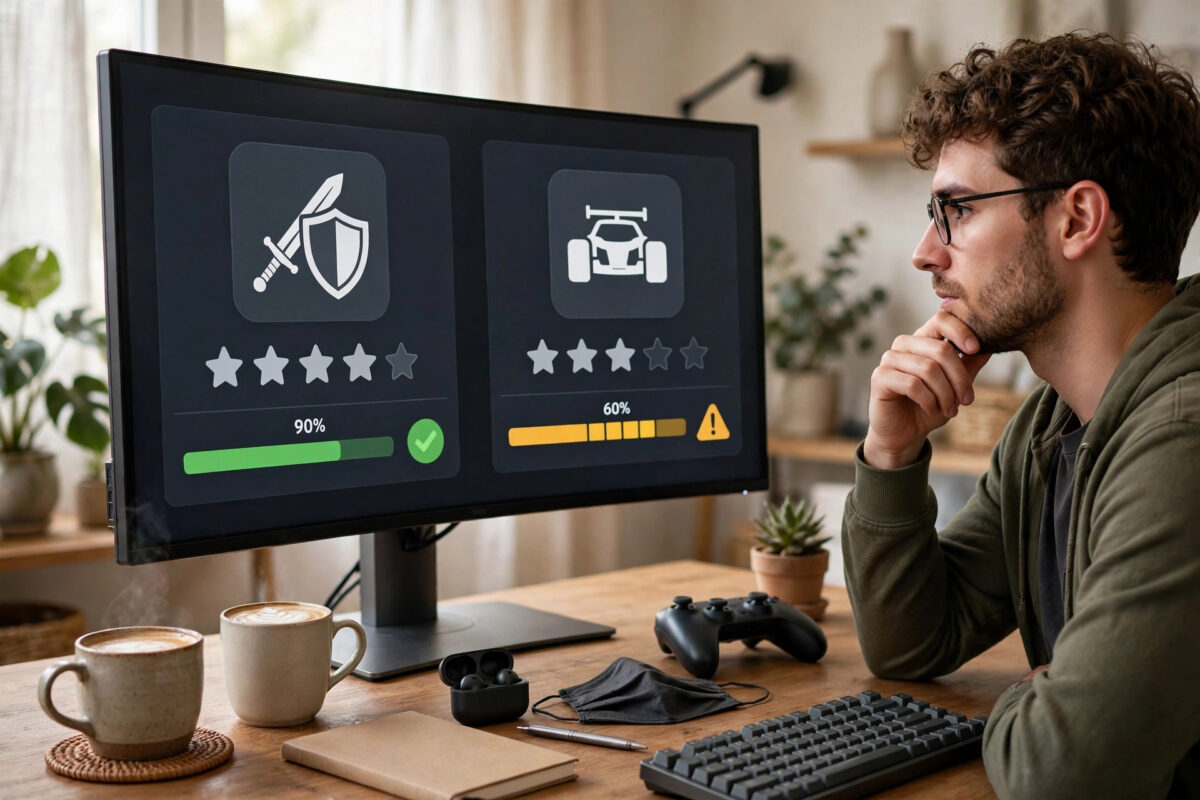
Buying a Windows game for Linux without checking first can waste money. A game might look perfect on its Steam store page and then fail to launch, run without sound, or break after every update. ProtonDB solves this problem by collecting real reports from Linux players who already own the game.
In a few minutes you can find a game’s exact ProtonDB rating, the best Proton version to use, and the launch options that other players rely on. This guide shows you how to read those reports correctly so you buy with confidence, not hope.
Quick Answer
Go to ProtonDB, search the game by its exact name or Steam App ID, and check its medal rating — Platinum and Gold are the safest, Silver needs tweaks, Bronze is risky, and Borked means it does not work. Open the top recent reports for your distribution and GPU, note the Proton version and any launch options they list, and only buy when recent reports match your hardware. Always confirm the anti-cheat status before purchasing a multiplayer game.
What ProtonDB Is and Why It Matters
ProtonDB is a community database built around Valve’s Proton compatibility layer. When a player runs a Windows game on Linux through Steam, they can submit a report describing whether it launched, how well it performed, and what fixes they used.
Steam’s own Deck Verified label is helpful, but it focuses on the Steam Deck at low settings. ProtonDB covers desktops, laptops, different distributions, and both NVIDIA and AMD hardware. For a desktop Linux buyer, that wider view is more useful.
You can browse everything without an account on the official ProtonDB website for checking game compatibility reports. Signing in with Steam is optional and lets you see games from your own library more quickly.
Understanding the ProtonDB Rating System
Every game with enough reports gets a medal. The medal is a summary, not a guarantee, so you still need to read individual reports.
- Platinum: Runs perfectly out of the box with no tweaks, similar to native performance.
- Gold: Runs perfectly after minor tweaks such as a launch option or a specific Proton version.
- Silver: Playable, but with some issues such as occasional stutter, missing videos, or workaround steps.
- Bronze: Playable in a limited way, often with crashes or major features missing.
- Borked: Does not launch or is completely unplayable with current Proton versions.
- Pending and Native: Pending means not enough reports yet. Native means the game has an official Linux build and does not need Proton.
Pay attention to trends. A Gold game with ten positive reports in the last month is a safer buy than a Platinum game whose last good report was three years ago before a big anti-cheat update.
Step-by-Step: Check a Game Before Buying
- Find the game’s Steam App ID. Open its Steam store page — the number in the URL after
/app/is the App ID, for examplehttps://store.steampowered.com/app/1245620/means App ID 1245620. - Go to ProtonDB and type the game name or paste the App ID into the search box.
- Open the correct result. Check the cover art and App ID match, because many games have similar names, editions, and DLC entries.
- Read the medal at the top of the page and the total number of reports.
- Scroll to the recent reports section and filter where possible.
- Open at least five recent reports, ideally from the last three to six months.
- Note the Proton version, GPU, driver, distribution, and verdict in each report.
- Write down any repeated launch options or fixes before you decide to buy.
If you want a shortcut, you can go directly to a game’s page with a URL like https://www.protondb.com/app/APPID, replacing APPID with the real number. This is handy when comparing several games during a sale.
Once you have bought a title, our companion guide on how to install Steam and enable Proton Experimental for a specific game shows how to apply the version you found.
How to Read Individual Reports Properly
Match Reports to Your Own Hardware
A report is only useful if the player’s system is similar to yours. Prioritise reports with:
- The same GPU family — NVIDIA, AMD, or Intel
- A similar driver series, especially for NVIDIA proprietary drivers
- The same distribution family, such as Ubuntu, Fedora, or Arch
- A desktop setup if you are on desktop, not only Steam Deck reports
Steam Deck reports are valuable for controller and performance hints, but the Deck uses an AMD APU at 1280×800. A game that runs well there may still have issues at 1440p on NVIDIA, and the opposite can also be true.
Look for Patterns, Not Single Opinions
One negative report after an update does not make a game Borked. Look for repetition. If four players in a row say videos are black without a specific fix, expect that issue. If nine out of ten recent reports say “runs out of the box” on Proton 9, that is a strong signal.
Also check the timestamps. Game updates, new DLC, and anti-cheat changes can break compatibility overnight. Recent reports outweigh older ones.
Check Performance Notes and Extra Features
Good reports mention frame rates, stutter, save sync, controller support, and online play. Pay special attention to notes about:
- Cutscenes and video playback — a very common Proton issue
- Multiplayer, invites, and voice chat
- Mods, launchers, and extra DRM such as third-party accounts
- Ultrawide, HDR, and high refresh rate support
Finding and Understanding Launch Options
Launch options are short commands you paste into Steam Properties under General. ProtonDB reports often include them in a dedicated field. Common examples include:
PROTON_USE_WINED3D=1 %command%— forces an older rendering path for very old gamesGAMEMODERUN %command%— runs the game with Feral GameMode for better CPU schedulingDXVK_HUD=compiler %command%— shows shader compilation activity, useful for diagnosing stutterPROTON_ENABLE_NVAPI=1 %command%— enables NVIDIA features such as DLSS in supported titles%command% -novid— a game-specific flag that skips an intro video, not a Proton variable
Every launch option string must end the variable section with %command% in the correct position. If a report shows an option without it, read the full report carefully — the player may have shortened it. Copy options exactly, including capital letters, because Linux is case-sensitive.
Do not stack every option you find. Start with the most commonly reported one, test, and add another only if you still have the specific problem it claims to fix.
Check Anti-Cheat Before Buying Multiplayer Games
Anti-cheat is the number one reason a game can be Platinum for single player and unplayable online. Easy Anti-Cheat and BattlEye can work under Proton, but only if the developer enables Linux support.
ProtonDB reports will mention if online play works, but also check whether recent reports tested multiplayer at all. Many reports only test the campaign. If no one confirms online play in recent reports, treat the game as a risk for multiplayer, even if the medal is high. Valve explains developer requirements in the Steamworks Proton documentation for anti-cheat and compatibility.
Common Mistakes and Useful Tips
- trusting the medal alone: Always read recent reports. The medal is an average over the game’s whole history.
- Ignoring your GPU difference: A fix that works on AMD Mesa drivers may do nothing on NVIDIA, and vice versa.
- Buying during a sale without checking the refund window: Steam refunds generally require less than two hours played and a request within 14 days. Test a risky game immediately after buying, not weeks later.
- Confusing a sequel or edition: Remasters and definitive editions have separate ProtonDB pages and often different compatibility.
- Using old launch options blindly: An option needed for Proton 7 may hurt performance on Proton 9. Prefer options from recent reports with current versions.
- Forgetting launchers: Games that open EA, Ubisoft, or Rockstar launchers inside Steam add another failure point. Reports will usually call this out — believe them.
A practical tip for sales: make a shortlist, check each game on ProtonDB in order, and sort them into “safe,” “needs tweaks I accept,” and “skip for now.” That ten-minute check prevents most refund hassle.
Conclusion
ProtonDB is the most reliable pre-purchase check a Linux gamer has. Look beyond the medal, read recent reports that match your hardware, confirm anti-cheat support for multiplayer, and note the exact Proton version and launch options that successful players use. If the recent evidence is consistently positive, you can buy with reasonable confidence. If reports are old, mixed, or silent on online play, wait for a sale or a refund-safe test.
Frequently Asked Questions
Is a Gold rating good enough to buy?
Yes, for most players. Gold means the game runs perfectly after minor tweaks. Just make sure you are comfortable applying the tweak mentioned in the reports, such as a launch option or a specific Proton version.
What if a game has no ProtonDB reports?
Treat it as unknown, not as working. Small indie games often work well, but without reports there is no evidence. Buy only if you are willing to test it within Steam’s refund window.
Should I trust Steam Deck Verified instead of ProtonDB?
Use both. Deck Verified tells you about Deck controls and performance. ProtonDB gives broader desktop data, driver details, and fixes that Valve’s label does not show.
Where do I put launch options in Steam?
Right-click the game in your Library, select Properties, and paste the option into the Launch Options box on the General tab. Close the window and launch the game normally.
Can ProtonDB ratings change after a game update?
Yes. A patch can improve or break compatibility. That is why recent reports matter more than the overall medal, especially for live-service and multiplayer games.



Leave a Reply