
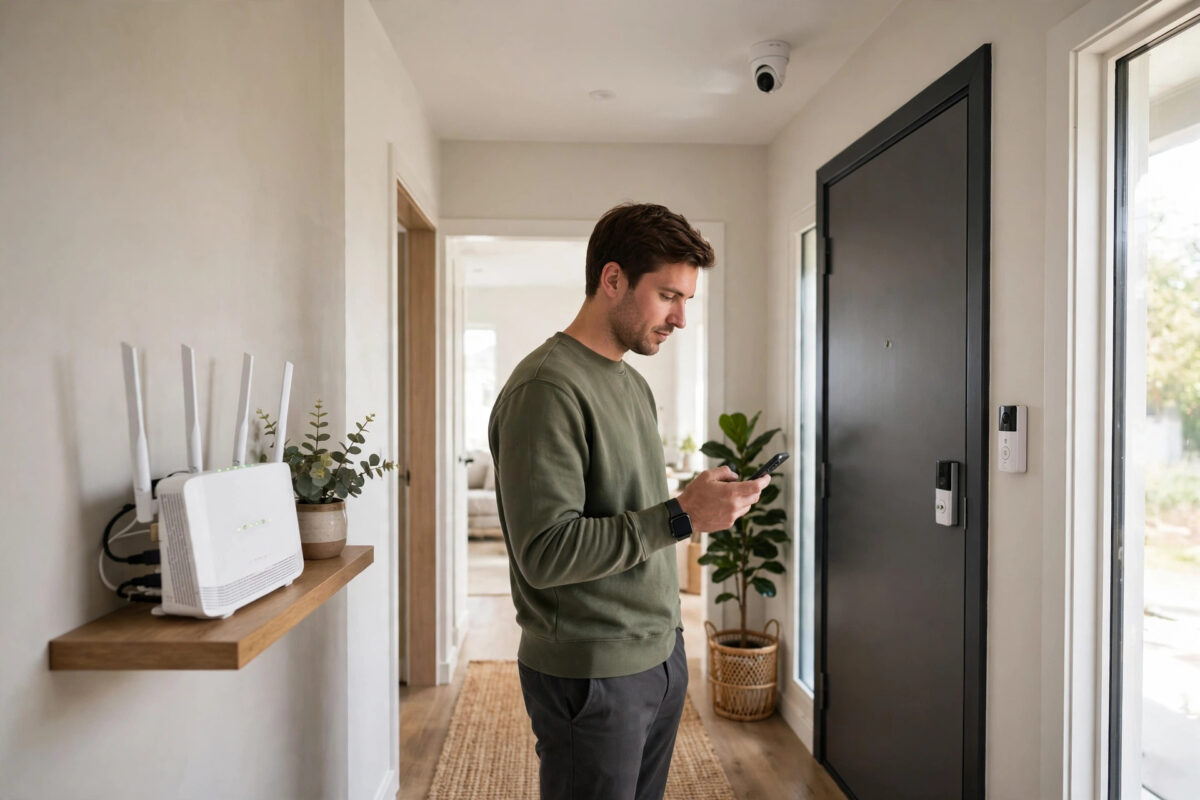
Your video call freezes, a film buffers at the worst moment, or a game lags — and you start to wonder whether one of your smart home devices is quietly hogging the connection. Cameras uploading around the clock, a doorbell that never sleeps, or a TV box backing up to the cloud can all eat more bandwidth than a houseful of smart bulbs ever will.
The tricky part is that most smart devices do not tell you what they are using. You have to look at the network itself. In this guide you will learn how to check which smart home devices are secretly using the most Wi-Fi bandwidth, how to read your router’s traffic tools, and what to do about the worst offenders without breaking the automations you rely on.
Quick Answer
To check which smart home devices use the most Wi-Fi bandwidth, open your router or mesh app’s traffic or client list, sort devices by data used over the last 24 hours or 30 days, and match each device name or MAC address to your cameras, doorbells, TVs, and plugs. Smart cameras and video doorbells are almost always the biggest users, followed by streaming sticks and smart TVs. If your router has no per-device stats, use its band and connection details, a network monitoring app provided by your mesh system, or brief isolation tests — turning one suspect device off and watching whether the total usage drops.
What Counts as High Bandwidth in a Smart Home
Not all smart devices are equal. Understanding the scale helps you spot a genuine problem instead of worrying about harmless gadgets.
- Tiny users: Smart bulbs, plugs, buttons, and most sensors send only small bursts of data. Even dozens of them together use very little.
- Moderate users: Voice assistants, smart displays, and thermostats use more when streaming music, showing photos, or updating, but they are rarely the main culprit.
- Heavy users: Security cameras, video doorbells, baby monitors with cloud recording, smart TVs, and streaming sticks dominate home upload and download usage.
- Hidden heavy users: A device stuck in an update loop, a camera constantly uploading motion clips from a busy street view, or a hub backing up large files can spike without you noticing.
Remember the difference between speed and total data. A camera may only use a modest speed at any second, but if it uploads all day and all night, its total over a month is enormous. For most checks, total data over 24 hours and 30 days tells the clearest story. If you are also sorting out coverage problems, our guide to improving Wi-Fi for smart home devices will help you separate a bandwidth problem from a weak-signal problem.
Step 1: Name Your Devices Properly First
Router lists are confusing when every device is called something like ESP_3A2F or an unknown string of letters. A few minutes of naming saves an hour of guessing.
- Open each major brand app — cameras, doorbell, TV, hub — and note the device name and, where shown, its MAC address.
- In your router app, rename recognised clients to friendly names like Hall Camera or Front Doorbell.
- Take a screenshot or write a simple list linking the friendly name, the room, and the MAC address.
- Group unknowns together. If an unnamed device uses almost no data for a week, it is probably a bulb or sensor and not your problem.
Step 2: Use Your Router or Mesh App Traffic Tools
Most modern routers and mesh systems include some form of traffic analysis, though the name and depth vary by brand. Look for sections called Traffic, Activity, Insights, Stats, or Connected Devices.
- Open your router or mesh app and sign in as the admin.
- Find the client or device list and look for a sort or filter by data used, usage, or activity.
- Switch the period to 24 hours first for a quick picture, then to 7 or 30 days for the real ranking.
- Sort from highest to lowest and note the top five devices and whether their usage is mostly download or upload.
- Tap a heavy device to see its connection band, signal strength, and when it was most active, if the app shows it.
Upload matters as much as download in a smart home. Cameras mainly upload, and many home broadband connections have far less upload capacity, so one busy camera can hurt video calls even when your download speed looks excellent on paper. Your internet provider’s usage tools can also confirm the household total, and many providers explain those meters in their help pages — for example, check the support section of your own provider alongside a general reference like the Google Nest Wifi device usage guidance if you use a Google mesh system.
Step 3: Check Camera and Doorbell Settings Separately
Cameras deserve their own investigation because their settings decide their appetite.
- Open the camera app and check whether recording is set to continuous, motion-only, or scheduled.
- Look at video quality. Dropping an outdoor camera from maximum quality to a balanced setting can cut usage sharply with little real loss.
- Review motion zones. A camera that films a busy road or a tree waving in the wind may upload hundreds of useless clips a day.
- Check how many cameras share the same account and whether old cameras you no longer use are still online.
- Note the times of the biggest spikes and match them to events — deliveries, street activity, or a pet moving around at night.
The Ring support centre and your own camera brand’s help pages explain how recording length, motion frequency, and quality settings affect data use for that specific model, so use them for exact menu names.
Step 4: Run Simple Isolation Tests for Mystery Devices
If your router only shows a household total with no per-device breakdown, you can still find a culprit with patience.
- Note the total usage over a normal evening, at a set time.
- Turn off or unplug one suspect device, such as a camera or streaming box, for the same period the next evening.
- Compare the totals. A large drop points to that device.
- Repeat for one device at a time. Changing everything at once tells you nothing.
- Check for devices you forgot: a spare tablet auto-playing, a games console downloading updates, or a smart TV in a guest room left streaming.
Step 5: Act on What You Find
Finding the heavy device is only half the job. The fix depends on whether the usage is legitimate or wasteful.
- Adjust camera zones and sensitivity so passing traffic and swaying plants do not trigger constant uploads.
- Lower quality slightly on cameras that cover wide, distant views where fine detail adds little security value.
- Schedule recording for cameras that do not need to watch an empty room all day.
- Move heavy devices to the right band or closer to an access point so they are not struggling and retrying on a weak signal.
- Use Quality of Service settings in your router, if available, to protect work calls and classes from being crowded out.
- Update firmware on any device with unexplained spikes, and factory-reset a device that appears stuck in a loop after checking the maker’s advice.
Common Mistakes to Avoid
- Blaming smart bulbs and plugs. They are almost never the issue. Start with cameras, doorbells, and anything that streams video.
- Judging by one hour of data. A backup or update can spike briefly. Use 24-hour and 30-day views before making decisions.
- Confusing signal strength with bandwidth. A device with weak signal may be slow, but that is a placement problem, not necessarily a data problem.
- Blocking a device without warning. Cutting off a camera or hub suddenly can disable alerts and automations. Adjust settings first.
- Ignoring upload usage. Many people only look at downloads. In a smart home, upload from cameras is often the bottleneck.
Helpful Tips for Ongoing Monitoring
Check your traffic ranking monthly, set usage alerts if available, and check a new camera’s usage after its first week. Keep a note of normal usage for your busiest devices so spikes stand out.
Conclusion
Checking which smart home devices use the most Wi-Fi bandwidth is mostly about looking in the right place and reading the ranking calmly. Name your devices, sort your router’s traffic by 24-hour and 30-day use, investigate cameras and doorbells first, and use isolation tests when your router gives limited detail. Then tune zones, quality, and schedules rather than unplugging things in frustration. You will end up with a faster, calmer network — and a clear answer the next time someone asks what is eating the Wi-Fi.
Frequently Asked Questions
Which smart home device usually uses the most bandwidth?
A security camera with cloud recording is usually the biggest user, especially if it records continuously or uploads many motion clips. Video doorbells, baby monitors, and smart TVs streaming in high quality follow close behind.
Why does my router show a device name I do not recognise?
Many devices use technical names or randomised addresses by default. Match the MAC address in the brand app, rename the device in the router once you identify it, and check low-usage unknowns over a week before worrying.
Can smart bulbs and plugs slow down my Wi-Fi?
They use very little bandwidth, so they rarely slow a network by data alone. Very large numbers of devices can strain an old router’s ability to manage connections, which is a different problem from bandwidth.
How can I reduce camera bandwidth without losing security?
Tighten motion zones, lower sensitivity for harmless movement, use motion-only recording where suitable, and reduce quality one step on wide views. Test the picture after each change to confirm you can still see faces and number plates where it matters.
My router has no per-device traffic stats. What can I do?
Use any insights in your mesh or provider app, check each camera app’s own data or activity view, and run isolation tests by turning off one suspect at a time. A future router upgrade with proper traffic analysis is also worth considering.



Leave a Reply