
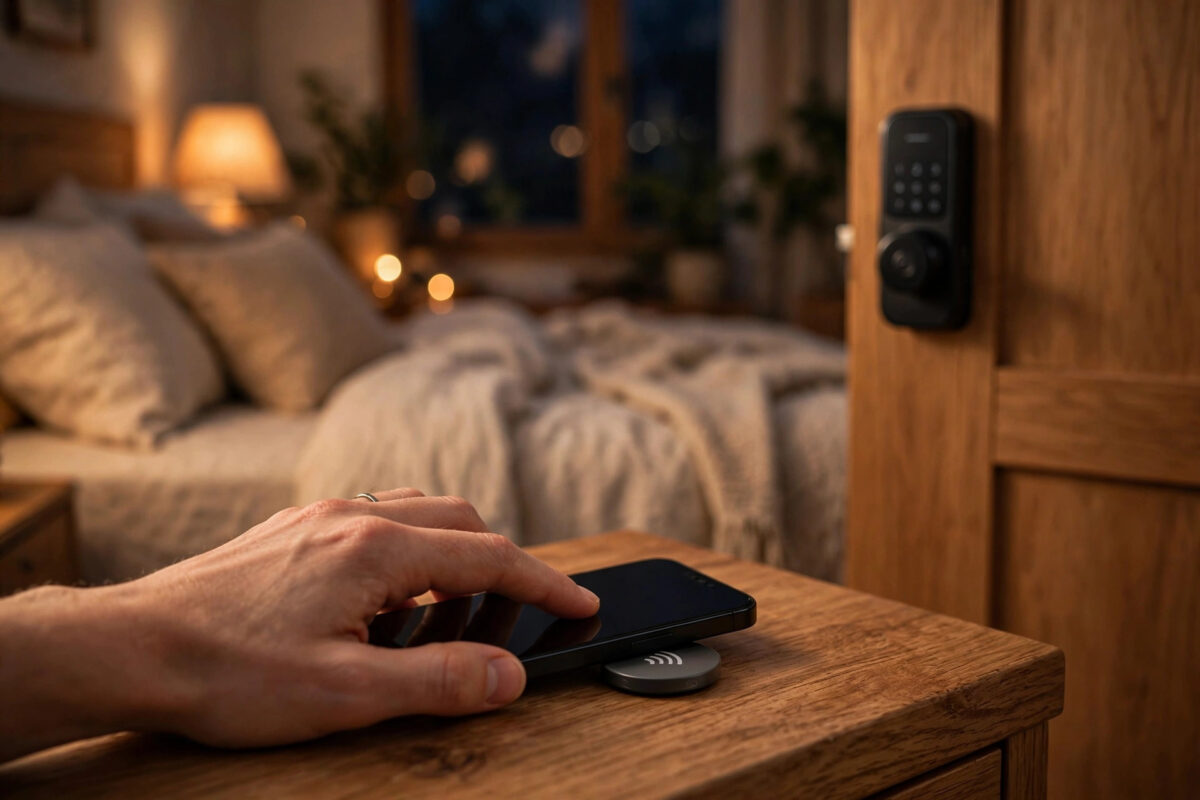
Tapping your phone against a small sticker on your nightstand and watching the house settle down for the night feels like magic. The doors lock, the hallway lights fade, and your phone slips into Do Not Disturb — no app to open and no voice command to repeat.
NFC tags make that possible. They are tiny, cheap, and they work without batteries. In this guide you will learn how to set up NFC tags to start a bedtime scene that locks doors and dims lights, whether you use an iPhone, an Android phone, Home Assistant, SmartThings, or Apple Home. You will also learn where to place tags and how to avoid common mistakes.
Quick Answer
To set up NFC tags for a bedtime scene, first create the bedtime scene in your smart home app so it locks your smart locks, turns off or dims your lights, and sets any other devices you want. Then write or link a blank NTAG215 or NTAG213 tag to that scene using your phone — on iPhone use Shortcuts automations, on Android use Home Assistant, SmartThings, or an NFC writing app. Stick the tag on your nightstand, tap your phone to it, and confirm the scene runs. Test it for two or three nights and adjust the dim levels and lock delays until it feels natural.
What You Need Before You Start
You do not need a lot of kit, but having everything ready makes the setup much smoother. Most problems happen because a lock or light was never added to the main smart home app in the first place, so check that first.
- A pack of blank NFC tags, ideally NTAG213 or NTAG215. Avoid metal surfaces unless you buy on-metal tags, because metal can block the signal.
- A phone with NFC turned on. Most modern Android phones and iPhones from the XS onward support tag reading in the background or through Shortcuts.
- Smart locks and smart lights already paired and working in one app, such as Apple Home, Home Assistant, SmartThings, or Google Home.
- The companion app for writing tags if your platform needs one, such as NFC Tools on Android or Shortcuts on iPhone.
- A clear idea of your ideal bedtime state: which doors must lock, which lights go fully off, and which lights should only dim to a warm, low level.
Step 1: Build the Bedtime Scene First
Do not start with the tag. Start with the scene. The tag is only a trigger — if the scene itself is messy, the tag will faithfully run a messy scene every night.
Create the scene in your main app
- Open your smart home app and find Scenes, Routines, or Automations.
- Create a new scene and name it something clear like Bedtime, Night Lock, or Sleep Mode.
- Add every smart lock and set it to Lock. If your lock has a jam alert, turn that notification on.
- Add your main lights and set them to Off. Add bedroom lamps and hallway lights separately and set them to dim to 10 to 20 percent with a warm colour temperature.
- Add optional extras: lower the thermostat by one or two degrees, close smart blinds, turn off the TV, and arm any security sensors you use at night.
- Save the scene and run it manually once from the app while you walk around the house.
That manual test matters. Watch the lock engage and check no light is left at full brightness. Fix the scene now, not after you stick the tag down. For more scene ideas, see our guide to creating smart home automations that actually work.
Step 2: Set Up the NFC Tag on iPhone
On iPhone, the cleanest method is the Shortcuts app. You do not need to write data to the tag at all — the phone recognises the tag and runs the automation.
- Open Shortcuts and tap Automation at the bottom.
- Tap the plus icon and choose NFC from the list of triggers.
- Tap Scan and hold the top of your iPhone against a blank tag until it beeps or vibrates.
- Name the tag Bedtime and choose Run Immediately if you want no confirmation tap, or Ask Before Running if you prefer a safety prompt.
- Add actions: Control Home to run your Bedtime scene, set Focus to Sleep, lower the volume, and optionally send a notification that says the house is locked.
- Tap Done, lock your phone, and test the tag with the screen on and then with the screen just woken.
Step 3: Set Up the NFC Tag on Android and Home Assistant
Android gives you more choices. The method depends on which platform runs your bedtime scene.
Using Home Assistant
- Open the Home Assistant app, go to Settings, then Tags, and tap Add Tag.
- Hold your phone against a blank tag to write and register it.
- Go to Settings, Automations and Scenes, create a new automation, and choose Tag as the trigger. Select the tag you just scanned.
- Add actions to call your Bedtime scene, lock your lock entities, and set your light entities to low brightness.
- Save, then tap the tag again to confirm the automation history shows a clean run with no errors.
The Home Assistant tag trigger documentation covers how tag IDs are stored and how to share tags between phones in the same home.
Using SmartThings or NFC Tools
In SmartThings, create a Routine for your Bedtime scene, then use NFC Tools to link a tag to it. Test different phone positions, as Android NFC antennas vary by model.
Step 4: Place the Tag Where You Will Actually Use It
Placement decides whether you use the tag nightly or forget it. Pick somewhere your phone already lands at bedtime.
- On the edge of your nightstand, away from wireless chargers that can interfere with reading.
- On the bedroom door frame at hand height, so you trigger it as you walk in.
- On a bedside book, coaster, or phone stand that does not move around.
Stick the tag down only after two successful test nights with removable tape. Test with your phone case on — thick wallet cases and metal plates often block reading.
Step 5: Add Safety Checks and Delays
A bedtime scene that locks doors needs caution, so nobody is locked out or left in darkness on the stairs.
- Add a 20 to 30 second delay for hallway and landing lights after the main lights go off, so people can get to bed safely.
- Set locks to lock immediately, but keep notifications on so you hear a failure or a jam straight away.
- Do not include garage doors or gates in the same instant action unless your system confirms they are already closed.
- If you have children or guests, create a second, gentler tag that only dims lights and does not lock internal doors.
- Keep a physical key or code option working. A smart scene should never be the only way to secure or enter your home.
Common Mistakes to Avoid
- Building the tag before the scene. If the scene is wrong, every tap repeats the same mistake. Always test the scene from the app first.
- Buying the wrong tags. Cheap unlabelled tags may be read-only or too small to hold the data you need. NTAG213 and NTAG215 are safe, widely supported choices.
- Sticking tags on metal. Standard tags often fail on metal doors, fridges, and bed frames. Use on-metal tags for those surfaces.
- Forgetting other phones. A tag set up on your phone does nothing for a partner’s phone until you add the same automation there too.
- Making the scene too aggressive. Turning every light fully off at once feels harsh. A soft dim in bedrooms and hallways is safer and more pleasant.
- No manual fallback. If Wi-Fi goes down, you should still be able to lock up and turn lights off by hand without hunting for instructions.
Helpful Tips to Make It Feel Effortless
Label tags with a moon icon so family members tap the right one. Review the scene every few months — a new bulb or replaced lock can quietly break part of it.
Conclusion
Setting up NFC tags to start a bedtime scene is one of the simplest upgrades you can make to a smart home. Build a reliable scene first, link a blank NTAG tag to it through Shortcuts, Home Assistant, or SmartThings, place it where your phone naturally rests at night, and add sensible delays and notifications. After a few nights of testing, locking doors and dimming lights becomes a single tap instead of a tour of the whole house — and that quiet consistency is exactly what good automation should feel like.
Frequently Asked Questions
Do NFC tags need batteries or Wi-Fi?
No. NFC tags are passive. They get a tiny amount of power from your phone when you hold it close, and they do not connect to Wi-Fi themselves. Your phone and smart home hub do the rest of the work after the tap.
Can one NFC tag work with both iPhone and Android in the same house?
Yes, in many setups. The tag itself just carries an ID. Each phone needs its own automation that listens for that tag and runs the bedtime scene, so set it up once on each person’s phone.
What if my phone does not read the tag through its case?
Try moving the tag to the centre of the phone’s back, removing metal plates, or using a thinner case for testing. If it still fails, the tag may be faulty or placed on a surface that blocks the signal.
Is it safe to lock doors automatically at bedtime?
It can be, if you keep notifications on, keep a manual key or code working, and make sure everyone is inside. Add delays for lights, never rely only on the tag, and test the locks during the day first.
How many bedtime tags should I have?
Start with one on your nightstand. Most people add a second by the front door or in the hallway later. More than two or three for the same scene is rarely needed and can cause confusion.



Leave a Reply