
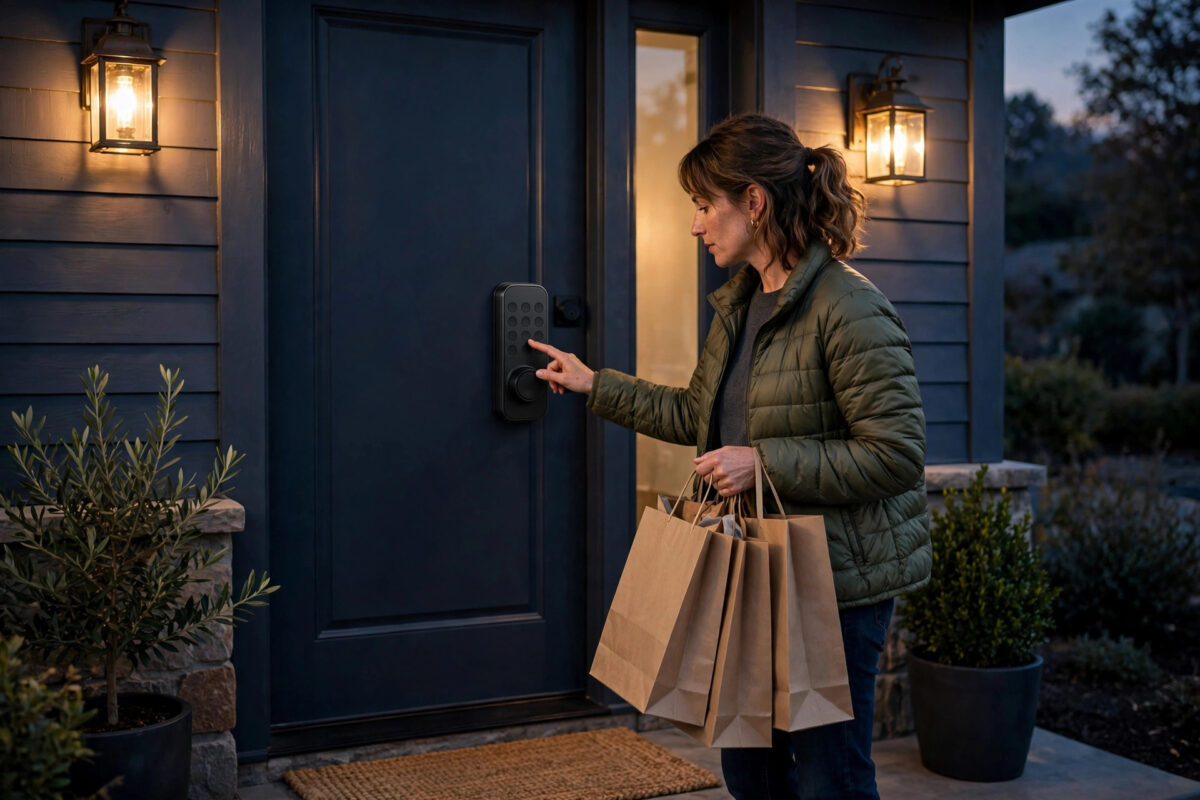
Coming home after dark with bags in both hands is awkward enough. Fumbling for a light switch while the porch sits black makes it worse, and leaving the porch light on all evening just in case wastes energy and looks untidy. There is a neater way: let your door lock do the work.
If your smart lock reports which code was used to open the door, SmartThings can use that exact moment to run a porch light scene. Different codes can even trigger different welcomes — one for family, one for a cleaner, one for a guest. This guide explains the setup clearly, from checking your lock to testing the routine.
Quick Answer
In SmartThings, first confirm your smart lock shows unlock events with the code or user that opened it, and build your porch scene under Scenes. Then create a Routine that triggers when the lock is unlocked by your chosen code, add a condition for after sunset if you only want it at night, and set the action to run that porch light scene. Test it by locking up, waiting a minute, and unlocking with the code.
What You Need for This to Work
Not every lock reports code information in the same way, so check the basics before building anything. A few minutes here saves a lot of confusion later.
- A compatible smart lock: A Z-Wave or Zigbee lock from brands such as Yale, Schlage, or Kwikset that reports user codes to SmartThings.
- Smart porch lighting: A smart bulb, smart switch, or outdoor smart light that SmartThings already controls.
- A saved scene: The exact porch light setting you want — brightness, colour, and which lights are included.
- Codes set up on the lock: Named users or at least known code slots, so you can tell family apart from guests.
Wi-Fi-only locks that connect through their own brand app may not expose code events to SmartThings at all. If your lock only shows locked and unlocked, with no detail about who opened it, you can still trigger lights on any unlock, but not on a specific code.
Step 1: Check What Your Lock Reports
- Open the SmartThings app and tap your door lock.
- Lock and unlock the door once using a PIN code on the keypad, not the app.
- Open the lock’s History tab and read the event that was recorded.
- Look for wording that names the user, the code, or a code slot number, such as “Unlocked by Code 1”.
- If the history shows only “Unlocked”, note that down — your trigger options will be simpler.
Some locks need their codes created inside SmartThings, using the Smart Lock Guest Access feature or the lock’s own settings page, before names appear in history. If your codes were made only on the keypad itself, consider recreating them through the app so each person has a clear label.
SmartThings explains code management in its official SmartThings support documentation, including how guest codes are added and removed for supported locks.
Step 2: Build the Porch Light Scene First
Scenes are the tidy way to do this. Instead of adding five light actions inside every routine, you save the perfect porch setup once and simply run it.
- In SmartThings, go to the Scenes area and create a new scene called something clear, like Porch Welcome.
- Add your porch light, path lights, and any hallway light you want included.
- Set each light to turn on, and choose brightness and colour — a warm 80 percent is welcoming without being harsh.
- Optionally add a second scene, Porch Welcome Late, with dimmer settings for very late arrivals.
- Test the scene by running it manually and standing outside to check the result looks right.
Think about how the lights should turn off again. Many people add a separate routine that turns the porch off 10 minutes after the door closes, or include the delay inside the scene routine itself, so the welcome light never burns all night by accident.
Step 3: Create the Code-Triggered Routine
Now connect the lock event to the scene. This routine is the heart of the whole setup.
- Go to Automations or Routines and create a new routine.
- For the trigger, choose Device status, select your lock, and pick the unlocked state.
- If SmartThings offers a “unlocked by” or method option for your lock, select your code or named user.
- Add a condition so the routine only runs between sunset and sunrise, or during set evening hours.
- For the action, choose Run a scene and select Porch Welcome.
- Add a delayed action to turn the porch light off after 10 minutes, if you have not handled that elsewhere.
- Name the routine clearly, such as Family Code Porch Welcome, and save it.
Create separate routines for separate codes if you want different results. Your own code might run the full welcome scene, while a dog walker’s code turns on only the porch light and sends you a phone notification that they arrived.
Our guide on creating SmartThings routines for smart locks covers the trigger options in more depth if your lock shows extra choices.
Step 4: Add Sensible Conditions and Limits
A routine with no conditions will fire at noon on a bright day, which is pointless. A few limits make it feel intelligent rather than random.
- Time window: Run the scene only from sunset to sunrise, using the built-in sun-based condition where possible.
- Door direction: The trigger should be an unlock from outside using a code, not someone unlocking from inside to step out.
- Notification for guest codes: Pair lesser-used codes with a phone alert, so you know when a guest, cleaner, or tradesperson arrives.
- No repeat spam: If the code is entered twice in a minute, the scene simply runs again — harmless for lights, but avoid adding loud alerts to the same routine.
Step 5: Test Like a Real Arrival
- Go outside, close the door, and lock it with the keypad or app.
- Wait at least a minute so the routine is not confused by your setup steps.
- Enter your code exactly as a family member would.
- Watch the porch: the scene should run within a few seconds of the lock opening.
- Repeat the test with a second code to confirm each routine behaves as planned.
- Test once in daylight too, and confirm the sunset condition correctly blocks the lights.
If nothing happens, check the routine’s history in the app. It will usually show whether the routine ran and failed, or never triggered at all — two very different problems with different fixes.
Common Mistakes to Avoid
- Triggering on any unlock: Without a code or method condition, lights fire when someone leaves the house too. Narrow the trigger where your lock allows it.
- Forgetting the off step: A welcome scene with no off plan leaves porch lights burning until morning.
- Codes that exist only on the keypad: Unlabelled slots make routines and history hard to read. Recreate important codes in the app with names.
- Testing from inside: Unlocking with the thumb turn does not equal a code entry. Always test from outside with the PIN.
- Overloading one routine: Lights plus sirens plus multiple notifications for a normal family arrival quickly becomes annoying. Keep welcomes gentle.
Conclusion
Triggering a porch light scene from a door lock code is a small automation that feels genuinely thoughtful every single night. Check that your lock reports code events, save a tidy porch scene, and link them with a sunset-only routine in SmartThings. Add separate behaviour for guest codes if you wish, test from outside like a real arrival, and your home will greet you properly from then on.
Frequently Asked Questions
Why does my SmartThings routine not show an option for a specific code?
That option depends on your lock model and how its codes were created. Some locks only report a plain unlock event. Recreating codes through SmartThings or the Smart Lock Guest Access feature can expose named users on supported locks.
Can different door codes trigger different light scenes?
Yes, on locks that report which code was used. Build one routine per code, each running its own scene — for example a bright welcome for family and a porch-only light plus notification for a cleaner.
Will the porch lights also turn on when I unlock from inside?
They can if your trigger is set to any unlock. Where possible, set the trigger to a keypad code unlock, and add a sunset-to-sunrise condition, so inside unlocks during the day do not run the scene.
How do I stop the porch light staying on all night?
Add a delayed off action in the same routine, such as turning the porch light off after 10 minutes, or create a follow-up routine that switches it off when the door has been closed and locked for a set time.
Does this work if my internet goes down?
Many SmartThings routines stored on a local hub keep running without the internet, but code reporting depends on your lock and hub model. The lock itself always works with its PIN, even if the light scene cannot run.



Leave a Reply