
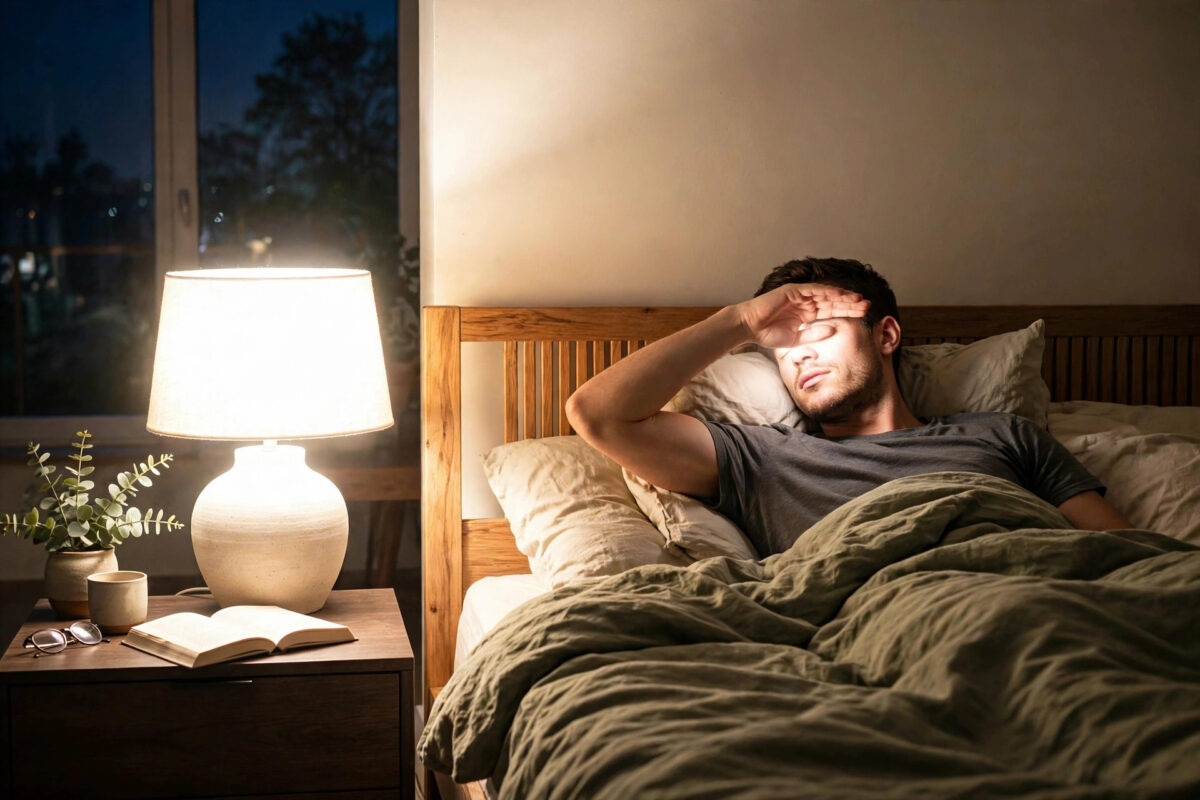
The power flickers for half a second at 2 a.m. The fridge clicks, the router restarts, and suddenly every smart bulb in your bedroom blasts back on at full brightness, right in your face. By the time you find your phone, open the app, and turn them down, you are wide awake and very annoyed.
You are not alone, and your bulbs are not broken. Most smart lights are designed to behave like a normal bulb when power returns, which means turning on, often at full brightness, so you are never left in the dark after an outage. The good news is that nearly every major brand now lets you change this power-on behaviour. This guide shows you where the setting hides in each app and how to set your home up so a midnight flicker never blinds you again.
Quick Answer
Open your bulb brand’s app, select the bulb or room, and find the Power On Behaviour, Power Loss Recovery, or Start-Up Behaviour setting. Change it from On or Last On at full brightness to Last State, Remember Last Status, or Off, depending on what the bulb was doing before the flicker. Save it for every bulb, especially bedroom bulbs, and test by switching the lamp off and on at the wall.
Why Smart Lights Turn On After a Flicker
A normal, non-smart bulb has no memory. When power comes back, if the wall switch is on, the bulb lights up. Early smart bulbs copied this behaviour on purpose, for safety. If there was a real power cut and you walked into a room and flipped the switch, you expected light. A bulb that stayed off after power returned would feel broken.
The problem is that a half-second flicker is not a real outage. You were asleep, the bulb was off in the app but still had power at the switch, and when power blinked, the bulb treated it as a fresh start and turned itself on, usually at 100 percent brightness and a cool white colour, which feels even harsher at night.
Modern bulbs solve this with a memory setting. They remember whether they were on or off, and at what brightness, and return to that state after power comes back. The setting is simply turned off or set to full-on by default in many apps, which is why you have to go and change it yourself for each brand you own.
Fix It in Philips Hue
Hue has one of the clearest settings for this problem, but it is set per bulb or per room, so you need to apply it everywhere it matters.
- Open the Hue app and go to Settings, then Lights.
- Select a bulb, or set the behaviour room by room if your app version allows it.
- Tap Behaviour or Power On Behaviour.
- Choose Last On, which restores the previous brightness and colour, or choose a custom low setting if you prefer the bulb to return at a dim warm level.
- Repeat for every bedroom and hallway bulb.
The Last On option is the best choice for most homes. If the bulb was off before the flicker, it stays off. If it was on at 20 percent warm white in the evening, it returns to exactly that. Avoid the simple On option, which is the full-brightness default causing your problem. Full guidance for each app version is on Philips Hue’s official support pages.
Fix It in Other Popular Apps
Most brands use a different name for the same idea. Look for these labels in the bulb settings.
TP-Link Tapo and Kasa
- Open the Tapo or Kasa app and select the bulb.
- Tap the settings gear, then look for Power Loss Recovery or Turn On Behaviour.
- Select Last Status or Off, rather than On.
- Save and test at the switch.
IKEA, LIFX, and Other Brands
IKEA smart bulbs in the IKEA Home smart app offer a start-up setting on supported models, where you can choose whether the bulb turns on after power returns. LIFX bulbs generally return to their previous state by design, but check each bulb’s settings after a firmware update. For budget Wi-Fi bulbs sold under many names, open the Smart Life or Tuya app, select the bulb, tap More or Settings, and look for Relay Status, Power On Status, or Memory. Set it to Remember Last Status or Off.
The Best Setting for Each Room
One setting for the whole house is not always ideal. Think room by room about what should happen after a real power cut, not just a flicker.
- Bedrooms: Always Last State or Off. A bulb that was off must stay off. This is the room where the fix matters most.
- Children’s rooms and nurseries: Last State or Off, for the same reason. A full-brightness blast can end everyone’s night.
- Hallway and stairs: Last State is safest. If a dim night light was on, it returns. If everything was off, it stays off, and you can still turn lights on normally at the switch.
- Kitchen and living room: Last State works well. Some people prefer a low custom return here so the house never sits in total darkness after an evening outage.
- Security and outdoor lights: On can actually be useful here. A porch light that returns after a flicker keeps your routine and timers looking normal.
Test Your Fix Properly
Do not wait for the next real flicker to find out whether the setting worked. Test each room in the daytime.
- Set the bulb to off in the app, with power still on at the wall switch, just as it would be at night.
- Turn the wall switch off for ten seconds, then turn it back on. This simulates a power flicker.
- The bulb should stay off, or return to its last state, depending on your setting. If it blasts on at full brightness, the setting did not save, or you changed a different bulb.
- Repeat the test with the bulb on at 20 percent warm. It should return to 20 percent warm, not 100 percent white.
- Check groups and rooms as well as single bulbs, because some apps apply behaviour at group level and a group setting can override a single bulb.
If you use smart switches, plugs, or voice assistants, confirm they are not running a routine that turns lights on when power or Wi-Fi reconnects. Some energy monitoring plugs have their own power recovery setting that can turn a lamp back on even when the bulb itself is set correctly.
Extra Steps for Homes With Frequent Flickers
If your area has regular flickers, keep bedroom lamps on smart plugs set to stay off after power loss, as a second layer of protection. For help choosing bulbs with good power recovery, see our guide to the best smart light bulbs for beginners.
Mistakes to Avoid
- Changing only one bulb: The setting is usually per bulb. The one bedside bulb you forget will be the one that wakes you.
- Choosing On, thinking it means remember: In most apps, On means full power on. Last State, Last On, or Remember is the memory option you want.
- Turning bulbs off at the wall every night: A smart bulb with no power cannot be controlled by app, voice, or routine. Use the app or a smart switch instead, and let power recovery handle flickers.
- Forgetting new bulbs: Every replacement or new bulb arrives on the factory default. Add setting the power behaviour to your setup routine.
- Ignoring routines and plugs: A bulb can be set perfectly and still turn on because a plug or automation restored it. Check the whole chain.
- Testing only with the app: Turning a bulb off and on in the app does not test power recovery. You must cut and restore real power at the switch.
Conclusion
Smart lights that return at full brightness after a flicker are following an old default, not a fault. The fix takes a few minutes per brand: open the app, find Power On Behaviour or Power Loss Recovery, and set bedrooms to Last State or Off, then test by cutting power at the wall. Apply it to every bulb, including new ones, and check plugs and routines that might override it. After that, a midnight flicker becomes a non-event. The router may blink, but your bedroom stays dark and you stay asleep.
Frequently Asked Questions
Why do only some of my smart lights turn on after a flicker?
Different brands, and even different bulbs in the same app, can have different power-on settings. One bulb may be set to Last State while another is still on the factory On default. Check every bulb individually, including any in groups.
Will the Last State setting leave me in darkness after a real power cut?
No. If a light was on when power failed, Last State brings it back on at the same brightness. If it was off, it stays off, and you can turn it on normally with the switch, app, or voice as soon as power returns.
My bulb app has no power-on setting. What can I do?
Update the app and firmware first, as brands add this setting over time. If it is still missing, move that bulb to a less sensitive room, control the lamp with a smart plug that has power recovery set to off, or replace the bedroom bulb with a model that supports the setting.
Does a smart switch solve the problem better than a smart bulb?
It can help. A good smart switch restores its previous state cleanly and controls normal bulbs without any per-bulb settings. Many homes use smart switches for main ceiling lights and keep smart bulbs, with correct power behaviour set, for lamps and colour lighting.
Why did my lights come on after a flicker even after I changed the setting?
The setting may not have saved, a group setting may override the bulb, or a smart plug or automation may have turned the light on when power or Wi-Fi returned. Retest that exact bulb at the wall switch, then check group, plug, and routine settings in that order.



Leave a Reply