
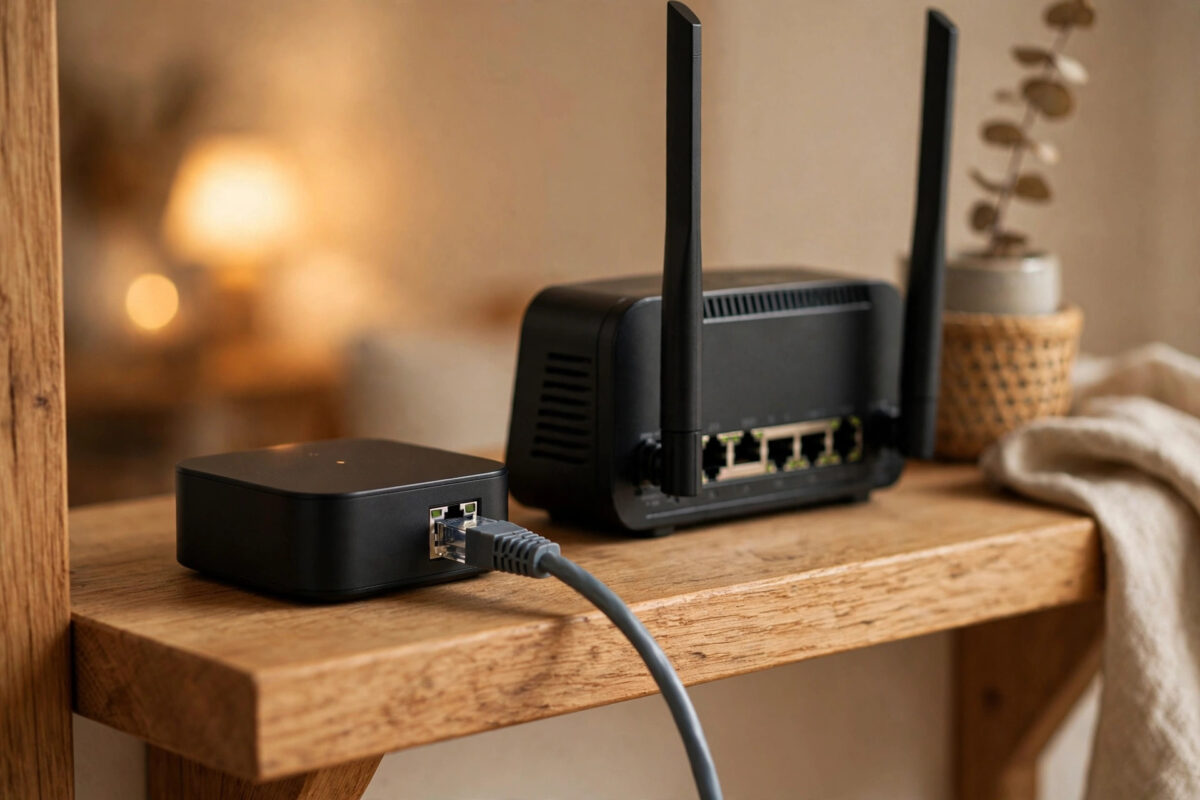
Your Aqara devices were fine in the morning. By the evening, the app says the Hub M2 is offline. The light has changed, automations have stopped, and when you check the router, the hub has vanished from the wired list. Then, an hour later, it may come back on its own.
Ethernet should be the most stable way to connect a hub. When an M2 keeps losing that connection, the cause is usually simple: a poor cable, a sleepy switch port, a power problem, or two devices fighting over the same IP address.
This guide takes you through the checks in the right order, from the two-minute fixes to the router settings.
Quick Answer
Replace the Ethernet cable with a known good one, plug the M2 directly into a main router port, and power it with its original adapter. Then reserve a fixed IP address for the hub in your router settings so nothing else can take it. If drops continue, check the switch or mesh node for energy-saving settings and update the hub firmware.
What a Healthy M2 Connection Looks Like
The Hub M2 can connect by Wi-Fi or Ethernet. With Ethernet plugged in, it should stay listed in your router’s wired devices list all day, every day. Its indicator should show a normal connected state, and the Aqara Home app should open its page without an offline warning.
Short drops during a router restart are normal. Drops several times a day are not. Keep a note of when it drops for a day — patterns point to different causes.
Because the hub depends on your home network, it helps to rule out wider faults too. If other wired devices drop at the same time, work through our guide to fixing a router that keeps disconnecting alongside this one.
Step 1: Fix the Physical Basics
Most M2 Ethernet faults are cured here. Do not skip these because they sound too simple.
Change the Cable
- Unplug the Ethernet cable at both ends.
- Look at the plugs. Bent clips and loose ends are common, especially on flat cables that get trapped under furniture.
- Fit a different cable that you know works, such as the one from a TV box or computer.
- Push each end in until it clicks. Give it a gentle tug to confirm it stays.
- Watch the port lights on the router or switch. They should light and flicker with activity.
Cables fail inside where you cannot see. A cable that worked for a laptop at a desk can fail when it hangs behind a shelf. Always test with a swap, not just a look.
Check Power
The M2 needs steady USB power. A weak phone charger, an old power strip, or a TV USB port that turns off with the TV can make the hub restart or drop its network chip while looking mostly alive. Use the adapter that came with the hub, plugged into a wall socket that stays on. If the hub gets warm, restarts when you touch the power lead, or drops when other items on the strip switch on, try a different socket and lead.
Go Direct to the Router
For testing, bypass everything. Plug the M2 straight into a free LAN port on your main router. No switch, no mesh node, no powerline adapter, no wall socket run. Leave it like that for a day. If it stays online direct, the fault is in the part you bypassed — and you can add parts back one at a time to find it.
Step 2: Check the Port, Switch, and Mesh Node
If a direct router port works but your normal setup does not, focus here:
- Try a different port: Single ports fail. Move the cable to another LAN port and test again.
- Check energy saving: Many switches and mesh nodes have green Ethernet or eco modes that cut power to quiet ports. A hub sends little traffic, so the port may think nothing is there. Turn eco mode off for that port if you can.
- Check port speed settings: Leave speed and duplex on auto. A fixed setting that does not match the other end causes random drops.
- Avoid smart TV boxes and extenders as middlemen: Some pass-through ports sleep when the box sleeps.
- Update switch or mesh firmware: Known port bugs are often fixed quietly in updates.
If you use a mesh system, plug the M2 into the main router unit for the test, not a satellite node. A satellite that reboots or moves its backhaul can drop everything wired to it, even though your Wi-Fi looks fine.
Step 3: Fix IP Address Problems
An IP conflict is a classic cause of a hub that works, vanishes, works again, and vanishes. It happens when the router gives the hub’s address to another device, or the hub keeps an old address after a router change.
Reserve a Fixed Address
- Open your router admin page and find the connected devices list.
- Find the Hub M2 and note its MAC address and current IP address.
- Open the DHCP reservation or static lease section.
- Reserve that IP address for the hub’s MAC address, so the router always gives it the same one.
- Restart the router, then unplug the hub’s power for 10 seconds and plug it back in.
- Confirm the hub appears at the reserved address and stays there.
Do not set a fixed address inside a random app without reserving it on the router as well. Two systems managing addresses without talking to each other is how conflicts start. For hub-specific menus, Aqara’s official support pages cover the M2 network settings and indicator meanings.
After Changing Router or Internet Provider
A new router often uses a different address range. The hub may cling to settings from the old network. If drops began right after a router swap, remove the hub from the app only as a last resort — first try a network reset on the hub using the method in the manual, then join it fresh to the new router by Ethernet and reserve its address straight away.
Step 4: Update, Restart Cleanly, and Test
- Update the Aqara Home app on your phone.
- In the app, check for Hub M2 firmware updates and install any that are waiting.
- Restart in this order: router first, wait until your internet is fully back, then power the hub.
- Do not judge the fix in the first hour. Watch for a full day of normal use.
- Test an automation that runs through the hub, not just the app icon, to prove child devices are working too.
Also check heat. A hub on a warm amplifier or in direct sun can misbehave. Give it air on a flat shelf.
When Wi-Fi Is the Better Test
As a short test only, disconnect Ethernet and connect the M2 by 2.4 GHz Wi-Fi close to the router. If it stays online for two days on Wi-Fi but drops on Ethernet, you have proved the wired path — cable, port, or switch — is at fault. If it drops on both, look at power and firmware first, then contact support, as the hub itself may be faulty. Do not leave this test half done: return it to Ethernet once you know, and keep the reserved IP in place.
Mistakes to Avoid
- Testing with the same suspect cable: Pushing a bad cable back in harder is not a test. Swap it.
- Powering the hub from a TV or switch USB port: Those ports sleep. The hub then looks like a network fault.
- Plugging into a sleeping satellite or switch and blaming the hub: Test direct to the main router before judging.
- Setting fixed addresses in two places: Reserve on the router only, and let the hub take that address.
- Restarting everything at once, every day: That hides the pattern. Change one thing, then watch for a day.
- Ignoring the drop times: A hub that drops when the heating timer or TV turns off is telling you where to look.
Conclusion
An M2 that keeps losing Ethernet almost always comes down to cable, port, power, or IP address. Swap the cable, go direct to the main router, use the original power adapter, and reserve a fixed address. Add switches and mesh nodes back one by one if you had to bypass them. If it still drops on a direct port with good power and a reserved address, update the firmware and contact Aqara support with your drop times — that evidence speeds up a warranty fix.
Frequently Asked Questions
Is Ethernet better than Wi-Fi for the Hub M2?
Yes, in most homes. Ethernet does not suffer from Wi-Fi crowding or weak signal through walls, and it frees your 2.4 GHz band for other devices. It is only better if the cable and port are healthy, which is what the tests in this guide check.
Why does my M2 come back online on its own?
A device with an IP conflict or a port in eco mode can lose the network and regain it when traffic wakes the port or the other device goes quiet. That on-off pattern is a clue, not a fix. Reserve the address and turn off port energy saving to stop it.
Can a faulty switch cause only the hub to drop?
Yes. The hub sends very little traffic compared with a computer or TV box, so it is often the first device a sleepy or failing port drops. Test the hub on a main router port to rule the switch in or out.
Will reserving an IP address stop my automations breaking?
It helps keep the hub reachable at a stable address, which matters for local integrations and some router features. More importantly, it stops another device from taking the hub’s address, which is a common cause of sudden offline periods.
How long should I test after each change?
Give each change at least 24 hours unless the hub drops within minutes. Ethernet faults can be tied to sleep timers and daily routines, so a short test can pass while the real fault is still waiting to happen.



Leave a Reply