
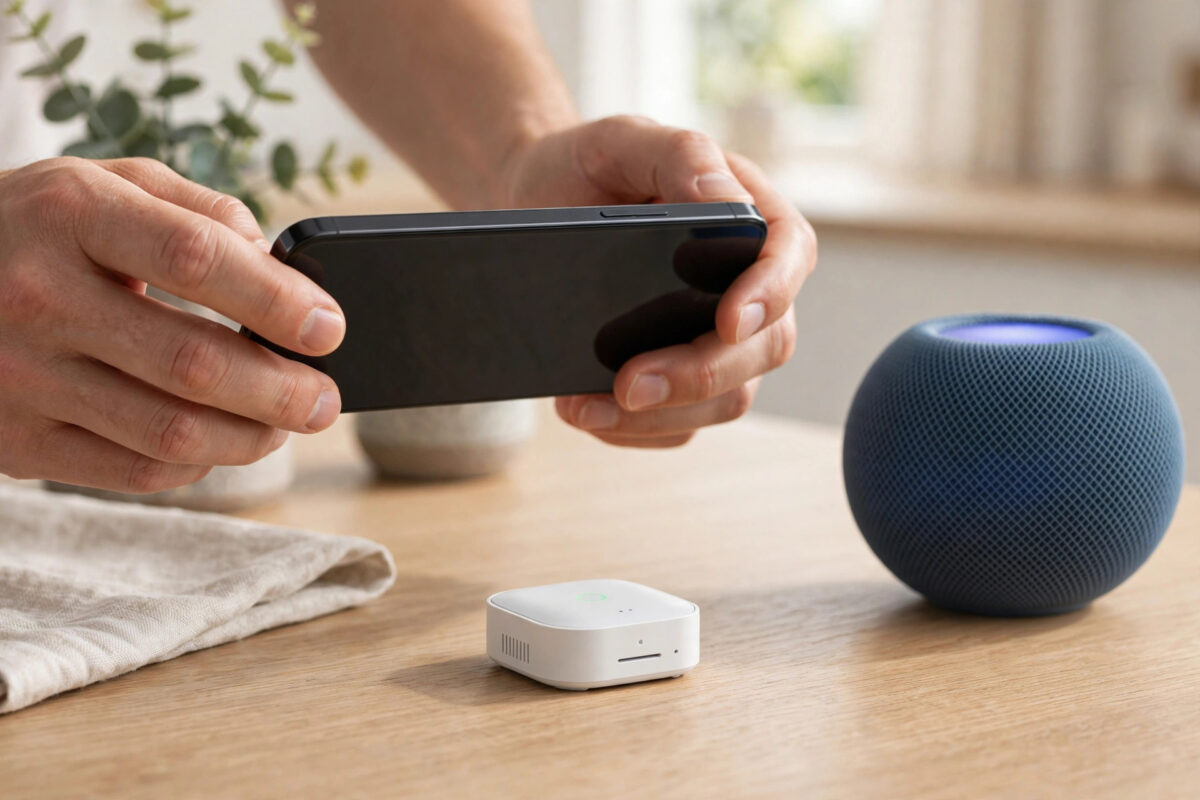
You bought a new Matter-over-Thread device, scanned its QR code exactly as instructed, and watched the progress wheel spin until pairing timed out. No clear error, just a failed setup and a device still blinking, waiting to be paired. This is one of the most common early Matter experiences. The timeout rarely means the device is faulty. Pairing uses Bluetooth for the first handshake, your home network for commissioning, and a Thread mesh for long-term communication. The QR code only starts that chain. If any link is missing, too far away, or blocked, the process runs out of time. This guide gives you a repeatable method for success.
Quick Answer
Place the device within a few metres of a working Thread border router, such as a HomePod mini, newer HomePod, or compatible Apple TV, and pair with your phone nearby on your home Wi-Fi with Bluetooth on and any VPN off. Factory reset the device so it is in fresh pairing mode, scan the QR code again, and do not leave the setup screen until pairing finishes. Most timeouts are caused by no reachable border router, the device not being in pairing mode, or the phone using the wrong network.
What Happens When You Scan the QR Code
The QR code contains the device setup information, including a unique pairing code. Scanning it tells your home app which device you want and how to start a secure conversation. Your phone then talks to the device briefly over Bluetooth Low Energy and hands it what it needs to join your home. The device is commissioned onto your Thread network through a border router. Only when commissioning finishes does it appear as a working accessory.
Four Things That Must Be Ready
- Device in pairing mode: Most devices offer pairing for only a limited window after power-on or a factory reset.
- Bluetooth on the phone: The first exchange needs Bluetooth, with the phone close to the device.
- Border router online nearby: Without one, a Thread-only device has no path into your home.
- Phone on the correct network: Use your main home Wi-Fi, not mobile data alone, a guest network, or a VPN.
A timeout means one of these four was not ready in time. Prepare all four before you scan, instead of scanning first and hoping the rest catches up.
Prepare Your Home Before Scanning Again
Confirm You Have a Border Router
A Matter-over-Thread device cannot join through a normal Wi-Fi router alone. It needs a Thread border router in the same ecosystem you are pairing into. Common examples include the HomePod mini, the second-generation HomePod, and certain Apple TV 4K models with Thread radios. Other brands offer border routers too, but confirm Thread support for your exact model, not just Matter support in general. Check that the border router is powered, online, and listed as connected before you start. As the Connectivity Standards Alliance Matter overview and resources explain, Matter devices still depend on the correct underlying network, such as Thread or Wi-Fi. If you have no border router, no amount of rescanning will succeed. Add one first and let it settle for a few minutes.
Choose One Ecosystem and Prepare the Phone
Decide which ecosystem will own the device first, such as Apple Home, Google Home, SmartThings, or Alexa, and pair it there cleanly before sharing it elsewhere. Starting setup in one app and finishing in another often leaves the device half-commissioned until it is reset.
- Join your main home Wi-Fi, preferably 2.4 GHz for setup, in the same room as the border router.
- Turn Bluetooth on and grant the home app Bluetooth and Local Network permissions.
- Turn off any VPN and pause features that might move the phone off Wi-Fi mid-pairing.
- Keep the phone awake and the setup app in the foreground for the whole process.
Step-by-Step Method After a Timeout
Step 1: Factory Reset the Device Properly
After a failed attempt, always reset before trying again. A timed-out device is often no longer in a clean pairing state, even if its light still blinks. Follow the maker’s exact reset for your model, often holding a button for 5 to 15 seconds or power-cycling in a set pattern for plugs and bulbs. Wait for the confirmed reset signal, then let the device enter fresh pairing mode. If you pair into Apple Home, Apple Support instructions for adding Matter accessories with a setup code show where the code is used and what to expect during setup.
Step 2: Bring Everything Close Together
For the first pairing, place the device within about 2 to 5 metres of the border router, with no thick wall, metal cabinet, or large appliance between them, and keep your phone nearby. Fit a bulb in a lamp near the border router for setup even if its final home is upstairs, and set up plugs and sensors on a nearby socket first. You can move a Thread device after pairing and the mesh will usually find a new route, but the first commissioning should be as easy as possible. The first device in a sparse Thread network is always the hardest to add.
Step 3: Scan and Stay With the Process
- Power the freshly reset device and confirm it is in pairing mode.
- Open your chosen home app and start Add Accessory or Add Device.
- Scan the QR code on the device itself, not a blurry photo or a box code that may belong to another unit.
- If scanning fails, type the numeric Matter code manually to bypass camera and lighting problems.
- Stay on the setup screen near the device and wait. Commissioning can take one to three minutes when working correctly.
- Name the device, assign a room, and test it immediately while still nearby.
After the first pairing succeeds, save any sharing code the app offers for a second ecosystem. That sharing code is different from the original QR code and is generated by the owning ecosystem.
Step 4: Isolate the Fault If It Still Times Out
- Try near a different border router if you have two. One offline border router blocks every Thread pairing.
- Restart the border router, wait two minutes after it reconnects, reset the Matter device again, and retry.
- Restart the phone to clear stuck Bluetooth and discovery states.
- Check for split Thread networks in mixed-ecosystem homes. Pair into one primary ecosystem first for the cleanest result.
- Test once with router security suites and VPNs off, as they can block commissioning traffic.
If the device pairs but then drops offline soon after, see our Matter device not responding after setup troubleshooting guide, because post-pairing reachability has slightly different causes.
After Pairing Succeeds
Once the device responds reliably nearby, move it to its final position and test again after 10 minutes, giving the Thread mesh time to settle on new routes. If it works nearby but fails in its final room, your Thread coverage has a gap. Adding a mains-powered Thread device, such as a smart plug, midway often fixes the gap permanently, because mains-powered devices route for others. Update the firmware after pairing and test once more, as early Matter firmware greatly improved Thread joining. Finally, photograph the QR label and note the owning ecosystem for future resets.
Common Mistakes and Useful Tips
Scanning before the border router is ready: A just-plugged-in border router needs a few minutes to become available. Prepare the home first, scan second.
Retrying without resetting: After a timeout the device is rarely still clean. A proper factory reset before each serious retry prevents identical failures.
Pairing from too far away: Bluetooth range and weak Thread signals both punish distance. Set up close, then move the device.
Using the wrong code: Some products carry both a Matter code and an older HomeKit code. Always use the Matter code on the device for a Matter pairing.
Useful tip: Pair when you are patient and the network is quiet, not late at night while tired. Matter rewards a calm, prepared attempt far more than repeated fast scans.
Conclusion
A Matter-over-Thread pairing that times out is almost always a preparation problem, not a broken device. The QR code starts a chain that needs a device in fresh pairing mode, Bluetooth on a nearby phone, the phone on the correct home network, and an online border router within easy reach. Prepare all four links before you scan, reset after any failure, set up close to the border router, and stay with the process until commissioning finishes. With that method, most devices that timed out repeatedly will pair cleanly on the next attempt.
Frequently Asked Questions
Why does pairing time out even though I scanned the QR code correctly?
The scan only starts pairing. The timeout happens during Bluetooth handover or Thread commissioning, usually because no border router is reachable, the device left pairing mode, or the phone changed networks during setup.
Do I need a Thread border router for every Matter device?
You need one for Matter-over-Thread devices, but not for Matter-over-Wi-Fi devices, which join through your normal router. One border router can serve many Thread devices in the same home.
Can I use the numeric code instead of the QR code?
Yes. Typing the printed numeric Matter setup code is often more reliable than scanning, especially in poor light or when the label is awkward to reach. Keep the device in pairing mode and enter the code exactly as printed.
Why does sharing to a second app fail after the first pairing worked?
Sharing uses a new, short-lived code generated by the first ecosystem. Generate a fresh sharing code, keep the device powered nearby, and complete the second pairing promptly before that code expires.
How close should the device be to the border router for first pairing?
Aim for the same room, roughly 2 to 5 metres with a clear path, for commissioning. Afterwards you can move the device further away, and adding mains-powered Thread devices will strengthen the mesh.



Leave a Reply