
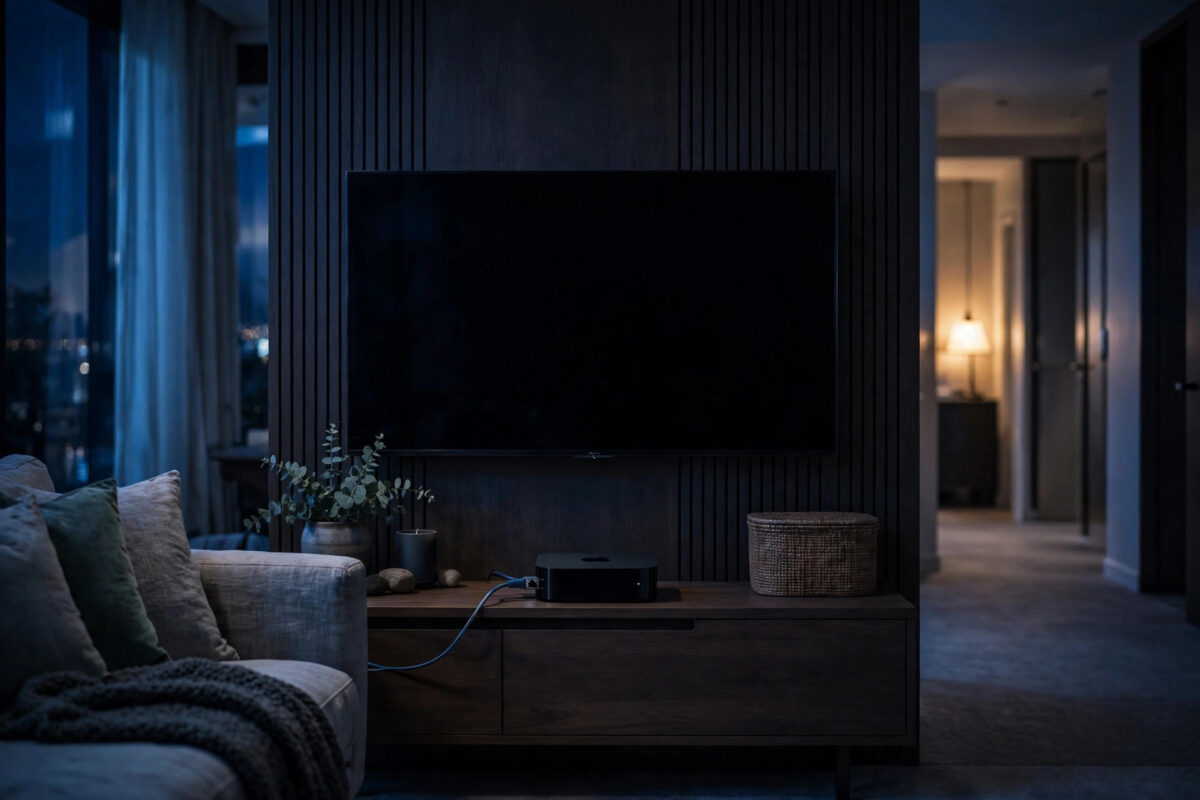
You set up a simple automation, such as turning on a hallway light at sunset or switching a plug off at midnight, and it works once or twice. Then it quietly stops, often overnight. When you check, your Apple TV hub appears to have been asleep at the time it should have fired. It is natural to blame sleep, but an Apple TV hub is designed to run automations while the screen is dark and the box looks asleep. When automations stop, the real causes are usually power, network, hub selection, or a condition that was never met. This guide separates myth from real faults.
Quick Answer
An Apple TV hub does not need its screen on to run HomeKit automations, but it must stay plugged in, connected to the network, signed into the correct Apple ID, and shown as a Connected hub. Set Sleep to Never for testing, use Ethernet if possible, remove any smart plug or timer that cuts its power, and confirm its hub status in Apple Home. Most overnight failures happen because the TV lost power or network, another hub took over badly, or an automation condition was not satisfied.
How an Apple TV Works as a Home Hub
As a hub, an Apple TV enables remote control while you are away and runs the automations stored in your Apple Home, including time, sunrise, sunset, sensor, and accessory triggers. It does this work in the background. The screen going black or the box entering a low-power idle state does not switch off the hub function.
What does stop the hub is losing power, losing the network, being signed out of iCloud, being removed as a hub, or another device taking over as the connected hub in an unhealthy state. Those faults often happen at night, which is why they are mistaken for a sleep problem.
Signs the Hub Is the Problem
- Several different automations all stop around the same time.
- Remote control from outside the home also fails at night.
- Accessories show No Response in the morning until someone wakes the Apple TV.
- The problem began after you added a HomePod or a second Apple TV.
- The Apple TV is powered through a TV USB port, soundbar, or smart plug that turns off overnight.
If only one automation fails and the rest run, the hub is probably healthy. Check that automation’s triggers and conditions instead.
Check Hub Status and Power First
- On your iPhone, open Apple Home, go to Home Settings, then Home Hubs and Bridges, and note which device shows as Connected.
- On the Apple TV, confirm it is signed into iCloud with the same Apple ID used for the home and that its hub status is enabled.
- Follow the power cable. The Apple TV must use an always-on wall socket, not a smart plug schedule, TV-controlled strip, or timer.
- Make sure nobody switches it off at the wall at night. Even a short cut at the trigger moment causes a missed automation with no later error.
As Apple Support guidance for setting up a home hub stresses, the hub must remain powered, connected, and signed in. Treat those three points as non-negotiable.
Step-by-Step Fix for Overnight Failures
Step 1: Set Sleep to Never for a Clean Test
On the Apple TV, go to Settings, General, then Sleep After, and choose Never for your test period. This removes one variable and stops idle behaviour confusing your results. Once automations have run reliably for several days, you can restore your preferred sleep time. In a healthy home they will keep running, because the hub stays active in the background. If they only work with Sleep on Never, suspect HDMI control cutting power or a network switch dropping the idle Apple TV.
Step 2: Prefer Ethernet or Strong Wi-Fi
Weak Wi-Fi and router power-saving for idle clients are hidden causes of missed automations. Connect the Apple TV by Ethernet for a one-week test if you can. This is the most reliable single change for hub stability. If Ethernet is impossible, place the Apple TV where it has a strong signal, outside closed cabinets, and keep router firmware updated. Avoid powerline adapters that sleep under low load for the hub connection. A hub that stays solidly on the network will run time automations even when your iPhone is off.
Step 3: Resolve Hub Competition
Many homes have an Apple TV plus one or more HomePods. Apple chooses one as the Connected hub and keeps the others on Standby. Frequent switching or a faulty standby hub can interrupt automations. For testing, unplug additional hubs for one night, leave only the Apple TV, and confirm a simple test automation runs, such as turning a lamp on in 15 minutes, followed by an overnight one. If that works, restore other hubs one at a time and watch which device becomes Connected. Our HomePod versus Apple TV as a HomeKit hub comparison guide explains why one option may suit your layout better.
Step 4: Rebuild One Failing Automation Cleanly
- Read the automation fully: trigger, time, conditions, and actions.
- Check conditions such as Only When I Am Home or a sensor state. A location condition can fail if location is wrong or the phone was off.
- Delete the automation completely.
- Create a simple version with one trigger and one action, such as At 9:00 p.m. turn on one lamp, with no extra conditions.
- Test it for two nights before adding conditions back one at a time.
Sunrise and sunset automations also depend on correct home location and time zone on the Apple TV and Apple ID. A wrong location makes an automation fire hours away from expectation, which looks like a failure.
Step 5: Update Software and Restart in Order
Update the Apple TV to the latest tvOS, update your iPhone, and update any HomePods in the home. Mixed major versions across hubs cause strange behaviour after release weeks. Then restart in order: router first, Apple TV hub second, and the accessory in the automation last. Wait five minutes, create a test automation 10 minutes ahead, and watch it run without touching anything. If the Apple TV will not update or stay connected, use Apple TV and tvOS support documentation from Apple for the exact recovery steps for your model.
Testing That Proves the Fix
Do not judge the fix by one daytime run. Create three test automations on consecutive hours overnight, each controlling a different lamp or plug you can check in the morning. Leave your iPhone in its normal overnight state and do not keep the Home app open. In the morning, check results before touching the Apple TV remote, because waking the TV first destroys the evidence. Repeat for a second night. Two clean nights are a far stronger sign than one, and a short note of what you changed will help if the problem returns after a new device is added.
Common Mistakes and Useful Tips
Powering the Apple TV from the TV: If it draws power from a TV USB port or a strip that turns off with the TV, the hub dies nightly. Always use an always-on wall socket.
Assuming sleep means off: Changing sleep alone rarely fixes a hub losing network or power. Check cables and hub status before blaming the screensaver.
Building a complex automation first: A time trigger plus a location condition plus a sensor condition has three ways to fail. Test simple, then add complexity.
Forgetting other hubs: A spare-room HomePod can become the Connected hub and confuse Apple TV tests. Always check Home Hubs and Bridges first.
Useful tip: Treat the hub and router like a fridge: always-on devices. Once you do, overnight automations become boringly reliable, which is exactly what you want.
Conclusion
Your Apple TV does not need to stay awake with its screen on to run automations. Its hub function works in the background while the box appears to sleep. When automations fail overnight, look for power being cut, a dropping network, the wrong device acting as hub, old software, or an unmet condition. Confirm the Apple TV is the Connected hub, give it always-on power and preferably Ethernet, test with Sleep on Never, and rebuild one simple automation as proof. With those foundations solid, your automations will run quietly without you thinking about the hub at all.
Frequently Asked Questions
Does my Apple TV need to stay awake for automations to run?
No. The screen can sleep while the hub function continues in the background. The Apple TV does need constant power, a working network connection, and Connected hub status.
Why do my automations only fail at night?
Night is when strips get switched off, routers handle idle devices differently, and nobody watches the hub. A short power or network loss at the trigger time misses that automation silently, so check overnight power and connection first.
Is Ethernet really better than Wi-Fi for an Apple TV hub?
Yes, for hub reliability it avoids Wi-Fi power-saving, weak signal, and interference. A one-week Ethernet test is the fastest way to confirm whether the network is the cause.
What if I have both a HomePod and an Apple TV as hubs?
Check which device is the Connected hub. For troubleshooting, leave only one hub powered for a night and test a simple automation, then restore the others one at a time.
Why did my sunset automation run at the wrong time?
Sunset triggers depend on home location and time zone. If either is wrong, the automation can fire hours early or late and look broken. Correct the location, restart the hub, and test the next evening.



Leave a Reply