
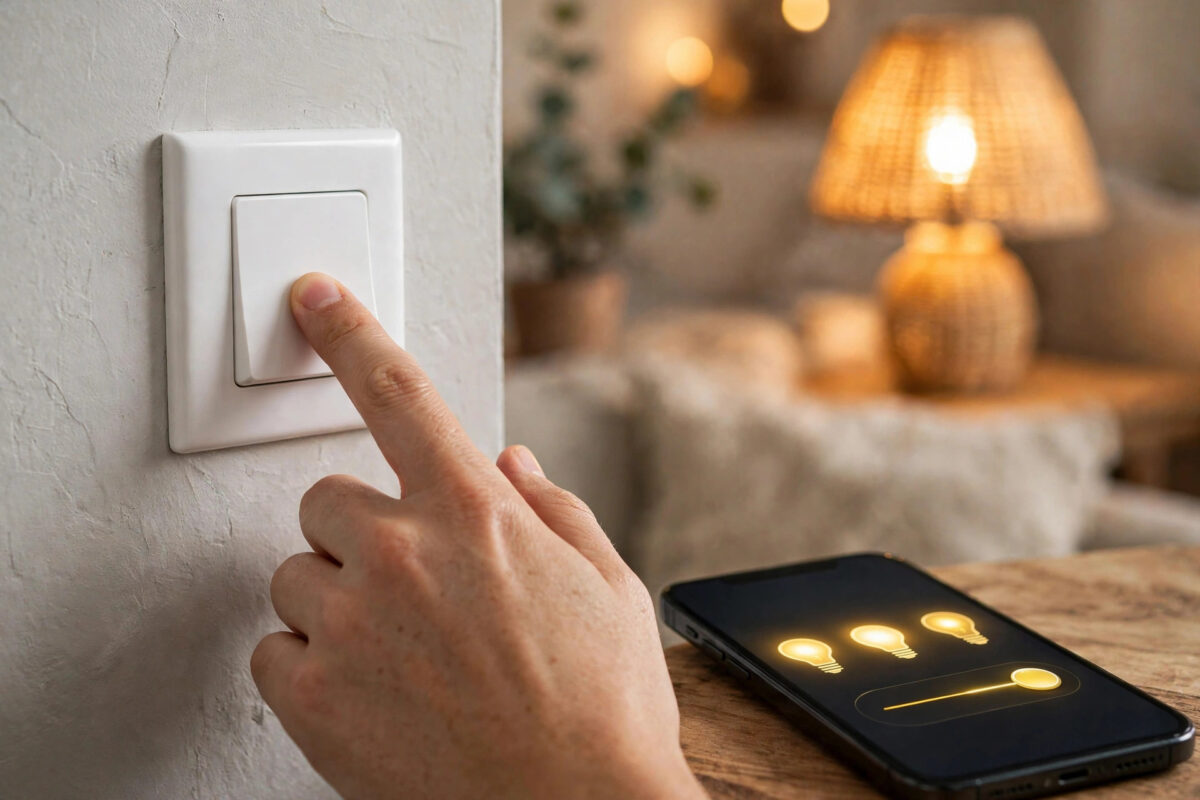
It is a strange and annoying fault. Your Leviton smart switch works perfectly from the app. You can turn the lights on from your phone, your voice assistant obeys, and schedules run on time. But walk up to the wall, press the paddle like a normal person, and nothing happens. The switch feels alive, yet the physical control seems completely dead.
This split personality — smart features fine, paddle useless — actually tells you a lot. It means the switch has power and Wi-Fi. The problem sits in the paddle mechanism, a setting, a stuck internal contact, or the way the switch was configured. Work through this guide in order and you will usually fix it without replacing anything.
Quick Answer
When a Leviton smart switch works in the app but the paddle does nothing, first try a firm press on the correct part of the paddle — top for on, bottom for off — then restart the switch using its reset method or by turning its breaker off for thirty seconds. Check in the app that no locator, lock, or automation setting is overriding manual control, and update the firmware. If the paddle still does nothing after a restart and a factory reset, the physical switch mechanism has likely failed and the switch needs replacing.
What This Fault Is Telling You
It helps to split the switch into two halves in your mind.
- The smart half — Wi-Fi radio, app control, voice control, schedules. Your fault proves this half is healthy, because the app works.
- The physical half — the paddle, its small internal contacts, and the part that senses your press and tells the switch to change state.
Your problem lives almost entirely in the physical half, or in a setting that tells the switch to ignore it. That is good news: power wiring, Wi-Fi, and your account are almost certainly fine, so you do not need to start from zero.
Safety Note
Warning: the early fixes in this guide need no tools and no wiring. If you reach the stage of removing the switch or checking wires, turn off the power at the breaker first, confirm the light no longer responds, and test the wires with a voltage tester before touching them. Mains electricity can kill. If you are not confident, hire a licensed electrician for any in-wall work.
Step 1: Press the Paddle the Right Way
This sounds too simple to matter, but it catches more people than you would expect.
- Press the top of the paddle firmly to turn the light on, and the bottom firmly to turn it off. On many Leviton smart switches, a light touch in the middle does nothing because the paddle is a rocker, not a button.
- Press and release cleanly. A slow half-press, or holding the paddle, can be interpreted differently on dimmer models — holding may start a dimming action instead of a simple on or off.
- Watch the small indicator light on the switch while you press. If the indicator changes but the light does not, skip ahead to the wiring and load checks. If nothing changes at all, the press is not being registered.
Step 2: Check the Faceplate and Paddle Seating
An over-tightened or slightly warped wall plate can bind a paddle just enough to stop it travelling fully.
- Loosen the two wall plate screws a quarter turn each and test the paddle again.
- If your model has a removable paddle or colour-change face, pop it off as the manual describes, check for paint, dust, or a tiny piece of debris behind it, and snap it back on firmly until it clicks evenly on both sides.
- Test again before moving on. A surprising number of “dead paddles” are simply paddles that cannot move.
Step 3: Restart the Switch Properly
Smart switches are small computers, and small computers occasionally freeze one function while others keep running.
- Use the model’s restart method first if it has one — many Leviton switches restart by holding the top of the paddle for a set number of seconds until the indicator light responds. Check your model’s exact timing on the Leviton support pages for your switch model.
- If that is not available or does not help, go to the breaker. Turn the circuit off, wait a full thirty seconds — not five — and turn it back on.
- Give the switch two minutes to reboot and rejoin Wi-Fi.
- Test the app first to confirm it reconnected, then test the paddle several times, top and bottom.
Step 4: Check App Settings That Can Override the Paddle
Modern Leviton switches have settings that change what the physical control does. Open the My Leviton app, select the switch, and review:
- Load and bulb settings on dimmer models: an incorrect bulb-type or control mode can make low-level presses look like nothing happened, especially with LEDs that stay dark at very low dim levels. Raise the light from the app, then test the paddle while the light is visibly on.
- Automations and schedules: a rule that instantly turns the light back off — or on — can make the paddle look broken when it is actually being overruled a split second later. Temporarily disable automations involving this switch and test again.
Step 5: Update Firmware, Then Factory Reset if Needed
- In the app, check the device settings for a firmware update and install it while the switch stays powered. Do not cut power during the update.
- Test the paddle after the update and a fresh restart.
- If the paddle still does nothing, perform a factory reset using the paddle-hold method for your model. Understand what this means first: a reset removes the switch from Wi-Fi and deletes its settings, so you will set it up again in the app like a new device.
- There is an irony here — if the reset method itself needs a paddle hold and the paddle registers nothing at all, the reset may not start. That result is itself diagnostic: it strongly suggests a hardware failure in the paddle mechanism.
- After a successful reset, add the switch back to the app, update its name, room, and automations, and test the paddle before rebuilding complicated schedules around it.
If multiple switches in your home share wiring, the method in our guide on using one smart switch in a 3-way circuit also helps you rule out a companion or remote switch confusing the main switch’s behaviour.
Step 6: Rule Out a 3-Way or Companion Problem
If this switch works with a second switch controlling the same light, the fault may not be where you think. A failed companion, a mis-wired traveller, or a standard switch left in a strange state can make the main switch’s paddle behave oddly while app control stays perfect. Test in this order, with wiring checks done only with the breaker off:
- Flip the second switch and test the Leviton paddle again in both positions.
- If the paddle works when the second switch is in one position only, the traveller wiring or companion setup needs correcting following the manufacturer’s 3-way diagram.
- If a companion remote is fitted, try its controls too — a dead companion can confuse the whole circuit.
Common Mistakes and Useful Tips
- Replacing the switch before restarting it. A thirty-second breaker restart fixes a large share of these cases for free.
- Testing the paddle while an automation fights you. Always disable schedules and rules during diagnosis, or you will chase a fault that does not exist.
- Ignoring the indicator light. It is your best clue. Indicator responds but light does not points to load or wiring. Indicator dead points to the paddle itself.
- Overtightening the wall plate after decorating. Snug is enough. Crushing the plate against the paddle causes exactly this fault.
- Forgetting dimmer behaviour. On dimmer models, test the paddle with the app brightness set high first, so a very low saved level does not fool you into thinking nothing happened.
Conclusion
A Leviton switch that obeys the app but ignores its paddle is telling you its smart half is fine and its physical half needs attention. Press the rocker correctly, free a binding faceplate, restart the switch fully, clear any setting or automation that overrides manual control, and update the firmware. Work through those steps and most paddles come back to life. If a factory reset cannot even be started from the paddle, accept the diagnosis — the mechanism has failed — and replace the switch, keeping the app setup you already know works.
Frequently Asked Questions
Why does voice control work if the paddle is broken?
Because voice and app commands travel over Wi-Fi straight to the switch’s electronics, bypassing the paddle completely. The paddle is a separate input. One input can fail while the other works perfectly, which is exactly why this fault is so confusing at first.
Will a factory reset delete my schedules and scenes?
It removes the switch’s own settings and Wi-Fi connection, and the device must be added again. Schedules stored in your account may survive but will need the re-added switch assigned to them again. Take screenshots of your settings before resetting so rebuilding takes minutes.
Can a loose wire cause this problem?
It is less common — a loose line or neutral usually kills app control too — but a poor load connection can leave the switch powered while the light ignores commands. If the indicator responds to presses but the light never changes, have the connections checked with the breaker off.
How long do smart switch paddles normally last?
They are rated for many tens of thousands of presses and normally outlast the electronics. Early failure is uncommon, which is why settings, seating, and software checks come first. If yours has failed young, ask Leviton support about warranty cover before buying a replacement.
Should I replace the switch with the same model?
Usually yes. The same model drops into your existing wiring, app, and automations with the least work. Only change models if the fault taught you something — for example, that you need a true dimmer, a no-neutral design, or a matched companion for a 3-way circuit.



Leave a Reply