
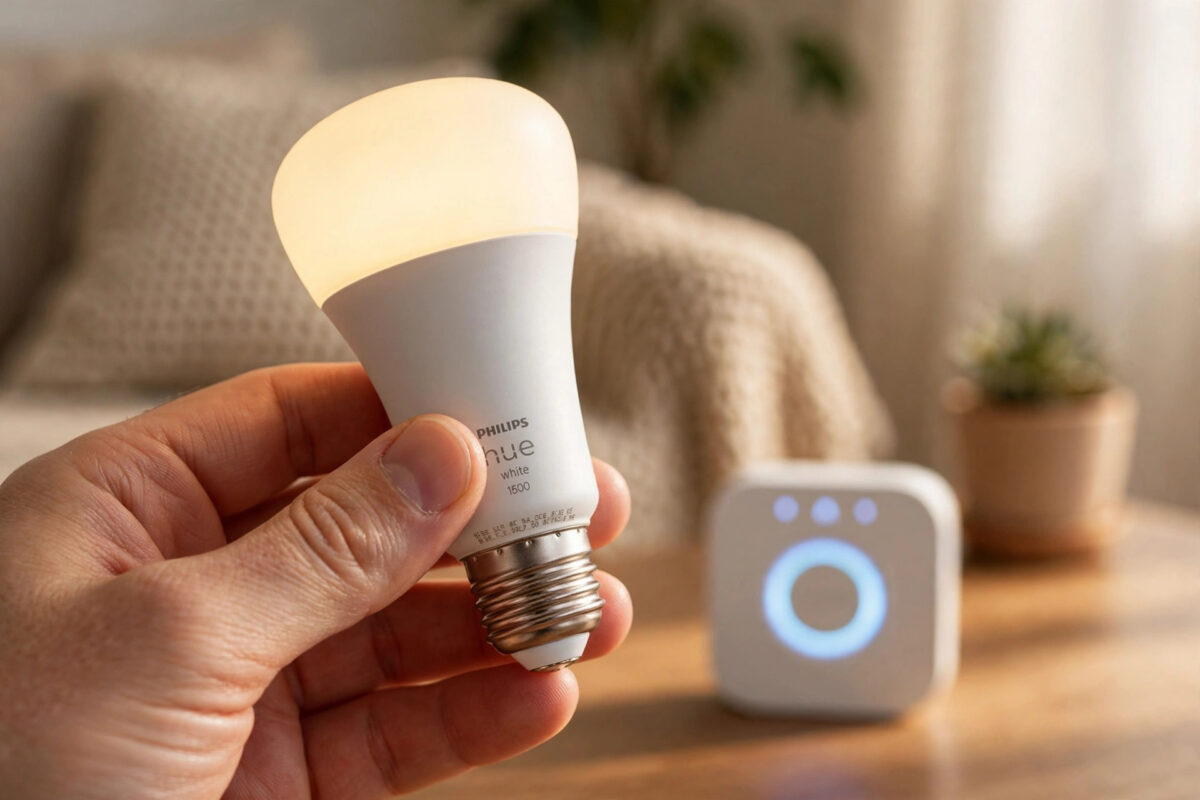
It is frustrating when a Philips Hue bulb that worked yesterday suddenly disappears from the app. The bulb may still turn on at the wall switch, but it shows as unreachable, or it does not appear at all after a bridge reset, a router change, or a move to a new room. In many homes this happens after a power cut or after the bulb was removed by mistake.
The good news is that Hue bulbs have a built-in backup plan. Every bulb carries a unique serial number printed on its base. When the normal search fails, you can use that number to tell the bridge exactly which bulb to look for. This guide walks you through the whole process in simple steps.
Quick Answer
Turn the bulb on at the wall switch, open the Hue app, go to Settings, then Light settings, and choose Add light. Tap Search, and if the bulb is not found, enter its six-character serial number from the base of the bulb and search again. Keep the bulb close to the bridge during pairing, and reset the bulb first if it was linked to another bridge.
Where to Find the Serial Number on a Hue Bulb
The serial number is short, but it is easy to miss. It is printed in small text on the bulb itself, not on the box alone.
On Standard Screw and Bayonet Bulbs
Switch the light off and let the bulb cool down. Unscrew it gently and look at the white or silver base near the metal fitting. You will see a line of text with a six-character code made of letters and numbers, such as 0A1B2C. That code is the serial number the app needs.
On Other Hue Products
- GU10 spotlights: The code is printed around the rim or on the side of the small housing.
- Light strips: Look on the small control box or on the label near the power supply.
- Candle bulbs: Check the narrow base just above the fitting, where the text wraps around.
- Outdoor lights: The label is often on the cable tag or the back of the fitting.
Write the code down exactly as it appears. Take a clear phone photo before you screw the bulb back in. One wrong character, such as confusing the letter O with the number zero, will stop the search from working.
What to Check Before You Start
A few quick checks save a lot of time. The serial number method works best when the basics are already right.
- Make sure the bulb has power. The wall switch must stay on, and the bulb should light up when you flip it.
- Confirm the bridge is online. All three blue lights on the Hue Bridge should be solid, not flashing.
- Move the bulb closer for pairing. If possible, fit it in a lamp in the same room as the bridge, ideally within a few metres.
- Update the Hue app. An old app version can fail to find newer bulbs even with the correct serial number.
- Check that you are signed in to the right Hue account and the right home if you manage more than one property.
If your bridge itself is having connection trouble, fix that first. Our guide on fixing a Hue Bridge that will not connect to the app covers the router and cable checks in detail.
Step-by-Step: Add the Bulb Using Its Serial Number
Follow these steps in order. Do not skip the power check at the start, because the bridge can only find a bulb that is switched on.
- Turn the bulb on at the wall switch and leave it on. If it is in a lamp with a dimmer, set the dimmer to full power or move the bulb to a simple lamp.
- Open the Philips Hue app on your phone or tablet and make sure you are on the correct home screen.
- Tap the three dots or the Settings tab, depending on your app version, then open Settings.
- Choose Lights or Light settings, then tap the plus button or Add light.
- Tap Search first. The app will scan for a short time. Many bulbs are found at this stage once they are close to the bridge.
- If the scan finishes with no result, look for the option that says Use serial number or Add by serial number.
- Type the six-character code exactly as printed on the bulb. Check each letter and number twice before you continue.
- Tap Search again. Keep the app open and stay near the bridge while it looks for the bulb.
- When the bulb appears, it may flash once to confirm. Give it a clear name, assign it to a room, and save.
- Test it right away. Turn it on and off in the app, change the brightness, and try a colour scene if it is a colour bulb.
For official pairing guidance, the Philips Hue support centre for setup and product help lists the current app menus for each bridge model.
If the Bulb Was Paired to Another Bridge Before
This is the most common hidden reason the serial number search fails. A Hue bulb can only belong to one bridge at a time. If you bought the bulb second-hand, moved it from an old bridge, or reset your bridge and started again, the bulb may still think it belongs somewhere else.
Reset the Bulb With a Hue Dimmer Switch
This is the easiest and most reliable reset method if you own a Hue Dimmer Switch.
- Turn the bulb on at the wall switch.
- Hold the dimmer switch very close to the bulb, within about 15 centimetres.
- Press and hold both the On and Off buttons together for about ten seconds.
- Wait for the bulb to flash. That flash means the reset is complete and the bulb is ready to pair again.
- Release the buttons and run the serial number search again straight away.
Reset the Bulb Without a Dimmer Switch
If you do not have a dimmer switch, try a voice assistant routine if the bulb is still listed in Alexa or Google Home. Borrowing a dimmer switch is often faster than repeated trial and error.
Other Reasons the App Still Cannot Find the Bulb
The Bulb Is Too Far From the Bridge
Hue uses Zigbee, which passes signals from bulb to bulb. A single bulb at the far end of a house, with thick walls in between, may be out of reach. Pair it near the bridge first, then move it.
The Bridge Needs a Different Zigbee Channel
Wi-Fi routers and Zigbee can clash, especially on busy 2.4 GHz networks. In the Hue app settings for the bridge, you can change the Zigbee channel. After changing it, give your lights a few minutes to reconnect, then try the search again.
The Bulb Is Faulty or Very Old
If a bulb never lights up at the wall switch, test it in a different fitting that you know works. If it stays dead in two fittings, it likely needs replacing.
Common Mistakes to Avoid
- Typing the serial number wrong: Letters and numbers look similar in small print. Use your phone photo and zoom in.
- Pairing through a dimmer switch on the wall: Traditional dimmers cut power in a way that confuses smart bulbs. Use full power during setup.
- Turning the wall switch off mid-search: The bulb disappears the moment power is cut. Ask everyone in the house to leave that switch alone during pairing.
- Searching from too far away: Standing in another room with your phone is fine, but the bulb itself must be near the bridge, not just near you.
- Adding the bulb to the wrong home: If you have two bridges or a holiday home in the app, check the home name at the top before you start.
Pair one bulb at a time. Resetting several at once can mix up names and rooms.
Conclusion
When the normal search fails, the serial number gives you a direct way back in. Find the six-character code on the base of the bulb, make sure the bulb has power and is close to the bridge, reset it if it belonged to another bridge, and then add it through the Light settings in the app. Test it before you move it back to its room, and the bulb should stay connected. With a careful check of the code and a little patience during the search, most missing Hue bulbs are back online in under ten minutes.
Frequently Asked Questions
Where exactly is the serial number on a Hue bulb?
It is printed on the base of the bulb, near the metal screw or bayonet fitting. It is a short six-character code of letters and numbers. Let the bulb cool, remove it from the fitting, and take a photo so you can read it clearly without rushing.
Can I add a Hue bulb without the serial number?
Yes, the normal Search option finds most bulbs automatically. The serial number is only needed when the automatic search fails, for example after a bridge reset or when the bulb was used with a different system before.
Why does the app say the serial number is not found?
Usually the code was typed wrong, the bulb has no power, or it is still linked to another bridge. Check the code character by character, confirm the bulb lights up at the switch, and reset it with a dimmer switch before searching again.
Do I need to reset the bulb before using the serial number?
Not always. If the bulb was only ever on your bridge, a serial search is often enough. If it came from another home, another bridge, or a second-hand sale, a reset first will save you repeated failed searches.
Will reconnecting the bulb delete my scenes and routines?
The bulb may return with a default name and no room. Scenes that included the old bulb entry may need the reconnected bulb added again. Your other lights, rooms, and automations stay untouched, so only the one bulb needs a quick tidy-up.



Leave a Reply