
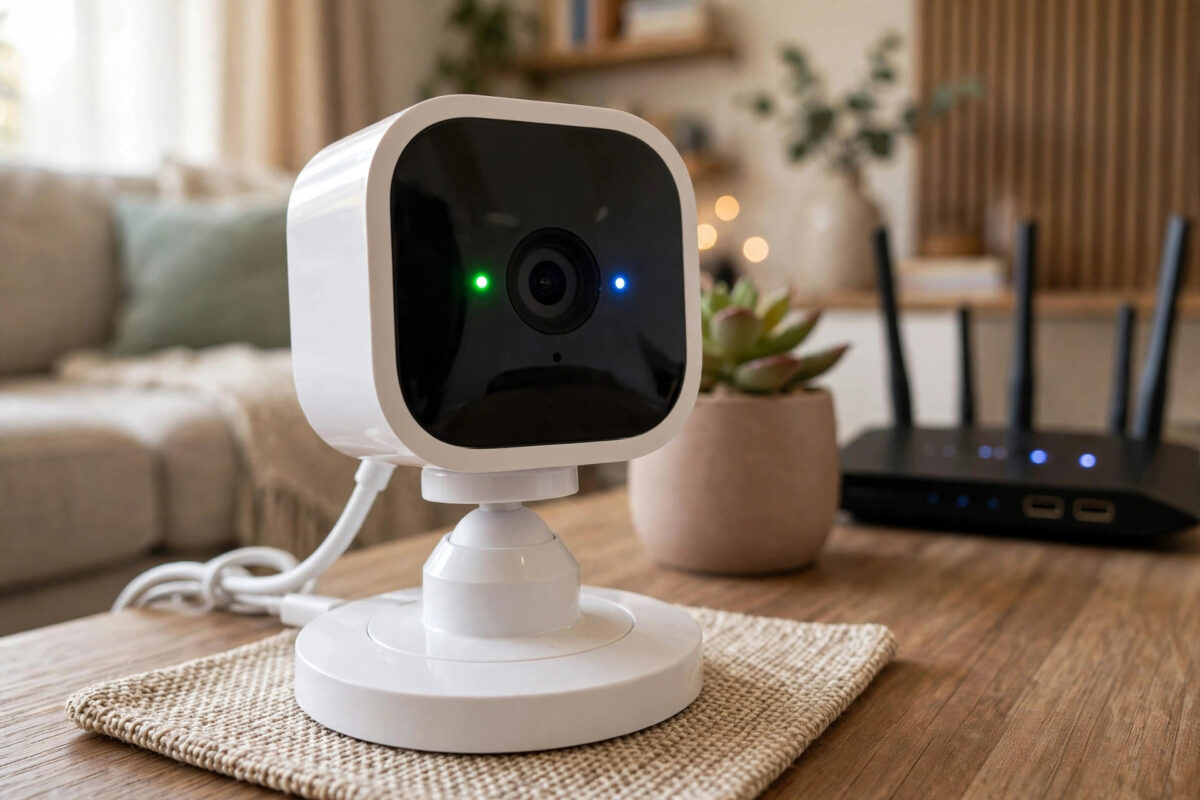
You look at your Blink Mini and instead of working quietly, it is showing a solid green light with a blinking blue light. The camera may be missing from the app, stuck during setup, or simply not recording when it should.
Blink cameras use their small lights to tell you exactly what state they are in, but the meaning is not obvious if you have never seen this combination before. The green and blue pattern is actually helpful once you know how to read it.
This guide explains what that light pattern means, why it happens, and the exact steps to get your Blink Mini connected and working again.
Quick Answer
A solid green light with a blinking blue light on a Blink Mini means the camera is connected to power and your local network, but it is having trouble reaching the internet or the Blink servers, or it is waiting to complete setup. Restart the camera and your router, check that your Wi-Fi password is correct, and if needed, press the reset button and add the camera again in the Blink app.
What the Blink Mini Lights Mean
Unlike a camera that just shows one colour, the Blink Mini combines lights to show its status. Learning the basics saves a lot of guesswork.
- Solid green: The camera has power and is connected to your local Wi-Fi network.
- Blinking blue: The camera is in setup mode, searching for a connection, or trying to reach the Blink system.
- Solid green plus blinking blue together: The camera found your network but cannot finish connecting to the internet or Blink servers, or setup was started but never completed.
- Blinking red: Usually a failed connection attempt or a camera that needs attention in the app.
- No light: No power, or the light has been turned off in settings on a working camera.
In short, green is good news about power and local Wi-Fi, while the blinking blue is the camera telling you it is still waiting for something to finish.
Why This Light Pattern Happens
Most Common Reasons
- Setup was interrupted: The app was closed, the phone moved to a different network, or the QR stage timed out.
- Internet drop: Your Wi-Fi is up, but your internet connection or router needs a restart.
- Changed Wi-Fi details: A new router, new network name, or new password leaves the camera trying old settings.
- VPN or network filtering: A VPN, firewall rule, or special router setting blocks the camera from reaching Blink servers.
- Weak signal at the camera spot: The camera connects weakly, shows green, but keeps failing to hold the server connection.
Step 1: Wait, Then Restart the Camera
Sometimes the camera just needs a clean restart to finish a connection it was stuck on.
- Leave the camera for two full minutes first. A camera that has just powered on may show this pattern briefly while connecting.
- If the pattern stays, unplug the Blink Mini from power.
- Wait 30 seconds with it unplugged.
- Plug it back in using the original cable and adapter, plugged directly into a wall outlet, not a computer USB port.
- Watch the lights for two minutes. A successful start leads to the camera appearing online in the Blink app.
While you wait, open the Blink app and pull down to refresh your camera list. If the thumbnail updates and live view works, the lights should settle and the problem is solved.
Step 2: Restart Your Router and Check the Internet
Because green means local network but blinking blue means no server contact, your internet path is the next thing to check.
- Test the internet on your phone while connected to the same Wi-Fi network. Turn off mobile data for this test so you know Wi-Fi internet really works.
- Unplug your router and modem for 60 seconds, then plug the modem in first and the router second.
- Wait until other devices are back online, then check the Blink Mini again.
- Make sure your phone is not using a VPN during setup, and disconnect from any work or guest network.
A weak signal can also cause this loop. Stand by the camera with your phone and check signal strength, and review these practical ways of boosting home Wi-Fi signal for cameras and smart devices if the camera is far from the router or behind thick walls. For a quick test, move the Mini closer to the router, plug it in there, and see if it comes online. If it works close up, the original location has a coverage problem.
Step 3: Check the Camera in the Blink App
If power and network restarts did not clear the pattern, look at what the app is reporting.
- Open the Blink app and check if the Mini shows as offline, or if there is a pending setup message.
- Tap the camera settings and check the Wi-Fi network name it is trying to use.
- If you recently changed your password, use the option to update Wi-Fi settings for the camera and enter the new password carefully.
- Remove any special characters confusion by double-checking capitals, numbers, and similar letters in the password.
- Try live view. If live view works, update the thumbnail and test a motion clip.
If the app says the camera is already registered to another account, that is a different block. A second-hand camera must be removed from the previous owner’s account before you can add it, which the official Blink support centre for device setup help explains in detail.
Step 4: Reset the Blink Mini and Set It Up Again
When the camera stays stuck in the green and blue state, a reset and fresh setup is the most reliable fix.
- Find the small reset button on the bottom or back of the Mini, depending on your version.
- With the camera powered on, press and hold the reset button for about 30 seconds until the lights change to a blinking red pattern, then release.
- Wait for the camera to enter setup mode, shown by a blinking blue light with green, or the pattern described in the app.
- In the Blink app, delete the old camera entry if it is still listed as offline.
- Tap the plus icon, choose Blink Mini, scan the code, connect to the camera’s temporary setup network if asked, then join your 2.4 GHz home Wi-Fi.
The Blink Mini works on 2.4 GHz Wi-Fi only, just like most small smart cameras. If your phone automatically jumps to 5 GHz or mobile data during setup, the process fails halfway and leaves exactly this light pattern behind. Keep your phone close to the camera and router until setup fully completes and the app confirms success.
Step 5: Rule Out Router Settings That Block Blink
If a fresh setup still ends with solid green and blinking blue, your router may be blocking the last step.
- Turn off VPN on the router or phone during setup and normal testing.
- Check parental controls or device blocking lists and make sure the Mini is not paused or blocked.
- Try a simple guest network on 2.4 GHz with a plain password as a test. If the camera works there, your main network has a setting that conflicts.
- Update router firmware if an update is waiting, then restart the router once more.
- Avoid special characters in the network name if setup keeps failing. Very unusual symbols can cause problems for small devices.
Common Mistakes to Avoid
- Resetting instantly: Give a restarted camera a full two minutes. Resetting too fast interrupts a connection that was about to succeed.
- Using a computer USB port for power: It may not supply stable power. Always test with the wall adapter.
- Setting up on 5 GHz: The Mini needs 2.4 GHz. Forcing setup on the wrong band fails every time.
- Ignoring a changed password: After any router or password change, the camera must be updated or set up again.
- Deleting the whole system: Only delete and re-add the problem camera, not your entire Blink system and other working cameras.
Conclusion
A solid green and blinking blue light on your Blink Mini means it has power and local Wi-Fi but is stuck reaching the internet or finishing setup. Restart the camera and router first, confirm your internet and password, and check the signal at the camera location.
If the pattern will not clear, reset the Mini and add it again carefully on 2.4 GHz with your phone nearby. In most homes that sequence clears the lights and brings live view and motion clips back within minutes.
Frequently Asked Questions
How long should I wait before resetting a Blink Mini with green and blue lights?
Wait at least two minutes after a restart, because the camera needs time to connect. If the solid green and blinking blue pattern stays unchanged for more than five minutes and the app shows offline, then move on to the reset and setup steps.
Does the Blink Mini work on 5 GHz Wi-Fi?
No. The Blink Mini only connects to 2.4 GHz networks. If your router combines both bands, make sure the camera can use the 2.4 GHz band during setup, or create a separate 2.4 GHz network for it.
Will resetting my Blink Mini delete my saved clips?
Clips saved in the cloud or on your Sync Module storage are not deleted by resetting the camera itself. However, you will need to set the camera up again and reapply its name, zones, and settings in the app.
Why does my Blink Mini work near the router but not in its usual room?
That is a signal strength problem. The usual room likely has weak coverage due to distance, walls, or interference. Move the router, add a mesh point or extender, or choose a slightly different spot in the room with a clearer path.
What if my Blink Mini shows no lights at all?
Check the cable, adapter, and outlet first with a different device. No light usually means no power, unless the LED was turned off in settings on a camera that still works in the app. Test with the original adapter in a wall socket.



Leave a Reply