
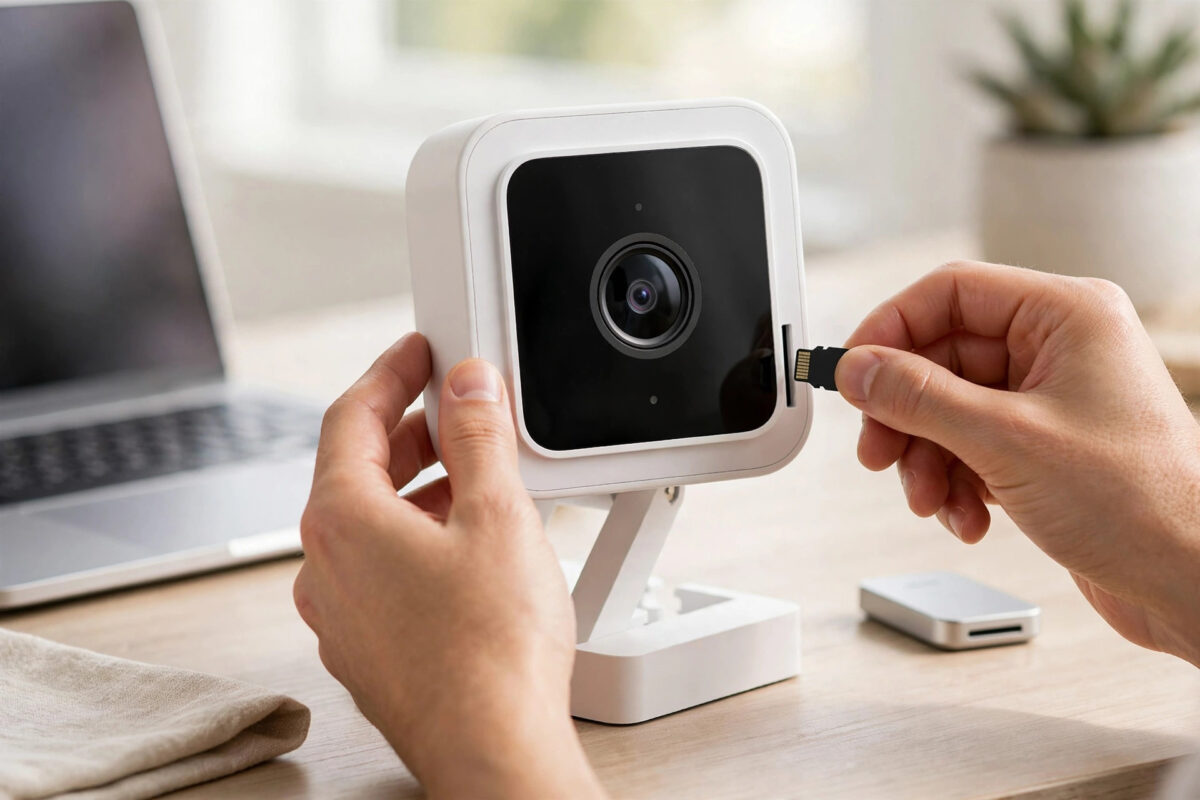
You bought a 128GB microSD card so your Wyze Cam could record continuously without relying only on the cloud, but the camera either does not see the card at all or refuses to record to it. The app may say no card is installed, show zero space, or fail when you try to format it.
This is a very common frustration, and it does not always mean the card is fake or the camera is faulty. Wyze cameras are picky about card type, formatting, and how the card was prepared. A few careful steps usually get a genuine 128GB card working reliably.
This guide explains what cards Wyze actually supports, how to prepare yours correctly, and how to fix the reading errors step by step.
Quick Answer
A Wyze Cam often will not read a 128GB microSD card because the card is the wrong type, is formatted incorrectly, or is a slow or counterfeit card. Use a genuine Class 10 or UHS-I microSD card, format it to FAT32 or let the Wyze app format it, insert it with the camera powered off, then restart the camera. In the app, turn on continuous recording under Advanced Settings once the card is recognised.
What Kind of microSD Card Does Wyze Need?
Not every 128GB card works well in a security camera. These cameras write video constantly, which is much harder work than storing photos on a phone. A card that works in a phone can still fail quickly in a camera.
Card Specs That Matter Most
- Size: 128GB is supported on most recent Wyze Cams, but always check your exact model. Older models had smaller official limits.
- Speed class: Choose Class 10, U1 or U3. Slower cards cannot keep up with continuous video writing.
- Type: Use microSDXC for 128GB cards from a known brand such as Samsung, SanDisk, or Wyze itself.
- Endurance: High Endurance or Max Endurance cards last much longer because they are built for constant rewriting in cameras and dash cams.
Avoid very cheap unbranded cards from unknown sellers. Counterfeit cards are widespread and often report 128GB while actually holding far less. Once they fill past their real capacity, the camera reports errors, corrupted clips, or no card at all.
Step 1: Check the Card in Another Device First
Before blaming the camera, confirm the card actually works.
- Remove the card from the camera while the camera is powered off.
- Insert it into a computer using a card reader or adapter.
- Check that the computer sees close to the full 128GB capacity and that you can copy a large file to it.
- If the computer cannot read it either, the card is likely damaged or counterfeit and should be replaced.
- If it works on the computer, back up anything important, because the next steps will erase it.
If the card shows a much smaller size than 128GB on the computer, stop there. No formatting trick will fix a counterfeit card, and using it will only lead to lost recordings later.
Step 2: Format the Card the Right Way
Formatting is the number one fix for cards that are not recognised. Wyze cameras expect a clean file system with no leftover partitions from other devices.
Best Method: Format Inside the Wyze App
- Insert the card into the camera with the power off, with the contacts facing the correct way until it clicks.
- Power the camera on and wait for it to connect.
- Open the camera in the Wyze app and go to Settings, then Advanced Settings, then Manage MicroSD Card.
- If the card appears, tap Format and let the process finish without unplugging the camera.
If the App Cannot See the Card, Format on a Computer
If the app shows no card at all, format it on a computer first. For 128GB cards, Windows may only offer exFAT or NTFS by default. Wyze cameras work best after their own in-app format, so use a trusted formatting tool to create a single FAT32 partition if needed, then put the card back in the camera and format it again inside the app. This two-stage clean-up removes hidden partitions left by phones, dash cams, and other cameras.
Never format the card while the camera is recording or updating. Interrupting power during formatting can corrupt both the card and the camera settings.
Step 3: Insert the Card Correctly and Restart
It sounds basic, but a card that is slightly unseated will not be read, and hot-swapping can confuse the camera.
- Power the camera off completely.
- Push the card in until you feel and hear a small click. It should sit flush and not spring back out.
- Power the camera on and listen. Many Wyze Cams make a soft chime or click sound when they recognise a card.
- Wait two minutes, then check Settings and Advanced Settings to see if the card size is now displayed.
- If it still does not appear, power off, remove and reinsert the card once more, and try a known good smaller card to test the slot.
If a different card works instantly, your 128GB card is the problem. If no card works, clean the slot gently with dry air and check for bent contacts or dirt.
Step 4: Turn On Continuous Recording Correctly
Recognising the card and recording to it are two separate things. Even with a working card, nothing will save until recording is enabled.
- Open the camera, go to Settings, then Advanced Settings.
- Turn on Record to MicroSD Card.
- Choose Continuous Recording for 24/7 recording, or Events Only if you want to save card life and space.
- Go back to the live view and tap Playback after a few minutes to confirm new footage appears on the timeline.
Remember that continuous recording fills a 128GB card in a matter of days depending on quality and motion, after which the camera overwrites the oldest footage automatically. If your clips seem to disappear, check the date on the playback timeline before assuming the card failed. Connection problems can also interrupt setup, so keeping your network stable and learning how to eliminate Wi-Fi dead zones in your home helps when the camera keeps dropping during formatting or playback checks.
Step 5: Update Firmware and Test for Card Errors
Old firmware can mishandle larger cards. Update the camera firmware from Device Info in the settings, and update the Wyze app as well.
After updating, record for at least an hour and then review playback. Look for gaps, frozen frames, or the card size suddenly dropping to zero. Those are signs of a failing or fake card even if formatting seemed to succeed. The official Wyze support pages for microSD card help also list the currently supported card sizes for each camera model, which is worth checking if your model is older.
If problems return within a day or two on a new branded endurance card, try the card in another Wyze Cam if you have one. If it fails there too, replace the card under warranty rather than repeatedly reformatting it.
Tips to Make a 128GB Card Last Longer
- Buy endurance cards: They cost a little more but survive months of constant rewriting that destroys normal cards.
- Format monthly in the app: A clean format every month or two reduces file system errors.
- Use stable power: Power cuts during writing corrupt cards. Use the original adapter and avoid loose smart plugs.
- Do not fill cards on a computer first: Always start with an empty, freshly formatted card.
- Replace cards yearly under heavy use: Continuous recording wears any card out eventually.
Conclusion
When a Wyze Cam will not read a 128GB microSD card, the cause is usually the card type, a messy format, or a card that is not genuine. Test the card on a computer, format it cleanly, insert it with the power off, and format it once more inside the Wyze app.
Then turn on recording in Advanced Settings and confirm playback works. With a real branded endurance card and the right format, continuous recording should run smoothly and overwrite old footage without errors.
Frequently Asked Questions
Why does my Wyze Cam say no microSD card installed when one is inserted?
This usually means the card is not seated properly, is formatted with a file system the camera cannot read, or has failed. Power off, reseat the card until it clicks, and format it in the app. If a different card works, the original card is faulty.
Can I use a 128GB card in every Wyze Cam model?
Most recent models support 128GB, but older cameras had lower official limits and may be unstable with larger cards. Check your exact model on the Wyze support site. Even if a larger card works at first, staying within the supported size is more reliable.
Should I choose continuous recording or events only?
Choose continuous recording if you want no gaps and need to review anything that happened, even without a motion trigger. Choose events only to extend card life and keep footage longer. Continuous recording wears the card faster and fills it sooner.
Why does my 128GB card only show a small amount of space?
That is a classic sign of a counterfeit card or a wrong partition left from another device. Format it fully on a computer to a single partition, then in the app. If it still shows the wrong size on the computer, replace it.
How long will a 128GB card record on a Wyze Cam?
It depends on video quality and scene activity, but typically you get several days of continuous footage before the oldest recordings are overwritten. Higher quality and busy scenes use space faster than a quiet indoor view.



Leave a Reply