
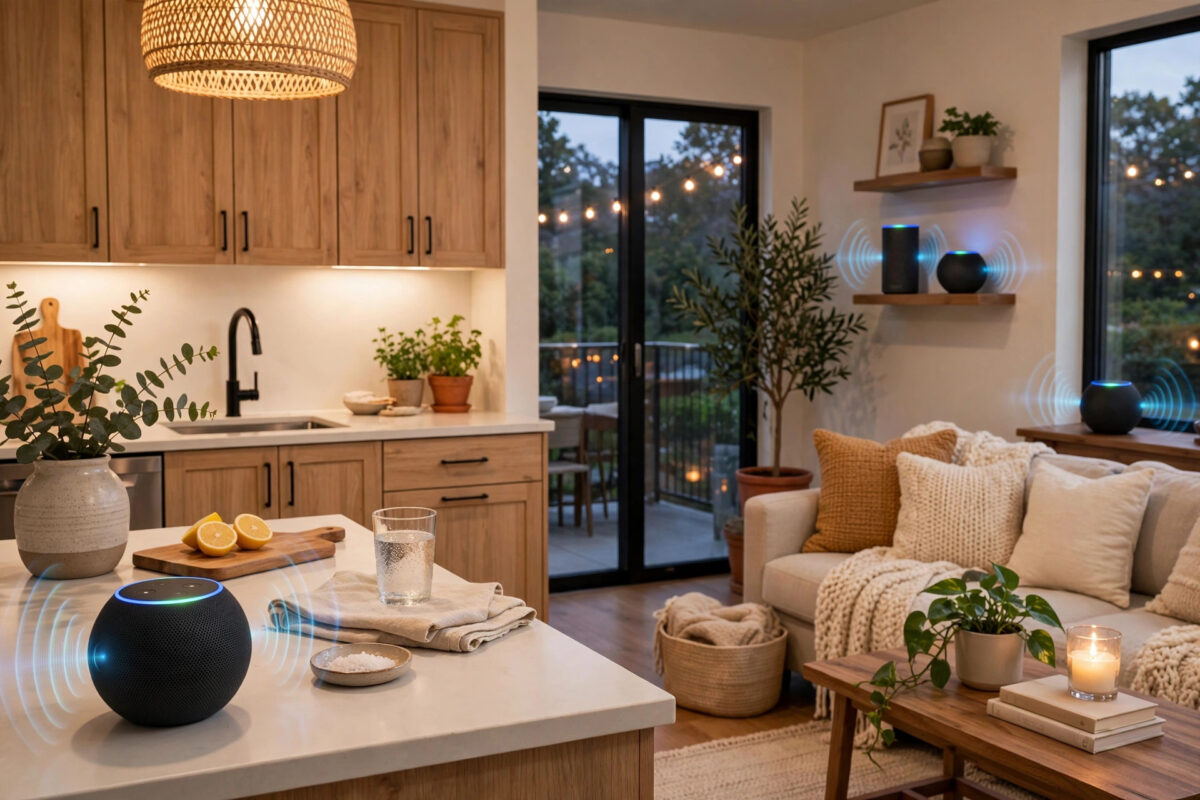
Multi-room music is one of the best parts of owning several Echo speakers. Your favourite song follows you from the kitchen to the living room, all in time together. So it is very frustrating when one speaker is always a beat behind, echoing the others and ruining the whole effect. That out-of-sync sound usually points to a network or setup issue, not a broken speaker.
The good news is that Alexa multi-room music sync problems follow clear patterns. One speaker might be on a weak Wi-Fi signal, it might be in the wrong type of group, or it might be an older model struggling to keep up. In this guide we will work through the causes in order, from the quickest checks to deeper fixes, so your speakers play together cleanly again.
Quick Answer
To fix an Alexa multi-room group where one speaker is out of sync, restart that speaker and your router, move the problem Echo closer to the router or remove obstacles, and make sure all speakers are on the same Wi-Fi network and in the same multi-room group in the Alexa app. Delete and rebuild the group if the delay stays, keep Bluetooth and TV sound connections off the grouped speakers, and update each Echo by asking, “Alexa, check for software updates.”
Why One Speaker Falls Out of Sync
For multi-room music to work, every Echo in the group must receive the same audio stream at almost the exact same moment. Alexa sends the music over your home Wi-Fi. If one device receives its data later than the others, you hear that delay as an echo or a stutter.
Weak or Busy Wi-Fi on One Speaker
This is the top cause. The out-of-sync speaker is often the one furthest from the router, behind thick walls, or near a microwave, baby monitor, or large metal appliance that interferes with the signal. Even if that Echo can play music on its own without trouble, keeping perfect time with three other speakers is a harder job that exposes a weak connection.
Mixed Networks and Router Bands
Many routers offer two bands, 2.4 GHz and 5 GHz. If some Echos are connected to one band and the problem speaker is on the other, or connected to a guest network or a range extender with a different name, timing can suffer. Mesh systems can cause a similar effect if one speaker sticks to a distant mesh point instead of the nearest one.
Group Problems and Mixed Device Types
Multi-room groups work best with Echo speakers. Mixing in other products, such as a TV, a soundbar, a Bluetooth speaker connected to an Echo, or a device playing from a line-in cable, adds delay. Bluetooth alone can add a noticeable lag, so a speaker using Bluetooth output will almost always sound late compared with the rest.
Software and Power Issues
An Echo that has missed updates, has been running for months without a restart, or is powered by a weak third-party adapter can process audio more slowly. Small delays inside the device then add to any network delay.
Step-by-Step Fixes That Work
Step 1: Restart the Problem Speaker and Your Router
- Unplug the out-of-sync Echo from power for 30 seconds, then plug it back in.
- Wait until it has fully started and the light ring has settled.
- If the problem continues, restart your router by unplugging it for 30 seconds as well.
- Wait for your Wi-Fi to come back fully, then test the group again with a fresh song.
Always test with a new track, because the current stream may keep its old timing.
Step 2: Improve the Wi-Fi for That Speaker
- Move the problem Echo closer to the router for a test, even if only for a few minutes.
- Play the group again. If the sync is now perfect, the original spot has a weak signal.
- Move the speaker back gradually, keeping it away from thick walls, fish tanks, and metal objects.
- Raise the speaker off the floor and keep it out of closed cabinets.
If one room always struggles, the wider fix is to improve coverage across the home. Our practical guide on improving your home Wi-Fi signal strength in every room covers router placement, channel clashes, and when a mesh system or extender actually helps.
Step 3: Check That Every Speaker Is on the Same Network
- Open the Alexa app and tap Devices.
- Open each Echo in the group, tap Settings, and look at the Wi-Fi network name.
- Make sure every speaker shows the exact same network name.
- If one is different, change it in the app to match the others.
Step 4: Delete and Rebuild the Multi-Room Group
A group that was built months ago, with speakers added and removed over time, can develop odd behaviour. Rebuilding it takes two minutes and fixes many stubborn cases.
- In the Alexa app, tap Devices and find your multi-room music group.
- Open the group, tap Edit, and delete it.
- Wait a minute, then create a new group with a fresh name, such as Downstairs Music.
- Add the speakers one by one, then test with the speaker that used to lag.
- If the new group works, add the remaining speakers and test again.
If sync breaks only when a certain speaker joins, you have found the weak link.
Step 5: Remove Bluetooth and TV Connections From Grouped Speakers
- Say, “Alexa, disconnect Bluetooth” to any Echo in the group that is paired to an external speaker.
- Do not use a grouped Echo as a TV speaker at the same time as multi-room music.
- If you use an Echo with a cable from another device, unplug that cable during group playback.
The official Amazon help pages for Alexa and Echo devices also note that external audio connections can affect group playback, and they list the current steps for managing groups in the latest version of the app.
Advanced Checks if the Delay Is Still There
Update Every Echo
Ask each speaker, “Alexa, check for software updates.” Mute the others while one updates so they do not all talk at once. A group where one speaker runs much older software than the rest can behave unpredictably.
Reduce Load on Your Network
If group music breaks up in the evening, your network may be busy. Pause large downloads as a test. If music locks into sync, schedule big downloads for the night.
Test the Speaker on Its Own
Remove the problem Echo from the group and play music on it alone for ten minutes. If it stutters or drops out even alone, the issue is that speaker or its location, not the group. Try it in a different room with the power adapter it came with. If it still struggles, a factory reset is a reasonable last step before replacing it.
Tips to Keep Multi-Room Music in Sync
- Keep groups small where possible: Two to four speakers in nearby rooms sync more reliably than a huge whole-house group across floors.
- Use similar Echo models together: Very old and very new models can work together, but matching models tend to behave more evenly.
- Restart speakers now and then: A quick unplug every few months prevents slow build-ups of small errors.
- Keep the router central: The closer every speaker is to a strong signal, the less timing difference there is to correct.
- Start playback fresh after changes: Always stop the old stream and start a new song after changing groups or networks, so the speakers build a new synced session.
Common Mistakes to Avoid
- Testing with the same song still playing: Old streams keep old timing. Stop, wait a few seconds, and start again.
- Assuming the speaker is faulty: Most sync issues are network issues. Test the same speaker near the router before blaming the hardware.
- Adding a Bluetooth speaker to the group: Bluetooth delay makes perfect sync almost impossible.
- Using different Wi-Fi names for extenders: A speaker on an extender network can drift from speakers on the main network.
Conclusion
One out-of-sync speaker in an Alexa multi-room group is almost always a sign of weak Wi-Fi, a mixed network, a tired group setup, or an extra audio connection adding delay. Restart the speaker and router, test the problem Echo closer to the router, confirm every speaker shares the same network, and rebuild the group from scratch if needed. Keep Bluetooth and TV duties away from grouped speakers and keep software up to date. Work through these steps in order and your rooms should play together again, with one clean sound instead of an annoying echo.
Frequently Asked Questions
Why is only one of my Echo speakers always behind the others?
That speaker most likely has the weakest Wi-Fi connection in the group, or it is connected to a different network or extender. Move it closer to the router as a test. If the delay disappears, improve the signal in its normal spot.
Does Bluetooth cause multi-room sync problems?
Yes. Bluetooth adds its own delay, so an Echo sending sound to a Bluetooth speaker will play later than the rest of the group. Disconnect Bluetooth on grouped speakers for the best timing.
Should all my Echos be on 2.4 GHz or 5 GHz Wi-Fi?
What matters most is that they are all on the same network and each has a strong signal. The 5 GHz band is faster but shorter range, while 2.4 GHz reaches further. Let each speaker use the band that gives it the strongest, steadiest connection on the same network name.
How do I rebuild a multi-room music group?
In the Alexa app, open Devices, delete the old group, then create a new one with a fresh name and add your speakers again. Testing as you add each speaker helps you spot the one causing the delay.
Can an old Echo model cause sync issues in a group?
It can contribute, especially if its software is outdated or its Wi-Fi is weaker than newer models. Update its software, give it a strong signal, and if it still lags behind newer speakers, use it on its own rather than in the main group.



Leave a Reply