
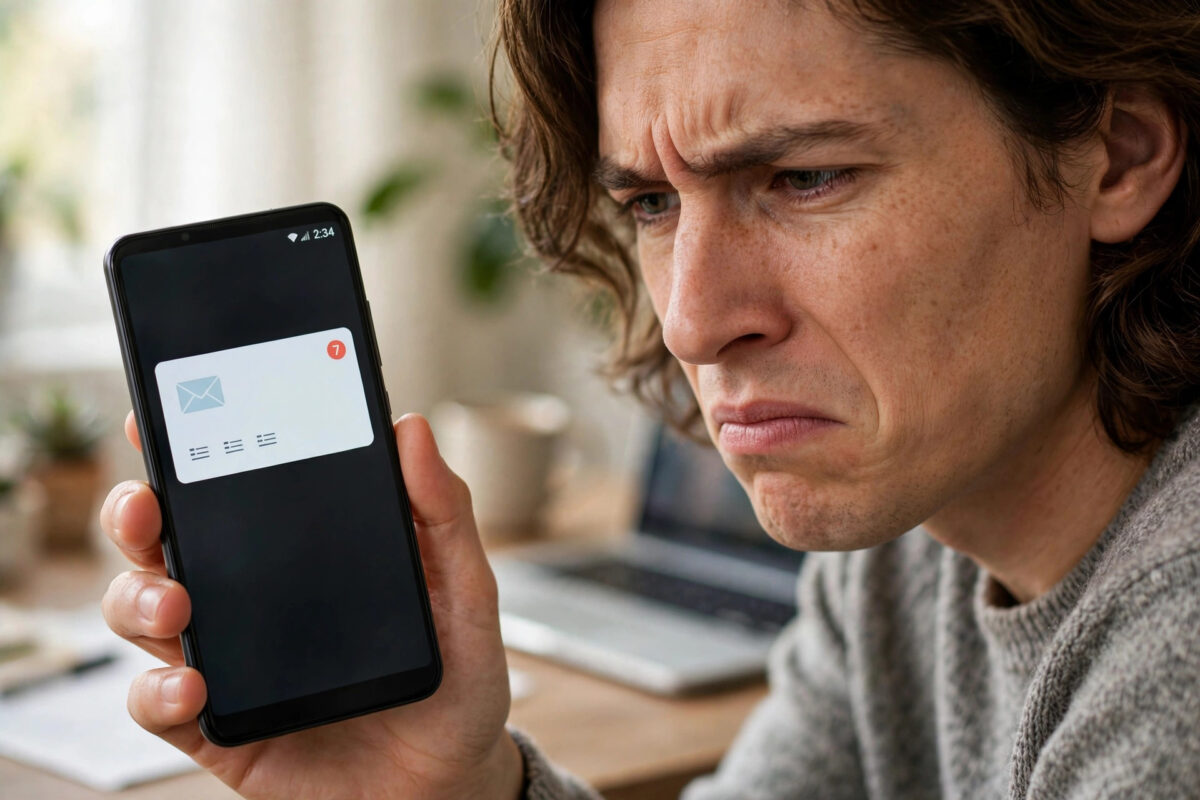
Few Android notifications are as stubborn as the Gmail message that says account action required. You tap it, sign in again, and an hour later it is back. Sometimes it returns after every restart, even though your email is sending and receiving normally.
The good news is that this alert rarely means your account is hacked. In most cases it is a sign-in token, sync setting, or security check that did not finish properly. This guide walks you through the fixes in the right order, from the quickest tap to the deeper resets that stop the notification for good.
Quick Answer
Tap the notification and complete the sign-in or security step Google is asking for, using the same Google account shown in Gmail. If it returns, remove the Google account from Settings, restart your phone, and add the account again. Also update the Gmail app and Google Play services, and turn off battery restrictions for Gmail so the verification does not get interrupted.
Why Gmail Keeps Asking for Account Action
Gmail does not show this warning randomly. Android asks Google apps to confirm your identity from time to time, and anything that breaks that confirmation can trigger the alert.
Common causes include a changed password, a new sign-in from another device, or a security alert you have not reviewed yet. Two-step verification changes can also cause it, especially if you switched phones or turned on a new verification method.
Other triggers are less obvious. An expired sign-in token, corrupted app cache, outdated Google Play services, or aggressive battery saving can all interrupt the check. Your phone then keeps reminding you because, from its point of view, the action was never completed.
How to Tell Which Account Is Affected
If you have more than one Google account on your phone, the notification may belong to a secondary account you rarely use. Long-press the notification or expand it to see the full email address.
Then open Gmail and tap your profile picture to compare the accounts listed there. Always complete the fix for the exact account named in the notification. Signing in with a different account will not clear it.
Fix 1: Complete the Action From the Notification
Start with the simplest fix, because sometimes the step really has not been finished. A surprising number of people dismiss the alert without realising it needs a response.
- Swipe down from the top of the screen to open your notifications.
- Tap the account action required notification and do not swipe it away.
- When the Google sign-in or security page opens, confirm the email address matches the account in Gmail.
- Enter your password and complete any two-step verification prompt that appears.
- If Google asks you to review recent activity, check the devices and locations, then tap Yes, it was me if everything looks familiar.
- Wait for the confirmation screen, then return to Gmail and pull down to refresh your inbox.
Use your phone for about ten minutes and then restart it once. If the notification does not return after the restart, the token has been refreshed and the problem is solved.
Fix 2: Review Your Google Account Security Alerts
Sometimes the action Google wants is not a password at all. It may be a security review waiting inside your account settings.
- Open the Settings app on your phone.
- Tap Google, then tap Manage your Google Account.
- Go to the Security tab and look for any recent security alerts or issues found notices.
- Open each alert, review the details, and follow the steps to confirm the activity was yours.
- Check the Your devices section and sign out of any old phone or computer you no longer use.
Clearing old devices matters more than people expect. An unused session can keep generating verification requests that show up on your current phone as repeated account action alerts.
Fix 3: Update Gmail and Google Play Services
An outdated app can fail to save a completed verification. Updating both Gmail and the background services it depends on fixes many repeat alerts.
- Open the Google Play Store and tap your profile picture.
- Tap Manage apps and device, then tap Updates available.
- Update Gmail if it appears in the list.
- Search the Play Store for Google Play services and update it as well if an update is offered.
- Restart your phone after the updates finish.
While you are there, also check for an Android system update under Settings and System. A pending system update can leave account services in a half-finished state. You can read Google’s own guidance on the official Google Account sign-in help page if sign-in problems continue across several apps.
Fix 4: Clear the Gmail App Cache
If the alert keeps returning for an account that is clearly signed in, the Gmail cache may be holding a broken token. Clearing the cache does not delete your emails, because they are stored on Google’s servers.
- Open Settings and tap Apps, then See all apps.
- Find and tap Gmail.
- Tap Storage and cache.
- Tap Clear cache only. Do not tap Clear storage yet.
- Open Gmail again and let it sync for a minute or two.
If the notification returns within a day, repeat these steps but choose Clear storage as well. Gmail will rebuild itself from scratch, and you will need to reapply personal settings such as notification sounds and swipe actions.
Fix 5: Remove and Re-Add Your Google Account
This is the most reliable fix when nothing else works. Removing the account deletes its local sync data from the phone, and adding it back creates a fresh, clean connection.
- Open Settings and tap Passwords and accounts, which may be called Accounts on some phones.
- Tap the Google account named in the notification.
- Tap Remove account and confirm. Make sure your contacts and photos are backed up or synced first.
- Restart your phone.
- Return to the same Accounts screen, tap Add account, choose Google, and sign in again.
- Complete two-step verification and allow a few minutes for Gmail, Contacts, and Calendar to resync.
Do not remove the account if it is your only way to verify your identity and you do not know the password. Recover the password first on another device. For related sign-in trouble on other Google apps, our guide on fixing Google Play Store sign-in required errors on Android covers several shared account checks.
Fix 6: Check Battery, Sync, and Date Settings
Three quiet settings can break account verification in the background. Checking them takes only a couple of minutes.
- Auto-sync: In Settings under Accounts, make sure automatically sync app data is turned on.
- Battery restrictions: In the Gmail app info page, tap Battery and choose Unrestricted so Android does not kill the sign-in process.
- Date and time: In Settings under Date and time, turn on automatic date and time. A wrong clock can make security tokens look expired.
- Data access: Make sure Gmail is allowed to use mobile data and Wi-Fi without restriction, especially if you use a data saver.
After changing any of these, open Gmail and refresh manually once. That forces a fresh sync attempt under the corrected settings.
Common Mistakes to Avoid
The biggest mistake is swiping the notification away every time it appears. Dismissing it does not complete the action, so Android simply schedules it again.
Another common error is changing your Google password repeatedly. Each password change signs out other sessions and can create new verification alerts, making the loop worse. Change it once only if you suspect someone else has access.
Avoid installing cleaner or booster apps that promise to fix account errors. They often block Google Play services in the background, which is the opposite of what you need. Also avoid removing every Google account at once if you only have a problem with one, because you may lose access to backups tied to the main account.
Finally, do not ignore the alert completely for weeks. If the cause is a genuine security warning about an unknown sign-in, you want to review it quickly rather than train yourself to dismiss it.
Conclusion
The account action required notification is Android’s way of saying a Google sign-in check never finished. Completing the step from the notification itself solves it for many people, and clearing the cache or re-adding the account handles almost every stubborn case. Work through the fixes in order, restart after each major change, and check battery and sync settings so the alert does not quietly return. Once the token is refreshed properly, Gmail should stay signed in and silent.
Frequently Asked Questions
Does account action required mean my Gmail is hacked?
Usually not. It most often means a password change, a new device sign-in, or an unfinished security check. Still, review the alert properly once. If you see a device or location you do not recognise, secure your account straight away.
Why does the notification come back after I sign in?
A corrupted cache, outdated Google Play services, or battery restrictions can prevent the completed sign-in from being saved. Update the apps, clear the Gmail cache, and set Gmail battery usage to unrestricted. If it still returns, remove and re-add the account.
Will removing my Google account delete my emails?
No. Your emails stay on Google’s servers and will resync when you add the account again. Removing the account only deletes the local copy on the phone. Just make sure anything stored only on the device, such as unsynced contacts, is backed up first.
Can I turn off the account action required notification?
You can long-press it and reduce its priority, but that only hides the symptom. The underlying sign-in problem remains and sync may fail later. It is far better to complete the action or re-add the account so the warning clears itself.
What if I no longer use the account in the notification?
Remove that account from Settings under Accounts if you no longer need it on the phone. The notification belongs to that specific account, so removing it ends the alerts. Keep at least one active Google account if you use the Play Store and backups.



Leave a Reply