
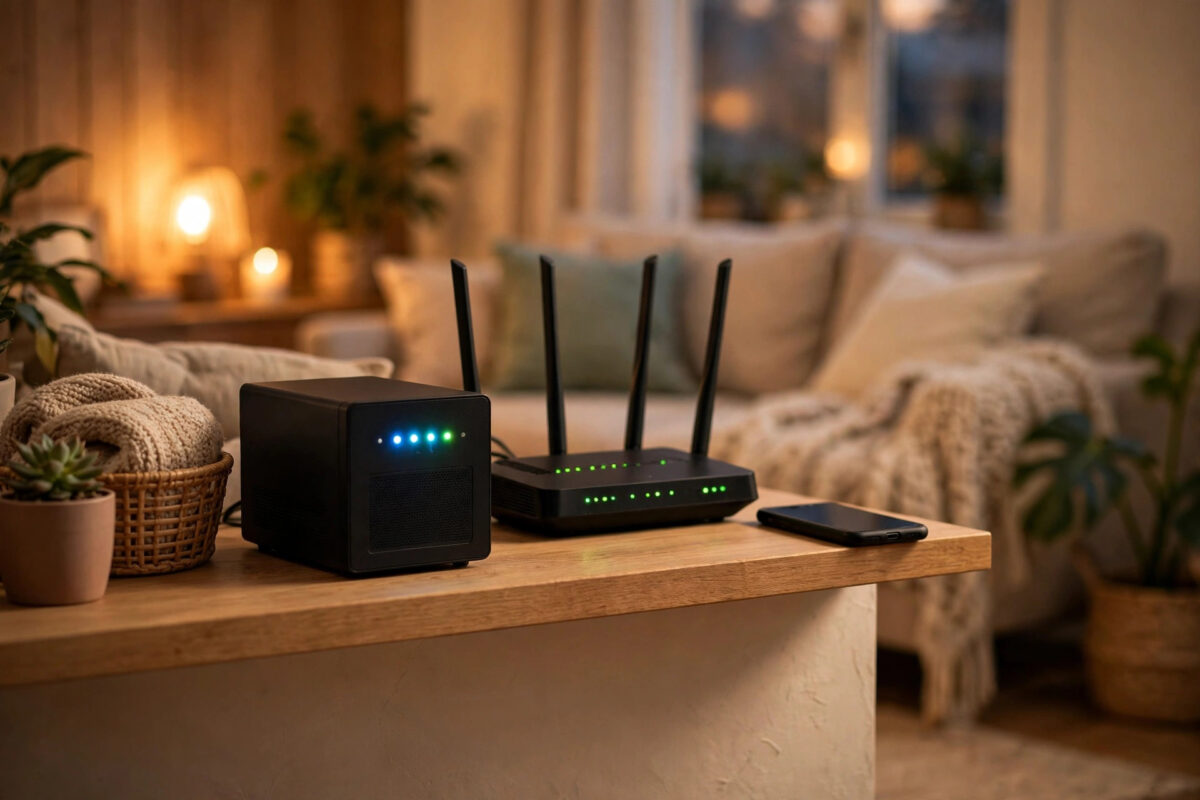
iCloud is convenient, but it is not the only home for your photos. A NAS (network attached storage) or home server gives you terabytes of private storage in your own house, no monthly fee that grows with your library, and full control over your pictures. For many families it also works out far cheaper over a few years.
This guide explains how iPhone-to-NAS backup works, how to set up automatic uploads with the apps from Synology, QNAP, and similar makers, and how to keep the system reliable. You will also learn the honest trade-offs versus iCloud, so you can decide whether to switch completely or run both together.
Quick Answer
Install your NAS maker’s photo app on the iPhone (such as Synology Photos or QNAP’s Qfile/QuMagie), sign in to the NAS on your home network, and turn on automatic photo backup over Wi-Fi. The app uploads new photos whenever you are home, usually while the phone charges. Keep the NAS itself backed up to an external drive, because one box is still a single point of failure.
What You Need and How It Works
A NAS is a small computer with hard drives that connects to your router and stays on all day. Your iPhone talks to it through an app over your home Wi-Fi. When the app detects new photos, it copies them to the NAS in the background. Unlike iCloud, nothing leaves your house unless you choose to enable remote access.
- A NAS with enough capacity for your library plus room to grow; photos and especially videos add up quickly.
- Drives set up with redundancy (RAID 1 or similar) if the NAS has two or more bays, so one failed drive loses nothing.
- The maker’s photo app installed on every phone that should back up.
- A home Wi-Fi network the phone joins regularly, since uploads happen at home.
Step 1: Set Up Automatic Uploads
- Install the NAS photo app on your iPhone and sign in while connected to your home Wi-Fi.
- Grant the app full access to your photo library when iOS asks; limited access means many photos never upload.
- Open the app’s backup settings and turn on automatic backup or photo upload.
- Choose Wi-Fi only, and decide whether videos are included. Videos are large, so include them only if your NAS has plenty of space.
- Decide the destination folder, ideally one folder per person or phone on the NAS.
- Plug the phone in, leave the app open once for the first big upload, and let it work through the library.
Synology’s Synology Photos pages show how its version of this flow looks, and QNAP, Asustor, and others offer near-identical features in their own apps. The names differ, but the routine is the same everywhere.
Step 2: Make the Backup Reliable Week After Week
iOS is strict about background activity, so a NAS app cannot run as freely as iCloud does. A few habits keep uploads trustworthy.
- Open the NAS app every week or two and check the backup status screen shows everything uploaded.
- Keep the phone charging near the router overnight sometimes; many apps upload best while charging and idle.
- Turn off Low Power Mode when you want a big catch-up upload to finish.
- After holidays, check the photo count on the NAS matches the phone before deleting anything or switching phones.
Our guide on verifying photo backups before deleting originals gives a thorough checking routine that applies to NAS backups exactly as it does to cloud ones.
Step 3: Protect the NAS Itself
Moving photos off iCloud removes Apple’s safety net, so the NAS needs its own protection. Drives fail and houses have accidents, which means the NAS should never be the only copy for long.
- Use drive redundancy inside the NAS so one dead drive is an errand, not a disaster.
- Plug an external USB drive into the NAS and schedule a weekly copy of the photo folders to it. Keep that drive somewhere else in the house, or with family.
- For your most precious albums, keep a third copy in any cheap cloud plan. Home storage and one cloud copy together beat either alone.
- Keep the NAS firmware updated and use a strong admin password, especially if you enable any remote access.
NAS vs iCloud: An Honest Comparison
A NAS wins on capacity, one-off cost, and privacy: your photos live in your house, and 4 TB costs less than a couple of years of a large iCloud plan. iCloud wins on effortlessness and off-site safety: it backs up from anywhere, survives a house fire, and needs no maintenance. Many people run both: NAS as the main library, iCloud at a small tier for recent photos, or NAS plus a cheap cloud copy of just the photo folders. Choose the mix that matches how much tinkering you enjoy.
What About Live Photos and Original Quality?
One detail catches iPhone owners out: Live Photos are really a photo plus a short video clip. Good NAS apps save both parts together and play the moving version in their gallery, but check your app’s behaviour with a test Live Photo before trusting it with years of memories. Also confirm the app uploads originals rather than reduced-size copies. In the settings, look for wording like ‘original quality’ and test by comparing the file size of one photo on the NAS with the same photo in iCloud or on the phone. A smaller file means compression is happening somewhere, and for a backup, only the untouched original is acceptable.
Common Mistakes to Avoid
Home photo storage fails quietly when these mistakes creep in:
- Granting the NAS app limited photo access, so only selected photos ever back up.
- Assuming uploads happen automatically forever without ever opening the app to check.
- Keeping the NAS as the only copy, with no external drive or cloud copy behind it.
- Turning on remote access with a weak password, exposing the whole library to the internet.
- Deleting photos from the phone right after setup, before the first full upload is confirmed complete.
Conclusion
Backing up iPhone photos to a NAS or home server is very doable: install the maker’s app, grant full photo access, switch on Wi-Fi automatic uploads, and check the status regularly. Add drive redundancy and an external copy, and you get private, spacious photo storage at home that rivals iCloud, without the growing monthly bill.
Frequently Asked Questions
Will the NAS back up my photos when I am away from home?
Only if you enable the NAS’s remote access features, which route uploads through the maker’s relay service. Most people simply let photos wait on the phone until they are home on Wi-Fi, which is safer and simpler.
Can two family members back up to the same NAS?
Yes. Each person installs the app, signs in with their own NAS account, and uploads to their own folder. The NAS admin can set storage limits per person so one video enthusiast cannot fill the whole box.
What happens if the NAS hard drive fails?
With two drives in a mirrored setup, you replace the failed drive and the NAS rebuilds the copy automatically, losing nothing. With a single drive, a failure can lose everything, which is why redundancy and an external copy matter.
Can I still use iCloud for some photos?
Yes. Many people keep iCloud Photos on for recent photos at a small plan size while the NAS holds the full archive. Just be deliberate about which system is your master copy to avoid confusion and duplicates.
Is a NAS cheaper than iCloud in the long run?
Usually, for large libraries. A NAS and drives cost money up front, but after roughly two to three years the same capacity in iCloud costs more, and the NAS keeps working for years beyond that with no monthly fee.



Leave a Reply