
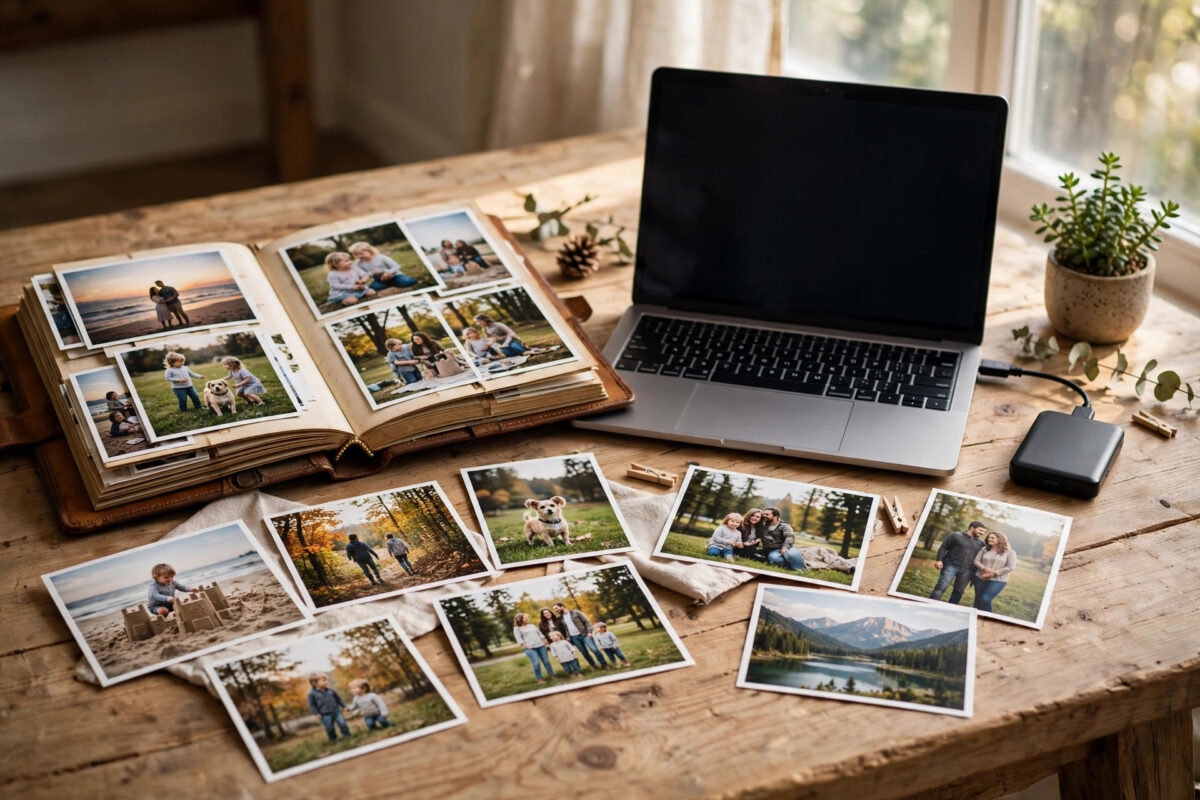
Family photos are different from other files. You can replace a downloaded song or a work document, but you cannot retake a child’s first steps, a wedding day, or a holiday with someone who is no longer here. That is why a single copy is never safe enough.
A phone can be lost. A laptop drive can fail without warning. A house fire, flood, or theft can take the device and the backup drive sitting next to it at the same time. Keeping your photos in two separate places protects you from all of these problems at once.
This guide explains the safest simple system for most families, how to set it up step by step, and how to keep it working without thinking about it every week.
Quick Answer
The safest way is to keep one copy on an external drive at home and a second copy in a trusted cloud photo service, so the two copies are in different physical places. Turn on automatic upload on your phone and automatic backup on your computer so new photos are copied without manual work. Check both copies once a month and test restoring a few photos to prove the backup really works.
Why Two Places Are Safer Than One
Every storage device fails eventually. Hard drives wear out, phones break, and memory cards become corrupted. If your only copy lives on one device, one failure is enough to lose everything stored on it.
Two copies on two devices in the same room are better, but they still share the same risks. Fire, water damage, burglary, and power surges can damage both at once. That is why the location matters as much as the number of copies.
A good rule used by professionals is often called 3-2-1: keep three copies of important files, on two different types of storage, with one copy off-site. For family photos, a simpler version works well: your original photos, a local external drive copy, and a cloud copy stored far away from your home.
Choosing Your Two Places
Place One: An External Drive at Home
An external USB hard drive or solid-state drive is cheap, fast, and works without an internet connection. Choose a drive at least twice the size of your current photo library, so you have room to grow for several years.
Label the drive clearly, store it in a dry place away from direct sunlight, and keep it unplugged when you are not backing up. A drive that stays connected all the time can be damaged by the same malware or power problem that harms your computer.
Place Two: A Cloud Photo or Cloud Storage Service
A cloud service stores an encrypted copy of your photos on servers in a data centre. If your home devices are lost, you can sign in from a new device and download everything again.
Pick a well-known provider with a clear paid plan, two-step verification, and an easy export option. Free plans often have small storage limits that fill up quickly, and when a free account stops syncing, many people do not notice for months.
Step-by-Step: Setting Up the Two-Place System
- Gather your photos in one place. Collect photos from old phones, cameras, memory cards, and computers into one main folder or photo library on your main computer.
- Remove obvious duplicates and rubbish. Delete screenshots you do not need, burst photos that are almost identical, and blurry images, so you are not paying to store junk.
- Copy the library to the external drive. Plug in the drive, copy the whole photo folder, and wait until the copy finishes completely before unplugging it safely.
- Install the cloud service app. Install it on your computer and phone, sign in, and turn on camera upload and folder backup for your photo library.
- Wait for the first upload to finish. A large library can take hours or days on a slow connection. Leave the computer on and connected until the app says everything is up to date.
- Turn on two-step verification. Protect the cloud account with a strong unique password and an extra sign-in code, because this account now holds your family memories.
- Test a restore. Download a few photos from the cloud to a different folder and open them. Then copy a few back from the external drive. If both tests work, your system is real, not just hopeful.
Making It Automatic From Now On
A backup system that depends on you remembering rarely survives. Holidays, busy work weeks, and a new baby all push manual tasks aside, and the gap between backups quietly grows.
On your phone, allow the photo app to upload on Wi-Fi so new pictures are copied the same day you take them. On your computer, schedule a weekly copy to the external drive, or plug the drive in on the same day each week and let the backup software run.
If you want a wider safety net for all your important files, not just photos, our guide to creating an automatic backup routine for your computer files shows how to build a simple weekly schedule that runs in the background.
How to Organise Photos So You Can Find Them Later
A backup is only useful if you can find the photo you want years later. A simple folder structure by year and month works for almost everyone and needs no special software.
- Create one folder per year, such as 2024, 2025, and 2026.
- Inside each year, add folders for events, such as “2026-06 – Seaside Holiday” or “2026-09 – First Day at School”.
- Keep the original file names from the camera, but add a few clear words if you rename anything important.
- Put your very best photos in a separate “Family Favourites” folder and make sure that folder is included in both backups.
Avoid moving photos around too often after they are backed up. Constant reorganising can confuse sync software and create accidental duplicates or missing files.
Common Mistakes That Put Photos at Risk
- Thinking sync is the same as backup. If you delete a photo by mistake and the deletion syncs everywhere, sync alone will not save you. Choose a service that keeps deleted files for at least 30 days.
- Keeping both copies in the same bag. Travelling with your laptop and its backup drive in one bag means one theft takes both.
- Never testing the backup. A backup you have never restored from is a guess. Test it with a handful of photos every few months.
- Sharing one account password with everyone. Give family members their own access where possible, and keep recovery details up to date.
- Letting storage fill up silently. When cloud storage is full, new photos stop uploading. Check the available space whenever you pay the bill or see a warning.
For account safety, follow the advice in Microsoft’s guide to keeping your account safe and secure and use a unique password you do not reuse anywhere else.
What to Do If You Lose a Device
If a phone or laptop is lost or stolen, do not panic and do not delete anything. First, sign in to your cloud account from another device and confirm your photos are there and up to date.
Next, change the cloud account password and remove the lost device from the list of trusted devices. Then, when you have a replacement device, sign in and let the photos download, and connect your external drive to copy anything the cloud copy missed.
Having two places means a lost device becomes an inconvenience instead of a disaster. That peace of mind is the whole point of the system.
Conclusion
The safest way to protect family photos is not complicated or expensive. Keep one copy on an external drive at home, keep a second copy in the cloud in a different place, and make both copies update automatically.
Set aside one afternoon to gather your photos, make the first two copies, and test restoring them. After that, a short monthly check is enough to keep your memories safe for decades, through broken phones, failed drives, and moves to new computers.
Frequently Asked Questions
Is cloud storage alone enough for family photos?
Cloud storage is a strong second place, but keeping a local external drive copy as well protects you if you lose access to the account, the provider has a problem, or your internet is down when you urgently need a photo.
How often should I back up new photos?
New phone photos should upload automatically every day on Wi-Fi. For the external drive, once a week is good for most families, and once a month is the minimum if you take photos less often.
How big should my external drive be?
Choose a drive at least twice the size of your current photo library. If your photos take up 200 GB today, a 500 GB or 1 TB drive gives you years of room for new photos and videos.
What if a family member deletes a photo by accident?
Most cloud services keep deleted items in a recycle bin or trash folder for 30 days or more. Restore it from there as soon as you notice, and keep your external drive copy unchanged until you are sure nothing else is missing.
Should I keep a third copy as well?
A third copy, such as a second external drive stored with a trusted relative, adds extra protection for very precious collections. It is optional for most families, but it is the best upgrade if you want even more safety.



[…] away from home. If you are building a routine mainly for photos, pair this guide with our advice on the safest way to keep family photos backed up in two places for a photo-specific version of the same […]