
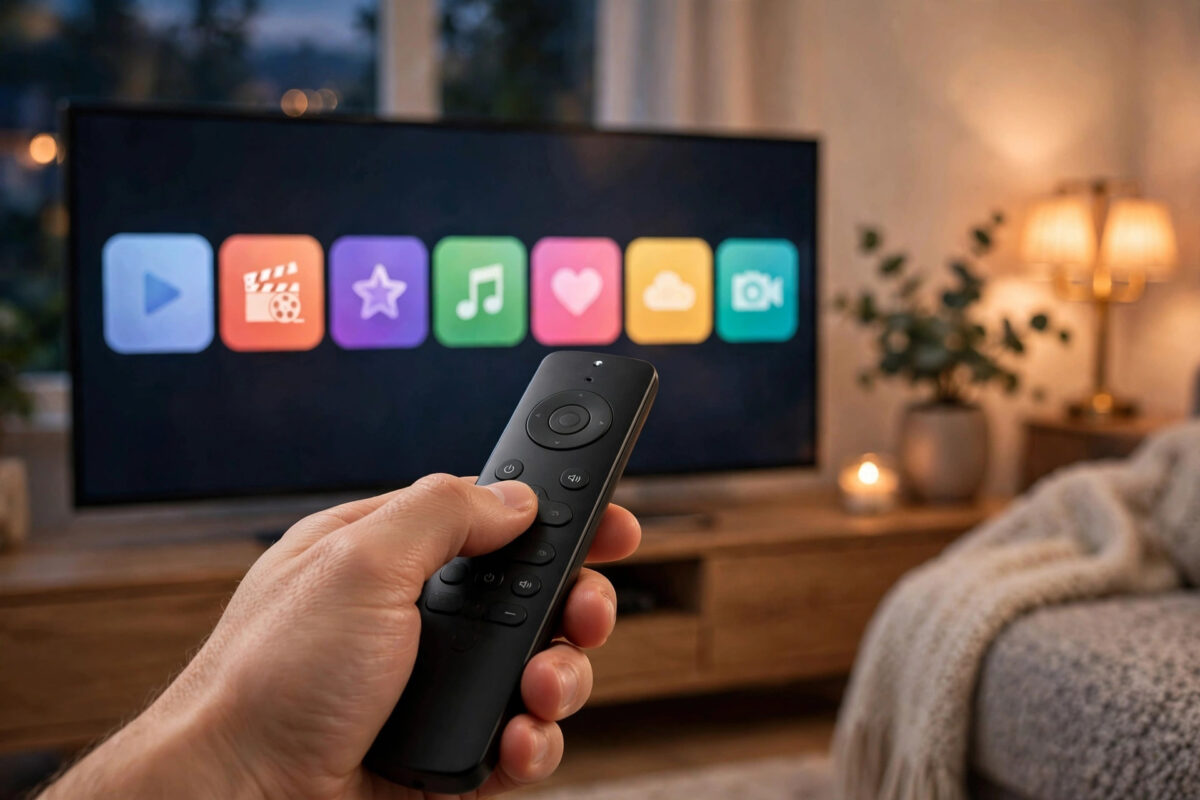
Scrolling through a long list of apps every time you sit down to watch something is a small annoyance that quickly becomes a big one. Your favourite services should be waiting in the first row of your TV home screen, in the order you actually use them, not buried behind games, shops, and apps you opened once a year ago.
Almost every smart TV and streaming device lets you add, move, and remove apps on the home screen. The button names differ slightly between brands, but the idea is the same everywhere. This guide explains the general method for the most popular platforms and shows you how to keep that first row tidy for good.
Quick Answer
To add favourite streaming apps to your TV home screen row, press Home, open the apps list, select the app you want, and press and hold the OK or Options button until a menu appears. Choose Add to Favourites, Pin, or Move, then place the app in the first row in your preferred order. Repeat for each favourite, and remove apps you never use so the row stays short and easy to scan.
Before You Start: Install and Sign In First
An app must be installed before it can be pinned, and it is far easier to arrange your row after every sign-in is finished. Take ten minutes to prepare.
- Open your TV app store and install every streaming service you plan to keep.
- Open each new app once and sign in, so it is ready to play straight from the home screen.
- Update the TV software and the apps themselves from the settings menu.
- Decide your order in advance: most-used app first, then second, and so on.
- Make a short list of apps to remove, such as trials, games, and duplicate music or video services.
If your television is new and the home screen is still in its factory layout, following a full first setup first will save time. Our walkthrough on setting up a smart TV for the first time covers accounts, Wi-Fi, and updates in the right order.
How to Add and Move Apps on Popular Platforms
Menus change a little with each software version, but the steps below match how the major platforms work today. If a label on your screen is slightly different, look for words with the same meaning, such as Edit, Customise, or Arrange.
Google TV and Android TV
- Press the Home button and move down to the Apps row or the Your Apps section.
- Highlight the app you want to move, then press and hold the Select button until a small menu opens.
- Choose Move, then use the left and right arrows to slide the app into position.
- Press Select again to drop it in place.
- To add an app that is installed but not shown, open See All or the Apps tab, find it, and add it to the row from the same hold-down menu.
The official Google TV Help centre describes how apps and rows are organised on Google TV devices if your menus look different.
Roku TVs and players
- Press Home to see your channel tiles.
- Highlight the app tile you want to move.
- Press the star button on the remote to open the options menu.
- Choose Move Channel, use the arrow buttons to reposition the tile, and press OK.
- To add a new service, open Streaming Channels or Add Apps, search for it, and select Add Channel.
Roku keeps every installed channel on the home screen itself, so your order there matters even more. The Roku Support site has model-specific notes if the star menu looks different on your device.
Samsung, LG, Fire TV, and Apple TV
- Samsung: Press Home, move to Apps, open Settings in the apps screen to enter edit mode, then add or move apps into the home bar.
- LG: Press and hold an app tile on the launcher bar until edit mode starts, drag it left or right, and press the wheel or OK to confirm.
- Fire TV: Press Home, choose the apps grid icon, highlight an app, press the menu button, and select Move or Move to Front.
- Apple TV: Press and hold an app until it wiggles, move it with the remote surface or clickpad, and place your top favourites in the top shelf row.
Plan the Perfect Order for Your Row
Order matters more than most people realise. The first position is the one your eyes land on, and many TVs open with the first app already highlighted. Put the service you open almost every day in that spot, even if it is not your most glamorous subscription.
Group similar apps together after that. Keep video services in one block, then music, then live TV or news, then occasional apps like fitness or photo sharing. Grouping means you stop hunting, because your hand learns the pattern: two presses right for films, four for live sport, and so on.
Think about everyone in the house as well. A shared family TV might need the children’s favourite app within the first five tiles, while a bedroom TV can be purely personal. If one person always uses voice search anyway, their apps can sit a little further along the row.
Remove Apps That Are Cluttering the Row
A favourites row only works when it stays short. Every unused app pushes a useful one further away and makes the screen slower to scan.
- Delete free trial apps after the trial ends if you did not subscribe.
- Remove duplicate apps, such as two services that show the same channels.
- Uninstall games and shopping apps from a TV that is only used for watching.
- Hide built-in apps you cannot delete by moving them to the very end of the row.
- Review the row every few months, because viewing habits change with new shows and seasons.
What if an app cannot be removed?
Some pre-installed apps are locked by the manufacturer. You usually cannot delete them, but you can almost always move them to the end, remove them from favourites, or disable them in the apps settings. Disabling also stops them updating and taking storage space in the background.
Useful Tips for a Faster Home Screen
- Keep the row to about eight apps: Beyond that, scanning takes longer than searching.
- Use voice search for rare apps: There is no need to pin an app you open twice a year; ask the assistant for it instead.
- Restart the TV after a big tidy-up: A full restart clears the cache and often makes the new layout feel snappier.
- Check storage space: A nearly full TV can feel slow; deleting a few large games can speed up the whole home screen.
- Repeat the layout on a second TV: Matching rows in the living room and bedroom means nobody has to relearn positions.
- Take a photo of your finished row: If a software update resets the layout, your photo makes rebuilding it a two-minute job.
Common Mistakes to Avoid
- Pinning everything: If twenty apps are favourites, none of them really are. Be strict about the first row.
- Forgetting the apps are not installed: A shortcut to an app you removed will fail or prompt a reinstall, so tidy installs and pins together.
- Arranging before signing in: You end up rearranging again after each app jumps around during its first launch.
- Ignoring other profiles: On shared TVs, agree the order together or arguments about the first tile will never end.
- Assuming the layout syncs everywhere: Most platforms do not copy your row to another TV automatically; set each screen up separately.
Conclusion
Adding favourite streaming apps to your TV home screen row takes only a few minutes: install and sign in first, press and hold an app to move or pin it, order the row by how often you watch, and delete the clutter. Review the row a few times a year and it will stay fast, familiar, and perfectly matched to how your household actually watches television.
Frequently Asked Questions
Why can I not find the Move option for an app?
You usually need to press and hold the OK or Select button on the app first. On some TVs the option hides under an Options, star, or menu button instead. Check that you are on the home screen apps row and not inside the app itself.
How many apps should I keep in my favourites row?
Around six to eight apps works well for most people. That is enough for daily services plus a couple of weekly ones, while keeping the row quick to scan from the sofa without reading every tile.
Will a software update reset my home screen layout?
It can happen occasionally, especially after a major platform redesign. Taking a photo of your finished row makes it easy to restore, and most small updates leave your order exactly as you left it.
Can each family member have a different app row?
On most TVs the home screen layout is shared by everyone, even when apps have separate profiles inside them. A few platforms tie layouts to a signed-in account, but the safest plan is to agree one shared order for the main TV.
What is the difference between pinning and installing an app?
Installing puts the app on your TV storage. Pinning or favouriting only controls where its shortcut appears on the home screen. An app must be installed before it can be pinned, and unpinning it does not delete it from your TV.



Leave a Reply