
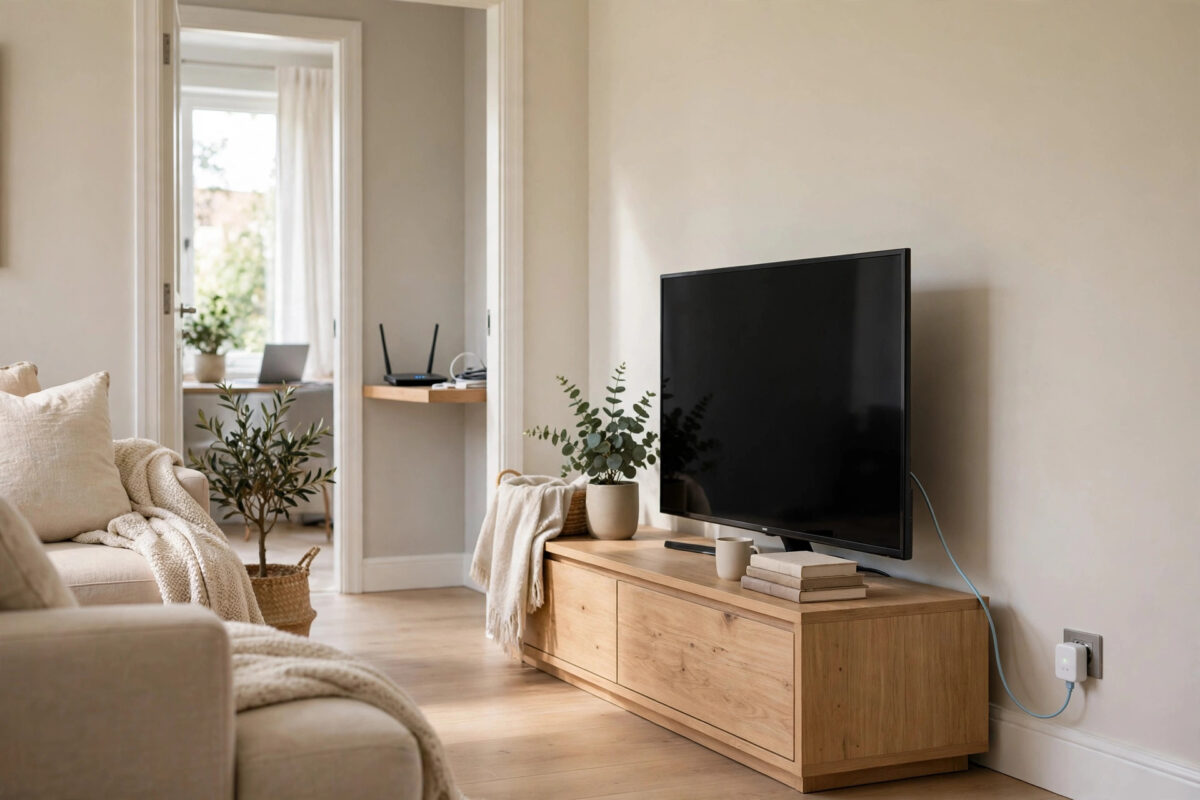
Streaming in 4K needs a fast and steady connection, and Wi-Fi does not always deliver that when your router is in a different room. Buffering, low picture quality, and apps that time out are all signs that the wireless signal is struggling. Ethernet is still the most reliable way to connect a TV, even if the router is down the hallway, upstairs, or on the other side of the house. You do not need to drill holes or run one very long cable across the floor to make it work.
Today there are several clean ways to get a wired connection to your TV, from long flat cables hidden under carpets to powerline adapters and mesh systems with Ethernet ports. This guide walks through each option, explains which one suits your home, and shows you how to set it up step by step so your TV gets a stable connection every time you turn it on.
Quick Answer
To connect your TV to Ethernet when the router is in another room, use powerline adapters that send internet through your home wiring, place a mesh Wi-Fi node or extender with an Ethernet port near the TV and cable the TV to it, or run a long flat Ethernet cable along skirting boards. Once connected, plug the cable into the TV LAN port, select Wired Connection in network settings, and the TV will connect automatically.
Why Ethernet Is Worth the Effort for Your TV
A wired connection does not compete with your neighbours’ networks, does not weaken through walls, and does not drop when someone uses the microwave. For a fixed device like a TV, that stability matters more than the flexibility Wi-Fi offers to phones and laptops. You will usually see faster start times for streams and fewer quality drops from HD to blurry video.
Most smart TVs have a 100 Mbps Ethernet port, which is more than enough for 4K streaming. Netflix, Disney+, and YouTube need around 15 to 25 Mbps for a single 4K stream, so a wired port gives you plenty of headroom even if the rest of the household is busy online.
Check What Your TV Supports First
Look at the back or side of your TV for a port labelled LAN or Ethernet. Almost every smart TV made in the last ten years has one. If your TV is a very slim model or a streaming stick with no port, you can add Ethernet with a USB-to-Ethernet adapter supported by that brand. Check the manual before buying an adapter, because not all TVs support every adapter model.
Option 1: Powerline Adapters – No New Cables Through Walls
Powerline adapters are the favourite solution when the router and TV are in different rooms. They turn your electrical wiring into a network cable. You get two small adapters in a kit. One plugs in near the router, the other plugs in near the TV.
- Plug the first adapter into a wall socket near your router. Do not use an extension lead or surge protector, as these can block the signal.
- Connect the first adapter to your router with the short Ethernet cable included in the box.
- Plug the second adapter into a wall socket near your TV.
- Connect the second adapter to your TV LAN port with another Ethernet cable.
- Press the Pair button on both adapters if the lights do not turn solid automatically. Wait one minute for them to link.
- On the TV, go to Settings, Network, and choose Wired Connection. The TV should obtain an IP address automatically and show Connected.
Powerline speed depends on your wiring. In most houses it easily handles 4K streaming. Performance is best when both sockets are on the same electrical circuit. Very old wiring, separate fuse boxes for different floors, or noisy appliances on the same circuit can reduce speed, so test streaming during the return window if you buy a kit.
Option 2: Mesh Node or Extender With an Ethernet Port
If you already own a mesh Wi-Fi system, this is the easiest option. Most mesh nodes have one or two Ethernet ports on the back. Place a node in the same room as the TV, where it still gets a good wireless signal from the main router, then run a short cable from the node to the TV. The TV thinks it is wired, and the mesh handles the wireless hop across the house with much stronger radios than the TV’s own Wi-Fi chip. Guidance from Google TV Help for wired and wireless connection setup also confirms that TVs will prefer a wired connection automatically once a cable is detected.
A Wi-Fi extender with a LAN port works the same way and costs less than a full mesh system. Set up the extender following its app instructions, place it halfway or in the TV room depending on signal strength, then cable it to the TV. Avoid placing the node or extender inside a closed cabinet with the TV, because heat and blocked antennas reduce the link quality between nodes.
- Place the mesh node or extender in the TV room and power it on.
- Use its app to confirm it shows Good or Strong connection to the main router.
- Connect a short Ethernet cable from the node LAN port to the TV LAN port.
- Select Wired Connection in the TV network settings and run the connection test.
Option 3: Run a Long Ethernet Cable Neatly
The cheapest and fastest option is still a single long cable. Ethernet cables work reliably up to 100 metres, so length is rarely a problem inside a home. Flat Cat 6 cables are easy to hide under carpets, along skirting boards with cable clips, or through adhesive cable channels that match your wall colour. Measure your route first, following walls and door frames rather than the straight-line distance, and add two extra metres for slack.
If you need to go between floors, check for existing routes such as airing cupboards, the space behind kitchen units, or alongside plumbing and existing TV aerial cables.
Our related guide on how to set up a Chromecast on any TV for stable streaming is useful if you plan to add a streaming device to this same wired TV setup later.
Setting Up the Wired Connection on Your TV
Whatever option you choose, the TV side of the setup is almost identical across Samsung, LG, Sony, and other brands.
- Push the Ethernet cable firmly into the TV LAN port until it clicks.
- Open Settings, then General or Network, depending on your brand.
- Choose Network Status or Connection Type and select Wired or Cable.
- Leave IP Settings on Automatic or DHCP unless your network uses manual addresses.
- Run the built-in connection test and open a streaming app to confirm playback.
If the TV still tries to use Wi-Fi, turn Wi-Fi off in the same menu or forget the saved wireless network. Some models switch automatically, while others need you to select the wired option manually once. Help pages such as LG Support for TV network connection guidance list the exact menu names for each LG model year if you cannot find the setting.
Common Mistakes and Useful Tips
- Plugging powerline adapters into extension leads: This is the number one powerline mistake. Always use a direct wall socket, or choose an adapter with a pass-through socket so you do not lose the outlet.
- Buying a cable that is too short: Measure along the walls, not across the room. A cable under tension will pull out of the port and damage the clip.
- Placing a mesh node in a dead zone: The node needs a strong signal itself. If the app shows Weak, move it closer to the main router and use a slightly longer cable to the TV.
- Confusing Ethernet with phone cable: Old phone cables look similar but have smaller plugs and will not work. Use Cat 5e or Cat 6 Ethernet cable only.
- Forgetting to test under load: Test at the busiest time of evening when others are online. A setup that works at midday should also work at 8 pm.
Conclusion
You do not need your router and TV in the same room to enjoy the benefits of Ethernet. Powerline adapters give you a wired link through your existing electrical wiring with almost no setup, a mesh node or extender with a LAN port gives you a short and tidy cable run in the TV room, and a long flat cable remains the cheapest and fastest choice if you can hide it neatly. Pick the method that fits your home and budget, select Wired Connection in the TV settings, and you will get smoother 4K streaming with far fewer interruptions than Wi-Fi alone.
Frequently Asked Questions
Do powerline adapters work in every house?
They work in most houses with modern wiring, especially when both adapters are on the same circuit. Homes with separate consumer units for different buildings or very old wiring may see lower speeds, but basic HD and 4K streaming usually still works well.
Is Ethernet really faster than Wi-Fi for a TV?
The top speed may be similar on a strong 5 GHz signal, but Ethernet is more consistent. It avoids interference and signal drops, so streams stay in 4K instead of falling back to lower quality during busy periods.
What cable should I buy for my TV?
Choose Cat 6 flat cable for easy hiding and future-proof speed. Cat 5e is also fine for TV streaming. Buy a length two metres longer than your measured route to allow for corners and furniture.
Can I connect a streaming stick with Ethernet?
Yes, many sticks and boxes support an official Ethernet adapter that plugs into their USB port. Check the device maker’s store for the correct adapter, because generic adapters do not always work.
Will using Ethernet stop other devices using Wi-Fi?
No. Your router handles wired and wireless devices at the same time. Moving the TV to a wired connection actually frees up Wi-Fi capacity for your phones, laptops, and other wireless devices.



Leave a Reply