
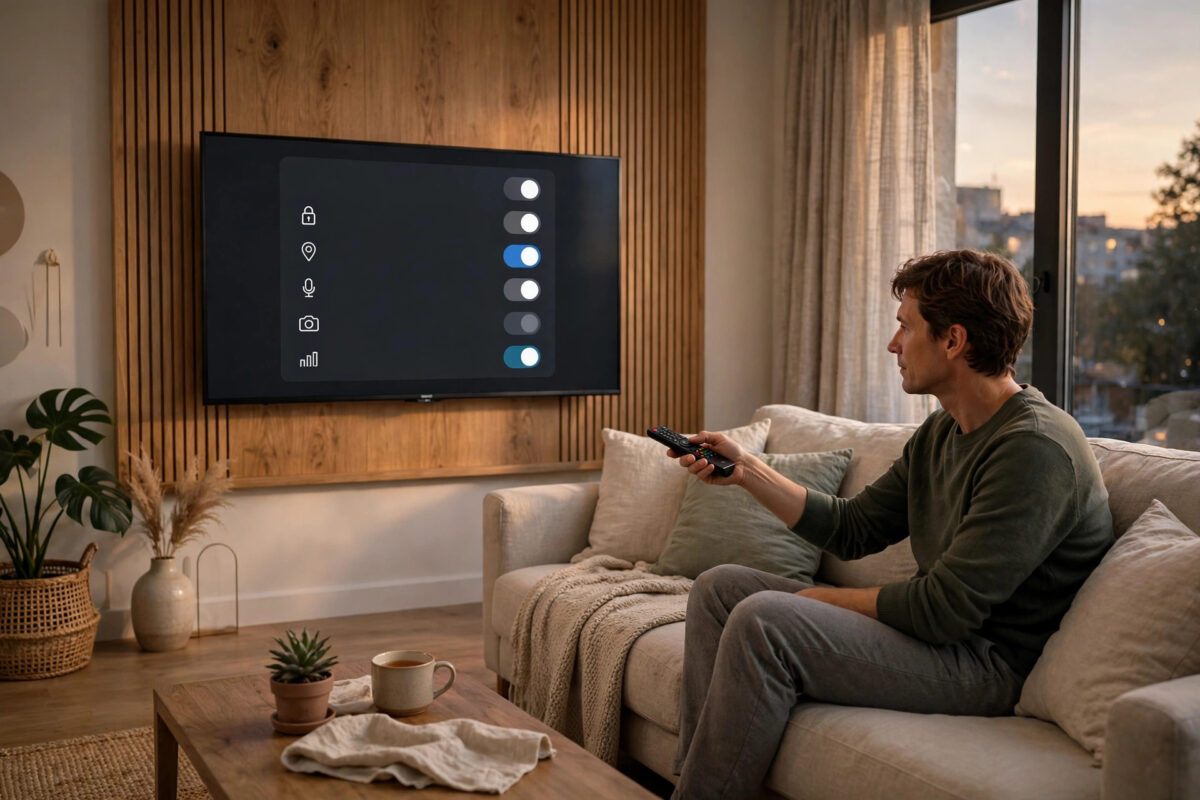
Your smart TV does a lot more than show programmes and films. Behind the scenes, many models collect information about what you watch, which apps you open, how long you watch for, and even the other devices connected to your home network. That information is often used to show you personalised adverts and to build a viewing profile that can be shared with advertisers and data partners.
The good news is that you do not have to accept all of this. Almost every major TV brand gives you controls to limit data collection, turn off viewing history tracking, and stop personalised advertising. You will not break your TV by changing these settings, and your streaming apps will keep working in almost every case. This guide walks you through what to switch off, where to find each setting, and what changes to expect afterwards.
Quick Answer
To turn off data collection and ad tracking on a smart TV, open Settings, go to Privacy or Terms and Privacy, and switch off viewing data collection, Automatic Content Recognition (ACR), and interest-based or personalised ads. The exact names differ by brand — look for Viewing Information Services on Samsung, Live Plus on LG, and Limit Ad Tracking on Roku — then restart your TV so the changes take full effect.
What Your Smart TV Collects and Why It Matters
Understanding what is being collected makes the settings much easier to understand. Most smart TVs collect several types of information at the same time.
Viewing History and ACR Technology
The biggest feature to know about is Automatic Content Recognition, often shortened to ACR. ACR takes small samples of what is on your screen — a few frames of video or snippets of audio — and matches them against a large database. It works whether you are watching live TV through an aerial, a streaming app, a games console, or a Blu-ray player. From those matches, the TV maker can work out your favourite genres, the adverts you have seen, and the times of day you usually watch.
App Usage and Device Information
Your TV also records which apps you install and open, how often you use them, and when apps crash. It collects technical details too, such as your TV model, software version, IP address, and a unique advertising ID for your device. Some TVs with voice remotes may process voice recordings when you use voice search, although that is controlled by separate settings on most models.
Why Companies Want This Data
TV makers earn money not only from selling the TV itself, but also from advertising and data partnerships. A detailed viewing profile helps advertisers show adverts that are more likely to interest you, and those adverts are worth more money. Turning the tracking off does not usually remove adverts completely, but it stops them being built around a detailed profile of your personal viewing habits.
How to Turn Off Tracking on Samsung TVs
Samsung calls its ACR feature Viewing Information Services. The steps below work on most recent Samsung smart TVs running Tizen.
- Press the Home button on your remote and open Settings.
- Go to General or General and Privacy, depending on your model.
- Select Privacy and then Terms and Privacy or Privacy Choices.
- Open Viewing Information Services and switch it Off.
- Return to the privacy menu and turn off Interest-Based Advertisements or Internet-Based Advertisement.
- Look for Voice Recognition Services in the same area and turn it off if you do not use voice controls.
- Restart the TV using the power button, not just standby, so the new settings are fully applied.
On some models you must first accept or open the privacy notice before the toggles become available. If a toggle is greyed out, open the terms screen, scroll through it, and then go back to the privacy menu.
How to Turn Off Tracking on LG TVs
LG uses a feature called Live Plus for content recognition, along with separate advertising settings.
- Press the Settings gear button on your remote.
- Go to All Settings, then General, then Additional Settings or System on newer models.
- Find Live Plus and switch it Off.
- Go back and open Advertisement settings, then enable Limit AD Tracking.
- Select Reset AD ID to clear the advertising profile already built for your TV.
- Open the user agreements section under About This TV and untick any optional agreements for viewing information, voice information, and interest-based cross-device advertising that you do not want.
Be careful not to untick the basic user agreements needed for the TV to work. Only remove the optional marketing and viewing-information agreements.
How to Turn Off Tracking on Roku TVs
Roku TVs and streaming players have some of the clearest privacy controls.
- From the home screen, go to Settings and then Privacy.
- Select Advertising and tick Limit ad tracking.
- Choose Reset advertising ID to delete the current profile.
- Go back to Privacy and select Smart TV experience.
- Turn off Use info from TV inputs — this is Roku’s ACR setting for devices connected by HDMI, such as cable boxes and consoles.
- Open Microphone in the privacy menu if your model has one, and manage channel microphone access there.
How to Turn Off Tracking on Google TV and Android TV
Google TV and Android TV link much of their advertising to your Google account, so there are settings on the TV and in your account.
- Open Settings, then Privacy or Device Preferences followed by Privacy.
- Select Usage and diagnostics and switch it off to stop sending usage reports.
- Open Ads and choose Delete advertising ID or Opt out of Ads Personalisation, depending on your version.
- Go to Location and turn off Wi-Fi scanning if you do not need location-based features.
- On a phone or computer, open your Google account ad settings and turn off ad personalisation for the account signed in on the TV.
For official step-by-step help for your version, the Google TV Help guides on privacy and account settings explain each menu in detail. Samsung owners can also compare menu names using the Samsung Support pages for TV privacy settings, because names change slightly between model years.
Extra Steps That Reduce Tracking Further
Review App Permissions
Individual apps can collect their own data even when TV-level tracking is off. Open each major streaming app, look for privacy or data settings inside the app, and turn off optional data sharing and personalised advertising where offered. Delete apps you never use, because an unused app can still collect basic usage information when it updates in the background.
Keep Your Software Updated
Privacy menus improve over time, and updates often add clearer toggles. Check for updates every few months. Our guide on how to update smart TV software safely shows how to check your current version and install updates without losing your settings. After a big update, revisit your privacy menu, because some updates reset optional choices or add new data features that are switched on by default.
Common Mistakes and Helpful Tips
- Only turning off one toggle: ACR, ad personalisation, and usage diagnostics are separate settings. Turn off all three for the best result.
- Forgetting HDMI inputs: ACR can watch what comes through HDMI, not just apps. Look for a setting that mentions TV inputs or external devices.
- Expecting all adverts to disappear: These settings stop personalised tracking, not advertising itself. Free services will still show general adverts.
- Skipping the restart: Some TVs only apply privacy changes fully after a proper restart.
- Ignoring app-level settings: The TV maker is only one company collecting data. Check the biggest apps individually.
- Never rechecking after updates: Make privacy checks part of your routine whenever the TV installs a major software update.
Conclusion
Your smart TV will keep working perfectly well with data collection and ad tracking turned down. By switching off ACR features like Viewing Information Services and Live Plus, limiting ad tracking, resetting your advertising ID, and reviewing app permissions, you take back control of your viewing information in about ten minutes. Work through your brand’s section above, restart the TV, and recheck the privacy menu after major updates. It is a small one-off job that protects your household’s privacy every single day.
Frequently Asked Questions
Will turning off tracking stop my streaming apps from working?
No, in almost all cases. Netflix, YouTube, and other major apps will continue to play normally. You may lose some personalised recommendations on the TV home screen, and adverts will become less personal, but playback itself is not affected by these privacy settings.
What is ACR and why is it a privacy concern?
ACR stands for Automatic Content Recognition. It samples what is on your screen and matches it to a database to work out what you watch, including content from HDMI devices. Because it can build a detailed picture of your household’s habits, it is the single most important tracking feature to turn off.
Will I still see adverts after turning off personalised ads?
Yes. Free and ad-supported services will still show adverts, but they will be general adverts shown to everyone rather than adverts chosen using your viewing profile and advertising ID. Paid, ad-free subscriptions are unaffected either way.
Do I need to change settings in every app as well?
It is a good idea for your most-used apps. TV-level settings control the TV maker’s tracking, but each streaming service has its own privacy choices. Spending two minutes in each major app’s privacy menu gives you much fuller control.
How often should I check my TV privacy settings?
Check them after every major software update and at least twice a year. Updates can add new features, rename menus, or introduce new optional data sharing that starts switched on. A quick review keeps your original choices in place.



Leave a Reply