
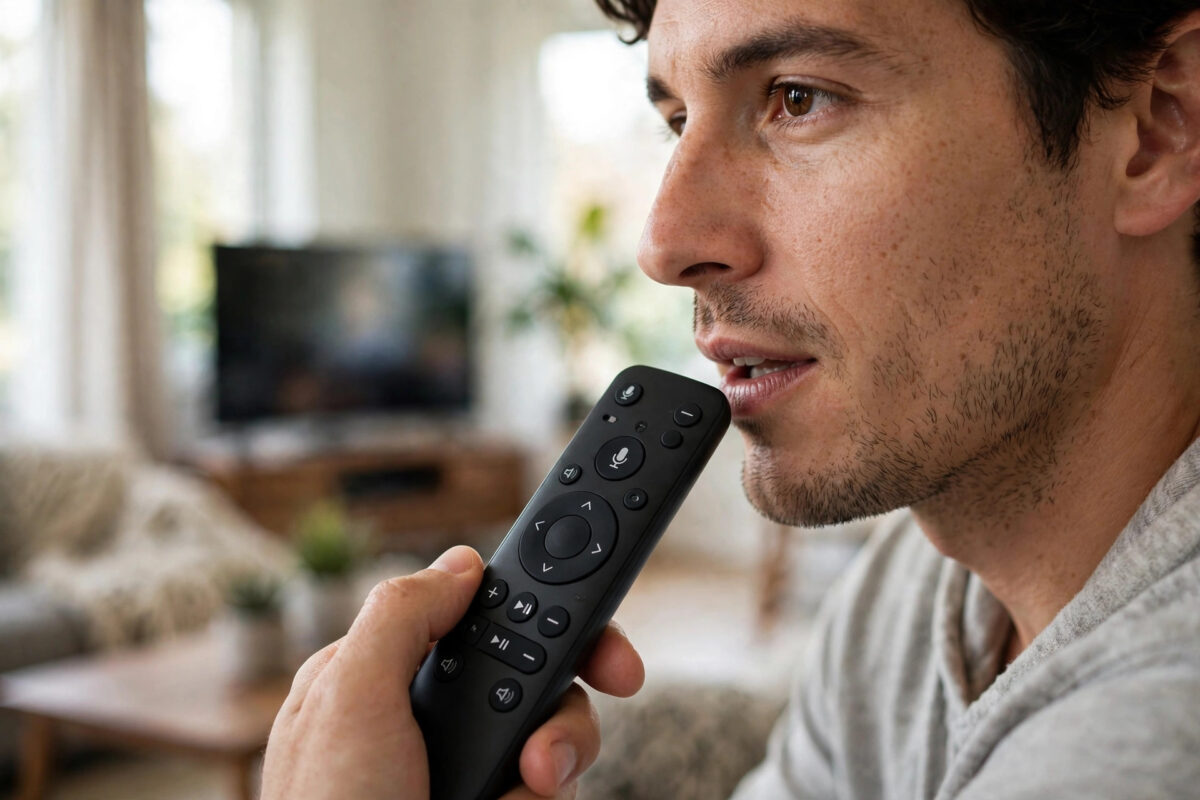
Voice search is one of the best parts of a modern smart TV. Pressing one button and saying a film title is far easier than typing it letter by letter. So when you press the microphone button and nothing happens, or the TV says it cannot hear you, it feels like a key feature has broken. In most cases the cause is simple, and you can fix it yourself in a few minutes.
Quick Answer
First, check the remote batteries and make sure the remote is paired to the TV by Bluetooth, not just infrared, because voice only works over Bluetooth. Then check that the microphone is not blocked, that voice features are switched on in the TV settings, and that the TV is connected to the internet. Re-pairing the remote and restarting the TV fix the majority of voice search problems.
How Voice Search on a TV Remote Actually Works
Understanding the basics helps you find the fault faster. When you hold the microphone button, the small microphone in the remote records your voice. The remote sends that recording to the TV over Bluetooth. The TV then sends it over the internet to a voice service, which works out what you said and sends back the results.
That chain has several links. If any one of them fails — the remote pairing, the microphone, the internet connection, or the voice service setting — voice search stops working, even though the rest of the remote may work perfectly. This is why the normal buttons can work while voice does not: buttons like volume can use infrared, but voice cannot.
Step 1: Check the Batteries and the Microphone Opening
- Replace the remote batteries with fresh ones, even if other buttons still work. Voice uses more power than simple button presses.
- Find the small microphone hole, usually near the top of the remote or next to the microphone button.
- Make sure the hole is not covered by a case, a sticker, tape, or your own thumb while you speak.
- Hold the remote about 10 to 15 centimetres from your mouth and speak clearly at a normal volume.
Shouting does not help. In a noisy room, move closer to the remote, turn down other sound, and try again.
Step 2: Make Sure the Remote Is Paired by Bluetooth
This is the most common hidden cause. A remote that has lost its Bluetooth pairing will still change channels using infrared, so it looks fine, but voice commands go nowhere.
- Open your TV settings and look for Remotes, Bluetooth devices, or Accessories, depending on your brand.
- Check whether your remote is listed as connected.
- If it is missing or shown as disconnected, choose the option to add or pair a remote.
- Follow the on-screen steps. Many remotes pair by holding two buttons together, such as Home and Back, for a few seconds near the TV.
- When pairing finishes, test voice search straight away.
The exact button combination differs by brand. The Google TV support site lists pairing steps for Google TV remotes, and the Samsung support pages cover Samsung Smart Remote pairing and voice fixes in detail.
Step 3: Check the Voice Settings on the TV
Voice features can be switched off by accident, by a software update, or by a privacy setting someone changed earlier.
- Open Settings and look for Voice, Voice recognition, or your assistant’s name, such as Google Assistant, Alexa, or Bixby.
- Make sure voice recognition is turned on.
- Accept any terms or privacy prompts that are waiting. Voice will not start until these are accepted.
- Check the language setting matches the language you speak. A TV set to the wrong language will misunderstand almost everything.
- If there is a hands-free or wake-word option, test it separately. Hands-free listening and the remote button are different features.
Step 4: Check Your Internet Connection
Voice search needs the internet, because your speech is processed online. If the TV is offline, voice fails even when everything else is set up correctly.
- Open a streaming app and play a short video to confirm the TV is online.
- If nothing loads, open the network settings and reconnect to your Wi-Fi.
- Restart your router if the TV shows as connected but apps still fail.
- Try voice search again once normal streaming works.
If Wi-Fi keeps dropping in the room where the TV sits, our practical guide to improving Wi-Fi signal for smart TV streaming explains simple fixes such as moving the router and reducing interference.
Step 5: Restart, Update, and Re-Pair
If the basics look right and voice still fails, work through these stronger steps in order.
- Restart the TV properly. Use the restart option in settings, or unplug the TV for 30 seconds. Sleep mode is not a real restart.
- Update the TV software. Go to the software update section in settings and install any waiting update. Updates often include voice fixes.
- Update the remote firmware if your TV offers it in the remote settings.
- Remove and re-pair the remote. Delete it from the Bluetooth list, then pair it again from the start.
- Clear the voice app data on Android TV and Google TV models, in the apps section of settings, if a specific assistant app is misbehaving.
Brand-Specific Things Worth Checking
Samsung TVs
Check which voice assistant is selected. A Samsung TV may be set to Bixby while you are expecting another assistant. You can change the active assistant in the voice settings menu.
LG TVs
LG remotes need to be registered with the TV for the pointer and voice to work. Waving the remote to wake it, then following the on-screen registration message, often restores voice.
Roku and Fire TV
Only some remotes for these platforms include a microphone. If your remote has no microphone button or microphone hole, it cannot do voice search at all. In that case, use the free mobile app for that platform, which includes a voice button.
Common Mistakes to Avoid
- Speaking before the TV is listening. Press and hold the button, wait for the on-screen listening icon or sound, then speak.
- Letting go of the button too early. On many remotes you must keep holding the button until you finish speaking.
- Testing in a loud room. Music, fans, and other voices confuse the microphone. Test in a quiet moment first.
- Assuming the remote is paired because the buttons work. Basic buttons can work over infrared while voice needs Bluetooth.
- Skipping software updates for months. Voice services change often, and old software slowly loses compatibility.
Conclusion
When voice search stops working, think of the chain: microphone, Bluetooth pairing, TV settings, and internet. Fresh batteries, a clear microphone hole, a confirmed Bluetooth pairing, and voice switched on in settings solve most cases. A proper restart and software update handle most of the rest. Work through the steps in order, test after each one, and you will usually have voice search back the same evening.
Frequently Asked Questions
Why do my remote buttons work but voice search does not?
Because the two features use different connections. Simple buttons can work through infrared light, which needs no pairing. Voice is sent over Bluetooth, so if the Bluetooth pairing is lost, voice stops while the buttons keep working.
Does voice search work without the internet?
On almost all TVs, no. Your voice is sent to an online service that converts speech to text. A few TVs can handle basic commands like volume offline, but full search needs a working connection.
Why does the TV misunderstand what I say?
Check that the voice language matches your own language and accent region in settings. Speak close to the remote in a quiet room, and use full titles, for example the name of the show plus the word series or film.
Can I use my phone for voice search instead?
Yes. The mobile app for your TV platform usually includes a microphone button, and your phone microphone is often clearer than the remote’s. It is a good test too: if phone voice search works, the problem is with the remote, not your account.
Is it safe to leave the TV microphone features on?
The remote microphone only records while you hold the button on most models. Hands-free listening is a separate setting you can turn off. Voice recordings are managed in your account’s privacy settings, where you can review and delete them.



Leave a Reply