
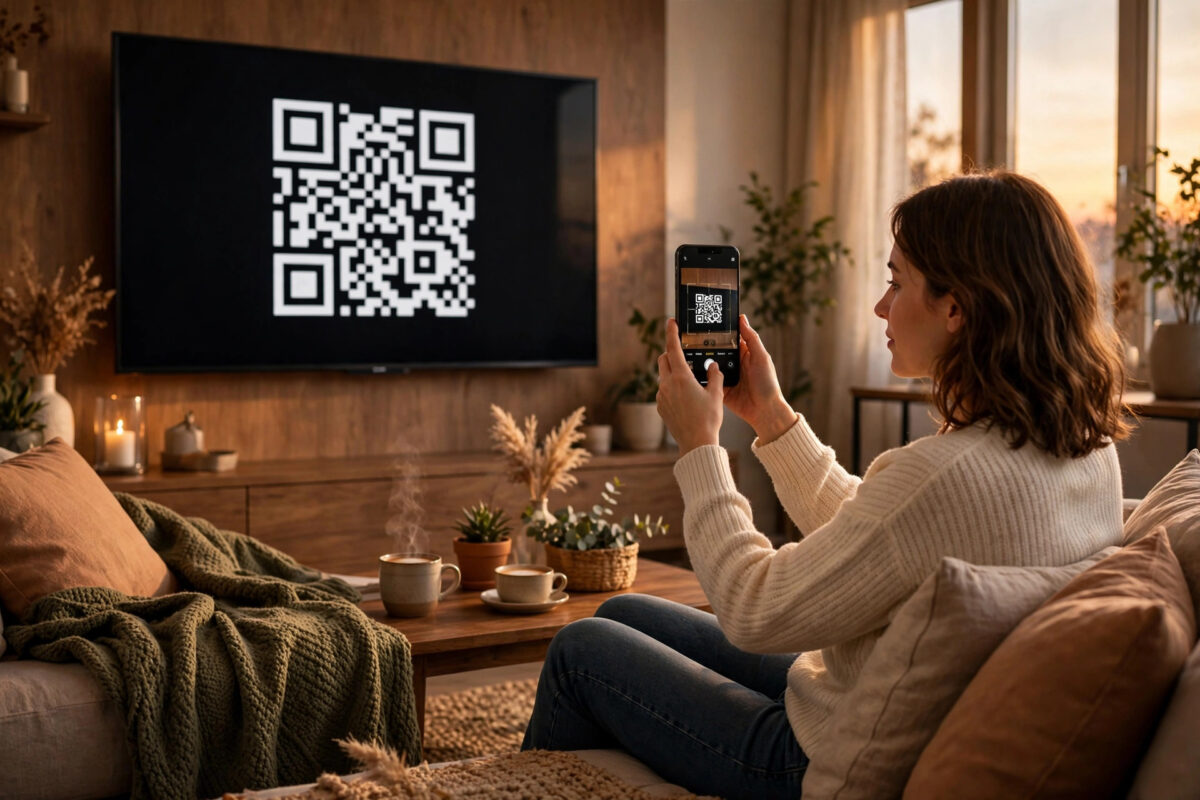
Setting up a new TV is exciting until you reach the sign-in screens. Typing a long email address and a complicated password with a TV remote, one letter at a time, is slow and frustrating. One wrong character and you have to start again. The good news is that you almost never need to type on the TV at all. Your phone can do the hard work for you in under a minute.
Quick Answer
Open the streaming app on your new TV and choose the sign-in option. Most apps show a QR code or a short activation code on the TV screen. Scan the QR code with your phone camera, or open the web address shown on the TV and type the code. Confirm the sign-in on your phone, where you are probably already logged in, and the TV will refresh and sign you in automatically.
Why Signing In With Your Phone Is Faster
Your phone already knows your passwords. It may store them in a password manager, your Google account, or your Apple ID. It also has a proper keyboard, face or fingerprint unlock, and autofill. That means no hunting for letters with arrow keys and no mistakes from typing a password on a big screen where everyone in the room can see it.
Phone sign-in is also safer. When you approve a login on your own phone, the service can check that the request really came from you. Many apps send a prompt, a code, or a simple approve button, so a stranger cannot sign in on your TV without your phone in their hand.
What You Need Before You Start
A little preparation makes the whole process smooth. Check these items first:
- Your TV and your phone connected to the same home Wi-Fi network.
- The streaming app installed on the TV and updated to the latest version.
- The same app, or a web browser, ready on your phone.
- Your account email address and password saved or remembered on your phone.
- Your phone camera working, in case the app shows a QR code.
If your TV is not online yet, fix that first. Without an internet connection, no sign-in method will work, and the app may show confusing errors that look like password problems.
Method 1: Sign In With a QR Code
This is now the most common method on Netflix, YouTube, Disney+, Prime Video, and many other apps. The steps are almost identical everywhere.
- Open the streaming app on your TV.
- Select Sign In. Skip the on-screen keyboard if the app offers another option.
- Look for a QR code on the TV screen. Some apps show it straight away, while others place it under a button such as Sign in with phone or Use QR code.
- Open your phone camera and point it at the code. On most phones you do not need a special scanner app.
- Tap the link that appears on your phone screen.
- Sign in on the phone page if asked, then tap Confirm, Approve, or Continue on TV.
- Wait a few seconds. The TV screen will refresh and open your profile page.
If the QR code expires, do not worry. Press the back button on the TV or choose the refresh option, and a new code will appear. Codes expire quickly on purpose, for security.
Method 2: Use an Activation Code on Your Phone
Some apps and older TVs do not show a QR code. Instead, they show a short code made of letters and numbers, along with a web address.
- Open the app on your TV and choose Sign In.
- Write down or remember the code on the screen, for example six to eight characters.
- On your phone, open your browser and go to the address shown on the TV. Each service has its own page, such as the one listed next to the code.
- Sign in to your account on the phone if you are not already signed in.
- Type the code exactly as it appears. Watch out for similar characters, such as the letter O and the number 0.
- Tap Activate or Continue.
- Check the TV. It should sign in within a few seconds without you touching the remote again.
Official help pages explain this process for each platform. For example, the Google TV support pages cover account sign-in on Google TV devices, and the Netflix Help Center explains how to activate Netflix on a new device.
Method 3: Let Your TV Account Sign You In Automatically
Smart TVs signed in with a main account can sometimes pass that sign-in to apps for you.
On Google TV and Android TV
If you set up the TV with your Google account, YouTube will usually open already signed in. Some other apps also offer a one-tap option to continue with the same Google account. Choose your name or email when the app suggests it, confirm on screen, and you are done.
On Samsung and LG TVs
Samsung and LG ask you to create or sign in to a brand account during setup. A few of their built-in services use that account, but most streaming apps still need their own sign-in. The QR code method above is still the fastest route for those apps.
On Apple TV and Fire TV
Apple TV can use your iPhone to share your Apple ID and Wi-Fi details during setup. Fire TV can pull saved details from your Amazon account. In both cases, approving a prompt on your phone replaces a lot of typing.
Signing In to Several Apps in One Session
A new TV usually needs five or six apps set up. Do them one after another while your phone is in your hand. Open each app, scan or enter its code, approve, and move on. Most people finish the whole set in about ten minutes.
Start with the app you use most, so you can test that playback works. If one app is slow to confirm, leave it open on the TV and check it again after setting up the next one. Often it finishes in the background.
If your TV supports profiles, set those up after the main account is working. Profiles for children, partners, or housemates are easier to manage once the main sign-in is complete. Our complete guide to setting up parental controls on a smart TV can help you protect younger viewers once everyone is signed in.
Troubleshooting When the TV Does Not Sign In
The code is rejected
Codes are single-use and short-lived. Generate a fresh code on the TV and enter it straight away. Also check that you are signed in to the correct account on your phone. Being logged in to a second or old account is a very common cause of failure.
The TV and phone cannot find each other
Some sign-in features need both devices on the same Wi-Fi network. If your phone is on mobile data, or on a guest network, connect it to the main home network and try again. Restarting the router fixes stubborn cases.
The app keeps returning to the sign-in screen
Close the app fully and reopen it. If that fails, restart the TV from its settings menu rather than just putting it to sleep. As a last step, remove and reinstall the app, then repeat the phone sign-in.
Common Mistakes to Avoid
- Typing the password with the remote anyway. Look for the QR or code option first. It is nearly always there, sometimes under a small link at the bottom of the screen.
- Scanning a code from a photo or website. Only scan codes shown on your own TV, and only approve sign-ins you started yourself.
- Using a different account on the phone. The TV will copy whatever account is active on the phone, including the wrong one.
- Walking away before the TV confirms. Wait until you see your profile or home screen on the TV before closing the phone page.
- Sharing your password out loud. Phone sign-in exists partly so you never need to spell your password in a room full of people.
Conclusion
You do not need patience or fast thumbs to set up streaming apps on a new TV. Let the TV show a QR code or activation code, approve it on your phone where your passwords already live, and the TV signs itself in. Do your apps one after another in a single session, check that both devices share the same Wi-Fi, and your new TV will be ready to watch in minutes.
Frequently Asked Questions
Do I need the streaming app installed on my phone to sign in?
Not always. Many services let you approve the sign-in in your phone browser after scanning the QR code. Having the app installed can make it one tap faster, because you are usually already signed in there.
Why does the QR code keep expiring?
Codes expire after a short time to stop someone else using a photo of your screen to sign in. Simply refresh the code on the TV and scan the new one right away.
Can I sign in on a TV at a hotel or a friend’s house with my phone?
Yes, the same method works anywhere. Just remember to sign out before you leave, and remove the TV from your account’s device list in the app settings afterwards.
What if my phone camera will not scan the code?
Move closer, clean the camera lens, and make sure the room light is not reflecting on the TV screen. If scanning still fails, use the activation code method in your browser instead.
Will signing in with my phone sign me out on other devices?
No. Approving a new TV simply adds it to your account. Most services allow several devices at once, although your plan may limit how many can play at the same time.



Leave a Reply