
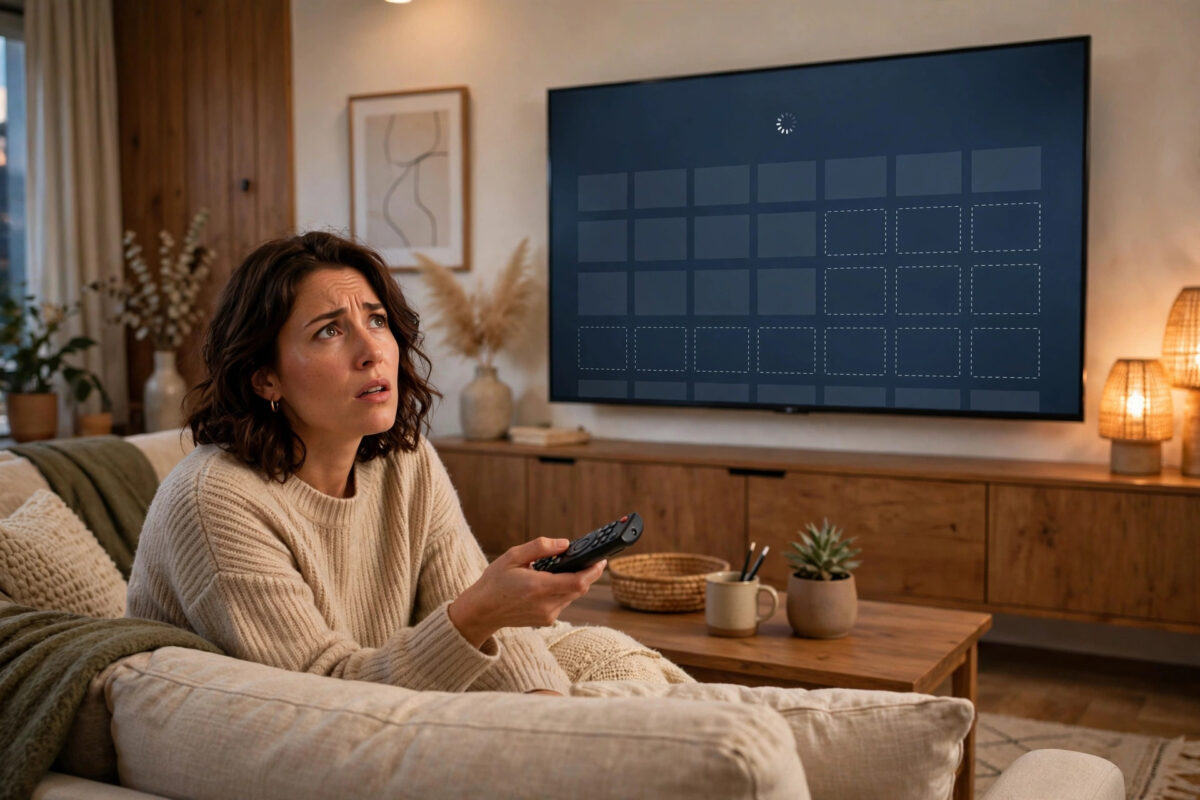
You sit down to install a streaming app you have heard about, open your smart TV’s app store, search for it carefully, and find nothing. Or worse, an app you used last week has vanished from your home screen completely. Missing apps are one of the most common smart TV complaints, and the good news is that the app has usually not gone forever.
App stores on TVs are filtered by your country, your TV model, your software version, and even the account signed in on the TV. If any one of those is wrong or out of date, apps quietly disappear. This guide works through the causes in the order you should check them, so you can get your apps back without a factory reset.
Quick Answer
Apps usually go missing from a smart TV app store because of a wrong country or region setting, outdated TV software, a store cache problem, or because the app does not support your TV model. Fix it by checking your region settings, updating the TV software, restarting the TV fully, and searching the store again. If the app is genuinely unsupported, use a streaming stick or cast from your phone instead.
First, Work Out What Kind of Missing You Have
The fix depends on which problem you actually have, so take a moment to pin it down before changing any settings.
- The app never appears in search results. This is usually a region, software, or compatibility problem.
- An app you had installed has disappeared. This is often a store glitch, a failed update, or the app being withdrawn for your model.
- The whole app store will not open or is empty. This points to a network problem or a store account problem.
- Only one specific app is missing while others show fine. That app itself is the most likely issue, not your TV as a whole.
Write down the exact app name and check how it is spelled. It sounds obvious, but TV search is less forgiving than phone search, and a slightly wrong name can return no results at all.
Fix 1: Restart the TV Properly
A surprising number of empty stores and missing apps are just temporary glitches. TVs stay in standby for months, and small errors build up in that time.
- Turn the TV off with the remote.
- Unplug it from the wall socket.
- Wait a full 60 seconds. This step cannot be rushed.
- Plug the TV back in, turn it on, and wait for the home screen to load completely.
- Open the app store again and wait at least 30 seconds for it to refresh before searching.
If your apps return after this, you are done. If the store is still wrong, move on to the region check, which is the single most common real cause.
Fix 2: Check Your Country and Region Settings
Every TV app store shows a different catalogue depending on the country the TV thinks it is in. A TV set to the wrong country during setup, or moved to a new home in another country, will hide apps that are not offered in that region and show unfamiliar ones instead.
Where to Find the Setting
The location differs by brand, but you will generally find it under Settings, then General, then Location, Country, or Region. On Samsung TVs it is tied to the Samsung account and the terms screen; on LG TVs it sits under General settings; on Android TV and Google TV it follows your Google account country and the device region.
- Open Settings and find the Location or Country option.
- Confirm it matches the country you actually live in.
- If you change it, accept any terms shown and let the TV restart if it asks.
- Open the app store again and search for the app.
Note that changing region can remove apps that were only available in the old region. Set the TV to where you live, not to another country just to chase one app, because that usually creates sign-in and payment problems later. If you have recently set the TV up from scratch, our guide on how to set up a smart TV correctly for the first time covers the region, account, and network choices that prevent this problem.
Fix 3: Update Your TV Software
App developers regularly drop support for old TV software versions. When that happens, the app is hidden from the store for TVs that have not updated, even though the TV hardware could run it perfectly well.
- Open Settings, then Support, Software Update, or About, depending on your brand.
- Choose Update Now or Check for Updates while the TV is connected to the internet.
- Install any update offered and do not unplug the TV while it installs.
- After the TV restarts, open the app store and search again.
The official Google TV Help pages explain the update process for Google TV models, and every major brand publishes similar steps on its own support site. Turning on automatic updates afterwards stops this problem coming back.
Fix 4: Sign In, or Sign Out and Back In, to the Store Account
TV app stores are tied to an account: a Samsung account, an LG account, or a Google account. If that account has signed out, become stuck, or had its country changed on a phone or computer, the TV store can show an incomplete catalogue.
- Open the app store and check whether it shows you as signed in.
- If apps are missing, sign out of the store account completely.
- Restart the TV, then sign back in with the correct account.
- Check the account’s country in a browser. For Google accounts especially, the Play Store country controls what the TV can show, and it can only be changed occasionally.
Fix 5: Check Storage and the Store Cache
On Android TV and Google TV models, the app store itself is an app, and its saved data can become corrupted. Clearing it does not delete your installed apps.
- Go to Settings, then Apps, then See All Apps.
- Find the store app, such as Google Play Store, in the list.
- Select Clear Cache first, then open the store and test it.
- If the problem remains, return and select Clear Data as well, then sign in again if asked.
Also check your free storage under Settings, then Device Preferences or Storage. A completely full TV sometimes hides installable apps or fails to show updates. Deleting one or two large unused apps can be enough.
When the App Genuinely Is Not Available for Your TV
Sometimes every setting is correct and the answer is simply that the app maker does not support your TV. This happens with older models, very new services that launched on phones first, and regional services tied to broadcasters in specific countries.
You still have good options. A low-cost streaming stick or box from Amazon, Google, or Roku plugs into an HDMI port and brings its own, usually much wider, app store. Casting or screen mirroring from your phone is another route for occasional viewing. Both options are far cheaper than replacing a TV that otherwise works perfectly well.
Common Mistakes to Avoid
- Factory resetting as the first step. A reset deletes your apps, accounts, and picture settings. It should be the last resort, not the first.
- Searching with the wrong app name. Some services have different names in different countries. Check the service’s own website for the exact TV app name.
- Changing your TV region to another country. It may reveal the app but break sign-ins, payments, and other apps you rely on.
- Downloading TV apps from random websites. Files offered outside the official store are a common source of malware and rarely work properly on TVs.
- Ignoring the software update. Many people skip updates for years and then lose apps one by one. Keeping the TV updated prevents most of these cases.
Conclusion
When apps go missing from your smart TV app store, work through the causes calmly: restart the TV fully, confirm the country setting matches where you live, update the TV software, refresh your store account, and clear the store’s cache on Android-based TVs. Only if all of that fails should you conclude the app is unsupported on your model, in which case a streaming stick solves the problem cheaply and often gives you a faster, better-supported app store than the TV ever had.
Frequently Asked Questions
Why did an app I already used disappear from my TV?
Usually a failed app update, a store glitch, or the developer ending support for your TV model or software version. Restarting the TV and checking for software updates brings most disappeared apps back.
Can I install an app that is not in my TV’s app store?
Not safely through unofficial files. The supported options are a streaming stick or box with its own app store, or casting the app from your phone to the TV.
Does changing my TV’s country setting bring missing apps back?
It can, if the TV was set to the wrong country. Set it to the country you live in. Setting it to a different country on purpose often breaks accounts and payments.
Why is my TV app store completely empty?
An empty store usually means a network problem or a signed-out or stuck store account. Restart the TV, test another online app, then sign out of and back into the store account.
Will a factory reset fix missing apps?
It can fix deep software faults, but it erases everything and rarely fixes region or compatibility problems. Try every step in this guide first and treat a reset as the final option.



Leave a Reply