
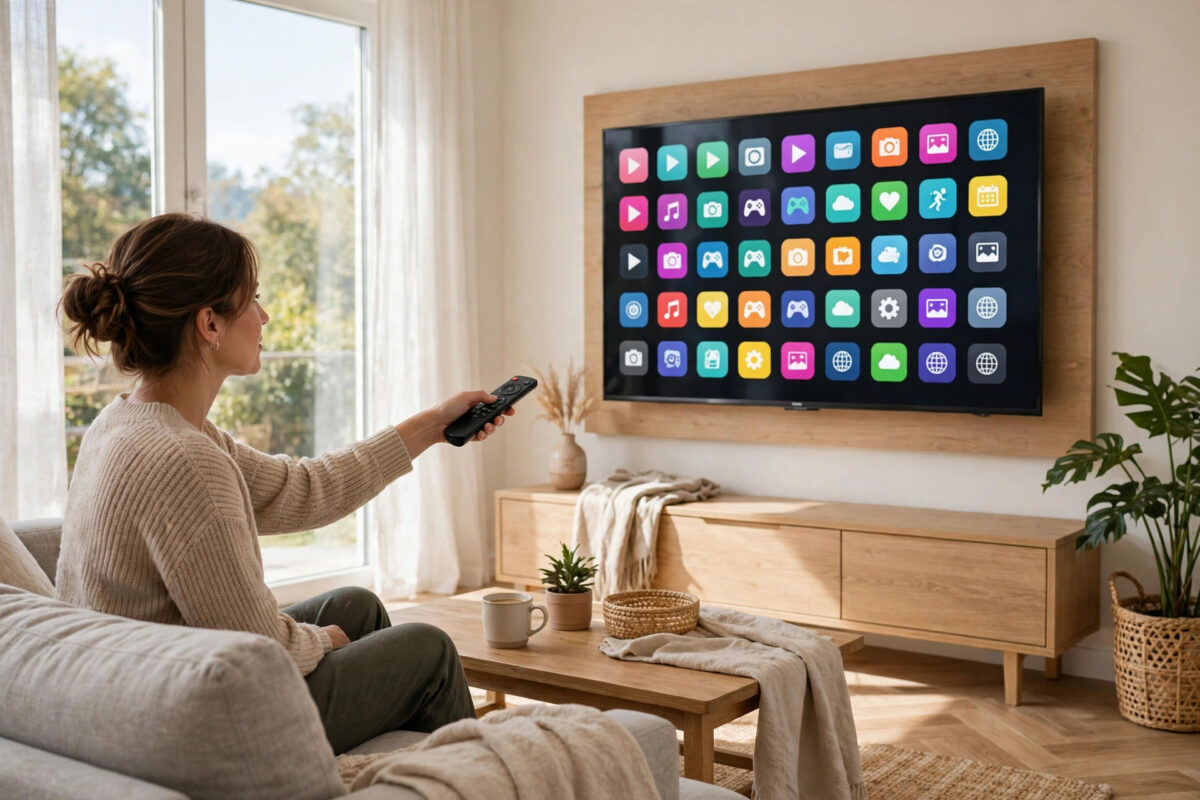
Most Samsung smart TVs update their apps quietly in the background, but sometimes you need to do it yourself. Maybe Netflix will not open until it updates, YouTube is behaving strangely, or automatic updates are turned off and everything is months behind. Updating manually takes only a few minutes once you know where Samsung hides the option.
This guide shows you how to update a single app, how to update all apps at once, how to check your TV’s own software, and what to do when an app refuses to update. The steps below cover recent Samsung Tizen TVs; older models look slightly different, but the Apps menu is always the starting point.
Quick Answer
To update apps manually on a Samsung smart TV, press the Home button, open Apps, select the Settings gear icon at the top of the Apps screen, and turn on Auto Update or select an individual app to update it. You can also open the app’s page in the Samsung app store and choose Update if a new version is available. Make sure the TV is connected to the internet and signed in to your Samsung account first.
Before You Start: Three Quick Checks
A little preparation prevents the most common update failures.
- Check the internet connection. Go to Settings, General, Network, and run the network status test. Updates will not download on a weak or offline connection.
- Sign in to your Samsung account. Some app actions need it. You will find the sign-in option in Settings under General and System Manager, or on the Apps screen itself.
- Check free storage. TVs have limited space. If the TV is almost full, delete an unused app before updating the ones you care about.
If your connection itself is unreliable, fix that first. An update that fails halfway because Wi-Fi dropped can leave an app unusable until you reinstall it. For general connection help, the official Samsung Support site offers network troubleshooting for each TV model.
How to Update a Single App Manually
Updating one app is the best approach when a single service, such as Disney Plus or Prime Video, is misbehaving or demands an update before it will open.
- Press the Home button on your Samsung remote to open the smart hub bar.
- Move along the bar and select Apps to open the Samsung app store.
- Use the search icon or browse your installed apps to find the app you want to update.
- Select the app to open its detail page.
- If an update is available, an Update button will appear on that page. Select it and wait for the download and installation to finish.
- If you only see Open, the app is already on the latest version available for your TV model.
Another Route to the Same App Page
You can also press and hold the select button on an app icon on the home bar or in your app list. On many models this opens a small menu with options such as Reinstall, Move, or View Details. View Details takes you to the same store page where the Update button appears when one is waiting. This shortcut is handy when the app sits on your home screen already.
How to Update All Apps at Once
If the TV has not updated anything for a long time, updating everything together is faster than visiting each app.
- Open Apps from the Home screen.
- Select the Settings gear icon, usually at the top right of the Apps screen.
- In this menu you will see your installed apps and the Auto Update option.
- On many models, apps with pending updates are grouped or marked here, and you can select Update All if it is offered.
- Alternatively, highlight an individual app in this list and choose Update for that app alone.
- Leave the TV on and connected while updates run. Large apps on a slow connection can take several minutes each.
Note that Samsung does not always offer a single Update All button on every model and year. If you do not see it, work down the list in this settings screen app by app; it still takes only a minute or two for a typical set of streaming apps.
Turn On Automatic Updates So You Do Not Have to Do This Again
Manual updates are useful, but automatic updates prevent most problems in the first place. In the same Apps Settings screen, set Auto Update to On. With this enabled, the TV updates apps when new versions are released, usually while the TV is in standby and connected to the internet.
For this to work reliably, the TV needs power in standby and a live connection, so avoid switching it off at the wall every night if you can. If an app ever behaves oddly right after an automatic update, a simple TV restart usually settles it. Our guide on how to restart a Samsung smart TV properly explains the difference between standby, a remote restart, and a full power cycle.
Update the TV Software Too
App updates sometimes depend on the TV’s own Tizen software being current. An app may refuse to update, or an update may not be offered at all, because the TV software is too old.
- Go to Settings, then Support, then Software Update.
- Select Update Now and let the TV check online.
- If an update is found, install it and let the TV restart. Do not unplug it during this process.
- After the TV restarts, return to Apps and try updating your apps again.
- You can also turn on Auto Update in this same menu for the TV software itself.
If the TV cannot update online, Samsung also allows updating by USB using a file downloaded from its support site on a computer. That is a backup method for homes where the TV’s internet connection is the problem.
What to Do When an App Will Not Update
Sometimes an update button does nothing, the download stalls, or the app still opens the old version. Try these fixes in order.
- Restart the TV properly: Hold the power button on the remote until the TV turns off and restarts, or unplug it for 60 seconds. Then try the update again.
- Free up space: Delete apps you never use. Updates need room to download and install.
- Reinstall the app: In the Apps Settings screen, select the app and choose Reinstall if offered, or delete the app and install it fresh from the store. You will need to sign in to that service again.
- Check the connection speed: A very slow or unstable connection can stall downloads. Restart the router and try again, ideally when the house is quieter online.
- Check whether the app still supports your TV: Very old TV models occasionally lose support for newer app versions. In that case the app stays on its last supported version, and a streaming stick is the practical way to get current apps.
Common Mistakes to Avoid
- Unplugging the TV during an update: Interrupting an installation can corrupt the app or the TV software. Always let it finish.
- Assuming Open means Update: If the app page shows only Open, there is no update available for your model. You are already current.
- Skipping the TV software update: App updates can be blocked by old TV software. Check both.
- Updating on a failing connection: Test the network first so downloads do not stall halfway.
- Deleting the app before checking storage: Sometimes freeing space elsewhere lets the update succeed without losing your sign-in.
Conclusion
Updating apps manually on a Samsung smart TV is simple once you know the route: Home, Apps, then either the app’s own page for an Update button or the Settings gear in Apps to manage everything in one place. Keep the TV connected, signed in, and not completely full, and updates take minutes. Turn on automatic updates for both apps and TV software afterwards, and you should only need the manual method when a single app asks for attention. If an app still refuses to update after a restart, space check, and reinstall, it may have outgrown your TV model, and a streaming stick is the easiest way forward.
Frequently Asked Questions
Where is the Update button for Samsung TV apps?
Open the app’s detail page in the Apps store; if a newer version is available, an Update button appears there. You can also open Apps, select the Settings gear at the top right, and manage updates for installed apps from that list.
Why does my Samsung TV not show any update for an app?
Either the app is already on the latest version for your TV model, or your TV software needs updating first. Check for a TV software update under Settings, Support, Software Update, then look at the app again.
Will updating an app sign me out or delete my settings?
A normal update keeps your sign-in and settings, because it only replaces the app software. Reinstalling or deleting an app is different; that usually removes its saved data, so you will need to sign in to that service again.
How do I make my Samsung TV update apps automatically?
Open Apps, select the Settings gear icon, and set Auto Update to On. Keep the TV connected to the internet and powered in standby so it can apply updates in the background.
What should I do if an update gets stuck?
Wait a few minutes first on a slow connection. If it truly stalls, restart the TV by holding the remote power button or unplugging it for 60 seconds, check your internet and free storage, then try the update again or reinstall the app.



Leave a Reply