
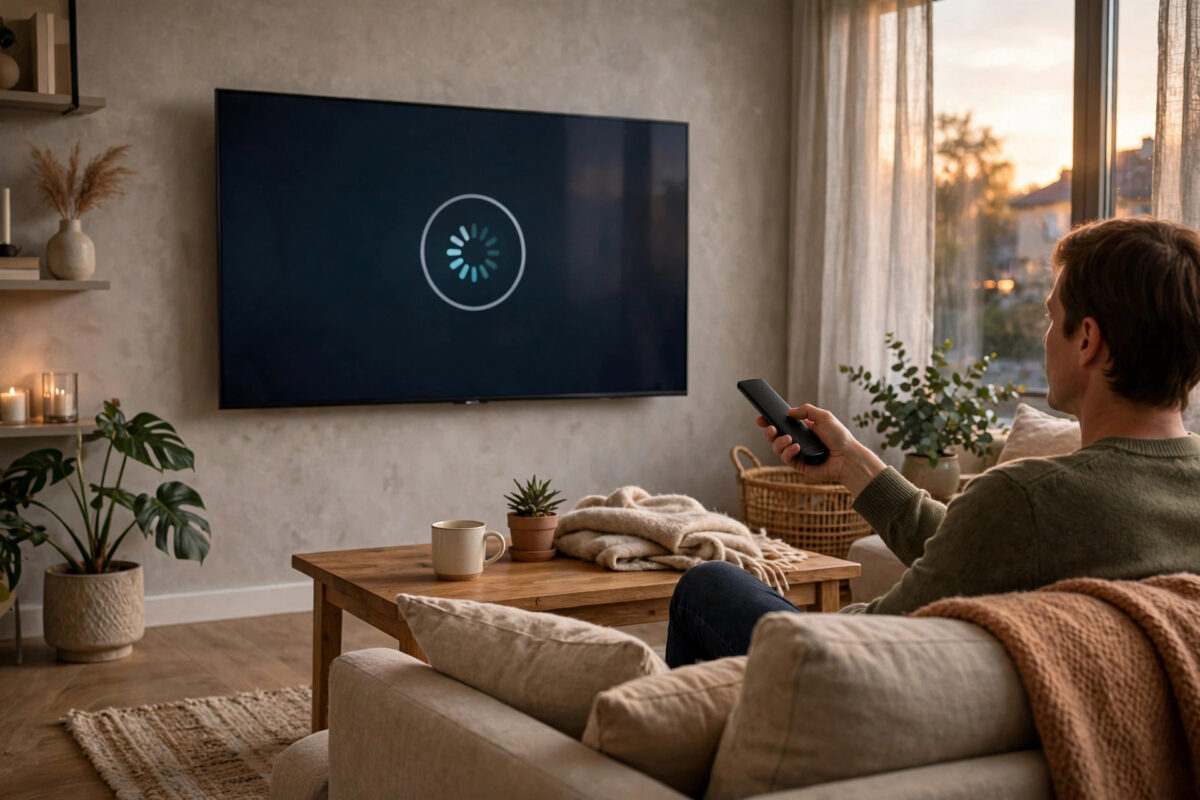
Few things are more annoying than sitting down to watch a video and seeing the YouTube app freeze, show a black screen, or spin forever on your smart TV. The app worked yesterday, so why will it not load today? In most cases the cause is simple, such as a weak connection, a full cache, or an outdated app, and you can fix it yourself in a few minutes.
This guide takes you through the fixes in the right order, from the quickest restart to deeper steps like updating software and reinstalling the app. Work through them one by one and test YouTube after each step. You do not need any technical skills, just your TV remote and a little patience.
Quick Answer
Restart your smart TV and router, check your internet connection, and then update the YouTube app and your TV software. If the app still will not load, clear its cache and data or uninstall and reinstall it. These steps fix the YouTube app not loading problem in the vast majority of cases.
First Checks Before You Change Anything
Before you dig into settings, rule out the simple causes. Many loading failures are temporary and clear on their own once the basics are right.
Check Whether YouTube Is Down
Sometimes the problem is not your TV at all. YouTube services occasionally have outages that affect many users at once. Pick up your phone and try opening YouTube there, or search online to see if other people are reporting problems. If YouTube is down for everyone, no setting on your TV will help, and you simply need to wait until the service recovers.
Check Your Internet Connection
YouTube needs a stable connection to load. Open another app on your TV, such as Netflix or a web browser, and see if it works. If nothing loads, your connection is the problem. Check that your router is switched on, look for warning lights, and confirm other devices in your home can get online. A TV that says it is connected can still have no real internet access, so testing with another app is the reliable check.
Restart Your TV and Router Properly
A proper restart clears temporary glitches in memory that a quick standby press does not fix. This single step solves a surprising number of app loading problems.
- Close the YouTube app completely using your remote.
- Turn the TV off, then unplug it from the wall socket.
- Wait at least sixty seconds. This matters, because the TV needs time to fully discharge and clear its memory.
- Turn your router off, wait thirty seconds, and turn it back on. Give it two or three minutes to reconnect fully.
- Plug the TV back in, turn it on, and open YouTube again.
Avoid judging the result too quickly. Smart TVs often need a minute after starting before apps respond normally. If YouTube now loads, you are done and no further steps are needed.
Improve a Weak or Unstable Connection
If YouTube loads sometimes but often fails, your connection may be weak rather than completely broken. The TV’s position in your home has a big effect on Wi-Fi strength.
- Move your router closer to the TV, or remove obstacles between them where possible.
- If your router offers both 2.4 GHz and 5 GHz networks, try the other band. The 2.4 GHz band travels further through walls, while 5 GHz is faster at short range.
- Disconnect other devices that are streaming or downloading while you test.
- If possible, connect the TV to the router with an Ethernet cable. A wired connection is the most stable option and removes Wi-Fi problems entirely.
- Avoid peak evening hours for testing if your broadband is known to slow down.
Signal problems also affect other apps, so if you regularly see buffering everywhere, solving the connection will improve your whole TV experience, not just YouTube.
Update the YouTube App and TV Software
Outdated software is a leading cause of apps refusing to load. YouTube updates its app regularly, and older versions can stop working when the service changes behind the scenes.
Update the YouTube App
- Open your TV’s app store, such as Google Play Store, Samsung Apps, or LG Content Store.
- Search for YouTube and open its store page.
- If an Update button appears, select it and wait for the update to finish.
- Open YouTube again and test it.
Turning on automatic app updates in your app store settings prevents this problem from coming back. Our guide on how to update apps on your smart TV explains the setting for each major TV brand.
Update Your TV System Software
TV makers release firmware updates that fix bugs and improve app compatibility. Go to Settings, then look for Support, About, or System, and choose Software Update. Download and install any available update, and do not turn the TV off while it installs. Once the TV restarts, try YouTube again. Skipping firmware updates for a long time can leave several apps misbehaving at once, so this step is worth doing even if YouTube starts working earlier.
Clear the YouTube App Cache and Data
Apps store temporary files called cache to load faster. Over time these files can become corrupted, and the app then fails to start. Clearing them forces a clean start.
- Open Settings on your TV and go to Apps or Application Manager.
- Find YouTube in the list and select it.
- Choose Clear Cache first, then open YouTube and test it.
- If it still fails, go back and choose Clear Data or Clear Storage. This signs you out and resets the app, so you will need to sign in again.
The exact menu names differ between Samsung, LG, Sony, and other brands, but the options are always in the apps area of settings. The official YouTube Help troubleshooting guide also lists app fixes recommended by Google for TV devices.
Uninstall and Reinstall YouTube
If clearing the cache does not help, a fresh installation removes damaged app files completely. On most TVs you can uninstall YouTube from the Apps settings or by pressing and holding its icon and choosing uninstall. Then open the app store, search for YouTube, and install it again.
On some TVs YouTube comes pre-installed and cannot be fully removed. In that case, look for an option to uninstall updates or disable and re-enable the app, which has a similar refreshing effect. After reinstalling, sign in again and test with a short video before changing any other settings.
Check Date, Time, and Account Problems
Two less obvious causes are worth checking. First, if your TV’s date and time are wrong, secure connections can fail and apps may refuse to load. Go to time settings and set the clock to update automatically from the network. Second, account problems can look like loading failures. If the app opens but spins after choosing your profile, sign out completely and sign in again. In rare cases, removing the TV from your Google account’s signed-in devices and adding it back clears a stuck session.
Common Mistakes to Avoid
- Only using standby: Pressing the power button once puts most TVs to sleep instead of restarting them. Unplug the TV for a full minute for a real restart.
- Skipping the router: Restarting only the TV leaves router glitches untouched. Restart both devices.
- Changing many settings at once: Make one change, then test. Otherwise you will not know what fixed the problem.
- Factory resetting too early: A factory reset erases all your apps and settings. Use it only as a last resort after every other step fails.
- Ignoring firmware updates: Old TV software slowly breaks app compatibility over time.
When to Consider a Factory Reset or Extra Help
If YouTube is the only app that fails after every step above, and a reinstall did not help, a factory reset may be your last option. You will find it under Settings, then General or System, then Reset. Write down your important settings first, because everything returns to factory condition. If every app fails, not just YouTube, the problem is likely your network or the TV hardware itself, and you should contact your TV maker’s support or your internet provider.
Conclusion
When the YouTube app will not load on your smart TV, start simple and work upwards. Confirm YouTube is not down, restart the TV and router properly, strengthen your connection, and update both the app and the TV firmware. Clearing the cache or reinstalling the app handles most remaining cases. Following this order saves time, avoids unnecessary resets, and gets you back to watching with the least possible hassle.
Frequently Asked Questions
Why does YouTube show a black screen on my smart TV?
A black screen usually points to a corrupted cache, an outdated app, or a temporary system glitch. Restart the TV by unplugging it for sixty seconds, update YouTube, and clear the app cache. These three steps resolve most black screen cases.
Will clearing YouTube data delete my account?
No. Clearing data only removes the app’s local information on that TV and signs you out. Your YouTube account, subscriptions, and history stay safe on Google’s servers, and everything returns when you sign in again.
Why does YouTube load on my phone but not on my TV?
Your phone and TV use different apps and may connect differently to your network. The TV app may be outdated, its cache may be damaged, or its Wi-Fi signal may be weaker. Update the TV app and test the TV on a wired connection if you can.
How often should I update my smart TV software?
Check for updates every few months, or turn on automatic updates so the TV handles it for you. Regular updates keep apps like YouTube compatible and patch security issues at the same time.
Does a factory reset definitely fix YouTube not loading?
Not always. A reset fixes software problems on the TV, but it cannot fix a YouTube outage, a broadband fault, or failing TV hardware. Try it only after all other steps, and check the service status first.



Leave a Reply