
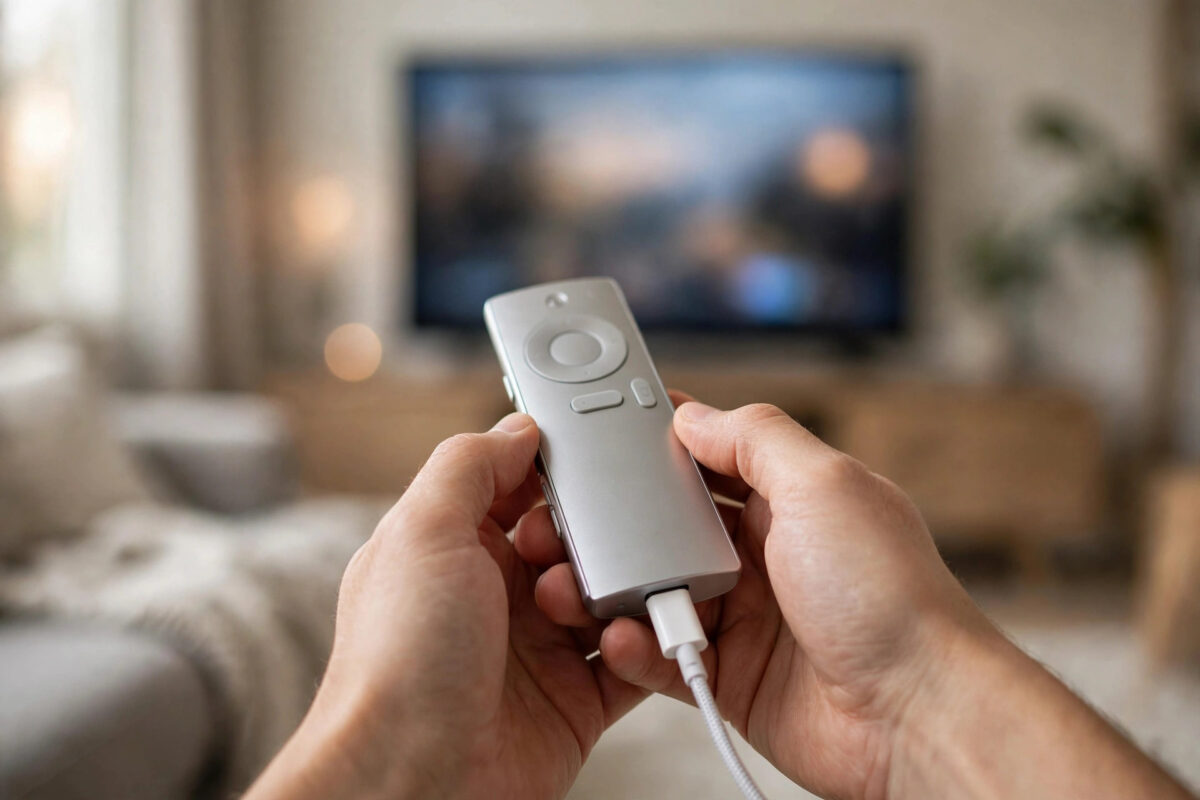
Your show is paused, the menu will not move, and pressing buttons on the Siri Remote does nothing at all. A remote that suddenly stops responding is one of the most common Apple TV problems, and it is rarely a sign that the remote is truly broken. In most cases the cause is a flat battery, a lost Bluetooth pairing, or a simple software freeze that a restart clears.
This guide works through the fixes in the right order, from the thirty-second checks to re-pairing and restarting the Apple TV itself. It covers both the rechargeable Siri Remote and the older Apple TV Remote with a replaceable battery, plus a phone-based backup so you are never fully stuck.
Quick Answer
First, charge the Siri Remote for at least 30 minutes, or replace the battery in an older remote, then hold it close to the Apple TV and try again. If it still does not respond, restart the remote by holding the TV and Volume Down buttons for about five seconds, then re-pair it by holding Back and Volume Up near the Apple TV. Restarting the Apple TV itself fixes most remaining cases.
Step 1: Rule Out the Simple Causes
Before changing any settings, spend one minute on the basics. These checks sound obvious, but they solve a large share of remote problems.
- Point the remote at the Apple TV from a short distance, with nothing blocking the front of the box.
- Move closer. Bluetooth range is generous, but thick cabinet doors, metal TV stands, and other electronics can weaken the signal.
- Check that the Apple TV itself is on. Look for its status light and confirm the TV is on the correct HDMI input.
- Unplug any USB accessories or external drives near the Apple TV that could cause interference, just for the test.
- Try pressing the TV button and the volume buttons separately. If volume works but navigation does not, the remote is connected and the problem is likely a frozen app or system.
If the volume buttons control your TV or soundbar, that part uses a different signal path, often infrared or HDMI control. So working volume does not always prove the Bluetooth link to the Apple TV is healthy. Apple summarises these checks in its official guide for an Apple TV remote that is not working.
Step 2: Charge or Replace the Battery
A dying battery rarely dies in a clean way. The remote may work for one press, ignore the next five, or disconnect and reconnect through the evening. Treat power as the prime suspect whenever the failure is random.
For a Rechargeable Siri Remote
- Connect the remote to a USB cable. Newer models use USB-C; older Siri Remotes use Lightning.
- Plug the other end into a wall charger, not just a laptop port, for a stronger charge.
- Leave it charging for at least 30 minutes before testing. A full charge takes longer, but half an hour is enough to prove the point.
- While it charges, you can use your iPhone as a remote, as explained later in this guide.
For an Older Remote With a Coin Battery
- Open the battery compartment on the back of the remote.
- Remove the old coin cell and note its type, usually CR2032 or BR2032.
- Fit a fresh battery with the correct side facing up.
- Close the compartment and test the remote near the Apple TV.
Step 3: Restart the Remote Itself
The Siri Remote is a small computer, and like any computer it can freeze. Restarting it does not erase your pairing or settings.
- Hold the remote close to the Apple TV.
- Press and hold the TV or Control Centre button and the Volume Down button at the same time.
- Keep holding for about five seconds, until the Apple TV status light turns off and then on again, or the remote disconnects message appears.
- Release the buttons and wait about ten seconds.
- Press any button and watch for the remote connected message on the TV screen.
If the Apple TV is frozen on a black screen, combine this with a power restart: unplug the Apple TV for 30 seconds, plug it back in, and then restart the remote once the home screen returns.
Step 4: Re-Pair the Remote With the Apple TV
If charging and restarting do not help, the pairing between the remote and the box may be broken. Re-pairing rebuilds that Bluetooth link from scratch.
- Turn on the Apple TV and wait on the home screen.
- Hold the Siri Remote three to four inches from the Apple TV, pointing at its front.
- Press and hold the Back button and the Volume Up button together for about five seconds on a Siri Remote. On some older models, hold Menu and Volume Up instead.
- Release when the screen says the remote is pairing or connected.
- Test navigation in several directions, then test the click and the Siri button.
Only one Siri Remote can be paired at a time. If a family member paired a different remote, for example from a bedroom Apple TV, your remote will seem dead until you pair it back. This surprises many households with two Apple TVs and identical-looking remotes.
Step 5: Use Your iPhone as a Temporary Remote
While you fix the physical remote, your iPhone can control everything. This also helps you prove whether the Apple TV itself is healthy.
- Make sure the iPhone and Apple TV are on the same Wi-Fi network.
- Open Control Centre on the iPhone. If the Apple TV Remote icon is missing, add it in Settings under Control Centre.
- Tap the remote icon and choose your Apple TV from the list.
- Enter the four-digit code shown on the TV, if asked.
- Use the touch area to move around, and open Settings to check for software updates.
If the iPhone remote works perfectly, your Apple TV and network are fine and the fault is firmly with the physical remote, its battery, or its pairing. If neither remote works, restart the Apple TV from Settings or by unplugging it. Our complete guide to restarting and resetting Apple TV explains the safe order for those steps.
Step 6: Update Software and Remove Interference
Old software can contain remote and Bluetooth bugs that Apple has already fixed. Using the iPhone remote, go to Settings, then System, then Software Updates, and install anything waiting. Then check the remote’s own charge level under Settings, Remotes and Devices.
Also think about what changed in the room. A new soundbar, a USB 3 hub, a games console, or a router placed directly beside the Apple TV can all add interference. Move the Apple TV a short distance from other electronics and test again before assuming the remote has failed.
Common Mistakes to Avoid
- Testing from across the room: Always test pairing and restarts close to the Apple TV. Distance hides whether the fix worked.
- Charging for two minutes and giving up: A deeply flat remote may show nothing at first. Give it a full 30 minutes.
- Resetting the whole Apple TV first: A factory reset is almost never needed for a remote fault and wastes time on setup and sign-ins.
- Pairing the wrong remote: In homes with two Apple TVs, label the remotes. Pairing one to the wrong box makes the other look broken.
- Ignoring the iPhone remote: It is the fastest way to keep watching and to separate a remote fault from an Apple TV fault.
Conclusion
Work in order and most dead remotes come back to life: check line of sight and power, charge properly, restart the remote, re-pair it close to the box, and use your iPhone as both a backup and a test tool. If a fully charged, re-paired remote still fails while the iPhone remote works, the hardware has likely failed and a replacement remote is the sensible next step.
Frequently Asked Questions
How do I know if my Siri Remote is charging?
Connect it and check Settings, Remotes and Devices on the Apple TV using another control method, where the battery level is shown. The remote has no charging light, so the settings screen is the reliable check.
Why does my remote work for volume but not for menus?
Volume often travels by infrared or HDMI control to the TV, while menu navigation uses Bluetooth to the Apple TV. That pattern usually means the Bluetooth link is down, so restart and re-pair the remote.
Can two Siri Remotes be paired to one Apple TV?
Only one Siri Remote can be paired at a time for normal control. You can add iPhones and iPads as extra remotes without unpairing the physical remote.
Will re-pairing delete anything on my Apple TV?
No. Re-pairing only rebuilds the connection between the remote and the box. Your apps, accounts, and settings are untouched.
When should I replace the remote instead of fixing it?
If it will not charge, will not pair after a full charge and an Apple TV restart, and an iPhone remote works fine, the remote hardware is the likely fault. A replacement Siri Remote pairs in under a minute.



Leave a Reply