
A new Chromecast with Google TV gives you apps, a proper home screen, and a voice remote in one small package. Setup is straightforward, but a few small choices during those first ten minutes make a big difference to how well it works afterwards. This guide takes you from opening the box to watching your first show, with the remote set up properly.
Quick Answer
To set up Chromecast with Google TV and its remote, plug the device into an HDMI port on your TV and power it with the supplied wall adapter, then switch the TV to that input. Follow the on-screen steps to pair the remote by holding the Back and Home buttons, connect to your Wi-Fi, and sign in with your Google account using the Google Home app or the remote. Finish the guided setup, choose your apps and streaming services, and let any updates install before you start watching.
What Is in the Box and What You Need
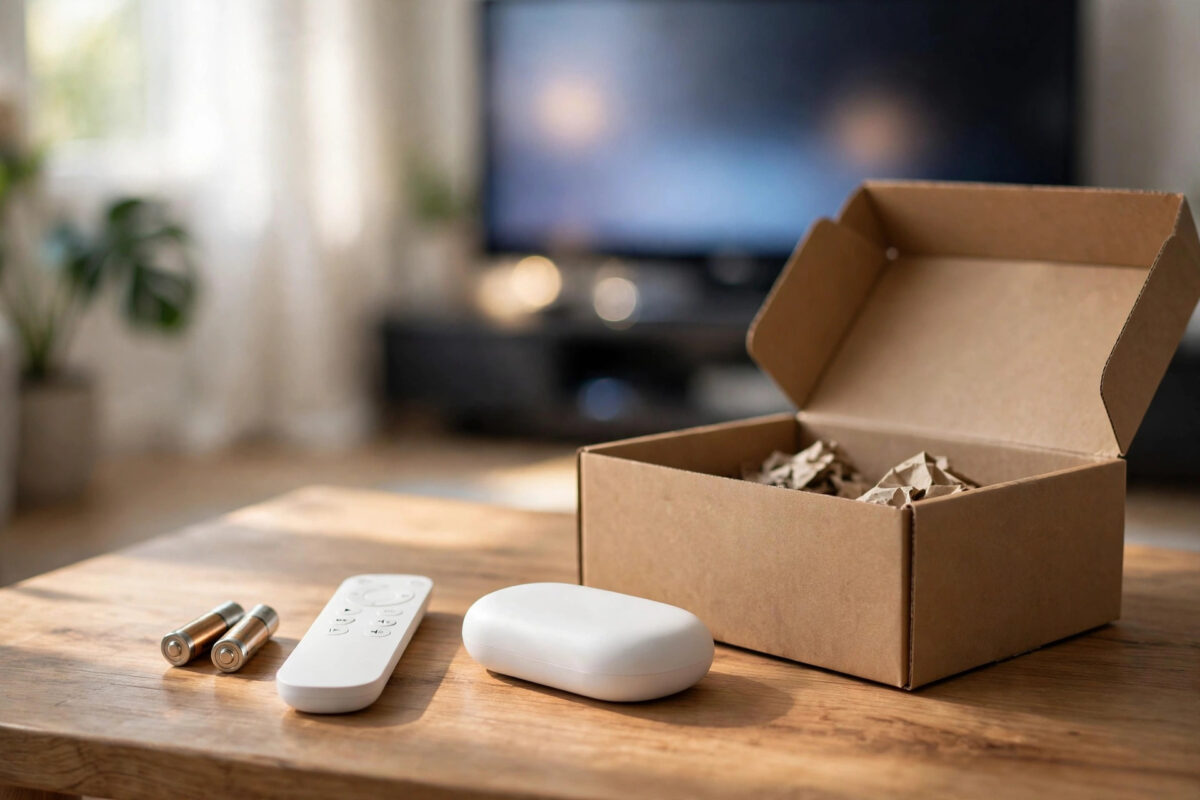
In the box you should find the Chromecast unit, the voice remote, two AAA batteries for the remote, a USB power cable, and a power adapter. The Chromecast with Google TV is a small oval device with a short built-in HDMI cable, so it hangs neatly behind the TV.
Before you start, make sure you have:
- A TV with a free HDMI port.
- Your Wi-Fi network name and password.
- A Google account. If you do not have one, create it on your phone first to save time.
- A smartphone with the Google Home app installed. Setup is much faster with the app, though you can do it with the remote alone.
- A nearby wall socket. Do not rely on a TV USB port for power.
Step 1: Plug Everything In Correctly
- Push the Chromecast’s HDMI connector firmly into a free HDMI port. Note the port number, such as HDMI 2.
- Connect the USB cable to the Chromecast and to the supplied power adapter.
- Plug the adapter into a wall socket. The device light should come on.
- Put the batteries in the remote, matching the plus and minus marks.
- Turn on the TV and select the HDMI input you used.
You should see a welcome or pairing screen. If you see no signal, double-check the input number and that the HDMI connector is fully seated. Avoid HDMI splitters or very old switch boxes during setup, as they can block the picture. Google’s own walkthrough in the official Chromecast with Google TV setup guide shows the same connection order with diagrams if you want a visual check.
Step 2: Pair the Remote
The setup screen will ask you to pair the remote. Hold the Back button and the Home button on the remote at the same time. Keep holding until the small light on the remote pulses, then release. A tick or success message appears on screen when pairing is complete.
If pairing does not start, try these checks:
- Move closer to the TV. Bluetooth pairing works best within a few metres.
- Take the batteries out, wait ten seconds, and put them back in.
- Try a fresh pair of AAA batteries. The included ones are usually fine, but a weak set can cause odd behaviour.
- Make sure no other remote or device is interfering during the first pairing.
Once paired, use the round navigation pad to move around, the centre button to select, and the Back button to go back a step. You will use these for the rest of setup.
Step 3: Choose Language and Setup Method
Select your language and region. The device will then offer two ways to continue: setup with the Google Home app, which is recommended, or setup on the TV with the remote.
The app method is faster because your phone can share Wi-Fi details and your Google account without long typing sessions with the on-screen keyboard. The TV-only method works fine too, it just takes longer. Pick one and stick with it rather than switching halfway.
Step 4: Set Up With the Google Home App
- Open the Google Home app on your phone and make sure you are signed in to the Google account you want on the TV.
- Tap the plus or Add option, then choose to set up a device and add a new device in your home.
- The app searches for the Chromecast. When it finds it, confirm that the code on your TV matches the code in the app.
- Choose a room name for the device, such as Living Room. Clear names help later when you cast or use voice commands.
- Select your Wi-Fi network and enter the password. Your phone may offer to share the saved password automatically.
- Confirm the Google account to use on the TV and accept the terms shown.
Keep your phone near the TV during this stage and stay on the same Wi-Fi network. If the app cannot find the device, check that Bluetooth and location permissions are allowed for the Google Home app, because phones use those to discover nearby devices during setup. Our wider notes on connecting a smart TV to Wi-Fi without connection errors are useful if your network gives you trouble at this point.
Step 5: Finish the On-Screen Setup
Back on the TV, the guided setup continues. You will be asked about the following:
Streaming Services and Apps
Select the services you use, such as Netflix, Prime Video, Disney+, or YouTube. The device will install those apps for you. You can always add or remove apps later from the Apps section, so do not worry about getting this perfect now.
Google Assistant and Voice
You may be offered voice match and personal results for the Assistant. This lets you press the Assistant button on the remote and ask for films, weather, or smart home controls. Accept if you want voice search, which is genuinely the fastest way to find something to watch across several services.
Ambient Mode
Choose what the TV shows when idle, such as your Google Photos, curated artwork, or a simple clock. You can change this later in settings.
Remote Control of Your TV
One of the most useful steps is setting the remote to control your TV’s volume, power, and input. The setup will ask for your TV brand and then test codes. Point the remote at the TV and follow the tests honestly: if the volume changes, say yes; if not, try the next code. When this works, you can put the old TV remote in a drawer for everyday use.
Step 6: Let Updates Finish and Explore
A new device usually has an update waiting. Let it install and do not unplug the power during a restart.
When setup completes, you land on the home screen. Spend two minutes tidying up:
- Sign in to each streaming app once, so everything is ready later.
- Move your favourite apps to the front of the apps row.
- Confirm the resolution in Settings matches your TV.
Helpful Settings to Adjust on Day One
Accounts: Add a kids profile if the TV is shared, so recommendations stay sensible.
HDMI-CEC: Turn on your TV’s CEC setting, called Anynet+, Bravia Sync, or Simplink by brand, so the remote can wake the TV automatically.
Casting: Test casting from your phone once. Play a video in YouTube on the phone, tap the cast icon, and choose your new device name. A successful test now confirms your network setup is correct.
Common Mistakes to Avoid
- Powering from the TV USB port: It may not supply enough power and can cause restarts or failed updates. Always use the wall adapter.
- Skipping the TV control setup: People skip it to save a minute, then juggle two remotes for years. Do the volume and power test during setup.
- Typing passwords with the remote when the app is faster: Use the Google Home app method unless you have a good reason not to.
- Unplugging during the first update: Interrupting an update can corrupt the system. Let it finish.
- Choosing a vague device name: Names like Chromecast1234 cause confusion when casting. Use the room name.
- Forgetting which HDMI port you used: Write it down or pick HDMI 1 where possible, so family members can find the right input easily.
Conclusion
Setting up a Chromecast with Google TV is a simple chain: plug it in with proper wall power, select the right HDMI input, pair the remote with the Back and Home buttons, connect through the Google Home app, and finish the guided choices for apps, voice, and TV control. Let the first update complete, sign in to your services, and test casting once. Done carefully, setup takes about ten to fifteen minutes and leaves you with one remote, one home screen, and every service in one place.
Frequently Asked Questions
Do I need a Google account to use Chromecast with Google TV?
Yes, for full use you do. The account is needed to download apps, sync recommendations, and use the Assistant. Create a free account on your phone before setup to keep things quick.
Can I set it up without a smartphone?
Yes. Choose the option to set up on the TV itself and enter Wi-Fi and account details with the remote and on-screen keyboard. It works well, it just takes longer to type passwords.
Why does my remote control the Chromecast but not the TV volume?
The TV control codes were not set or did not match your TV. Go to Settings, then Remotes and Accessories, then set up remote buttons, and run the volume and power tests again for your TV brand.
How long should the first setup and update take?
Plan for ten to fifteen minutes in total. Most of that is the system update and app installs. A slow connection can stretch it, so set up near the router if your Wi-Fi is weak.
Can I move the Chromecast to another TV later?
Yes. Unplug it and connect it to the new TV’s HDMI port with its power adapter. Your apps and account stay on the device. You may want to rerun the remote’s TV control setup so volume and power work with the new set.



Leave a Reply