
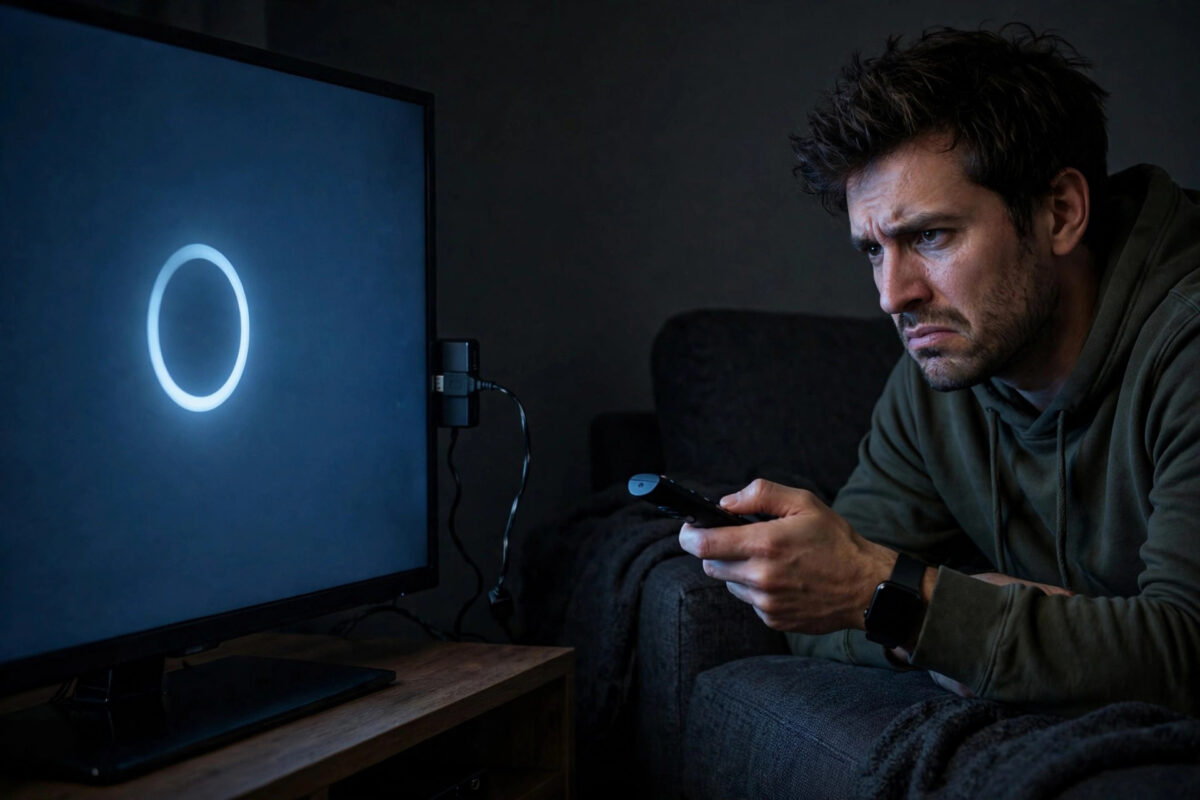
Few things are more frustrating than sitting down to watch TV and seeing nothing but the Amazon logo frozen on the screen. Your Firestick will not load, the remote does nothing, and waiting does not seem to help. The good news is that this problem is very common and, in most cases, you can fix it at home without any tools.
This guide explains why a Firestick gets stuck on the logo screen and walks you through the fixes in order, from the quickest checks to the stronger options you should only try last.
Quick Answer
Unplug your Firestick from power for a full minute, then plug it back in using the original wall adapter. If it still sticks on the logo, try a different HDMI port and TV, remove any adapters or extenders, and let it sit on the logo screen for up to 25 minutes in case an update is finishing. If nothing works, a factory reset is the last resort.
Why a Firestick Gets Stuck on the Logo Screen
The logo screen is the first stage of startup. The stick shows it while the system loads, so a freeze here usually means the system cannot finish starting. Several everyday causes can trigger it.
- Weak or unstable power: The stick is not getting enough power to complete startup.
- An interrupted update: The power or Wi-Fi dropped while the system was updating.
- A faulty HDMI connection: A loose port, extender, or adapter is breaking communication with the TV.
- Overheating: The stick has become too hot in a tight space behind the TV.
- Corrupted system files: A crashed app or failed update has damaged files the stick needs to start.
Work through the fixes below in order. Most people solve the problem with the first two or three steps, so do not jump straight to a factory reset.
Fix 1: Do a Proper Power Restart
Turning the TV off and on does not restart the Firestick, because the stick stays powered. You need to cut its power completely.
- Unplug the power cable from the Firestick or unplug the adapter from the wall.
- Wait a full 60 seconds. This lets leftover power drain and clears temporary glitches.
- Plug the power back in, making sure every connection is firm.
- Turn on the TV and select the correct HDMI input.
- Wait at least five minutes on the logo screen before deciding it has failed.
That final wait matters. After a power cut or an update, the first startup can be much slower than normal. Many sticks that look frozen are simply working slowly in the background.
Fix 2: Check Your Power Supply
If a restart did not help, power is the next thing to check. This is the single most common cause of logo freezes, especially if you recently changed how the stick is plugged in.
Always use the power adapter and cable that came with your Firestick. Plug the adapter directly into a wall outlet, not into the TV USB port, a weak phone charger, or a cheap replacement cable. TV USB ports often provide too little power, and the stick may have just enough energy to show the logo but not enough to finish loading.
Try a different wall outlet as well, and swap the USB cable if you have a spare of good quality. If the stick starts normally with a different adapter or cable, you have found the problem and should replace the faulty part.
Fix 3: Change the HDMI Connection
A poor HDMI connection can also leave you stuck on the logo. Testing this takes only a couple of minutes.
- Unplug the Firestick from the HDMI port.
- Remove the HDMI extender, any adapter, and any HDMI switch or splitter if you use one.
- Plug the stick directly into a different HDMI port on the TV.
- Select the new input on your TV and restart the stick by unplugging its power for 30 seconds.
If the stick works in another port, the original port may be faulty. If you have a second TV in the house, testing the stick there is an even better check. If it starts fine on the second TV, the problem lies with the first TV or its ports, not the stick itself. Slow or unstable home networking can also delay startup updates, so if your connection struggles generally, see our advice on why your Wi-Fi is slow and how to fix it for streaming devices once your stick is running again.
Fix 4: Let It Sit and Check for Overheating
Sometimes the stick is stuck because it is finishing a repair or update in the background. Amazon suggests leaving a stuck device on the logo screen for up to 25 minutes before trying stronger fixes. Make a drink, leave the TV on, and do not unplug anything during this wait.
While you wait, gently feel the stick. If it is very hot to the touch, heat may be the real problem. Sticks tucked behind a TV in a closed cabinet can overheat easily. Unplug it, let it cool completely for 20 to 30 minutes, and use the HDMI extender when you reconnect it so the stick hangs in open air away from the warm back of the TV.
Tips to Prevent Overheating
- Keep the stick out of closed cabinets where possible.
- Do not place it on top of other warm devices such as game consoles or set-top boxes.
- Use the extender cable so air can flow around the stick.
Fix 5: Try to Restart With the Remote
In some cases the system has loaded behind the frozen logo and will still respond to a remote restart command. This does not always work, but it is quick and safe to try.
Point the remote at the TV and hold the Select button and the Play/Pause button together for about five to ten seconds. If the stick obeys, the screen will go blank and the device will restart. Wait several minutes to see whether it loads past the logo this time.
If the remote produces no response at all, move on to the next fix. Do not keep repeating the same restart many times in a row, as constant power cuts can make file problems worse.
Fix 6: Factory Reset as a Last Resort
A factory reset erases everything on the stick, including apps, settings, and sign-in details, and returns it to its out-of-box state. Only try this after every fix above has failed.
If the remote responds at all, hold the Back button and the right side of the navigation ring together for about ten seconds. A reset warning should appear on screen. Confirm it and let the process finish without unplugging the power.
If the remote method shows nothing, be honest about the limit here: a completely frozen stick with no menu access has very few remaining home options. You can leave it powered on the logo screen for an hour as a final wait, and test it once more on another TV with the original adapter. If it still never passes the logo, the device itself may have failed.
For official guidance on this fault, read Amazon’s help page for Fire TV devices stuck on the logo screen. If your device is under warranty and still will not start, Amazon’s device support hub explains how to get further help and replacement options.
Common Mistakes to Avoid
- Unplugging after only a few seconds: Slow startups need time. Give each attempt at least five minutes, and one attempt a full 25 minutes.
- Using TV USB power: This is the top cause of startup freezes. Use the original wall adapter every time.
- Stacking adapters and extenders: Every extra connection is a possible failure point. Test with a direct connection.
- Resetting too soon: A factory reset wipes everything. Exhaust the power, port, and waiting fixes first.
- Restarting again and again: Endless power cycling can corrupt files further. Work through the steps calmly and once each.
Conclusion
A Firestick stuck on the Amazon logo looks serious, but it is usually a power, connection, or slow-update problem rather than a dead device. Start with a full power restart, confirm you are using the original wall adapter, test a direct connection in a different HDMI port, and allow one long wait for background work to finish. Only use a factory reset when nothing else helps. With a little patience, most sticks return to the home screen and work normally again.
Frequently Asked Questions
How long should I wait on the Firestick logo screen?
Wait at least five minutes after a normal restart. If the stick may be finishing an update, leave it for up to 25 minutes before trying stronger fixes.
Will a factory reset delete everything on my Firestick?
Yes. It removes your apps, settings, and account sign-ins, and returns the stick to its original state. Your purchases stay on your Amazon account and can be downloaded again.
Can a bad HDMI cable cause the logo freeze?
The stick plugs in directly, but a faulty extender, adapter, or port can cause the same freeze. Testing a direct connection in a different port quickly rules this out.
Why did my Firestick get stuck after an update?
If power or Wi-Fi drops during an update, system files can be left unfinished. A full power restart and a long wait often let the stick repair itself and complete startup.
Is my Firestick broken if no fix works?
Possibly, but test it on another TV with the original adapter first. If it fails there too after a reset attempt, contact Amazon support, as the device may need repair or replacement.



Leave a Reply