
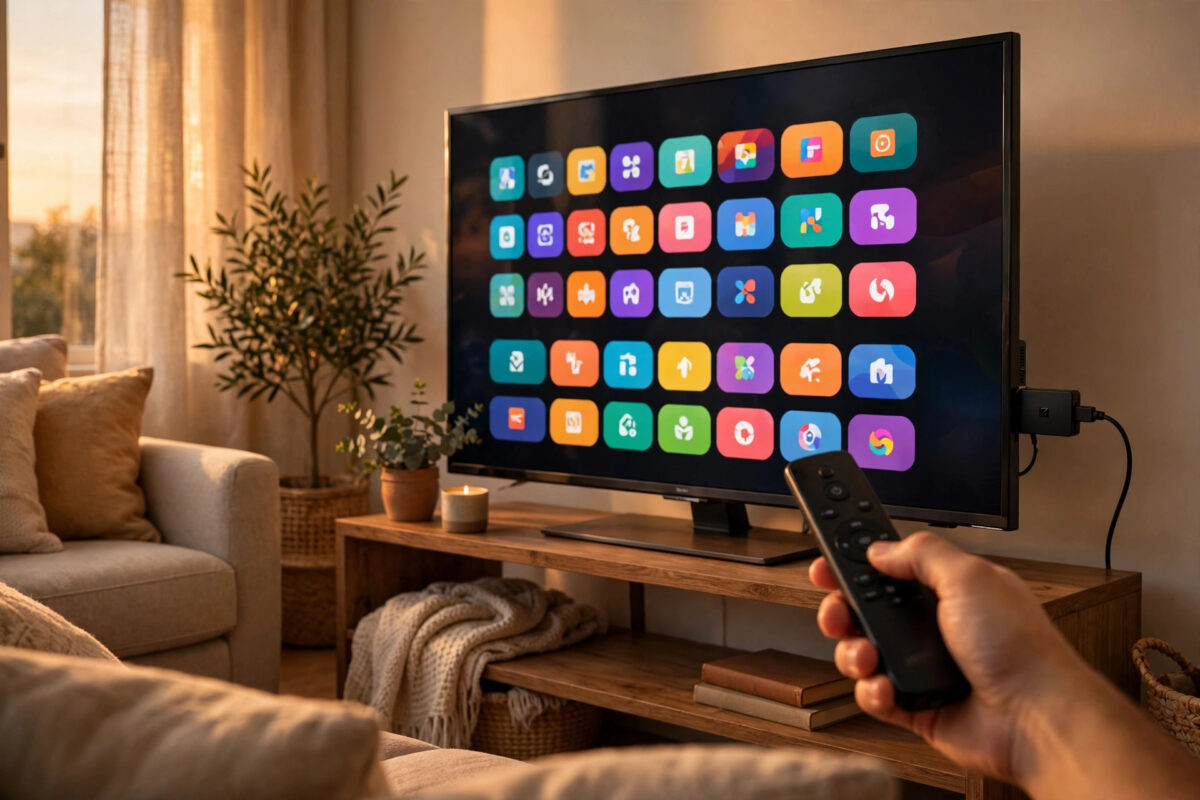
Getting a new Amazon Fire TV Stick is exciting, but the first setup can feel confusing if you have never used a streaming stick before. The good news is that Amazon designed the process to be simple, and most people finish it in under fifteen minutes. This guide walks you through every step in plain language, from plugging the stick in to watching your first show.
You do not need technical skills. All you need is your TV, the box, your Wi-Fi password, and an Amazon account.
Quick Answer
Plug the Fire TV Stick into an HDMI port on your TV and connect its power cable to a wall outlet. Turn on the TV, select the correct HDMI input, then follow the on-screen steps to pair the remote, connect to Wi-Fi, and sign in with your Amazon account. Once setup finishes, install your favourite streaming apps and start watching.
What Is in the Box and What You Need
Before you start, open the box and check that everything is there. Knowing what each part does will make setup much easier.
Inside the box you should find these items:
- The Fire TV Stick itself, which looks like a large USB stick with an HDMI connector
- An Alexa Voice Remote with two AAA batteries
- A USB power cable and a power adapter
- An HDMI extender cable, which is a short flexible cable
- A quick start guide
You will also need a TV with a free HDMI port, a working Wi-Fi network and its password, and the email address and password for your Amazon account. If you bought the stick from Amazon while signed in, it may already be linked to your account, which saves one step later. It also helps to have your phone nearby in case you need to confirm a sign-in code.
Step 1: Plug In the Fire TV Stick Correctly
Power is the most common cause of first-time problems, so take care with this step. Many people plug the USB cable into the TV, and that often does not provide enough stable power.
- Insert the Fire TV Stick into an HDMI port on your TV. Note the number of the port, such as HDMI 1 or HDMI 2.
- If the port is hard to reach, attach the HDMI extender first, then plug the stick into the extender.
- Connect the small end of the USB cable to the side of the Fire TV Stick.
- Connect the other end of the USB cable to the included power adapter.
- Plug the power adapter into a wall outlet. Avoid using the USB port on the TV for regular use.
- Insert the batteries into the remote, matching the positive and negative marks inside the cover.
Using the wall adapter matters. A TV USB port can switch off when the TV sleeps, interrupting updates and causing restarts. The wall adapter gives constant, full power.
Step 2: Select the Right Input on Your TV
Turn on your TV with your normal TV remote. Press the Input, Source, or AV button and choose the HDMI number that matches the port you used.
Within a few seconds you should see the Fire TV logo and then a welcome screen. If you see a message that says no signal, confirm you picked the right HDMI number, push the stick firmly into the port, and check that the power adapter is plugged in and switched on.
If the Screen Is Blank or Black
A blank screen does not usually mean the stick is broken. Try a different HDMI port, as a faulty port is fairly common on older TVs. Also try removing the HDMI extender and plugging the stick in directly to rule out a loose connection. Give the stick a full minute to start after each change, because the first boot can be slow.
Step 3: Pair the Remote
In most cases the remote pairs automatically when you insert the batteries and the stick starts. If it does not, the screen will tell you to press the Home button.
Hold the Home button for about ten seconds while pointing the remote at the TV, and keep the remote within a few feet of the stick. An on-screen message will confirm when the remote is connected. Once paired, use the ring to move around and the centre button to select items.
Step 4: Choose Language and Connect to Wi-Fi
The first setup screens ask you to choose your language and country. This affects the apps and content shown to you later, so pick the options that match where you live.
Next, the stick will scan for Wi-Fi networks. Select your home network and enter your password carefully. Passwords are case sensitive, so check capital letters and numbers as you type.
- Select your Wi-Fi network name from the list.
- Type your Wi-Fi password using the on-screen keyboard.
- Select Connect and wait for the confirmation message.
- If asked whether to save the password to your Amazon account, choose the option you prefer.
If your network does not appear, restart your router and try again. A weak signal is a common reason for failed setup and buffering later. If streaming keeps stuttering after setup, our guide on how to fix slow Wi-Fi at home for smoother streaming can help you improve the connection step by step.
Step 5: Sign In and Update the Software
After Wi-Fi connects, the stick will check for software updates. Let it download and install any updates it finds, even if it takes several minutes. The stick may restart once during this stage, which is normal.
Next you will sign in with your Amazon account. You can type your email and password with the remote, or follow the on-screen instructions to sign in with a code using your phone or computer. The code option is usually faster and avoids typing a long password with the remote.
Confirm you are using the correct account, because that account controls purchases, subscriptions, and parental settings. If you owned a Fire TV before, setup may offer to restore your old apps and settings, which can save time. First-time owners should simply choose the fresh setup option.
Step 6: Finish the Final Setup Choices
The last screens cover a few useful choices. Take a minute to set them properly now.
- Parental controls: Turn these on if children use the TV. You can set a PIN to block purchases and age-rated content.
- TV controls: Setup may ask for your TV brand so the remote can control volume and power. Follow the sound test to confirm it works.
- App downloads: You may be offered popular apps such as Netflix and YouTube. Select only the ones you actually use to save storage space.
- Alexa introduction: A short demo shows how to hold the voice button and speak a request.
After these choices, you will land on the Fire TV home screen, ready to browse and watch.
Step 7: Install Apps and Personalise Your Home Screen
Open the app store section, search for the services you subscribe to, and download them one by one. Sign in to each app as you install it, while your passwords are fresh in your mind.
You can rearrange the app row so your most-used apps come first. Highlight an app, press the Menu button on the remote, and choose Move. Place everyday apps at the front for quick access.
If the picture looks stretched or cut off, go to Settings, then Display and Sounds, then Display, and use the calibration tool to align the arrows with the edges of your screen. For official diagrams and model-specific help, see Amazon’s official Fire TV setup help pages. If an error appears during sign-in, Amazon’s device support and troubleshooting hub is the best place to look it up.
Common Mistakes to Avoid
Most first-time problems come from a small number of simple mistakes. Avoid these and setup should go smoothly.
- Powering the stick from the TV USB port: This often causes restarts and failed updates. Always use the wall adapter.
- Typing the Wi-Fi password wrong: One wrong character blocks the connection. Double-check it before selecting Connect.
- Skipping software updates: An out-of-date stick can have app crashes and pairing bugs that the update already fixes.
- Filling storage with unused apps: Fire TV Sticks have limited storage. Install only what you need.
- Signing in with the wrong account: Purchases stay tied to that account, so confirm the email address carefully.
Conclusion
Setting up a Fire TV Stick for the first time is mostly a matter of plugging it in correctly, giving it proper wall power, and following the on-screen steps in order. Pair the remote, join your Wi-Fi, sign in, let updates finish, and install only the apps you love. If something goes wrong, recheck power and Wi-Fi first, because those two cause the majority of setup headaches.
Frequently Asked Questions
Do I need an Amazon Prime membership to use a Fire TV Stick?
No. You need a free Amazon account to set up the stick, but Prime is optional. You can still watch free apps and any other subscriptions you pay for separately.
How long does the first Fire TV Stick setup take?
For most people it takes ten to fifteen minutes. It can take up to thirty minutes if a large software update needs to download or your Wi-Fi is slow.
Can I set up a Fire TV Stick without the remote?
You can use the free Fire TV app on your phone as a remote after the stick is connected to Wi-Fi. For the very first setup, however, the included remote is by far the easiest option.
Why does my Fire TV Stick keep restarting during setup?
Repeated restarts usually point to weak power. Plug the USB cable into the included wall adapter instead of the TV, try a different outlet, and check the cable at both ends.
Can I move my Fire TV Stick to another TV later?
Yes. Unplug it and plug it into any TV with an HDMI port. Your account, apps, and settings travel with the stick, so there is nothing to set up again unless you join a new Wi-Fi network.



Leave a Reply