
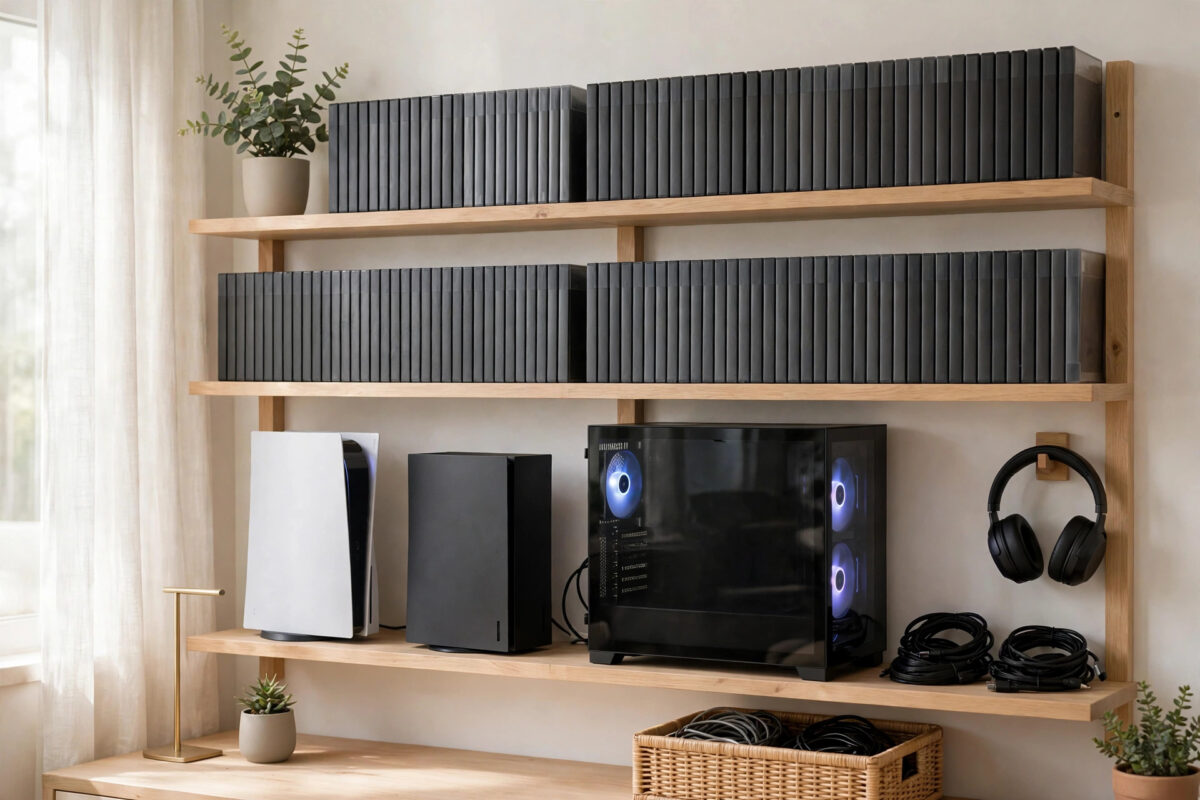
Owning games across a PlayStation, an Xbox, a Switch, and a PC sounds like a dream until you cannot remember where you bought a title, which version is installed, or why you have three copies of the same game. A large library needs a simple system, not more storage alone.
The goal is not a perfect spreadsheet that takes hours to maintain. It is a light, repeatable method that tells you what you own, where it lives, what is installed, and what you actually want to play next.
Quick Answer
Make one master list of everything you own, using a free library app or a simple spreadsheet, and record the platform, store, and format for each game. On each console and PC launcher, use folders, groups, and favourites to keep installed games sorted by what you are playing now, playing next, and finished. Delete finished installs, archive rarely played titles to external storage where supported, and review the whole library once a month so duplicates and forgotten purchases stop building up.
Step One: Build One Master List of What You Own
Most library chaos comes from buying across many stores with no single record. People rebuy games they already own in a sale on another platform simply because they forgot.
- Choose one home for the list. A simple spreadsheet works, and so do free library tracker apps that can import from several platforms.
- Create columns for game name, platform, store, format (disc or digital), installed or not, and status.
- Add your console libraries first: PlayStation, Xbox, and Nintendo accounts each show a purchased or library page in their menus or apps.
- Add PC stores next: Steam, Epic, GOG, Xbox app, EA, and Ubisoft. GOG’s launcher is well known for connecting other accounts into one combined view, which many players use as their PC overview.
- Add physical games by walking to the shelf and typing them in. Discs are the easiest to forget because they appear in no digital list.
- Include subscriptions honestly, marking games you only access through PlayStation Plus, Game Pass, or similar services, because those leave when the subscription or catalogue changes.
The official library views described in the PlayStation guide to finding and downloading purchased games and the Xbox guide to viewing your download history are the best starting points for accurate lists, because they show everything tied to your account, including titles you uninstalled years ago.
Step Two: Give Every Game a Simple Status
A long alphabetical list still does not tell you what to play. Adding one status label to each game makes the library useful at a glance.
- Playing now: Limit this to two or three games. Too many in-progress titles means none of them get finished.
- Up next: A short queue of five to ten games you genuinely intend to start.
- Backlog: Everything owned but unstarted, with no guilt attached.
- Finished: Completed games you may replay one day but do not need installed.
- Multiplayer regulars: The shooters, sports, and party games you return to with friends, even if there is no story to finish.
- Retired: Games you tried and honestly will not return to. Marking them stops them cluttering every future sort-out.
Update the status when you finish or start a game. That ten-second habit keeps the whole system alive, while a list that is never updated becomes useless within a few months.
Step Three: Organise Each Console and Launcher
On PlayStation and Xbox
- Use the built-in library filters to sort by platform generation, installed status, and purchase date when hunting for something specific.
- On PS5, create gamelists inside the Game Library to group games, for example Playing Now, With Friends, and Finished.
- On Xbox, use My Games and Apps groups and pin your current games to the home screen, removing pins when you finish them.
- Keep only current games on the internal storage. Move PS4 or Xbox One titles and finished games to an external drive where the platform allows it.
- Hide demos, betas, and expired subscription titles from the library view if the system offers a hide option, so the list shows real owned games.
On Nintendo Switch
- Use the All Software screen and its grouping feature to create groups such as Playing, Family, and Exercise.
- Archive software you are not playing. Archiving removes the install but keeps the icon and save data, and you can redownload quickly later.
- Keep a fast microSD card in the system so archived favourites can return without a long shuffle of space.
On PC
- In Steam, create dynamic collections that automatically sort by ready to play, installed, multiplayer, or genre.
- Use one combined launcher view if you own games across many stores, so you stop opening five apps to find one title.
- Agree a folder habit on your drives: current games on the fastest SSD, older or smaller games on a second drive.
- Uninstall finished story games. PC installs are easy to repeat, and keeping six huge titles installed just in case wastes hundreds of gigabytes.
Once each platform follows the same Playing Now, Up Next, Finished logic, moving between console and PC feels familiar instead of confusing. Our companion guide on how to free up console storage without deleting your saves helps when the sort-out reveals how full your drives have become.
Step Four: Deal With Duplicates and Multiple Versions
Large libraries collect duplicates quietly: a PS4 copy and a PS5 upgrade, a game bought on Steam and later claimed free on Epic, or a disc copy plus a digital copy from a subscription.
- Search your master list by game name once it is complete and highlight every duplicate.
- Choose one main version for each game, usually the newest upgrade or the platform where your friends play.
- Note which version holds your save file, because saves rarely move freely between platforms.
- Sell or trade duplicate discs instead of letting them sit beside a digital copy you actually use.
- Stop buying a game on a new platform until you have checked the master list. This single habit saves more money than any sale.
Tips to Keep the System Working
- Do a fifteen-minute monthly review: Update statuses, delete finished installs, and add new purchases while you still remember them.
- Log a purchase the day you buy it: Future-you will not remember a late-night sale in three months’ time.
- Keep a wishlist in one place: A single wishlist across stores stops impulse duplicates and makes sale shopping calmer.
- Protect the list: Keep a copy in cloud storage. Losing the master list means rebuilding it from every account again.
- Include the family: If children or a partner share the consoles, agree whose profile owns what and keep shared games marked clearly.
- Track storage, not just titles: Add an approximate install size for huge games, so planning a new download does not start with a storage error.
Common Mistakes to Avoid
- Building a list so detailed you abandon it: Ten useful columns beat forty perfect ones. If updating it feels like work, simplify it.
- Keeping everything installed: A full drive slows updates and browsing. Finished games belong uninstalled or archived, with saves safely kept.
- Trusting your memory during sales: Always check the list before buying. Most duplicate purchases happen in excited sale moments.
- Mixing subscription games with owned games: Mark access-only titles clearly, or your library count and plans will be wrong when they leave the service.
- Organising once and never again: Libraries grow every month. Small regular reviews are what make the system last.
Conclusion
A large cross-platform library becomes manageable when one master list records what you own and where, every game carries a simple status, and each console and launcher uses the same tidy groups. Clear duplicates, archive what you are not playing, and spend fifteen minutes a month keeping it current. The result is less time scrolling, fewer repeat purchases, and far more time actually playing the games you already own.
Frequently Asked Questions
What is the best app for tracking a game library across platforms?
There is no single winner for everyone. A spreadsheet is free and fully under your control, while dedicated tracker apps and combined launchers such as GOG Galaxy can import libraries automatically. Choose the option you will actually keep updated.
How do I avoid buying a game I already own on another platform?
Check your master list before every purchase and keep one shared wishlist. Searching the list by game name takes seconds and prevents most duplicate buys, especially during sales.
Should I delete games I have finished?
Uninstall or archive them, but do not delete their save data unless you are sure. Saves are small, and keeping them means you can return for extra content or a replay without starting again.
How many games should I have installed at once?
Enough for your current rotation: typically your two or three story games, your regular multiplayer titles, and one or two family favourites. Everything else can wait in the library until you are ready for it.
How do I organise games my whole family shares?
Use clear groups or folders for each person plus a shared family group, and mark in your master list which account bought each game. That avoids confusion when a console is replaced or an account is signed out.


Leave a Reply