
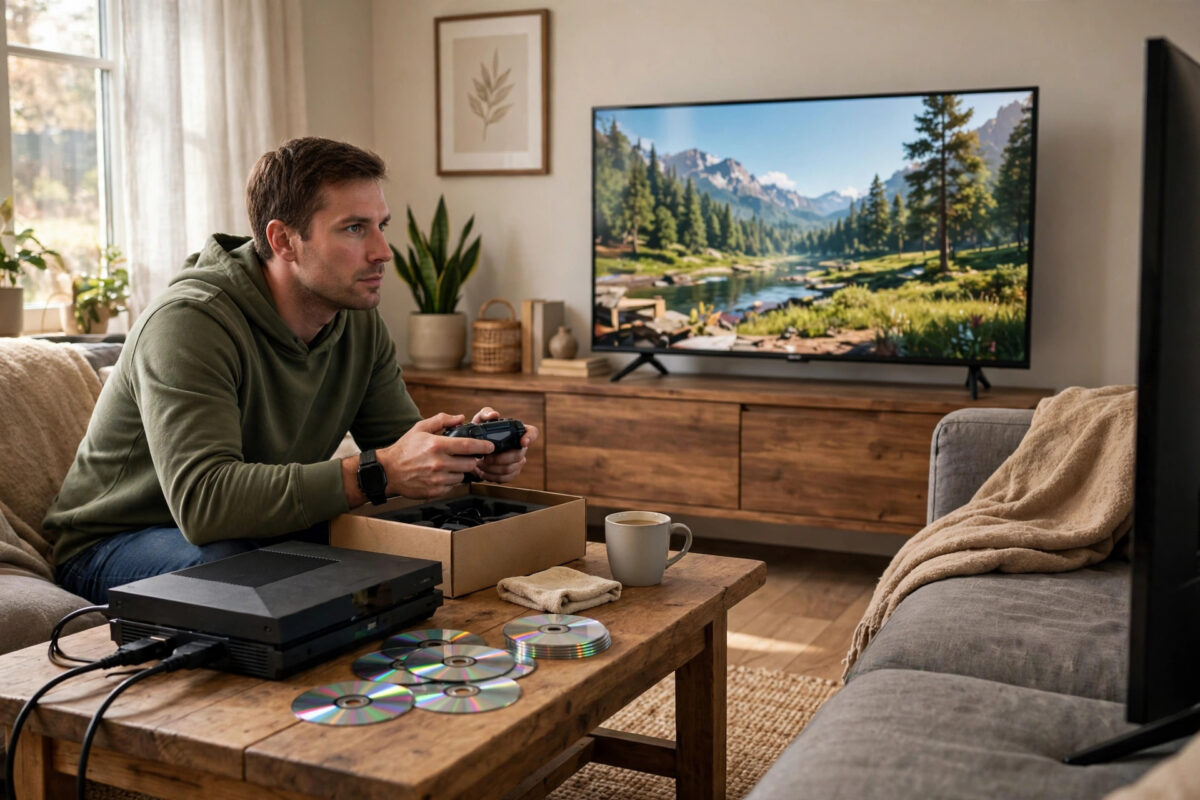
Buying a used console can save you a lot of money, but it can also leave you with a machine that overheats, will not read discs, or is banned from online play. A careful test before you hand over any cash protects you from most of those problems.
You do not need to be a technician to do this well. You just need a planned checklist, enough time to run a real game, and the confidence to walk away if the seller will not let you test properly.
Quick Answer
Meet somewhere safe, inspect the console and ports for damage, and power it on yourself. Test the controller, Wi-Fi, disc drive if it has one, and at least one demanding game for fifteen to twenty minutes while listening for loud fan noise or crashes. Check the serial number, confirm the console is not account-locked or banned online, and only pay after every basic function works in front of you.
Before You Meet the Seller
Good testing starts before you see the console. A little preparation makes the meeting shorter and much safer.
- Agree on a safe meeting place, ideally the seller’s home if you are comfortable, or a public place where you can plug the console into a screen.
- Ask what is included: console, original controller, power cable, HDMI cable, and any games or storage.
- Ask why they are selling, how long they have owned it, and whether it has ever been repaired or opened.
- Agree that you will need twenty to thirty minutes to test. A seller who refuses any testing is a warning sign.
- Bring a game disc you know works, headphones, a charging cable for the controller, and your phone for a hotspot if Wi-Fi is not available.
- Research a fair price for that model and storage size so you can judge whether a small fault is worth a discount or a reason to leave.
If you are buying through an online marketplace instead, ask for a recent video showing the serial number, the console starting up, and a game running. Even then, in-person testing is always better when the value is high.
First Look: Inspecting the Outside
Start with the console switched off. Look slowly, because outside condition often tells you how the machine was treated.
- Check for cracks, heavy scratches, missing feet, or a warped case that suggests it was dropped.
- Look at the warranty seal or screws if visible. Broken seals can mean the console was opened, which may be fine if disclosed, but it should lower the price.
- Inspect all ports: HDMI, power, USB, Ethernet, and storage expansion. Bent pins or a loose HDMI port can be expensive to repair.
- Check the vents for thick dust, pet hair, or signs of smoke. Blocked vents often lead to overheating later.
- Smell the vents gently. A strong burnt smell is a serious warning.
- For a disc model, look into the disc slot area for damage and make sure no disc is stuck inside.
- Check the controller for cracked sticks, worn grips, loose triggers, and a swollen battery if it is an older model.
Our checklist for what to check before buying a second-hand console is useful to keep open on your phone during the meeting so you do not forget a step.
Power On and Basic Setup Checks
Starting the Console
- Connect the power and HDMI cables yourself and switch the console on.
- Watch how long it takes to boot. Very slow loading can point to a failing storage drive.
- Check that the picture is clean, with no flickering, green or pink colours, lines, or random black screens.
- Move through the menus. They should feel smooth, not freezing or restarting.
- Open Settings and find the storage page. Confirm the usable storage matches the model the seller advertised.
- Check the system software version and whether the console can connect for an update.
Controller and Sound Tests
- Connect the controller by cable first, then test it wirelessly.
- Press every button, move both sticks in circles, and test the triggers in a game or controller test screen.
- Watch for stick drift, where a character or cursor moves when you are not touching the stick.
- Test vibration, the touchpad or extra buttons if fitted, and the headphone jack.
- Play sound through the TV and then through headphones. Listen for crackling or one silent side.
- Check battery life claims by noting how fast the controller battery drops during your test.
The Most Important Test: Play a Real Game
Menus alone prove very little. A faulty console often works fine on the home screen and fails under load, so run a real game.
- Install or insert a game you brought, or use one already installed with the seller’s permission.
- Choose a demanding game rather than a simple menu-based title. Racing, open-world, and shooter games push the hardware harder.
- Play for at least fifteen to twenty minutes. Do not accept a two-minute demo.
- Watch for stuttering, texture problems, sudden crashes, error codes, or the console turning itself off.
- Listen to the fan. Some noise under load is normal, but grinding, rattling, or jet-engine loudness the whole time is not.
- Feel the air from the vents. It should be warm, not accompanied by burning smells or heat warnings on screen.
- Pause and resume, open the quick menu, and return to the game to check general stability.
The PlayStation guide to using game discs on PS5 and the equivalent Xbox disc troubleshooting guidance both stress that a healthy drive should load a clean, undamaged disc without repeated errors, which is exactly what you are checking here.
Testing the Disc Drive, Wi-Fi, and Online Ban Status
Disc Drive Test
- Insert your known working disc and let the console install or recognise it.
- Start the game from the disc at least once.
- Eject and reinsert the disc to check the mechanism is smooth and not grinding or jamming.
- If it is a model that plays films, a quick movie disc test can reveal a weak laser, though game loading is the main check.
Network and Account Checks
- Connect to Wi-Fi and run the console’s network test. Try both Wi-Fi and, if possible, an Ethernet cable.
- Open the store or a free online service page to confirm the console can reach the network.
- Ask the seller to show the console signing in online. A console banned from PlayStation Network or Xbox network may still play offline discs, which hides the problem.
- Make sure the seller signs out of all accounts in front of you and removes their profile after you agree to buy.
- Write down or photograph the serial number and compare it with any box or receipt provided.
Never accept a console that is still signed in with someone else’s account and a promise that they will remove it later. If activation locks or family settings are still active, ask the seller to clear them during the meeting.
Common Mistakes to Avoid
- Paying before testing: Once money changes hands privately, getting a refund for a hidden fault is very difficult.
- Testing only the menus: Overheating, crashes, and storage faults usually appear during gameplay, not on the home screen.
- Ignoring fan noise: A very loud fan in a short test often means dust build-up, old thermal paste, or a system that will get worse.
- Forgetting online play: An offline test cannot reveal a console ban. Always see it connect to its online service.
- Skipping the controller test: A replacement controller is expensive, and stick drift can be missed in a quick button press.
- Buying without cables: Missing original power supplies or docks can cost more than expected and complicate returns.
Conclusion
A used console is a good buy only when you have seen it work properly with your own eyes. Inspect the case and ports, test the controller carefully, play a demanding game for at least fifteen minutes, and confirm the disc drive and online services work. If the seller rushes you, hides faults, or refuses a full test, walk away. There will always be another console, but a bad purchase can cost you the full price.
Frequently Asked Questions
How long should I test a used console before buying?
Aim for twenty to thirty minutes in total, with at least fifteen minutes of real gameplay. That is long enough for most overheating, crashing, loud fan, and storage problems to appear.
What is the biggest red flag when buying a used console?
A seller who will not let you power the console on and play a game is the biggest warning sign. Other serious red flags include a burnt smell, repeated shutdowns, a console ban, and a serial number that does not match the box or receipt.
Should I buy a console that has been opened or repaired?
Only if the repair is honestly explained, the price reflects the risk, and the console passes a longer gameplay test. An undisclosed repair or missing warranty seal should normally mean a lower price or no deal.
Can a console work offline but still be banned?
Yes. A banned console may still play disc games offline, which is why you should always connect it to the internet and open its online store or service during testing.
Is stick drift easy to spot?
Yes, if you test carefully. Open a game or calibration screen, leave the sticks untouched, and watch whether the camera or cursor moves on its own. Also move each stick slowly in circles and look for jumps or dead spots.



Leave a Reply