
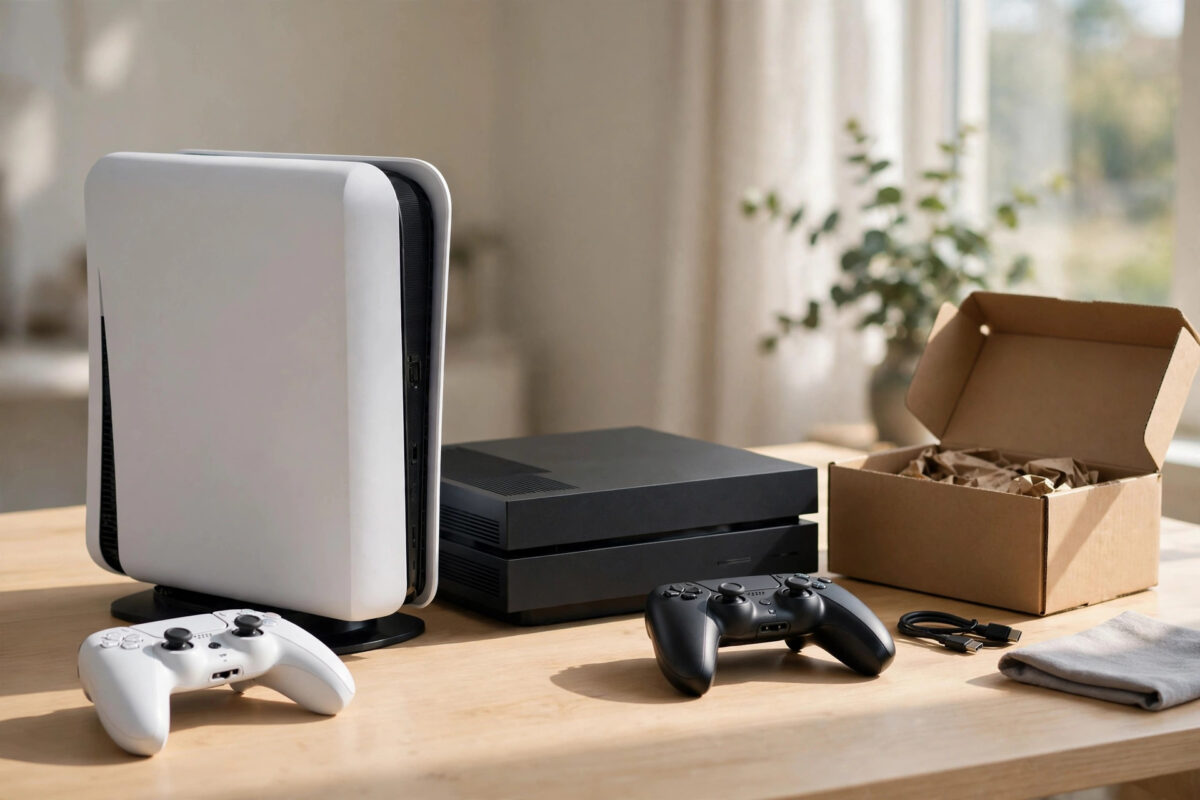
Trading in a console can put good money toward your next system, but handing it over with your account, saved games, payment details, and personal messages still on it is a serious risk. A proper factory reset removes all of that and gives the next owner a clean machine.
The good news is that both PlayStation and Xbox make the reset process fairly simple. The important part is doing your preparation first, because once the reset is finished, you cannot get deleted data back from that console.
Quick Answer
Back up your saves and screenshots, remove your payment methods, and unlink your account first. On PS5, go to Settings, System, System Software, Reset Options, then Reset Your Console. On Xbox, go to Settings, System, Console Info, then Reset Console and choose Reset and Remove Everything. Sign out everywhere afterwards and confirm the console starts at the first-time setup screen.
What a Factory Reset Actually Removes
A full factory reset returns the console to the state it was in when it first came out of the box. It deletes user accounts, installed games, saved data stored locally, screenshots and video clips, settings, and Wi-Fi details.
It does not cancel your PlayStation Network or Xbox subscription, and it does not delete anything stored in the cloud. Your trophies, achievements, friends list, and digital game licences stay tied to your account, so you can sign in on a new console and download your games again.
Understanding that difference matters. The reset protects the information on the hardware you are selling, while your actual gaming library and progress live safely with your online account.
Before You Reset: The Preparation Checklist
Do not rush straight to the reset button. Work through these steps first so nothing important is lost.
1. Back Up Your Save Data
- On PS5, check that your saves are uploaded if you have PlayStation Plus. Go to Settings, Saved Data and Game/App Settings, Saved Data, then Sync Saved Data and turn on auto-sync.
- Without a subscription, copy saves to a USB drive from the same Saved Data menu.
- On Xbox, saves sync to the cloud automatically when you are connected to the internet. Play online once with your main games so the latest saves upload.
- Copy screenshots and clips you want to keep to a USB drive or your phone app, because the reset will delete local copies.
2. Remove Payment and Personal Information
- Remove saved cards from your PlayStation and Xbox accounts, or do this later from a web browser once the console is gone.
- Check for active subscriptions and turn off auto-renew if you will not use the service on another device.
- Sign out of streaming apps such as Netflix, YouTube, and Spotify that are logged in on the console.
- Delete local messages or note anything private stored in apps, although the full reset will clear these anyway.
3. Unlink the Console From Your Account
If this PS5 is set as your primary console for offline sharing, deactivate that setting before you reset. On Xbox, remove this console as your home Xbox if another person in your household will keep using a different machine. Our guide on how to wipe your data and sell an old console safely covers the extra checks worth doing before any sale or trade-in.
Also unlink external accounts if you can, such as linked social accounts used for sharing clips. This prevents the next owner from posting or viewing anything connected to you.
How to Factory Reset a PS5
Follow the official steps in the PlayStation support guide to resetting a PS5 console if you get stuck, and use the summary below for a trade-in reset.
- Make sure the console is connected to power and will not be switched off during the process.
- Go to the home screen and open Settings, shown by the gear icon.
- Select System, then System Software.
- Choose Reset Options.
- Select Reset Your Console.
- Choose Reset to confirm. This is the full factory option, not the settings-only option.
- Wait for the console to erase the data and restart. This can take a while, so be patient and do not unplug it.
- When the welcome and language setup screen appears, switch the console off without creating a new account.
There is also a lighter option called Reset Console Settings, or similar wording, which only restores default settings. Do not use that for a trade-in, because it can leave accounts and data behind.
If Your PS5 Will Not Start Normally
If the console has a fault, you can try resetting from Safe Mode. Turn the PS5 off completely, then hold the power button until you hear a second beep. Connect a controller with a USB cable and choose the reset option from the Safe Mode menu. This is also useful if you have forgotten restrictions set by parental controls, though you may still need account details.
How to Factory Reset an Xbox Series X, Series S, or Xbox One
Microsoft explains the same process in the Xbox support guide to resetting a console to factory defaults. For a trade-in, the key is choosing the remove-everything option.
- Press the Xbox button to open the guide.
- Go to Profile and System, then Settings.
- Select System, then Console Info.
- Choose Reset Console.
- Select Reset and Remove Everything.
- Confirm and wait while the console erases all accounts, games, and settings.
- When the first-time setup screen appears, power the console down and do not sign in again.
Avoid the option called Reset and Keep My Games and Apps. That option is helpful when you are fixing a software problem on a console you plan to keep, but it is not suitable for trading in because it is not a complete clean-up for a new owner.
Remove the Console From Your Microsoft Account
After the reset, sign in to your Microsoft account on a phone or computer and check your list of devices. Remove the traded console if it still appears. Change your password if you have any doubt that someone else could have seen it, and check that two-step verification is turned on.
What to Do After the Reset
Your work is not quite done when the setup screen appears. A few final checks protect you and help the trade go smoothly.
- Power the console on once more and confirm no profile picture, username, or game library appears.
- Remove any disc from the drive and check the USB ports and storage slots for forgotten drives or memory cards.
- If you used an external hard drive or expansion card, decide whether it is included in the trade. If it is, format it separately or reset it too.
- Gather the correct controller, power cable, and HDMI cable. Missing accessories can lower the trade-in value.
- Clean dust from the outside of the console and controller with a dry or slightly damp cloth. Do not open the console unless you know what you are doing.
- Keep a note of the serial number and take clear photos before you hand it over, in case there is a dispute about condition.
Common Mistakes to Avoid
- Resetting before backing up: Local saves, clips, and screenshots are gone for good after a full reset if they were never copied or synced.
- Choosing the wrong reset option: A settings-only reset or keep-games reset does not prepare a console for a new owner.
- Forgetting the disc: Many people trade in a console with a favourite game still inside the drive. Always press eject and check.
- Leaving an expansion drive full of data: The internal reset does not always clear an attached external drive in the way people expect. Check it separately.
- Turning the power off mid-reset: Interrupting the process can corrupt the system software and turn a simple trade into a repair problem.
- Not removing the device online: Even after a reset, tidy up your account device list and subscriptions from a browser for full peace of mind.
Conclusion
A safe trade-in reset is mostly about preparation. Back up what matters, remove payment details, unlink the console, and then use the full remove-everything option on PS5 or Xbox. Finish by checking that the machine boots to a clean setup screen with none of your information visible. Spend twenty careful minutes on this process and you can trade in your old console with confidence, knowing your account and personal data are not going with it.
Frequently Asked Questions
Will a factory reset delete my digital games forever?
No. Digital games are linked to your PlayStation or Xbox account, not just to one console. After buying a new console, sign in with the same account and download your owned games again from your library.
Do I need the internet to factory reset a console?
You can usually start the reset offline, but an internet connection helps beforehand for cloud save syncing and account checks. Connect before you begin so your latest saves are safely uploaded.
How long does a factory reset take?
It often takes between ten and thirty minutes, depending on the console and how much data is stored. Leave the console powered on and do not unplug it until the setup screen appears.
Should I reset if I am only lending the console to a friend?
Not usually. For a short loan, create a separate guest or secondary profile instead. A factory reset is best saved for selling, trading in, recycling, or giving the console away permanently.
What if I forgot my account password before resetting?
Recover the password first through the PlayStation or Xbox website on another device. You may need account access to deactivate sharing settings, check cloud saves, and remove the console from your device list properly.



Leave a Reply