
Selling an old console is a smart way to fund an upgrade, but handing it over without wiping it properly is risky. Your console is signed into accounts that hold payment cards, home addresses, private messages, and saved passwords. A buyer, or anyone who buys it next, could get into far more than your old games if you skip the reset.
A safe sale takes about an hour: back up what you need, sign out everywhere, remove payment details, and perform a full factory reset in the right order. This guide covers PlayStation and Xbox step by step, plus Nintendo Switch notes, and what to do after the reset to protect yourself completely.
Quick Answer
To wipe and sell your old console safely, back up your saves first, then sign out of all accounts, remove payment methods, deactivate the console as your primary or home device, and run a full factory reset that erases all data. On PlayStation choose the full initialisation option, and on Xbox choose Reset and Remove Everything. Finally, remove the console from your online account’s device list before selling it.
Step 1: Back Up Everything You Want to Keep
A factory reset cannot be undone. Once it finishes, local saves, screenshots, and clips are gone from that machine forever.
- Saved games: On PS5 and PS4, upload saves to PS Plus cloud storage or copy them to a USB drive under Saved Data settings. On Xbox, saves already sync to the cloud when the console is online, but connect and open your main games once to force a fresh sync.
- Screenshots and clips: Copy captures to a USB drive or download them through the PlayStation App or Xbox app.
- Game installs: You do not need to back these up. Games can be downloaded again from your library on the new console, as licences live in your account, not on the disc drive or hard drive.
- Settings lists: Note down any special controller, audio, or accessibility settings you want to recreate.
If you are moving to PC instead of a new console, read our guide on how to keep your game progress when switching from console to PC before you wipe anything, because some transfers must be started while the console is still signed in.
Step 2: Remove Payment Methods and Subscriptions
Do not rely on the reset alone to protect your money. Clean the account itself online as well.
- Sign in to your PlayStation or Microsoft account in a web browser.
- Open Payment Methods or Payment Options and note which cards are stored.
- Decide whether to remove the cards entirely. If you still use the account on another console or PC, you can keep them on the account, because the reset will sign the old console out. If you are closing the account completely, remove them now.
- Check active subscriptions such as PS Plus or Game Pass and turn off auto-renew if you are not continuing them.
Step 3: Deactivate the Console as Primary or Home
This step is often forgotten, and it matters. A console set as your primary PlayStation or home Xbox can share your purchases and subscriptions with other users on that machine, and there are limits on how often you can change it.
On PlayStation
- On PS5, go to Settings, then Users and Accounts, then Other, and open Console Sharing and Offline Play. Disable it.
- On PS4, go to Settings, then Account Management, then Activate as Your Primary PS4, and choose Deactivate.
- You can also deactivate all devices once every six months from Account Management on the PlayStation website, which is useful if the console is already gone.
On Xbox
- Press the Xbox button and go to Profile and System, then Settings, then General, then Personalisation.
- Open My Home Xbox and remove this console as your home Xbox.
Sony documents this process in the PlayStation Support guide to deactivating a PlayStation console, and Microsoft covers the reset options in its Xbox Support guide to resetting an Xbox console to factory defaults, including the difference between keeping games and removing everything.
Step 4: Perform a Full Factory Reset
PlayStation 5
- Go to Settings, then System, then System Software.
- Select Reset Options, then Reset Your Console.
- Choose the full reset that erases all data and restores factory settings.
- Wait for the process to finish. The console will restart to the first-time setup screen. Do not set it up again.
PlayStation 4
- Go to Settings, then Initialisation, then Initialise PS4.
- Choose Full, not Quick. A quick initialisation is faster but less thorough, and it is not the right choice before a sale.
- Confirm and wait. A full reset on a large hard drive can take an hour or more.
Xbox Series X, Series S, and Xbox One
- Go to Profile and System, then Settings, then System, then Console Info.
- Select Reset Console.
- Choose Reset and Remove Everything. Do not choose the option that keeps your games and apps when selling.
- Wait for the console to erase and restart to the setup screen, and leave it there.
Nintendo Switch
- Go to System Settings, then System, then Formatting Options.
- Select Initialise Console and confirm. Also format any microSD card separately or keep the card, because game data and screenshots can remain on it.
Step 5: Final Checks Before You Sell
- Power it on once: Confirm it stops at the welcome or language setup screen and asks for no account.
- Remove discs and storage: Eject any game disc, remove USB drives, expansion cards, and microSD cards unless they are part of the sale and have been wiped too.
- Remove the device online: In your Microsoft account devices page or PlayStation account device list, remove the sold console so it no longer appears as yours.
- Change passwords if unsure: If you have any doubt that you sold a console in the past without resetting it, change your account password and check signed-in devices today.
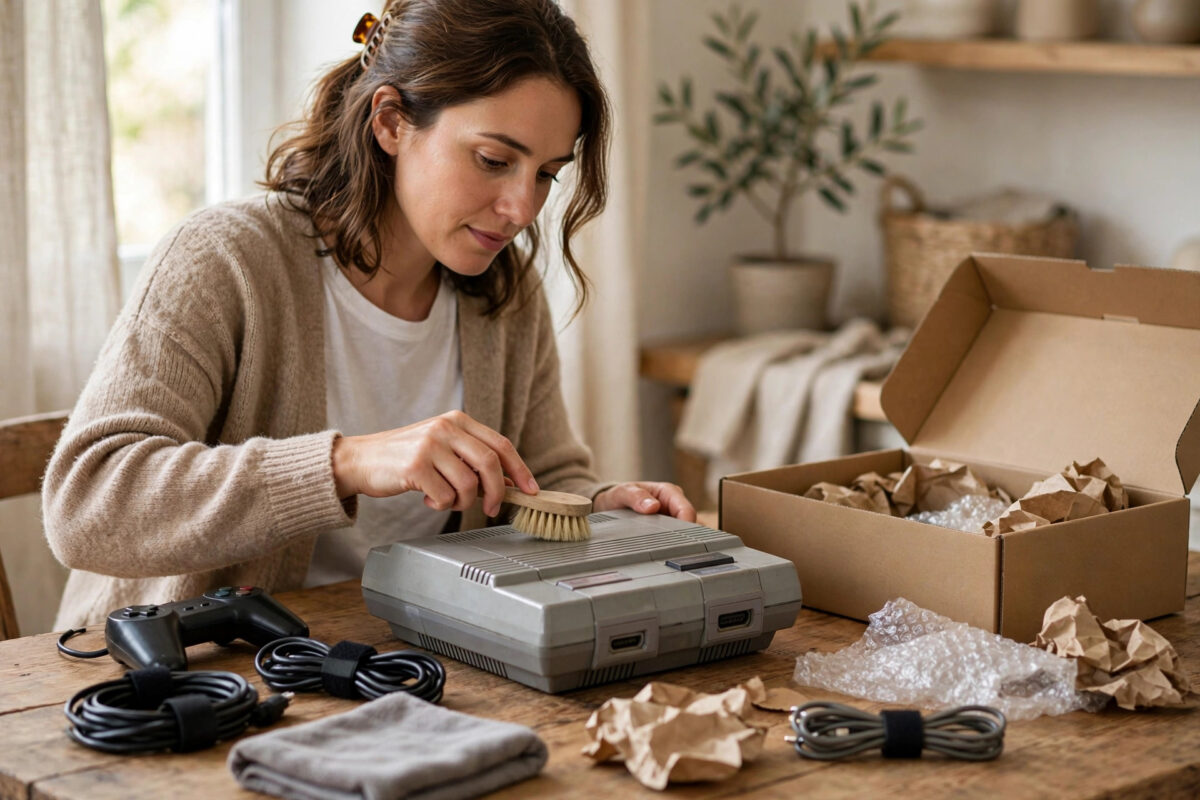
- Clean the hardware: Wipe dust from vents, untangle cables, and include the controller and power lead. A clean, complete console sells faster and for more money. Never use water inside ports; a dry or slightly damp cloth on the outside is enough.
- Record the serial number: Keep a photo of the serial number and your sale receipt in case of a dispute.
Tips for a Safe and Profitable Sale
- Take clear photos in good light showing the console working on the setup screen, which proves it was reset.
- Be honest about condition, storage size, and any faults. Honest listings get fewer returns.
- Meet buyers in a safe public place for local sales, or use a selling platform with buyer and seller protection for posted sales. Avoid payment methods that can be reversed easily by strangers.
- Do not include your account, games library access, or login details as part of the deal. Selling accounts breaks platform terms and puts your personal data at risk.
- Remove the console from your home Wi-Fi router’s known devices list if you want a fully clean break, though this is optional.
Common Mistakes to Avoid
- Only signing out instead of resetting: Saved data, Wi-Fi passwords, and cached account details can survive a simple sign-out.
- Choosing the quick reset on PS4: For a sale, always pick the full initialisation.
- Choosing keep my games on Xbox: That option is for troubleshooting your own console, not for selling it.
- Forgetting to deactivate primary or home status: This can block you from setting up your new console properly.
- Selling with an expansion drive still full of your account’s games: Wipe external storage too, or keep it.
- Resetting before backing up saves: Once the full reset starts, local-only saves are gone for good.
Conclusion
Selling your old console safely comes down to order: back up first, tidy your account online, deactivate the console as primary or home, then run the full factory reset that removes everything, and finally remove the device from your online account list. Finish on the setup screen, check for discs and memory cards, and record the serial number. Follow that order and you can hand the console to its next owner with confidence that none of your accounts, payments, or personal data go with it.
Frequently Asked Questions
Does a factory reset remove my account from the console completely?
Yes, a full reset erases all users, accounts, saves, and settings from that console. Your account itself still exists online, so you can sign in again on your new console with the same email and password.
How long does a full console reset take?
On PS5 and Xbox Series consoles it usually takes 10 to 30 minutes. A full initialisation on PS4 with a large hard drive can take over an hour, so plug the console in and let it finish without interruption.
Should I remove my payment card before selling if I still use the account?
You do not have to remove it from the account if you still use that account elsewhere, because the reset signs the sold console out fully. Removing the device from your online device list adds an extra layer of safety.
Can the buyer recover my deleted data after a reset?
A full factory reset overwrites the user data area and returns the system to its setup state, so a normal buyer cannot access your accounts or saves. Choosing the full option rather than quick options is what provides this protection.
What if I already sold my console without wiping it?
Act immediately. Change your account password online, sign out of all devices from your account security page, deactivate all PlayStation devices from the website if needed, remove payment methods, and turn on two-factor authentication.



[…] home Xbox if another person in your household will keep using a different machine. Our guide on how to wipe your data and sell an old console safely covers the extra checks worth doing before any sale or […]