
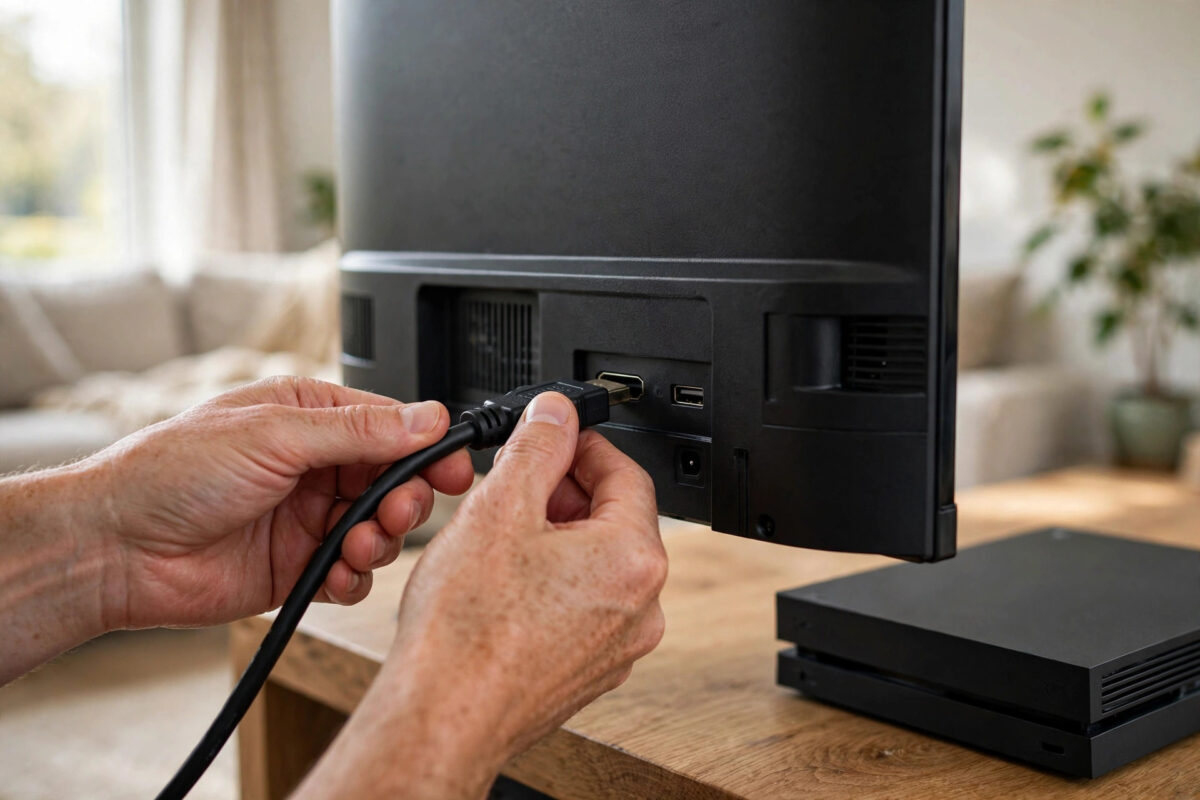
You sit down to play, turn everything on, and instead of your game you get a cold message on the TV: HDMI device not supported. It sounds like your console and TV have fallen out with each other, and in a sense they have. That message means the two devices could not agree on a picture format they both understand.
The encouraging part is that this error is almost always a settings or connection mismatch, not broken hardware. This guide explains why it appears and walks through the fixes in a sensible order.
Quick Answer
The HDMI device not supported message appears when your console sends a resolution, refresh rate, or copy-protection signal your TV or connected device cannot accept. Fix it by connecting the console directly to the TV with a known-good cable, enabling or toggling the enhanced HDMI format setting for that port, and booting the console in safe mode to reset its output to 1080p. Then raise the video settings one step at a time to what your TV truly supports.
What This Error Actually Means
When a console and a TV connect, they exchange information in a process often called a handshake. The TV tells the console which resolutions, refresh rates, and features it supports. The console then chooses a format from that list. Separately, a copy-protection system called HDCP confirms the display is authorised to show protected content such as streaming apps and Blu-ray discs.
The not supported message appears when that conversation goes wrong. The console may be sending 4K to a TV input that only accepts 1080p, a high refresh rate the port cannot handle, or an HDCP version the TV or an in-between device does not match. The TV protects itself by refusing the signal and showing the message instead of a broken picture.
Common Triggers
- A console set to 4K, 120Hz, or a deep colour format on an older or limited TV port
- A splitter, switch, capture device, or old receiver between the console and TV that cannot pass the format through
- An HDCP mismatch after a console or TV software update
- A failing or low-quality HDMI cable that breaks the handshake
- A TV port set to a standard format mode when the console expects enhanced mode, or the reverse
Fix 1: Simplify the Connection
Start by removing every middle device. Connect the console directly to the TV with one HDMI cable, with no splitter, switch, soundbar pass-through, or capture card in the chain.
- Turn both the console and TV fully off.
- Connect the console straight into an HDMI port on the TV.
- Turn the TV on first and select that input, then turn the console on.
- If the picture appears, the removed device was the problem, or it needs its own settings or firmware update before going back in the chain.
Many older receivers and cheap splitters support HDCP 1.4 only, while modern consoles expect HDCP 2.2 or newer for 4K content. That single mismatch is enough to produce this exact error.
Fix 2: Check the TV Port and Its Format Setting
Not all HDMI ports on a TV are equal. On many models only one or two ports support the full 4K feature set, and each port can often be set to standard or enhanced format in the TV menu.
- Try the console in a different HDMI port, especially the one labelled for gaming, eARC, or 4K if your TV marks one.
- In the TV settings, find the HDMI format option for that port and switch it to enhanced if you want 4K and HDR, or back to standard if you are troubleshooting a basic picture.
- After changing the format setting, restart both the TV and the console so they perform a fresh handshake.
Samsung, LG, Sony, and other makers name this setting differently, but the idea is the same. The Samsung support guide to HDMI input signal settings explains how its Input Signal Plus option changes what each port accepts, and other brands offer a similar control.
Fix 3: Reset the Console Video Output in Safe Mode
If the console is locked to a format the TV rejects, you may never reach its settings menu on screen. Safe mode solves that by forcing a basic, universally accepted picture.
- Turn the console fully off.
- On PlayStation, hold the power button until you hear a second beep, then connect the controller by USB. On Xbox, use the power and pair or eject button combination for the troubleshooting screen.
- Choose the resolution change or low-resolution mode option.
- Once you can see the menu, set the output to 1080p with HDR and high refresh options turned off.
- Restart normally and confirm the picture is stable before changing anything else.
Our step-by-step help for a completely blank screen in the console HDMI no signal troubleshooting guide covers the same safe-mode routes in more detail if you get stuck at this stage.
Fix 4: Raise Settings One Step at a Time
With a stable 1080p picture, you can find exactly where the limit is.
- Enable HDR first and play for a few minutes to confirm stability.
- Then raise the resolution to 4K if your TV supports it.
- Then enable 120Hz only if both the TV and the specific port support it.
- If the error returns after a step, undo that last step. You have found the limit of your TV, port, or cable.
This patient approach beats guessing. It also tells you whether a better cable would help, because a cable that fails only at 4K and 120Hz is struggling with bandwidth, not with the handshake itself.
Fix 5: Deal With HDCP Problems
If games play fine but streaming apps or discs trigger the not supported message, HDCP is the likely culprit, because games are often less strict than protected video.
- Look for an HDCP setting in the console’s system menu and try setting it to automatic, or temporarily disabling it for games-only use where the console allows that.
- Update the TV firmware and the console system software, as handshake and HDCP fixes are common in updates.
- Remove older switches or receivers from the chain, as mentioned above, because they are the most frequent HDCP blockers.
- Perform a full power cycle: unplug the console and TV from the wall for sixty seconds to clear a stuck handshake, then reconnect.
Guidance from PlayStation support on HDCP settings explains how the setting affects captured and streamed content on PS5, which is useful background if the error appears when you use a capture device.
Common Mistakes to Avoid
- Buying a new console or TV immediately: This error is a communication problem first. Test cables, ports, and settings before spending money.
- Testing through the same receiver: If you never connect directly to the TV, you never rule out the device in the middle.
- Setting everything to maximum: Choosing 4K, HDR, and 120Hz together on an unknown TV invites this error. Build up one step at a time.
- Ignoring firmware updates: Handshake bugs are real, and makers fix them in updates for both consoles and TVs.
- Using a very long or damaged cable: Long, thin cables lose signal quality. Keep the run short and the cable in good condition.
Conclusion
The HDMI device not supported message means your console and TV failed to agree on a format, not that either one is broken. Simplify the connection, check the port and its format setting, reset the console output in safe mode, and raise settings gradually. In the great majority of homes, one of those steps clears the message and keeps it away.
Frequently Asked Questions
Why did this error appear suddenly when nothing changed?
A silent console or TV update can change handshake or HDCP behaviour, and a cable that was borderline can get worse over time. Start with a full power cycle and a direct connection, then check for further updates.
Does this error mean my HDMI port is damaged?
Usually not. A damaged port more often causes a flickering picture, coloured sparkles, or no signal at all. The not supported message specifically points to a format or protection mismatch, though trying another port is still a smart test.
Can a splitter or capture card cause this message?
Yes, very often. If the device in the middle does not support the same HDCP version or bandwidth as the console and TV, it blocks the signal. Connect directly to prove it, then decide whether that device needs replacing.
Should I turn HDCP off permanently?
Only if you understand the trade-off. Turning HDCP off can help some capture setups for gameplay, but protected apps like streaming services and disc playback may stop working until you turn it back on.
What if the error only happens with one game?
That game may be enabling a mode your setup cannot fully support, such as 120Hz or a specific HDR format. Lower that game’s performance mode or the console’s refresh setting and test again.



Leave a Reply