
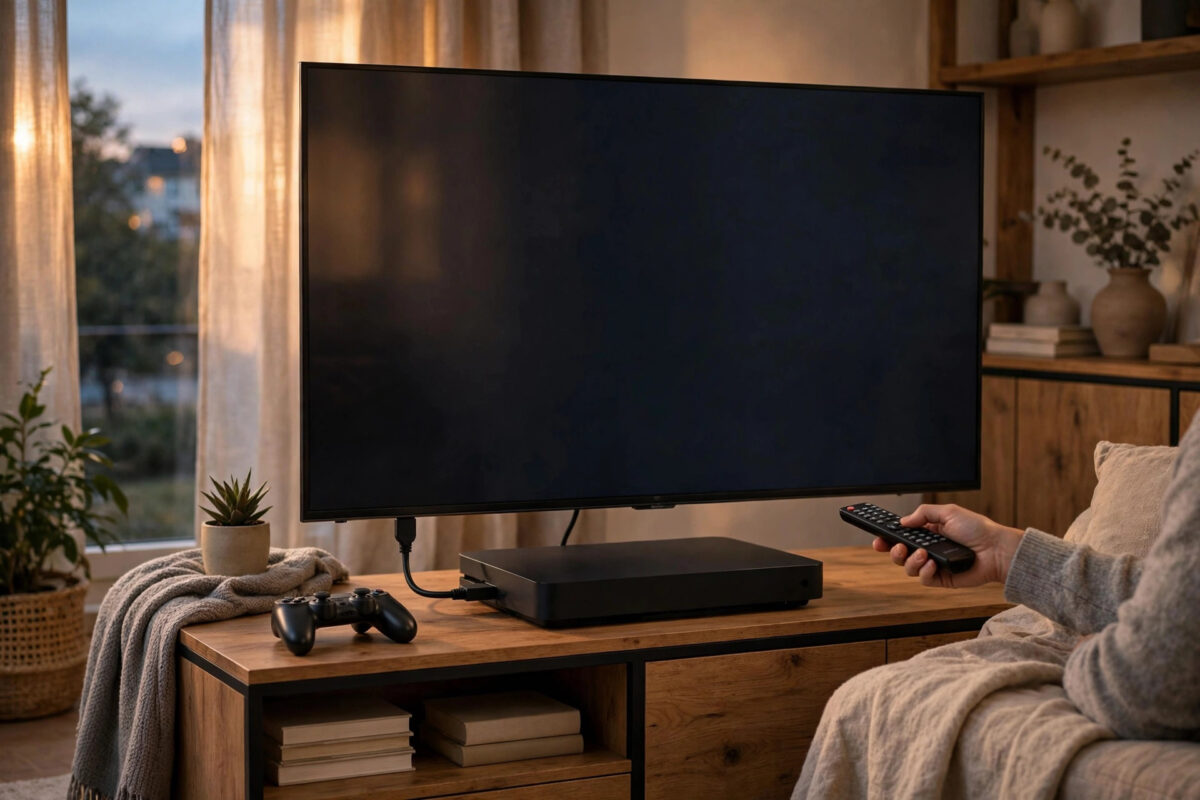
Few gaming moments are more frustrating than turning on your console, seeing its power light glow, and facing a TV that simply says no signal. The good news is that a no-signal problem is rarely a dead console. In most homes it comes down to a cable, a port, an input setting, or a resolution the TV cannot handle.
Work through this guide in order. The steps start with the quick checks that fix most cases in minutes, then move to the deeper resets that solve the stubborn ones.
Quick Answer
To fix a console HDMI no-signal problem, first confirm the TV is on the correct HDMI input, then swap in a known working HDMI cable and try a different HDMI port on the TV. If it still fails, boot the console in its low-resolution safe mode so it sends a basic picture the TV can accept, then set the video output again. Most no-signal faults are fixed by the cable, the port, or that safe-mode reset.
Start With the Simple Checks
It sounds obvious, but the most common cause of no signal is the TV looking at the wrong input. Modern TVs have three or four HDMI ports, and it is easy to select HDMI 2 while the console sits in HDMI 3.
- Turn the console fully on and wait thirty seconds.
- Use the TV remote’s input or source button and cycle slowly through every HDMI input, pausing a few seconds on each one.
- Check the number printed next to the port on the back of the TV and match it to the input you selected.
- If your TV or soundbar uses an AV receiver, confirm the receiver is on the right input too.
Check the Power Side as Well
A console in rest mode with a stalled update can behave like it has no output. Hold the power button until the console turns fully off, unplug it for sixty seconds, then plug it back in and start it again. This simple power cycle clears a surprising number of display faults.
Test the HDMI Cable Properly
HDMI cables fail more often than people expect, especially cables that are bent sharply behind a TV or moved between devices a lot. A cable can also work for a menu at low resolution and fail when a game asks for 4K or a higher refresh rate.
- Unplug both ends and plug them back in firmly. An HDMI plug that is even slightly loose can lose picture.
- Swap the cable for one you know works, ideally the cable from another device that is displaying fine right now.
- Try the console on a different TV or a computer monitor. If it works there, your console is fine and the problem sits with the first TV, its ports, or its settings.
- Remove anything between the console and the TV, such as splitters, capture cards, or cheap switch boxes, and connect directly for the test.
If a new cable fixes it, keep the old cable out of your setup. Intermittent cables cause repeated scares and are not worth keeping as spares.
Try a Different Port and Inspect the Ports
Individual HDMI ports do fail. Move the cable to another port on the TV and select that input. While the cable is out, shine a light into both the TV port and the console port and look closely.
What to Look For
- Bent or pushed-back pins inside the port
- A port that feels loose or wobbles when the cable is inserted
- Dust, fluff, or debris packed inside
- A cable plug that will not sit fully flush
A damaged console HDMI port is a hardware repair, not a settings fix, and it is a known issue on consoles that have been moved often with the cable still attached. The official PlayStation HDMI and display support guidance also recommends direct connections and known-good cables before assuming a hardware fault.
Boot Into Safe Mode to Reset the Video Output
If the console is set to a resolution or format your TV does not support, the TV may show nothing at all, even though everything is healthy. Safe mode forces the console to output a basic picture so you can fix the settings.
On PlayStation Consoles
- Turn the console fully off.
- Press and hold the power button. You will hear one beep at first, then a second beep after about seven seconds. Release after the second beep.
- Connect the controller with a USB cable and press the PS button.
- Choose the option to change resolution or restart in a lower resolution, then let the console boot and set a supported resolution such as 1080p.
On Xbox Consoles
- Turn the console fully off and unplug it for thirty seconds.
- Plug it back in, then hold the power button and the eject or pair button together until you hear a second power-up tone.
- This triggers a low-resolution display reset, after which you can open display settings and choose a format your TV supports.
Once you have a picture, go into the console’s video settings and avoid choosing the very highest options until you know your TV and cable both support them. Our related guide on fixing washed out HDR and picture settings on PS5 helps once the picture is back and you want it to look right, not just visible.
Check TV Settings That Block the Signal
Some TV features can refuse a signal they used to accept, especially after a TV software update.
- Enhanced HDMI format: Each port may have a standard or enhanced mode. Try toggling this setting for the console’s port, then restart both devices.
- HDMI-CEC control: Features that let devices control each other can occasionally cause handshake loops. Turn CEC off temporarily to test.
- Game mode and processing: Rarely, a picture mode can glitch. Switching picture modes can force the TV to renegotiate the connection.
- TV firmware: Check for a TV software update in its settings menu, using the TV’s own apps or another input that still works.
The handshake between a console and a TV is a small negotiation that happens every time you power on. Anything that interrupts it, from a sleepy receiver to a confused port setting, can leave you with a blank screen.
Common Mistakes to Avoid
- Assuming the console is dead: A glowing power light and fan noise mean the console is running. Treat it as a display problem first.
- Testing with another unknown cable: Swapping one doubtful cable for another tells you nothing. Use a cable that is working on another device right now.
- Forgetting the receiver: If the console runs through a soundbar or AV receiver, that device is part of the chain and part of the test.
- Changing five settings at once: Change one thing, test, then move on. Otherwise you will not know what fixed it.
- Forcing a stiff HDMI plug: If a plug will not go in smoothly, stop and inspect the port instead of pushing harder.
When It Is Likely a Hardware Fault
If the console shows no signal on two different TVs, with two known-good cables, in every port, and safe mode also produces nothing, the HDMI port or the console’s video hardware is probably damaged. Look again for a loose or damaged port, because port replacement by a repair shop is common and usually far cheaper than a new console. Keep notes on what you tested, as that information saves the technician time.
Conclusion
A console HDMI no-signal problem feels serious, but the fix is usually simple: the right input, a healthy cable, a working port, or a safe-mode reset of the video output. Work through the steps in order, test one change at a time, and only conclude it is a hardware fault after the console has failed on another screen with a proven cable.
Frequently Asked Questions
Why does my console show no signal after an update?
An update can reset video settings or leave the console in a stalled state. Fully power it off, unplug it for a minute, then boot into safe mode and set a basic resolution such as 1080p before choosing higher options again.
Can a cheap HDMI cable cause no signal at 4K?
Yes. A cable that passes a 1080p menu may fail at 4K with HDR or high refresh rates, causing dropouts or a blank screen. Use a certified high-speed cable for 4K gaming.
My console works on one TV but not another. What does that mean?
The console and cable are probably fine. The problem is likely a port, an enhanced-format setting, or a resolution mismatch on the TV that shows nothing. Test other ports on that TV and reset the console’s video output.
How do I know if the console HDMI port is broken?
Look for bent pins, a loose or wobbling port, or a plug that will not sit straight. If the console fails on multiple TVs with proven cables and the port looks damaged, it needs a repair.
Does unplugging everything really help?
Yes. A full power disconnect clears the HDMI handshake between devices. Many stubborn no-signal cases are solved by unplugging both the console and TV for sixty seconds, then reconnecting the cable before powering on.



[…] step-by-step help for a completely blank screen in the console HDMI no signal troubleshooting guide covers the same safe-mode routes in more detail if you get stuck at this […]