
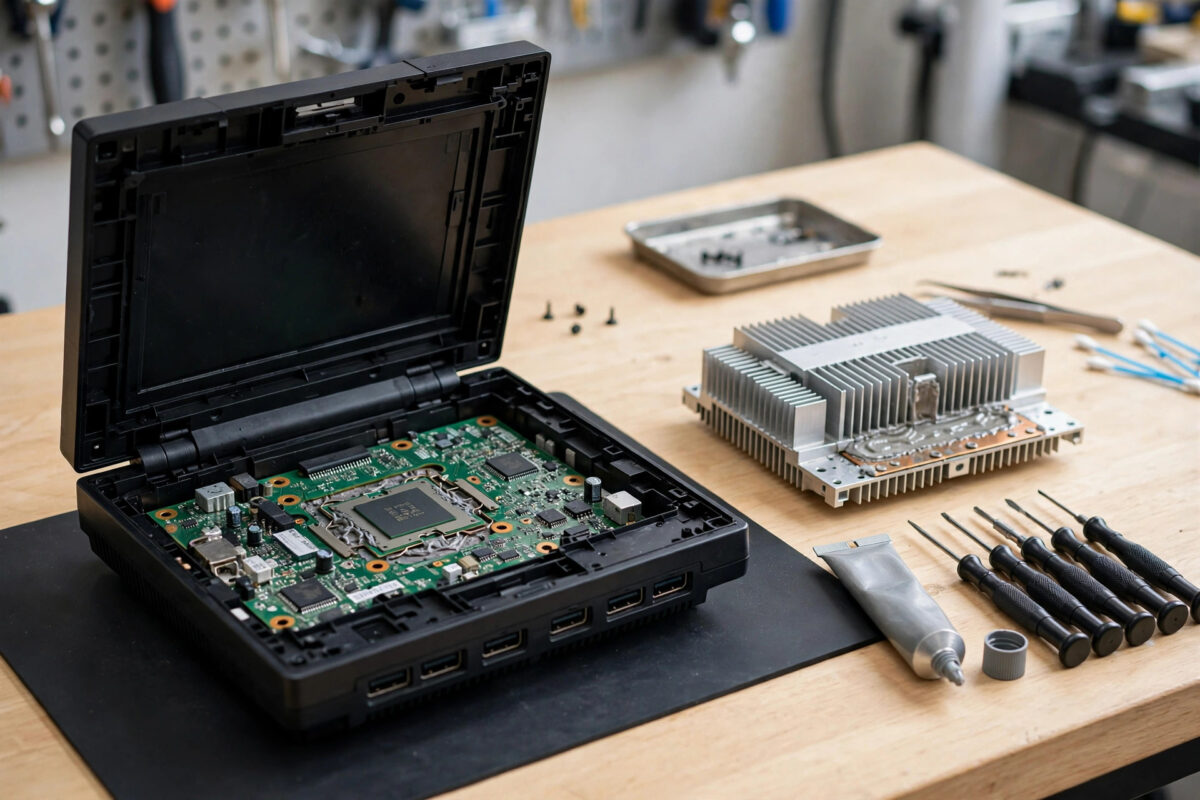
An older console that sounds like a small jet engine, gets hot to the touch, or shuts down in the middle of a game is often not dying. Very often, the thin layer of thermal paste between its main chip and its heatsink has simply dried out after years of heat cycles. Replacing that paste is one of the most effective repairs you can do for an ageing PlayStation, Xbox, or similar machine.
This guide explains the job in plain steps, with honest warnings. Opening a console is not hard, but it does need patience, the right tools, and care with small connectors. If your console is still under warranty, stop here, because opening it can affect your cover.
Quick Answer
To replace thermal paste on an older gaming console, unplug it fully, open the case with the correct security screwdriver, and remove the heatsink to reach the main chip. Clean the old, dried paste from both the chip and the heatsink with isopropyl alcohol, apply a small pea-sized amount of fresh paste to the centre of the chip, then refit the heatsink evenly and rebuild the console. Done well, this lowers temperatures and fan noise noticeably.
Why Thermal Paste Matters So Much
Thermal paste fills the tiny, invisible gaps between a chip and its metal heatsink. Without it, air sits in those gaps, and air is a poor conductor of heat. With a good layer of paste, heat moves quickly from the chip into the heatsink, where the fan can push it out of the console.
Fresh paste in a new console is soft and effective. After five, eight, or ten years, it turns dry, cracked, and crumbly. At that point it blocks heat instead of helping it. The chip runs hotter, the fan works harder to compensate, and the console becomes loud, hot, and in some cases unstable.
Signs Your Paste Has Dried Out
- The fan ramps up to full speed within minutes, even in menus
- The console feels unusually hot around the vents
- Games stutter, crash, or trigger an overheating shutdown
- The machine is much louder than it was a few years ago
- Performance improves briefly after a dust clean, then gets worse again
Dust is the other common cause of heat, so clean the fans and vents while you are inside. But if a console is clean and still loud and hot, old paste is the most likely reason.
What You Will Need Before You Start
Gather everything first. Stopping mid-job to hunt for a tool is how screws get lost and connectors get damaged.
- A security Torx screwdriver set, usually T8 or T9 for most consoles
- A small Phillips screwdriver for internal screws
- Good quality thermal paste made for processors
- Isopropyl alcohol, ideally 90 percent or higher
- Lint-free cloths, cotton buds, or coffee filters for cleaning
- Plastic prying tools to open clips without scratching the case
- A soft brush and a can of compressed air for dust
- Small bowls or a tray to keep different screw sizes separate
Work on a clean, flat table with good light. Take photos at each stage with your phone. Those photos are your best guide when you put everything back together.
Step-by-Step: Replacing the Paste
Step 1: Prepare the Console Safely
- Shut the console down fully, not just into rest or standby mode.
- Unplug the power cable and every other cable, then wait at least ten minutes.
- Press the power button once with the cable out to drain leftover charge.
- Move the console to your table and ground yourself by touching a metal object to reduce static.
Step 2: Open the Case
Remove any warranty stickers or rubber feet that hide screws, and keep them aside if you can. Undo the case screws in a calm order and place them in your tray. Use plastic tools to release clips gently. Never force a panel. If it will not move, a screw or clip is usually still holding it.
Step 3: Work Down to the Heatsink
Inside, you will normally remove the power supply, the disc drive, and various shields before you reach the main board. Disconnect ribbon cables by lifting their small locking tabs, not by pulling the cable itself. Keep each group of screws with the part it came from, because lengths often differ and mixing them up can damage the board later.
Step 4: Remove the Heatsink
The heatsink is usually held by a clamp or bracket with screws in an X pattern. Loosen those screws a little at a time, moving between them in a cross pattern, so pressure releases evenly. Lift the heatsink straight up. Old paste can act like glue, so a very gentle twist can help, but never lever against the board.
Step 5: Clean Off the Old Paste
This step decides how well the whole job works. Dampen a lint-free cloth with isopropyl alcohol and wipe the chip surface until it is clean and shiny. Do the same on the base of the heatsink. Use cotton buds for the edges. Keep cleaning with fresh parts of the cloth until no grey residue comes off. Let the alcohol evaporate fully before moving on.
Be careful around the small components that surround the main chip on some consoles, especially older PlayStation models with small capacitors close to the processor. Work slowly and do not flood the board with alcohol.
Step 6: Apply the New Paste
- Place a small pea-sized drop of paste in the centre of the chip. For a larger rectangular chip, a thin line down the middle works well.
- Do not spread it with your finger. Skin oils reduce performance, and manual spreading can trap air bubbles.
- Lower the heatsink straight down so its pressure spreads the paste into a thin, even layer.
- Tighten the clamp screws gradually in a cross pattern until they are snug and even. Do not overtighten them.
More paste is not better. Excess paste squeezes out around the edges and does nothing for cooling. A thin layer is the goal.
Step 7: Rebuild and Test
Rebuild in the reverse order of your photos. Reconnect every ribbon cable and wire before fitting the next part, because going back for a forgotten connector means opening the machine again. Once the case is closed, connect power and video, turn the console on, and let it sit in the menu for ten minutes. Then play a demanding game for twenty to thirty minutes and listen. A successful job usually means a much quieter fan and no shutdowns.
If heat is only part of the problem, our guide on how to quiet a loud console fan without opening it first covers the simpler checks worth trying before any teardown.
What Results Should You Expect?
On a console with truly dried paste, the difference can be dramatic. Load temperatures can fall by a wide margin, the fan curve calms down, and games that used to trigger warnings often run normally again. On a console that was only mildly affected, the gain will be smaller but still real.
Be realistic, though. New paste cannot fix a failing fan, a tired power supply, or a damaged chip. If the console still overheats after a careful repaste and a full dust clean, the fault is likely hardware related and needs a repair technician.
For safe handling of electronics and cleaning products, follow the guidance in the official PlayStation support and hardware help pages for your model, and check your console maker’s manual before opening any sealed unit.
Common Mistakes to Avoid
- Using the wrong screwdriver: Security Torx screws strip easily with the wrong bit, and a stripped screw can turn a one-hour job into a nightmare.
- Mixing up screws: A long screw in a short hole can crack a board. Keep screws grouped with their parts.
- Pulling ribbon cables: Always lift the locking tab first. A torn ribbon cable is a far bigger problem than old paste.
- Applying far too much paste: A pea-sized amount is enough for most console chips.
- Forgetting the fan connector: It is the most common rebuild error. Check it before closing the case.
- Rushing the cleaning: Old paste left around the edges mixes with new paste and weakens the result.
Conclusion
Replacing thermal paste is the single best maintenance job for an older gaming console that runs hot and loud. The process is methodical rather than difficult: open carefully, clean thoroughly, apply a small amount of fresh paste, and rebuild using your photos. Take your time, keep your screws organised, and your console should reward you with cooler, quieter gaming for years to come.
Frequently Asked Questions
How often should console thermal paste be replaced?
There is no fixed schedule, but paste in a heavily used console typically lasts five to eight years before it dries out. Replace it when noise and heat rise despite the console being clean, rather than opening the machine on a routine basis.
Will replacing thermal paste void my warranty?
It can. Opening most consoles breaks warranty seals, and makers can refuse free repairs on opened units. Only do this job on a console that is out of warranty, or accept that you are giving up that cover.
Can I use toothpaste or other substitutes in an emergency?
No. Toothpaste and similar household products dry out within hours, can be abrasive, and may damage the chip surface. Only use proper thermal paste designed for processors.
My console uses liquid metal instead of paste. What should I do?
Some newer consoles use liquid metal, which is conductive and risky to handle. Do not replace it with normal paste, because cooling performance will drop, and do not attempt to reapply liquid metal unless you have experience. Seek a technician instead.
The fan is still loud after a repaste. What else could it be?
Check for dust deep inside the heatsink fins, a worn fan bearing, or blocked vents where the console sits. If all of those are fine, the fan itself may need replacing.



Leave a Reply