
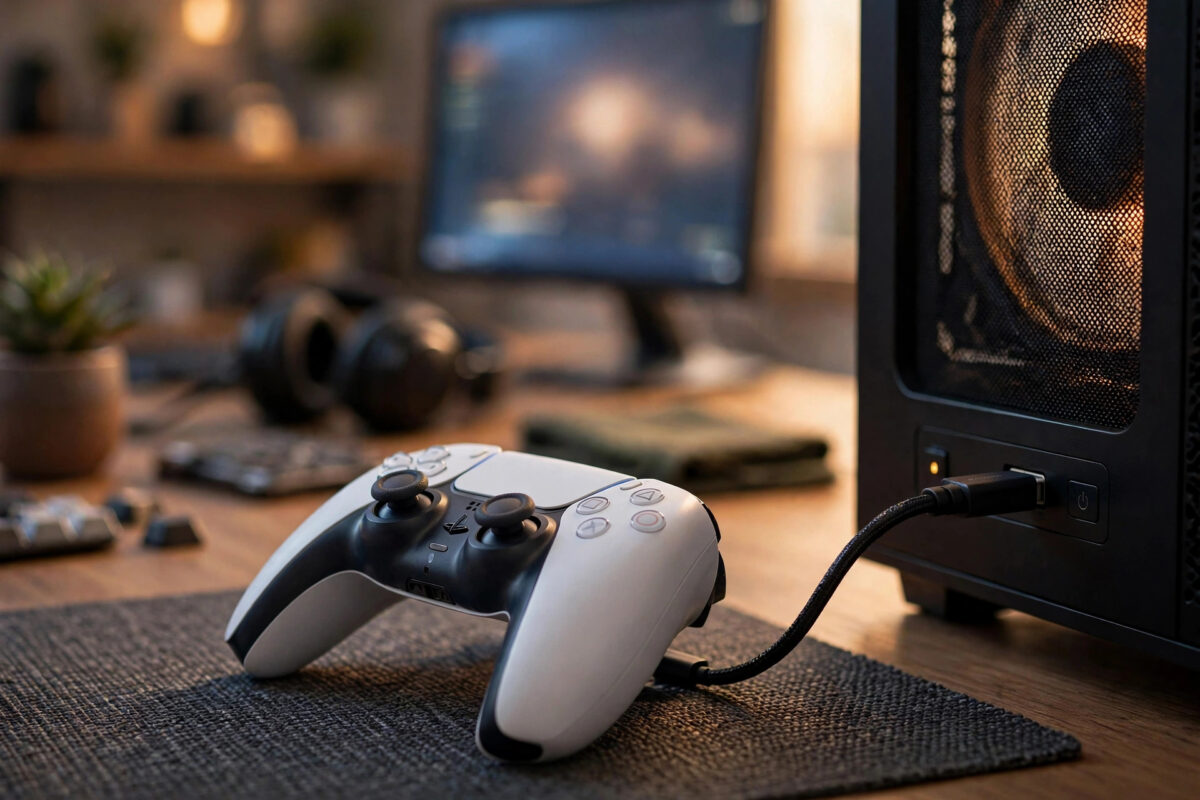
Your PlayStation 5 DualSense controller lights up when you plug it into your PC. Windows makes the connection sound. The cable clearly works. Yet when you open Steam, nothing happens. The controller does not appear in settings, games ignore it, and it feels like the controller and Steam are not talking to each other at all.
This is one of the most common DualSense problems on PC, and it is rarely a broken controller. In most cases it is a mix of a charge-only cable, a wrong Steam setting, a driver clash, or another program taking control of the controller first. This guide walks through the fixes in the right order, from the quickest checks to the deeper ones.
Quick Answer
Connect the DualSense with a proper USB data cable, not a charge-only cable, and plug it directly into a USB port on your PC. Then open Steam Settings, go to Controller, and enable PlayStation Controller Support so Steam can detect it. Finally, close programs like DS4Windows that can hide the controller from Steam, restart Steam, and test the controller in Steam’s test screen.
Why Steam Sometimes Misses a Wired DualSense
Steam relies on Windows detecting the device properly and on its own controller support layer, Steam Input, to translate what the DualSense sends. If any link in that chain fails, the controller can seem invisible. Steam might have PlayStation support turned off, or another tool might have grabbed the controller exclusively, hiding it from every other app.
Step 1: Check the Cable and the USB Port
Start with the cable, because it causes this problem more often than anything else. Many USB cables bundled with chargers and power banks only carry power. They will charge the DualSense and light up its bar, but they carry no data, so Windows and Steam never truly see the controller.
How to test your cable
- Unplug the DualSense completely and close Steam.
- Use the same cable to connect a phone or another data device to your PC.
- Check whether Windows lets you browse files or shows a data connection. If it only charges, the cable is charge-only.
- Swap to a known data cable, plug the DualSense directly into a rear USB port on a desktop or a main port on a laptop, and avoid hubs for this test.
- Wait for the light bar to settle, then check Windows Settings under Bluetooth and devices or run joy.cpl to see if the controller appears as a game controller.
If Windows now lists the controller, the cable was the issue. Keep that cable labelled for PC use. If Windows still shows nothing, try a different port and cable before moving on.
Step 2: Turn On PlayStation Controller Support in Steam
Even with a perfect cable, Steam needs its PlayStation support option enabled. Without it, Steam may ignore the DualSense or only detect it in Big Picture Mode.
- Open Steam and sign in.
- Click Steam in the top corner, then open Settings.
- Select Controller from the left menu.
- Find the option for PlayStation Controller Support and set it to Enabled.
- Leave the controller plugged in and look for it in the list of detected controllers on the same page.
- Use the Test Device Inputs option to press buttons and move the sticks, and confirm every input registers.
The official Steam controller support guide on Steam Support explains how Steam Input handles different controller types and why this setting matters for games that do not natively support PlayStation pads.
If the controller appears here but not in one specific game, right-click that game in your library, open Properties, go to Controller, and set it to Enable Steam Input for that title.
Step 3: Close Programs That Hide the Controller
Tools built to make PlayStation controllers work in older games can accidentally block Steam. The best known example is DS4Windows, but other remappers, RGB tools, and overlay programs can do the same thing.
These tools often have a setting that hides the physical controller so games only see a virtual Xbox controller. That is useful for some games, but it makes Steam think no PlayStation controller is connected at all.
What to close and check
- Fully exit DS4Windows, reWASD, InputMapper, or any similar remapper from the system tray, not just the window.
- Close overlays from other launchers that add their own controller support.
- Restart Steam after closing those tools, with the DualSense still plugged in.
- Check Steam’s Controller settings again to see if the DualSense now appears by name.
You do not have to uninstall these tools forever. You just cannot run them and Steam Input for the same controller at the same time without conflicts.
Step 4: Update the DualSense Firmware and Windows Drivers
An out-of-date controller can behave oddly on PC, especially if it has never been updated since it left the box. Sony provides a Windows app for this job, so you do not need a PS5 console to update it.
- Download Sony’s firmware updater for DualSense controllers from PlayStation’s official site.
- Connect the controller by USB data cable and run the updater.
- Follow the on-screen steps and do not unplug the controller during the update.
- Afterwards, open Windows Update and install any optional driver and system updates waiting there.
- Restart your PC once, then test in Steam again.
You can find the official download and instructions through the DualSense controller support page on PlayStation.com, which also covers pairing, resetting, and charging advice straight from Sony.
Step 5: Reset the Controller and Clear Confused Pairings
If the DualSense has been paired to a console, a phone, and your PC, its Bluetooth memory can get confused. A reset clears that and forces a clean start, and it does not harm the controller.
- Turn the controller off and unplug it.
- Find the small reset hole on the back, near the L2 button.
- Press the button inside gently with a paperclip for about five seconds.
- In Windows Bluetooth settings, remove any saved Wireless Controller entries for this pad.
- Reconnect using the USB data cable first, confirm Steam sees it wired, and only then try Bluetooth again if you want wireless play.
Step 6: Test Outside Steam to Find the Real Fault
If Steam still shows nothing, check whether the problem is Steam or Windows itself.
- Open joy.cpl in Windows and check whether buttons respond there.
- Open a browser-based gamepad tester and press every button and trigger.
- Try the controller in a non-Steam game or another launcher.
- Try a second PC or laptop if you have access to one.
If no program sees the controller, focus on cables, ports, and the controller reset. If Windows sees it but Steam does not, focus on Steam settings, conflicting tools, and reinstalling Steam’s controller drivers from the Controller settings page. For wider network and gaming checks while you troubleshoot, our guide on how to check and lower ping for online gaming helps you rule out connection issues that can feel like controller problems in online games.
Common Mistakes to Avoid
- Using a charge-only cable: The light bar turns on, so people assume the cable is fine, but no data ever reaches the PC.
- Testing only in one game: A single game may have Steam Input disabled in its own properties even when Steam itself detects the pad perfectly.
- Leaving DS4Windows running: Minimising it is not enough. Its hide-controller feature keeps working in the background.
- Plugging into a hub or monitor port: Some hubs and pass-through ports handle power well but data poorly. Always test a direct port first.
- Skipping the firmware update: Older firmware combined with a newer Windows build is a quiet cause of random dropouts and missed detection.
Tips for Reliable DualSense Use on PC
Always connect the controller before launching Steam and your game. Keep one known-good data cable with your desk setup, let Steam Input do the work, and keep other remappers closed while you play on Steam.
Conclusion
A DualSense that charges by USB but never appears in Steam is almost never faulty. Prove the cable carries data, plug into a direct port, enable PlayStation Controller Support, close tools that hide the controller, update the firmware, and reset confused pairings. In most cases the controller appears within the first two or three steps, without replacing any hardware.
Frequently Asked Questions
Why does my DualSense show as an audio device in Windows?
The DualSense includes a speaker and headset jack, so Windows sometimes lists it under audio first. That is normal. What matters is whether it also appears as a game controller in joy.cpl and in Steam after you use a data cable and enable PlayStation support.
Does the DualSense work in Steam without Steam Input?
Some games support the DualSense natively and work with Steam Input turned off for that title. Many games do not, especially older ones built only for Xbox controllers. If a game ignores the pad, enabling Steam Input in that game’s Properties is the simplest fix.
Can I use DualSense features like adaptive triggers on PC?
Yes, in games that support them natively, usually over a wired connection. Support varies by game, and using Steam Input can sometimes replace those special effects with standard rumble. Check each game’s controller settings if those features matter to you.
Why does my controller work in Big Picture but not in games?
Big Picture uses Steam Input for its menus, but each game has its own controller setting. Open the game’s Properties in your library, go to the Controller section, and enable Steam Input there. Also close remapping tools that might be feeding the game a second, conflicting controller.
Should I use the DualSense wired or over Bluetooth on PC?
Wired is the most reliable choice for setup, updates, and the lowest delay, and it charges while you play. Bluetooth works well once pairing is clean, but it adds a little latency and depends on your PC’s Bluetooth quality. Set everything up wired first, then switch if you prefer wireless.



Leave a Reply