
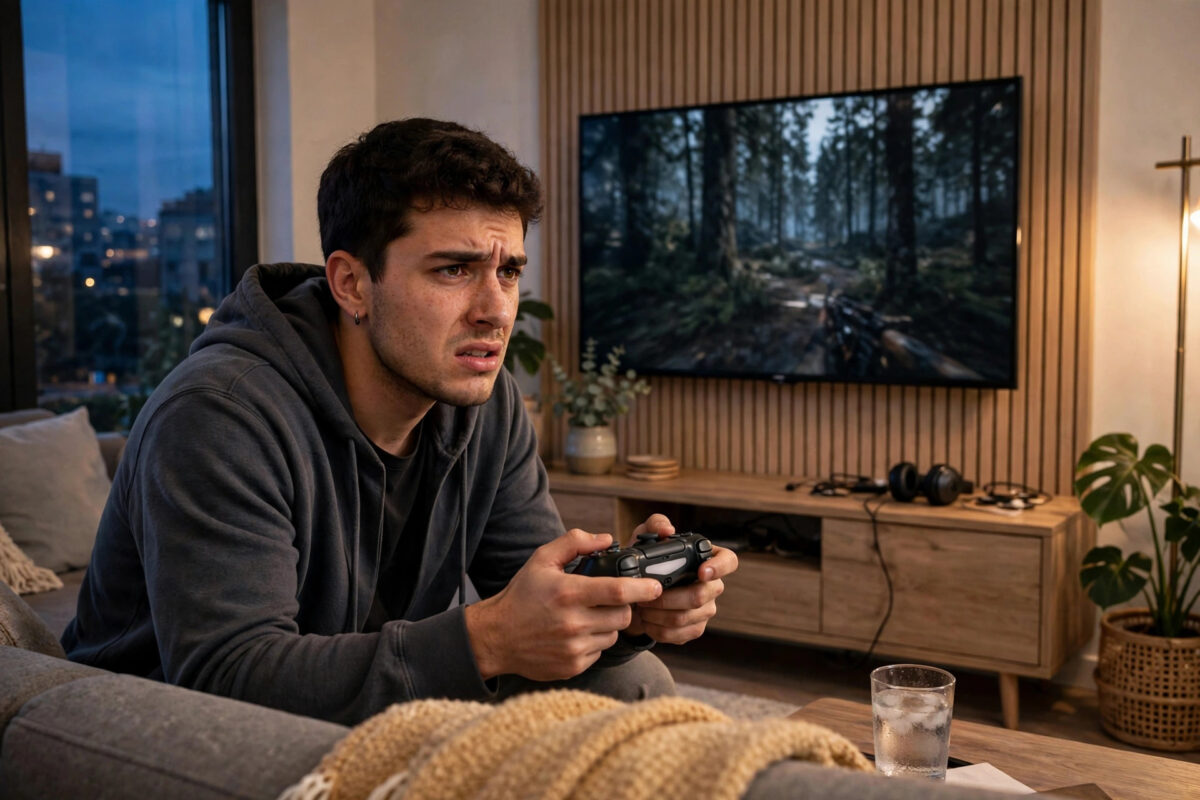
Few things ruin a gaming session faster than your controller cutting out mid-match. A DualSense that keeps disconnecting can have several causes, from a tired battery and Bluetooth interference to out-of-date firmware or a faulty USB port. This guide helps you work through the causes in a sensible order, so you can find your fix without guessing.
Quick Answer
A PS5 controller usually keeps disconnecting because of a low or ageing battery, wireless interference, outdated controller firmware, or a glitch that a reset clears. Charge the controller fully, reset it with the pinhole button on the back, update its firmware, and keep the path between controller and console clear of other wireless devices. If it still disconnects when connected by cable, the cable, the port, or the controller’s battery is likely faulty.
First Test: Wired or Wireless?
Before changing any settings, plug the controller into the PS5 with a USB-C cable and play for a while. This single test splits the problem in half. If the controller is stable on a cable, the issue is wireless: Bluetooth interference, distance, or pairing corruption. If it still disconnects while wired, suspect the cable, the USB port, the battery, or the controller itself. Try a different cable and a different port before concluding anything, because the short cable in many living rooms takes a lot of abuse.
Cause 1: Battery Problems
The DualSense battery does not last forever, and a worn battery shows itself as early low-battery warnings and sudden shutdowns that look like disconnections. Charge the controller for at least two hours from the console or a proper USB charger, not a weak phone plug. Check the battery level on screen under Accessories. If the controller dies within an hour or two of light use, or only works while plugged in, the battery is worn. Also inspect the charging port for fluff and damage, which can interrupt charging and make you think the battery is full when it is not.
Cause 2: Bluetooth Interference and Distance
Bluetooth shares the crowded 2.4 GHz band with Wi-Fi routers, microwaves, baby monitors, and dozens of other gadgets. Try these steps:
- Move closer to the console. A clear line of sight within about five metres is ideal.
- Move the router away from the console, or switch your devices to the router’s 5 GHz Wi-Fi band to free up 2.4 GHz space.
- Unplug nearby USB 3.0 hubs and external drives temporarily; poorly shielded USB 3.0 gear is a known Bluetooth interferer.
- Remove other Bluetooth devices paired nearby, such as a phone streaming to a speaker in the same room, and test again.
Cause 3: Pairing Corruption and the Reset Fix
Pairing data can get tangled, especially if the controller is also used with a PC, phone, or second console. Resetting clears it:
- On the PS5, go to Settings, Accessories, General, Bluetooth Accessories, select the controller, and choose Delete or Forget.
- Turn the controller off, then press the reset button inside the small hole on its back with a paperclip for five seconds.
- Reconnect with a USB cable, press the PS button to pair fresh, and test wirelessly again.
If you also pair the controller with a PC, our guide on connecting a PS5 controller to a PC with Bluetooth explains how to stop the two devices fighting over it.
Cause 4: Outdated Firmware
Sony issues DualSense firmware updates that specifically improve connection stability. On PS5, go to Settings, Accessories, Controllers, and check Wireless Controller Device Software. Install any update with the controller connected by cable, and keep it plugged in until the update finishes. Sony also provides a PC updater, and its official DualSense support hub links to the current tools and troubleshooting steps.
Cause 5: Console-Side Issues
Sometimes the controller is fine and the console is the problem. Restart the PS5 fully rather than using Rest Mode. Test a second controller if you can borrow one: if it also disconnects, the console’s wireless hardware or environment is at fault. Check that the console’s vents are clear, because overheating can cause odd wireless behaviour. Finally, make sure the PS5 system software is up to date under Settings, System, System Software.
Mistakes That Waste Your Time
- Buying a new controller before testing wired. If the old one works perfectly on a cable, the environment is the problem and a new controller will disconnect too.
- Charging from a random weak plug. Underpowered chargers can leave the battery half-charged and create confusing symptoms.
- Resetting constantly without re-pairing properly. A reset must be followed by a fresh cable pairing, or the controller may keep grabbing an old pairing.
- Ignoring the room. A new router, soundbar, or USB hub added near the console is a classic trigger for problems that start “for no reason”.
When a Second Controller Tells You the Truth
The single most informative test costs nothing if you can borrow a controller for ten minutes. Pair the borrowed DualSense to your console and play in the same spot where yours disconnects. If the borrowed controller works flawlessly, your controller is the problem and you can focus on its battery, its firmware, or a warranty claim with confidence. If the borrowed controller disconnects in exactly the same way, your controller was never at fault: the console, its placement, or your room’s wireless environment is to blame, and spending money on a new pad would have changed nothing. The same logic works in reverse — take your controller to a friend’s console and see whether the problem follows you. Faults that follow the controller belong to the controller; faults that stay with the room belong to the room.
Preventing Disconnects in Future
Once you have fixed the issue, a few habits keep it away. Charge the controller regularly rather than letting it die completely every session, which stresses the battery. Keep the console’s vents and the controller’s firmware updated as part of your normal routine. Store the controller somewhere it will not be sat on or dropped, since internal antenna damage from drops is a sneaky cause of weak connections. Finally, when you add new electronics near your gaming setup — a router upgrade, a soundbar, a USB hub — remember they can change the wireless picture, and be ready to test with the new device unplugged if disconnects mysteriously return.
Conclusion
Work through the causes in order: test wired versus wireless, charge and inspect the battery, reduce interference, reset and re-pair, then update firmware. Most disconnecting DualSense controllers are fixed by one of those steps, and all of them are free. If a controller disconnects on multiple cables, multiple ports, and multiple devices, it has a hardware fault, and a warranty claim or replacement is the honest answer.
Frequently Asked Questions
Why does my PS5 controller disconnect only in one room?
That points to interference or distance in that room, such as a router, microwave, or thick walls between you and the console. Testing the same controller near the console will confirm it quickly.
Can a faulty HDMI cable cause controller disconnects?
Not directly, but a poor-quality HDMI cable can create electrical noise in rare setups. The more common cable culprit is the USB charging cable itself, which, if damaged, breaks both charging and wired play.
How long should a DualSense battery last?
A healthy controller gives roughly 6 to 12 hours depending on haptics, speaker, and microphone use. If yours consistently dies within two hours, the battery is worn.
Does Rest Mode affect controller connection problems?
Occasionally a console that never fully restarts can develop glitches. A full shutdown and restart clears temporary issues, and is a sensible early step in any troubleshooting.
My controller flashes blue then turns off. What does that mean?
Flashing blue followed by shutdown means it is trying and failing to connect to a paired device. Forget it in the console’s Bluetooth accessories list, reset it, and pair again with a cable.



Leave a Reply