
Every Mac has its own serial number, a unique code that identifies that exact machine. You need it when you talk to Apple Support, book a repair, sell your Mac, or check if a repair will be free under warranty. Many users do not know where to find it until the moment they urgently need it.
Finding the number takes less than a minute if your Mac turns on, and there are backup ways if it does not. This guide shows every reliable method, then explains how to check your warranty and coverage status the right way.
Quick Answer
On a working Mac, click the Apple menu and choose About This Mac to see the serial number on screen. Then go to Apple’s coverage check website, enter the serial number, and you will see your warranty status, coverage dates, and support options. You can also find the number printed on the bottom of the Mac and on its original box.
What the Serial Number Is and Why It Matters
The serial number is a mix of letters and numbers made for your machine at the factory. No two Macs share the same one. Apple uses it to confirm your exact model, its age, and what service you are entitled to.
You will be asked for it in several common situations:
- Chatting or speaking with Apple Support about a problem.
- Booking a repair at an Apple Store or authorized service provider.
- Checking if your Mac is still covered by warranty or AppleCare.
- Reporting a lost or stolen Mac to the police or your insurer.
- Selling or trading in your Mac, where buyers check the number first.
Keep the number private. Do not post it in public forums or listings photos, because it is tied to your device. Sharing the last part is sometimes needed for model checks, but the full number should stay between you, Apple, and trusted repair services.
Method 1: Find It in About This Mac
This is the fastest and safest method when your Mac works normally:
- Click the Apple menu in the top-left corner of the screen.
- Choose About This Mac.
- On newer versions of macOS, click More Info if you need more details.
- Look for Serial Number in the list of information.
- Write it down carefully, or copy it if the system lets you select it.
Double-check similar characters as you write. The number zero and the letter O look alike, as do the number one and the letter I. Apple also describes this method in its support article on how to find the serial number of your Apple product.
Method 2: Find It in System Settings or System Information
If you want more detail about your machine at the same time, use System Information:
- Hold the Option key and click the Apple menu.
- Choose System Information, which replaces About This Mac while you hold the key.
- Make sure Hardware is selected on the left side.
- Find Serial Number (system) in the overview on the right.
On recent versions of macOS, you can also open System Settings, go to General, then About, and scroll to see the serial number along with the model name, chip, memory, and macOS version. This screen is handy when a support agent asks for several details at once.
Method 3: Find It on the Mac Itself
If your Mac will not turn on, look at the device itself. The serial number is printed on the outside of every Mac:
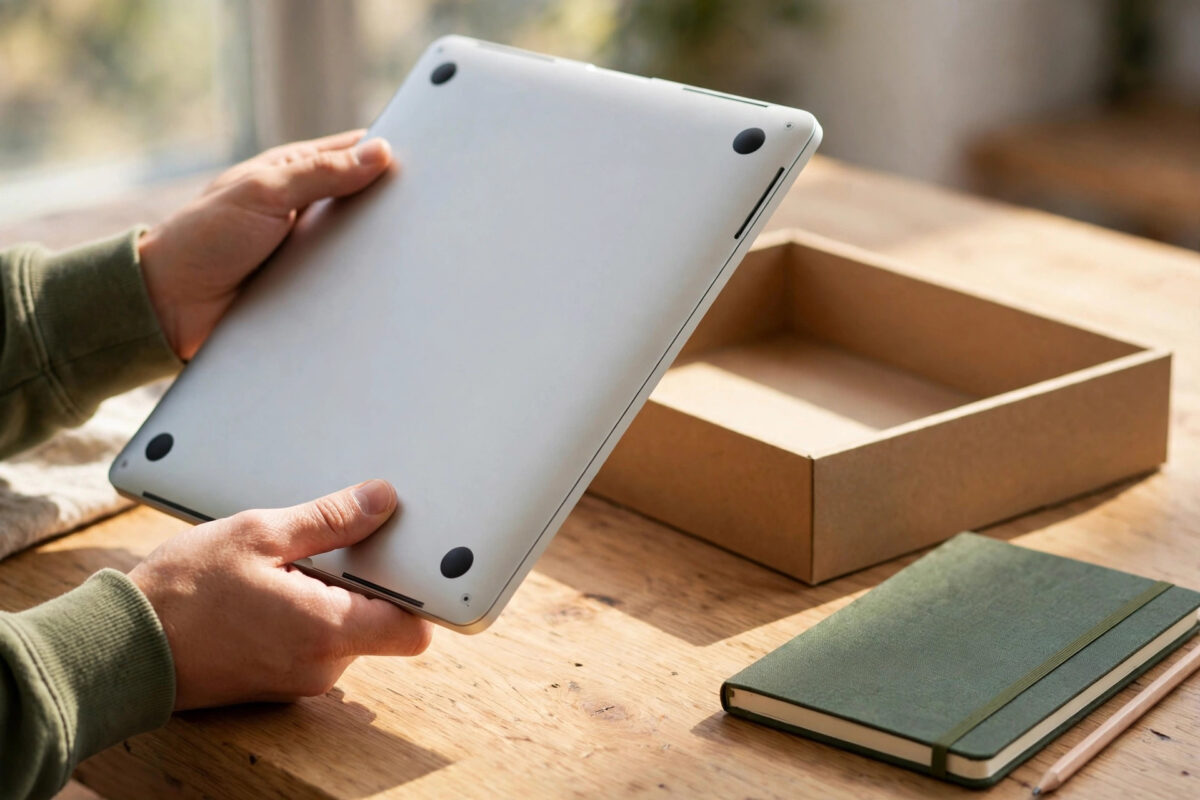
- MacBook: Close the laptop, turn it over, and look near the hinge on the bottom case. The print is small, so use good light or your phone’s camera zoom.
- iMac: Look on the underside of the stand foot.
- Mac mini: Turn the unit over and read the label on the bottom.
- Mac Studio and Mac Pro: Check the bottom of the Studio or the label near the ports or on the underside of the Pro, depending on the model.
Take a clear photo of that label and store it somewhere safe, so you have the number even if the print fades.
Method 4: Find It on the Box, Receipt, or Your Apple Account
No access to the Mac at all? You still have options. The original box has a label with the serial number next to a barcode. Your purchase receipt or invoice from Apple or an authorized seller often lists it too.
You can also check online. Sign in to your Apple Account website and open the Devices section. Select your Mac, and you will see its serial number and basic details. This works because the Mac was signed in with your account. It is a lifesaver if the Mac is lost, stolen, or away for repair and you need the number for a report or claim.
How to Check Your Warranty and Coverage
Once you have the serial number, checking coverage takes a minute:
- Open your browser and go to Apple’s official coverage page at checkcoverage.apple.com.
- Type or paste your serial number into the box.
- Enter the security code shown on the page to prove you are a person.
- Click Continue or Submit.
- Read the results for your Mac.
You can start from Apple’s own Check Coverage page for Apple products to make sure you are on the real site. Never enter your serial number on random third-party sites that promise free checks; use Apple only.
How to Read the Coverage Results
The results page shows a few clear sections. Valid Purchase Date means Apple has proof of when the Mac was bought. Telephone Technical Support shows whether free phone support is still active or has expired. Repairs and Service Coverage is the most important part: it shows whether hardware repairs are covered and the date coverage ends.
If you bought an AppleCare plan, the page shows that too, with its end date or monthly status. If everything says expired, your Mac is out of warranty. You can still get repairs, but you will pay for parts and labor yourself.
Check Coverage Without Leaving Your Mac
On newer versions of macOS, you may not need the website at all. Open System Settings, go to General, then AppleCare & Warranty. Your Mac shows its coverage status right there, including plan details. On some versions, About This Mac also shows a coverage line with a Details button when a plan is active. This built-in view is quick when the Mac works and is signed in.
What Warranty Does a Mac Come With?
Every new Mac includes a one-year limited warranty from Apple that covers manufacturing defects in materials and workmanship. It also includes a short period of free telephone support, usually 90 days. AppleCare plans extend repair coverage and support for longer, and some plans cover accidental damage like a cracked screen or liquid spill, with a service fee.
Warranty does not cover normal wear, cosmetic scratches, lost devices, or damage from accidents unless your plan includes accidental damage. Rules vary a little by country, and your consumer law rights may give extra protection on top of Apple’s warranty. Keep your receipt safe, because proof of purchase can matter for claims.
Knowing your coverage end date also helps you plan paid work. If your battery is failing near the end of coverage, get it checked before the date passes. Our plain-language guide on how to prepare your Mac before repair or service walks you through backups and settings to sort out before any repair visit.
Common Mistakes to Avoid
Small errors waste a lot of time with serial numbers and warranty checks. Avoid these:
- Mixing up characters: Confusing zero with the letter O is the top reason coverage checks fail. Copy the number from About This Mac instead of typing it when you can.
- Using the wrong website: Fake check sites may harvest your details. Only use Apple’s official coverage page or the settings on your Mac.
- Sharing the full number publicly: Do not post it on social media, forums, or marketplace listings. Give it only to Apple, authorized repairers, or a confirmed buyer at the final stage.
- Assuming no warranty means no repair: Out-of-warranty Macs can still be repaired by Apple and authorized providers; you simply pay the quoted cost.
- Throwing away the box and receipt too soon: Keep them while you own the Mac. They are backup proof of the serial number and purchase date.
Conclusion
Your Mac’s serial number is easy to find in About This Mac, printed on the device, on the box, and in your Apple Account online. With that number, Apple’s coverage page tells you in seconds whether repairs and support are still covered and when coverage ends. Save the number and a photo of the label somewhere safe today, and you will never be stuck when support, a repairer, or a buyer asks for it.
Frequently Asked Questions
Is the serial number the same as the model number?
No. Many Macs share the same model name and model number, but every Mac has its own unique serial number. Support and warranty checks always need the serial number, not the model number.
My coverage check says the purchase date is not validated. What should I do?
Contact Apple Support with your receipt or invoice ready. Apple can update the purchase record after you provide proof of purchase from an authorized seller, and then your warranty dates will show correctly.
Can I check the warranty without the serial number?
Not accurately. The coverage system is built around the serial number. If the Mac works, get the number from About This Mac. If it does not, use the print on the case, the box label, or your Apple Account devices list.
Does checking coverage affect my warranty in any way?
No. Checking is free, instant, and safe. You can check as often as you like. It simply reads the records Apple already holds for your device.
Can I extend coverage after my warranty has expired?
Usually, AppleCare must be bought within a set window after purchase, which varies by country and plan. If that window has passed, you cannot normally add it later, so check your dates early if you are thinking about a plan.



Leave a Reply