
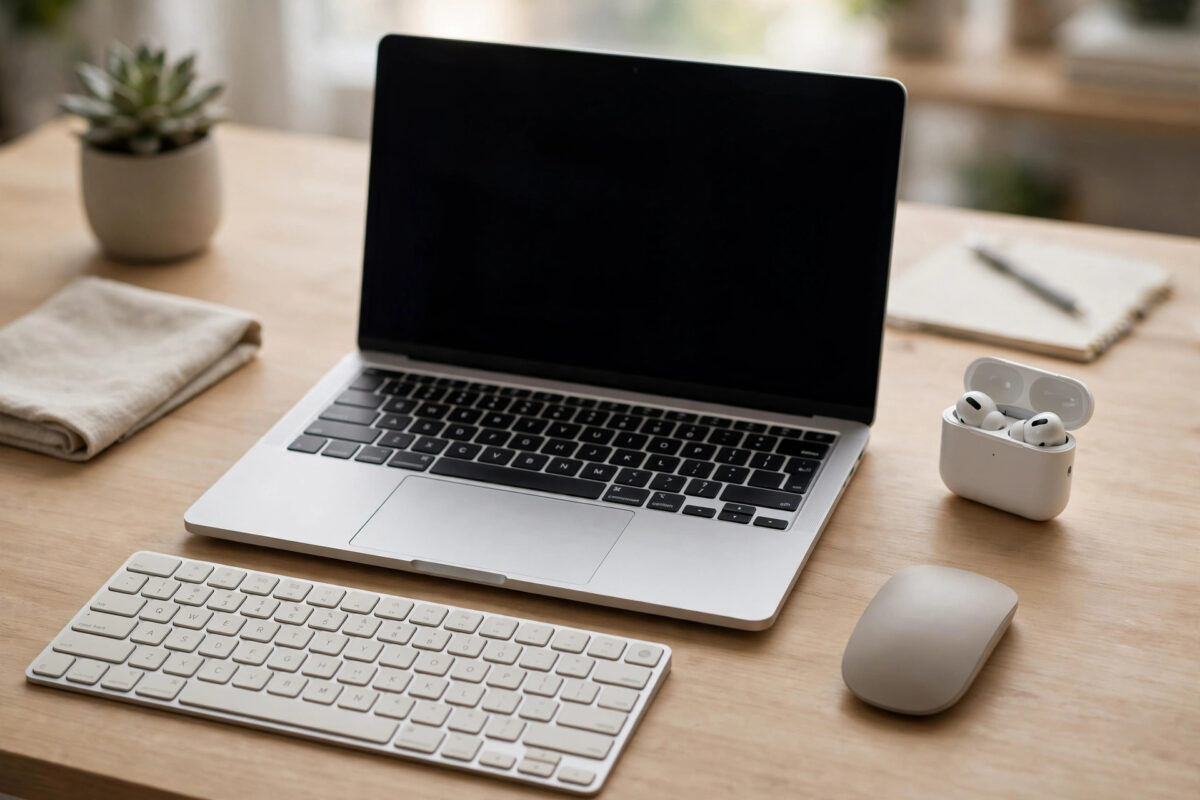
A mouse that freezes mid-drag, AirPods that cut out during a call, a keyboard that types nothing for ten seconds — Bluetooth dropouts on a Mac are small failures that quickly become infuriating. The causes are usually mundane: distance and interference, a dying battery, a corrupted pairing, or a software hiccup. This guide works through the fixes in order, from the sixty-second checks to the deeper resets, so your wireless accessories stay connected.
Quick Answer
Move the device closer to the Mac and charge it — weak signals and low batteries cause most dropouts. Remove sources of interference (USB 3 hubs, wireless drives, microwaves), then remove the device in Bluetooth settings and pair it again fresh. Update macOS, and if dropouts persist across several devices, restart the Mac and reset its Bluetooth as described later in this guide.
Check the Basics First: Distance, Battery, and Obstacles
Bluetooth is a short-range, low-power radio. Before touching a single setting:
- Bring the device closer. Bluetooth class 2 devices (most mice, keyboards, earbuds) are rated for about 10 metres in open air — much less through walls and desks. Test with the device on the desk beside the Mac.
- Charge it. A battery under 15–20% is the single most common cause of random disconnects in mice, keyboards, and trackpads. AirPods with one nearly-dead bud behave the same way.
- Clear the path. Metal desk frames, filing cabinets, and the Mac itself (if the accessory is behind a desktop Mac or a closed MacBook) all block signal.
- Reduce the crowd. A desk with six active Bluetooth devices plus several nearby networks gives the radio a lot to juggle. Disconnect anything you are not using.
Remove Interference from USB 3 and Wi-Fi
Two interference sources deserve special attention on Macs:
- USB 3 hubs and drives. USB 3 equipment generates radio noise close to Bluetooth’s 2.4 GHz frequency. A hub plugged directly into a MacBook, with a mouse receiver or the Bluetooth antenna nearby, is a classic dropout recipe. Move the hub to the other side of the Mac, use a short extension cable, or unplug it for a test — if dropouts stop, you have found your culprit.
- 2.4 GHz Wi-Fi. If your Mac is on a 2.4 GHz network with heavy traffic (big downloads), Bluetooth shares the same crowded airwaves. Joining the router’s 5 GHz band often calms both. Our guide on resetting Bluetooth on a Mac covers the final-step resets when interference is ruled out.
Forget the Device and Pair It Again
A corrupted pairing behaves exactly like failing hardware. Rebuilding the pairing is quick and safe:
- Open System Settings, then Bluetooth.
- Find the problem device, click the info (i) button or right-click its name, and choose Forget This Device. Confirm.
- Turn the accessory fully off, wait ten seconds, and turn it back on.
- Put the accessory into pairing mode (check its manual — often a long press of a button until a light flashes).
- When it appears in the Mac’s Bluetooth list, click Connect.
Test the fresh pairing for a while before re-pairing other accessories — add devices back one at a time so a faulty one cannot hide in the crowd.
Restart Bluetooth and the Mac
Sometimes the Mac’s Bluetooth service itself needs a clean start:
- Hold Shift + Option and click the Bluetooth icon in the menu bar (add it via System Settings, Control Center, if it is missing).
- Choose Reset the Bluetooth module if that option is offered on your macOS version — note that all Bluetooth devices disconnect briefly.
- Simpler and just as effective for most people: turn Bluetooth off in settings, wait 20 seconds, and turn it on again.
- If dropouts continue, restart the Mac completely.
Apple’s Bluetooth troubleshooting page on Apple Support confirms these steps and adds per-accessory advice for Apple keyboards, mice, and trackpads.
Update macOS and the Accessory’s Firmware
- Install pending macOS updates (System Settings, General, Software Update). Bluetooth stacks receive quiet fixes in many releases.
- Apple accessories (AirPods, Magic Keyboard, Magic Mouse) update their firmware automatically when connected to the Mac or a charger — leave AirPods in their case near the Mac for an hour.
- Third-party accessories often have companion apps or updaters on the manufacturer’s site; a keyboard or headset with years-old firmware is a prime dropout suspect.
Check Whether It Is One Device or All of Them
This single test splits the problem in half:
- Only one device drops: the fault is that accessory or its pairing. Re-pair it, charge it, update its firmware, and test it with a phone or another computer. If it drops everywhere, the accessory itself is failing.
- Every device drops: the fault is on the Mac side — interference near the Mac, a stuck Bluetooth service, or (rarely) a hardware issue. Work through the interface and reset steps in this guide.
- Drops only in one place: something in that room interferes — a microwave, a neighbour’s equipment, a wireless video sender. Test in another room to confirm.
Special Case: Audio Stuttering in Headphones and AirPods
When the dropout takes the form of crackling, stuttering music rather than full disconnections, the connection is alive but starved. Audio streaming is the most demanding Bluetooth job, so it shows weakness first. The cures mirror the general list with two additions: keep the Mac’s Wi-Fi on the 5 GHz band so it stops competing with Bluetooth’s 2.4 GHz airspace, and avoid sitting between the Mac and a large metal object — even your own body position matters when the Mac is a closed laptop under a desk driving an external monitor. If stutter happens only in one app (a browser tab, say) while system sounds play cleanly, suspect the app rather than the connection, and test with a different audio source before resetting anything.
Common Mistakes and Helpful Tips
- Diagnosing before charging. Always rule out a weak battery first; it mimics every other fault.
- Pairing to two hosts at once. Some accessories hop between your Mac and your phone or tablet. Disable Bluetooth on the other host during tests to stop the tug-of-war.
- Ignoring the USB hub. If dropouts began the day a new hub or drive arrived, that is not a coincidence.
- Resetting everything at once. Change one thing at a time and test, otherwise you will never know which fix mattered if the problem returns.
- Placing the Mac under a metal desk. For desktop Macs especially, line-of-sight to your keyboard and mouse makes a real difference.
Conclusion
Bluetooth dropouts on a Mac are rarely a death sentence for your accessories. Charge the device, bring it closer, move the USB hub, and re-pair it — that short list cures most cases. If every device drops, restart and reset the Mac’s Bluetooth, keep macOS and firmware current, and test accessories one at a time until the offender reveals itself.
Frequently Asked Questions
Why do my AirPods keep cutting out on my Mac but not my iPhone?
The Mac’s Bluetooth environment is the difference: interference near the desk, an older Bluetooth version negotiation, or a stale pairing. Forget the AirPods on the Mac and re-pair them, update macOS, and keep other 2.4 GHz traffic light during calls.
How far can a Bluetooth mouse be from the Mac?
Most accessories are designed for about 10 metres in open space, but walls, metal, and other radios shrink that sharply. Reliable everyday use means same desk, same room.
Will forgetting a device delete anything else?
No. Forgetting only removes that accessory’s pairing record. Your files, other pairings, and Wi-Fi settings are untouched, and you can re-pair the device whenever you like.
My keyboard lags rather than disconnecting. Same fixes?
Yes — lag is usually a weak or interfered connection on the edge of dropping. The same steps apply: battery, distance, interference, fresh pairing, updates.
Could a failing Bluetooth accessory drain my Mac’s battery?
Indirectly, yes: a device that connects and disconnects hundreds of times keeps the Mac’s radios busy. Fix the dropout (or forget the device) and the battery behaviour returns to normal.



[…] info button, Forget This Device) before resetting the whole Bluetooth system. Our guide on fixing Bluetooth devices that keep disconnecting from a Mac works through those per-device steps in […]