
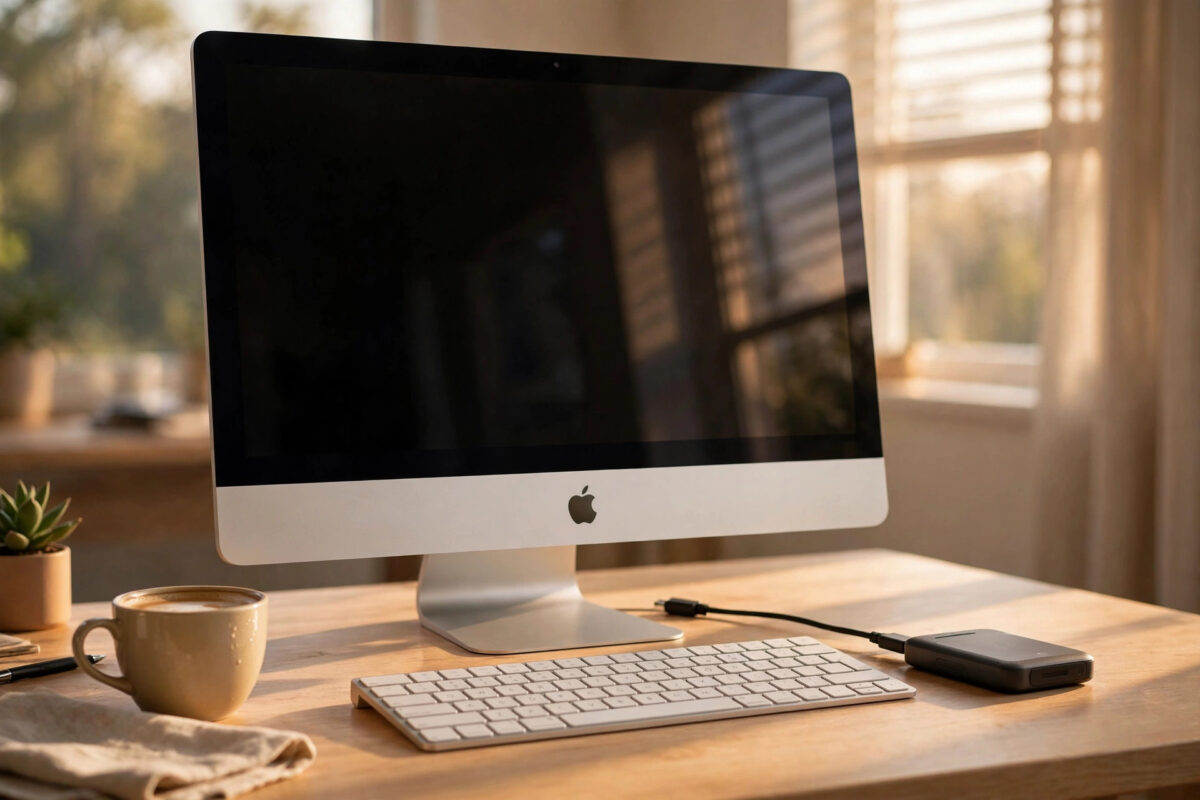
Every Mac holds things that would be painful to lose: family photos, work documents, school projects, and years of carefully organised files. Drives fail, laptops get stolen, and files get deleted by accident. A backup is what turns those events from a disaster into a minor inconvenience.
Time Machine is the backup tool built into every Mac. Once you set it up, it quietly copies your files to an external drive in the background. It keeps hourly backups for the past day, daily backups for the past month, and weekly backups for older months, so you can recover a file as it was at many different points in time.
This step-by-step guide covers choosing a drive, setting Time Machine up, running your first backup, and checking that everything works the way it should.
Quick Answer
To back up your Mac with Time Machine, connect an external drive that is at least twice the size of your Mac’s storage, open System Settings, go to General and then Time Machine, and add the drive as a backup disk. Click Back Up Now to start the first backup, and leave the drive connected so Time Machine can back up automatically every hour. Your files are then protected and can be restored at any time.
What You Need Before You Start
An external storage drive
Time Machine needs somewhere to store your backups. Most people use a USB or Thunderbolt external hard drive or solid-state drive. The drive should ideally hold at least twice the capacity of your Mac’s internal storage. A bigger drive keeps more months of history, while a small drive fills quickly and deletes older backups sooner.
You can also back up to some network drives and to another Mac used as a backup destination, but a direct external drive is the simplest and most reliable choice for most homes. If the drive is brand new, there is nothing special to install. Time Machine will offer to prepare it for you.
A warning about the backup drive
When you set a drive up for Time Machine, the Mac may erase and reformat it. Do not use a drive that holds the only copy of important files. Ideally the backup drive has one job only: storing your Time Machine backups. If you must share a large drive, understand that the backup will grow over time and leave less room for other things.
How to Set Up Time Machine, Step by Step
- Connect your external drive to your Mac with its cable. Wait a few seconds for it to appear on the desktop or in Finder.
- If a message appears asking whether you want to use the drive to back up with Time Machine, you can accept it, or follow the manual steps below instead.
- Click the Apple menu in the top-left corner and choose System Settings.
- Click General in the sidebar.
- Click Time Machine on the right side of the window.
- Click Add Backup Disk. On some versions you may click Select Backup Disk instead.
- Select your external drive from the list and click Set Up Disk.
- If asked, agree to erase and format the drive so it can be used for backups.
- Choose whether to encrypt the backup. Encryption is recommended, especially for a portable drive, because it protects your files if the drive is lost. Set a password you will remember and store it safely.
- Click Done or OK. Time Machine prepares the drive and starts the first backup after a short countdown.
That is the whole setup. From now on, Time Machine backs up automatically whenever the drive is connected. On a laptop, backups also run while the machine is plugged in and awake, so many people simply leave the drive attached to their desk setup.
Running and Checking Your First Backup
The first backup copies almost everything on your Mac, so it is by far the biggest and slowest one. A Mac with a few hundred gigabytes of data can take several hours, especially on an older spinning hard drive. Later backups only copy files that changed, so they are usually finished in minutes.
How to start a backup manually
- Click the Time Machine icon in the menu bar. If you do not see it, open System Settings, then Control Center, and set Time Machine to show in the menu bar.
- Choose Back Up Now from the menu.
- Watch the progress message, which shows how much data has been copied.
How to confirm a backup finished
Open the Time Machine settings page again. It shows the date and time of the latest backup and whether one is in progress. You can also click the menu bar icon, which reports the last completed backup. Do not judge success by the progress bar alone; wait until the settings page clearly lists a completed backup time.
What Time Machine Backs Up
By default, Time Machine backs up your whole Mac: documents, photos, apps, settings, and system files needed to restore your setup. It is this completeness that makes it so useful when a drive fails or you buy a new machine. When the time comes, our guide to restoring your Mac from a Time Machine backup explains the recovery side in full.
Excluding files you do not need
If your backup drive is small, you can exclude large items you do not need to protect, such as downloaded films or a folder of files stored elsewhere. Open Time Machine settings, click Options, and add the folders to exclude. Be careful and exclude only things you are truly willing to lose, because anything excluded is not recoverable.
Good Habits That Keep Your Backups Reliable
- Leave the drive connected as often as you can, or set a routine, such as plugging it in every evening.
- Check the latest backup date once in a while. A backup from three weeks ago is a warning sign, not protection.
- Keep the drive somewhere safe and dry, away from the Mac itself if possible, so one accident does not take both.
- If you encrypt your backup, store the password in a password manager or another safe place. Without it, the backup cannot be opened.
- Consider a second backup for your most important files, such as copies in cloud storage. One backup is good; two are much safer.
Apple’s official guide to backing up a Mac with Time Machine lists supported drive types in detail, and Apple’s page on backup disks you can use with Time Machine helps if you are choosing between a direct drive and a network option.
Common Mistakes to Avoid
- Buying a drive that is too small. A drive barely bigger than your Mac fills fast and holds very little history. Aim for at least double the space.
- Unplugging the drive during the first backup. Interrupting the first full copy can leave an incomplete backup. Start it when you can leave the Mac alone.
- Forgetting the encryption password. An encrypted backup with a forgotten password is useless. Write the password down somewhere safe.
- Assuming one check is enough. Backups can stop because a drive was disconnected or failed. Glance at the latest backup date regularly.
- Storing the only backup next to the Mac. Theft, fire, or a spill can take both at once. Distance between the Mac and its backup improves your safety.
Conclusion
Setting up Time Machine takes about ten minutes: connect a suitable drive, add it in System Settings under General and Time Machine, and let the first backup run. After that, the Mac protects itself automatically every hour the drive is connected. Check the backup date from time to time, guard your encryption password, and you will always have a way back when something goes wrong.
Frequently Asked Questions
How big should my Time Machine drive be?
Choose a drive with at least twice the storage of your Mac. For example, a Mac with a 512 GB drive works well with a 1 TB or 2 TB backup drive. More space means Time Machine can keep older backups for longer before deleting them.
Does Time Machine back up automatically?
Yes. Once it is set up, Time Machine runs automatically about every hour whenever the backup drive is connected and the Mac is awake or plugged in. You do not need to remember to start it, though you can always choose Back Up Now for an immediate copy.
Can I use the same drive for backups and other files?
You can, but it is not ideal. Time Machine may need to erase the drive during setup, and its backups grow over time. A dedicated drive is simpler, safer, and less likely to cause confusion or accidental deletion of either the backups or your other files.
How long does the first backup take?
It depends on how much data you have and the speed of the drive. A small Mac may finish in under an hour, while several hundred gigabytes can take many hours on an older hard drive. Later backups are much faster because only changed files are copied.
What happens when my backup drive fills up?
Time Machine deletes its oldest weekly backups to make room for new ones. Your recent backups stay protected. If you want a longer history, the only real fix is a larger drive, because the oldest history is what gets removed first.



[…] not made a backup yet, none of this is possible, which is why setting one up today matters. Our step-by-step Time Machine backup guide for Mac shows the full setup in a few […]
[…] edits or deletes a shared file by mistake, a backup lets you recover it. Our step-by-step guide on how to back up your Mac with Time Machine shows you how to set up automatic backups to an external […]
[…] Important means documents, photos, and anything you cannot download again. Our detailed guide on how to back up your Mac with Time Machine covers drive setup and common backup errors in […]