
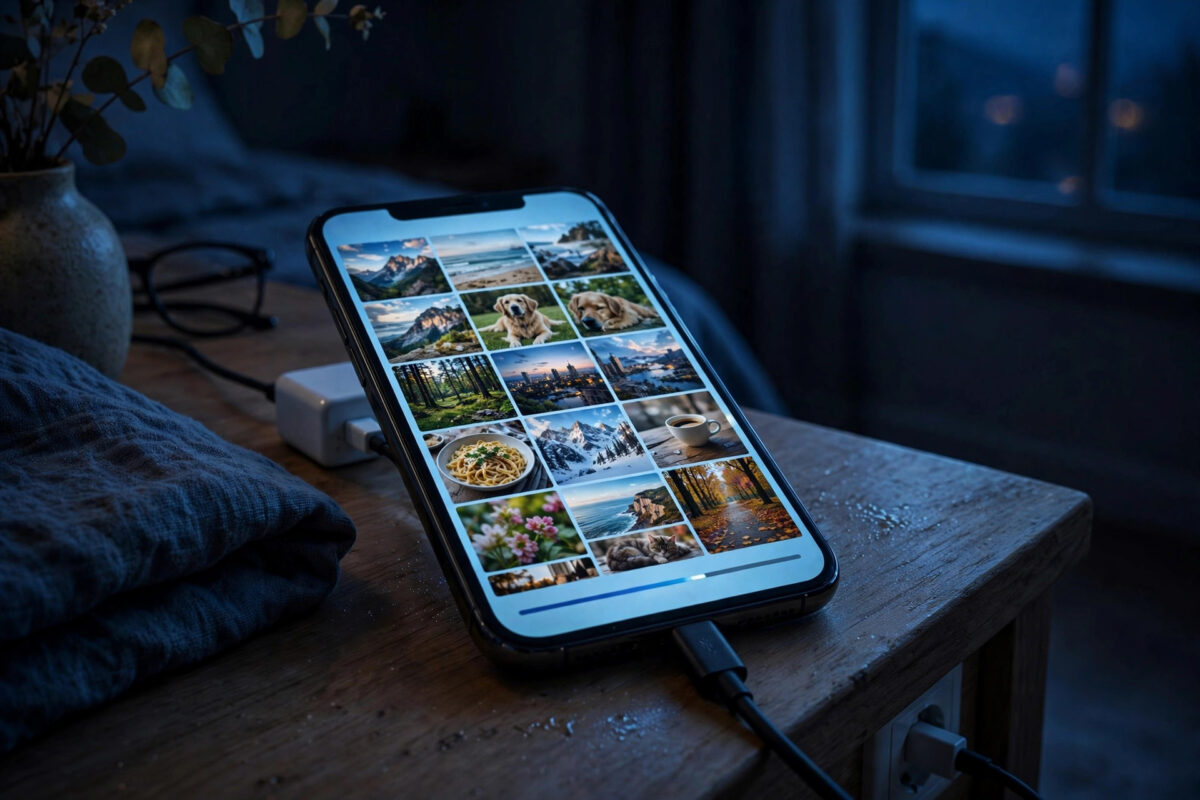
There are many reasons to pull your full photo library down from iCloud onto your iPhone. You might be leaving iCloud Photos, moving to a smaller storage plan, preparing for a long trip without reliable internet, or simply wanting the comfort of holding every original on the device itself. The process is built into iOS, but it needs preparation and patience.
The biggest mistake people make is expecting a “download all” button. There is not one, and that is actually fine, because the system is designed to download everything automatically once you pick the right setting. This guide explains that setting, how to check you have enough space, how to watch progress, and what to do if downloads stall.
Quick Answer
To download all your iCloud photos onto your iPhone, go to Settings, tap your name, tap iCloud, tap Photos, and select Download and Keep Originals. Keep the iPhone plugged into power and connected to Wi-Fi, and iOS 27 will download the full-quality version of every photo and video in the background. Large libraries can take several hours or need to run overnight.
First, Check You Have Enough Space
Originals are big. A library that happily lived in iCloud with small previews on your phone may need 50 GB, 100 GB, or far more at full size, especially with 4K and ProRes video from an iPhone 18 Pro. Downloading into a nearly full phone leads to stalls and confusing half-finished states.
- Open Settings > General > iPhone Storage and note the free space at the top.
- Estimate your library size: on iCloud.com or a Mac, check how much storage Photos uses in your iCloud account. That figure is close to the download size.
- If free space is smaller than the library, free up room first: remove unused apps, clear downloaded videos in streaming apps, and delete large message attachments.
- As a rough guide, aim for at least 10 percent more free space than the library size, so iOS has working room during the download.
If your phone simply cannot hold the library, do not force it. Download to a computer instead, which is covered later in this guide, and keep the phone on Optimise iPhone Storage. Our related guide on making room on a full iPhone without deleting photos can help you reclaim surprising amounts of space before you decide.
The Main Method: Download and Keep Originals
This is the official and simplest route. One setting change tells iOS that every original belongs on this device.
- Connect your iPhone to a strong Wi-Fi network and plug it into its charger.
- Open Settings and tap your name at the top.
- Tap iCloud, then tap Photos.
- Make sure Sync this iPhone is turned on. Downloads cannot happen with sync off.
- Select Download and Keep Originals.
- Leave the phone locked, charging, and on Wi-Fi. Downloads continue in the background even while you use other apps, but they are fastest when the phone is idle and charging.
Apple designs this process to run quietly, which is reassuring but also means there is no big progress bar on the home screen. The next section shows where to watch it. Apple also documents the setting in its guide to managing iCloud Photos storage on your devices.
How Long Should It Take?
Time depends on library size and connection speed. A small library of a few gigabytes may finish in under an hour. A 100 GB library on ordinary home broadband often needs an overnight session, and very large libraries may take a couple of nights. Videos take the longest, because a single minute of 4K footage can be several hundred megabytes. As long as the downloaded amount keeps growing, nothing is wrong; leave it running.
How to Check Download Progress
Knowing where to look stops people cancelling a download that was actually working.
- Open the Photos app and go to the Library view.
- Scroll to the very bottom. A status line shows how many items you have and, during transfers, a message about downloading or syncing.
- For a more detailed view, tap your profile or the status area if iOS offers it; some versions show a progress indicator for originals downloading.
- Cross-check space: return to Settings > General > iPhone Storage over time. As originals arrive, Photos grows and free space falls, which confirms progress.
- Spot-check quality: open a few older photos and videos. When they open instantly at full sharpness with no loading pause, their originals are on the device.
If the status says downloads are paused, the usual causes are low battery, Low Power Mode, or a dropped Wi-Fi connection. Charge the phone, reconnect, and the process resumes by itself.
Downloading Only Some Photos Instead
Sometimes you do not need everything. If you only want a set of originals for a trip or a project, keep Optimise iPhone Storage on and download selectively:
- Open a photo or video and let it load fully; viewing it downloads its original, at least temporarily.
- Select several items, tap the Share button, and choose an option such as Save to Files or export to a computer; exporting forces full downloads of the selected items.
- Create an album of trip essentials in advance, open each item once on Wi-Fi the night before, and they will be ready offline.
Note that with Optimise on, iOS may later remove local originals again if space gets tight. For permanent local copies of everything, Download and Keep Originals remains the correct setting.
Alternative: Download via a Computer
If your phone lacks space, or you want an independent archive as well, a computer gives you more control.
- On a Mac, open Photos with iCloud Photos enabled and select Download Originals to this Mac in its settings, then export copies wherever you like.
- On a Windows PC, install iCloud for Windows, sign in, and let Photos sync down, or select albums and choose to keep them downloaded.
- From any computer, sign in at iCloud.com, open Photos, select items (in batches for big libraries), and download them to a folder.
- For a complete archive, Apple also offers a full data copy request through its privacy site, which prepares your entire library for download; Apple explains this in its guide to obtaining a copy of your iCloud data.
After a computer download, verify a sample of files open at full quality, then back the folder up to an external drive. A download that exists in only one place is not yet a backup.
Common Mistakes and Pro Tips
Turning sync off before downloading. If you disable Sync this iPhone first, previews may be removed and originals become harder to retrieve to the phone. Always select Download and Keep Originals and let it finish before changing any sync setting.
Downloading on mobile data. Large libraries can burn through a data plan and throttle badly. Keep the phone on Wi-Fi, and in Settings > Apps > Photos, check that mobile data use for updates matches your intention.
Low Power Mode and heat. Low Power Mode pauses background downloads, and a hot phone charging under a pillow slows everything. Charge on a hard surface with Low Power Mode off for overnight runs.
Assuming it failed after ten minutes. Big libraries show little visible change at first while iOS catalogues items. Judge progress over hours by the storage figures, not minutes.
Pro tip: work in stages. If the library is enormous, first download to a computer as your archive, confirm it, and only then set the phone to Keep Originals. You then have two full copies even if something interrupts the phone download.
Conclusion
Downloading all your iCloud photos to your iPhone comes down to one setting: Download and Keep Originals, chosen while sync is on, with the phone charging on good Wi-Fi. Prepare by checking your free space honestly, monitor progress through the Photos status line and shrinking free storage, and give large libraries the overnight hours they need. If the phone cannot hold everything, a computer download gives you the same originals with more control. Either way, confirm a few files at full quality, and your library is truly yours, on the device in your hand.
Frequently Asked Questions
Is there a Download All button for iCloud Photos on iPhone?
No. Apple handles it automatically through the Download and Keep Originals setting. Once selected, iOS downloads every photo and video original in the background without you selecting items one by one.
Can I still use my iPhone while photos are downloading?
Yes. Downloads run in the background and normal use is fine. Speeds are simply best when the phone is locked, charging, and on Wi-Fi, so overnight sessions make the fastest progress on big libraries.
What happens if I run out of storage during the download?
The download pauses and iOS will warn you that storage is low. Free up space by removing apps or downloaded media, or move the project to a computer instead. Nothing already downloaded is harmed, and the process resumes when space is available.
Will downloading originals increase my iCloud usage?
No. Downloading copies files from iCloud to your phone; it does not add new data to iCloud. Your iCloud usage stays the same unless you add new photos, while your phone’s local storage use grows as originals arrive.
After downloading, can I safely turn off iCloud Photos?
Yes, once you have confirmed the download finished and spot-checked older photos at full quality. Then turn off Sync this iPhone if you wish. Keep another backup, though, because from that moment the phone holds the only copy.



Leave a Reply