
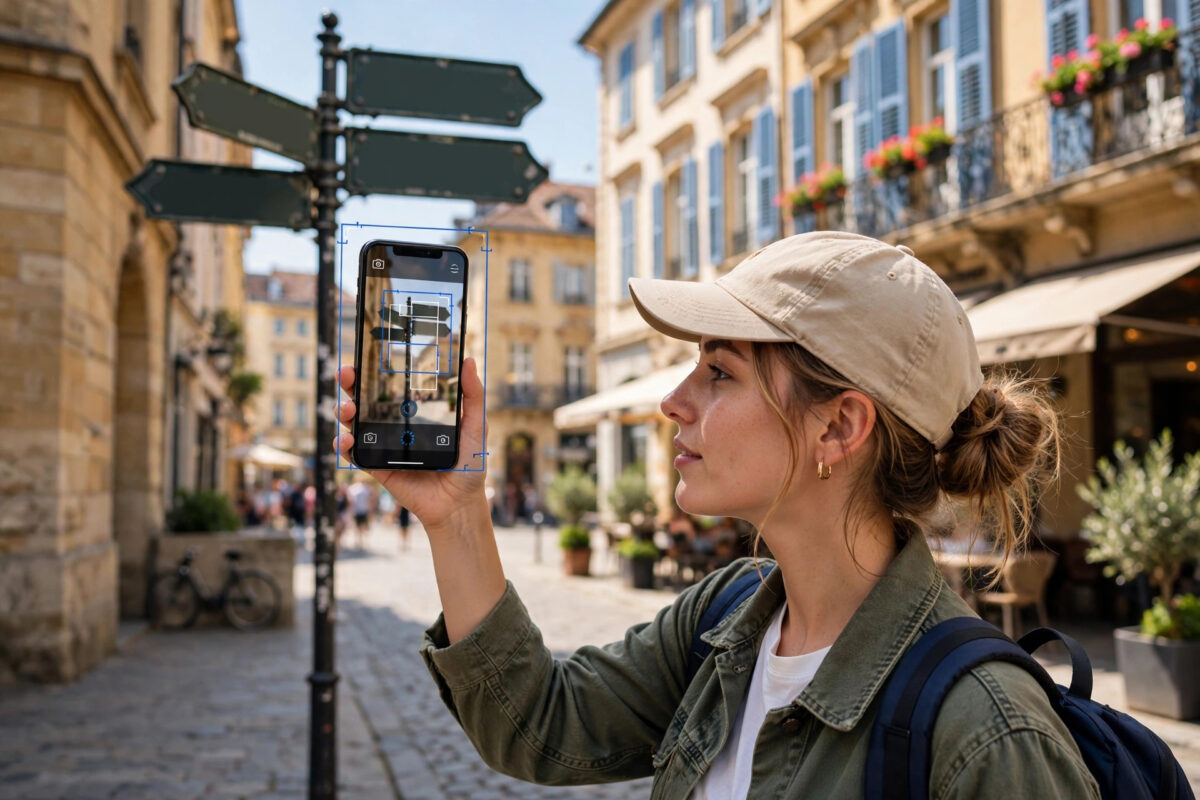
Travelling in a country where you do not speak the language used to mean carrying a phrasebook and pointing at menus with hope. Now your iPhone can read foreign signs, labels, and documents for you, and show the meaning in your own language almost instantly.
The camera translation tools built into iOS let you point, tap, and understand. Whether you use the Translate app or Live Text in the Camera app, the process takes seconds. This guide explains how to translate text instantly with the iPhone camera, which languages are supported, and how to get clear results every time.
Quick Answer
Open the Translate app, tap Camera, choose your language pair, and point your iPhone at the foreign text. The translation appears directly over the words on screen. You can also use the Camera app: point it at text, tap the Live Text button, then tap Translate to see the meaning instantly.
Two Ways to Translate With the Camera
Your iPhone offers two built-in routes, and both are free:
- The Translate app camera view replaces foreign words with translated words on screen, in real time, which is perfect for signs and menus.
- Live Text in the Camera app lets you capture the text first, then translate it, copy it, or share it, which suits documents and longer passages.
Neither method needs a separate download, and both work with the same set of supported languages. Apple lists the current language support in its guide on translating text with the iPhone camera, and it is worth checking before a trip because the list grows with each iOS release.
How to Translate Text With the Translate App
- Open the Translate app. If you cannot find it, swipe down on the Home Screen and search for Translate.
- Tap Camera at the bottom of the screen.
- At the top, set the language pair: the language you are reading on the left, and your own language on the right. Choose Detect Language if you are unsure what language the text is in.
- Point the camera at the sign, menu, or label and hold the phone steady.
- Wait a moment while the translated words appear over the original text on your screen.
- Tap the shutter button to freeze the image if you want to read it slowly or zoom in.
- Tap any translated phrase to see it larger, hear it spoken, or view its dictionary meaning where available.
The overlay view is the clever part. The translated words sit in roughly the same place as the original words, so a restaurant menu still looks like a menu, and a station sign still points the right way. It makes following directions in a foreign city far less stressful.
How to Translate Using the Camera App and Live Text
- Open the Camera app and point it at the printed text.
- When a yellow frame and the Live Text button appear in the corner, tap the button.
- The captured text view opens. Tap Translate at the bottom.
- Read the translation in the panel that appears, and tap Listen if you want to hear the original text spoken.
- Tap Copy Translation if you want to paste the result into a message, note, or map search.
This route is better for longer text, such as a letter, a notice in a hotel room, or instructions on a ticket machine, because you can scroll through the full translation instead of watching a live overlay. If you use Live Text often, our guide on copying text from a photo on iPhone with Live Text shows the copying and sharing tricks in detail.
Downloading Languages for Offline Translation
Camera translation works best with an internet connection, but you can prepare for trips where data is expensive or signal is weak.
- Open the Translate app and tap your profile or the language selector.
- Go to Settings within the app, or open Settings, then Translate, on your iPhone.
- Tap Downloaded Languages and choose the languages you need.
- Wait for the download to finish while you are on Wi-Fi.
- Turn on On-Device Mode if you want translations to stay on the phone for extra privacy and speed.
Downloaded languages take storage space, so remove the ones you no longer need after a trip. Offline translation is slightly less flexible than the online version, but for signs, menus, and simple documents it is more than good enough, and it can save you from high roaming charges.
Which Languages Are Supported?
Support covers the languages most travellers meet, including French, Spanish, German, Italian, Portuguese, Dutch, Russian, Ukrainian, Arabic, Chinese, Japanese, Korean, Hindi, and several others, translating to and from English and many other pairs.
Two things are worth knowing. First, the exact list depends on your iPhone model and iOS version, so update your phone before travelling. Second, camera translation works best with printed text in clear fonts. Handwriting, decorative lettering on old signs, and heavily stylised logos may confuse it. The official Apple feature availability page for Translate shows which languages and features work in your region.
Tips for Clear and Accurate Translations
- Fill the frame with the text. Move closer so the words are large, but stay far enough back for the camera to focus.
- Keep the phone level. Text shot at a steep angle is harder for the iPhone to read correctly.
- Use good light. Avoid shadows falling across the page, and watch out for glare on glossy menus and signs.
- Translate short sections at a time. A paragraph at a time gives cleaner results than a whole page at once.
- Check names and numbers separately. Place names, prices, and times matter most, so read them in the frozen image to be sure.
- Download languages before you fly. Airport Wi-Fi is not the place to discover you have no offline pack.
Common Mistakes to Avoid
The most common mistake is trusting a translation word for word in important situations. Camera translation gives you the meaning, but grammar can be rough, and a single word can have several translations. For legal, medical, or official documents, use the translation to understand the general content, then confirm details with a human translator.
Another mistake is forgetting to set the language pair correctly. If the phone expects French but the sign is in Italian, results will be nonsense. Using Detect Language avoids this problem when you are moving between countries or reading mixed-language signs.
People also hold the phone too close, which makes the text blur, or move too quickly, which stops Live Text from locking on. Slow down, let the yellow frame appear, and then tap. A steady two seconds at the start saves repeated attempts later.
Conclusion
Your iPhone camera is a pocket translator that handles signs, menus, labels, and documents in seconds. Use the Translate app for live overlays while you explore, switch to Live Text for longer passages, and download languages before a trip so you are never stuck without signal. With steady hands and good light, foreign text stops being a barrier and becomes just another part of the journey.
Frequently Asked Questions
Can iPhone translate text from the camera without internet?
Yes, if you download the languages first in the Translate settings and use on-device translation. The feature works offline for supported languages, although the online version can be slightly more accurate.
Which app should I use, Translate or Camera?
Use the Translate app for live overlays on signs and menus, because the translation replaces the words on screen. Use the Camera app with Live Text for documents and longer text that you want to copy or save.
Why does the Translate button not appear in the Camera app?
The text may be too small, blurry, or in an unsupported language. Move closer, improve the light, and check that Live Text is turned on in Settings, under General and then Language and Region.
Can the iPhone translate handwriting?
It can manage clear, simple handwriting at times, but results vary a lot. Printed text in standard fonts gives the most reliable translations, while decorative or joined-up writing often fails.
Is camera translation private?
With on-device mode and downloaded languages, translation happens on your iPhone rather than in the cloud. Without it, text may be sent to Apple servers to produce the translation.



[…] language and tap Translate to read it in your own language. If you travel often, our full guide on translating text instantly with the iPhone camera walks through the dedicated Translate app as […]