
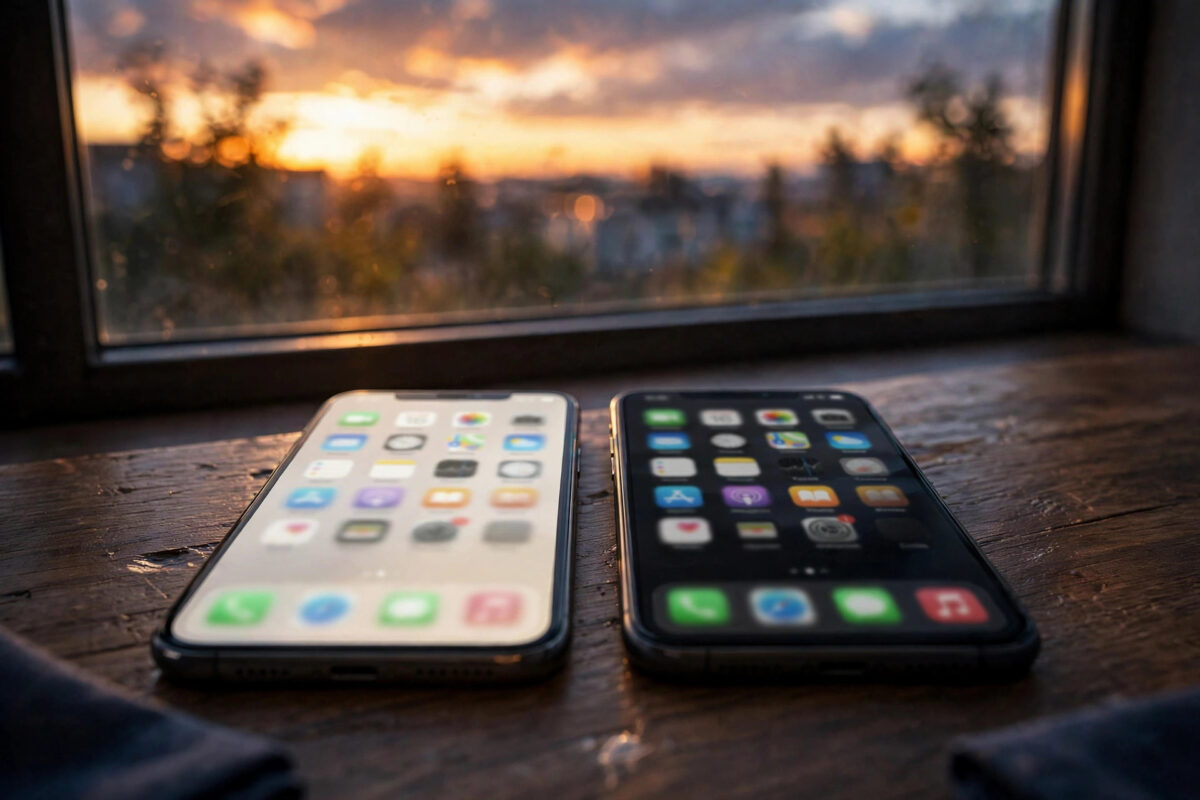
Bright white screens are fine at noon and miserable at midnight. Scheduling Dark Mode gives you the best of both worlds: a light, readable phone during the day and a calm, dark phone in the evening, without you ever touching a setting.
iOS offers two styles of schedule. It can follow the sun, switching at sunset and sunrise wherever you are, or it can follow the clock, using times you choose, such as 10 pm to 7 am.
This guide shows how to set up both, how to combine Dark Mode with Night Shift for maximum evening comfort, and what to check if your schedule does not run.
Quick Answer
To schedule Dark Mode, go to Settings, Display and Brightness, turn on Automatic, then tap Options. Choose Sunset to Sunrise to follow daylight automatically, or Custom Schedule to set your own Light and Dark times, for example Dark at 22:00 and Light at 07:00. The phone then switches by itself every day, adjusting the sunset option as the seasons change.
Set Up the Sunset to Sunrise Schedule
This is the set-and-forget option. Your iPhone uses its location and the date to calculate local sunset and sunrise, so the switch moves naturally through the year.
- Open Settings and tap Display and Brightness.
- Turn on the Automatic toggle under Appearance.
- Tap Options, which appears once Automatic is on.
- Select Sunset to Sunrise.
For this to be accurate, Location Services must be allowed for time zone and system services. If your sunset times seem off by hours, check Settings, Privacy and Security, Location Services, System Services, and confirm Setting Time Zone is on, then check your time zone in General, Date and Time.
Set Up a Custom Clock Schedule
A custom schedule suits you better if your day does not follow the sun, for example if you work nights, or simply like the phone dark from a fixed hour.
- In Settings, Display and Brightness, turn on Automatic and tap Options.
- Select Custom Schedule.
- Set the time for Light Appearance, for example 07:00.
- Set the time for Dark Appearance, for example 22:00.
The phone switches at exactly those times every day of the week. iOS does not offer different times for weekdays and weekends, so pick times that work for your average day. Shift workers often set Dark for their sleep hours instead of the actual night.
Add Night Shift for Even More Comfort
Dark Mode changes the interface colours; Night Shift warms the whole display towards amber, reducing the blue tones that feel harsh late at night. Together they are the complete evening setup.
- In Settings, Display and Brightness, tap Night Shift.
- Turn on Scheduled and pick Sunset to Sunrise or your own times.
- Drag the Colour Temperature slider towards More Warm if evenings still feel bright.
Be aware that Night Shift changes how colours look, which matters if you edit photos or choose paint colours on your phone at night. It switches itself off at your chosen morning time, so daytime accuracy is unaffected.
When the Schedule Does Not Run
If your phone stays light at night or dark at noon, work through these common causes in order:
- Automatic got turned off, often by a manual tap in Control Center followed by confusion. Check the toggle first.
- The wrong option is selected in Options: Sunset to Sunrise in summer means dark mode arrives very late in northern countries.
- Your time zone is wrong after travel. Enable Set Automatically in Settings, General, Date and Time.
- A Focus mode or automation changed the appearance manually. Check Settings, Focus and any Shortcuts automations.
If you decide schedules are not for you at all, our companion guide on turning Dark Mode on permanently shows the always-dark alternative and how Control Center switching interacts with it.
Schedules for Shift Workers and Irregular Days
The standard schedules assume you sleep at night. If you work nights, rotate shifts, or keep a student’s hours, the custom schedule becomes much more valuable, but it needs setting up around your sleep rather than around the sun.
The simplest method: set Dark Appearance to begin an hour before your usual sleep time and Light Appearance to begin when you normally wake, whatever the clock says. A nurse sleeping 8 am to 4 pm, for example, might run Dark from 7 am to 4 pm. Ignore what the labels imply about day and night; the phone does not care, and neither should you.
If your shifts rotate weekly, one fixed daily schedule will misfire half the time. In that case, pair a modest custom schedule (dark during your most common sleep window) with the Control Center manual override for odd days, or use a Focus-mode-based routine: a Sleep Focus on your actual rota can carry appearance preferences through its linked screens. The goal is a phone that matches YOUR day; bend the tools to the rota, not the other way round.
Parents discover a family version of the same trick: a child’s iPad scheduled dark from an hour before bedtime becomes a gentle, automatic wind-down signal that does not require a nightly argument. The screen itself announces that the day is ending. It pairs well with Screen Time limits and a Sleep Focus, and children accept a device’s routine far more calmly than a parent’s repeated reminders.
Common Mistakes and Helpful Tips
- Manually switching appearance in Control Center does not cancel the schedule; the schedule will still take over at the next switch time.
- In the UK and similar latitudes, summer sunset can be after 9 pm. If that is too late for you, the custom schedule is the better tool.
- Your iPad and Mac can follow the same schedule with their own appearance settings, keeping your evenings consistent across devices.
- Screenshots do not record which mode you were in; they capture content colours, not the interface brightness you experienced.
Apple’s user guide describes both schedule types and the Night Shift pairing. The official Apple Dark Mode page includes the schedule options for current iOS versions.
Conclusion
Scheduling Dark Mode takes a minute: turn on Automatic in Display and Brightness, then choose Sunset to Sunrise for a natural rhythm or Custom Schedule for fixed times that match your routine. Add Night Shift on a matching schedule for warmer evening colours. If the switch ever seems to fail, check the Automatic toggle, your time zone, and any Focus or Shortcuts automations before assuming a bug.
Frequently Asked Questions
Does the sunset schedule change with the seasons?
Yes, automatically. Your iPhone calculates sunset and sunrise from your location and the date, so in winter Dark Mode may start at 4 pm and in summer after 9 pm. You never need to adjust it yourself.
Can I have Dark Mode only on weekdays?
Not with the built-in schedule, which repeats the same times daily. A workaround is a Shortcuts automation that sets the appearance on specific days, triggered at set times, but for most people one consistent daily schedule is simpler.
Why is there no Options button under Automatic?
The Options button only appears after you switch Automatic on. If it is still missing, restart the phone and check again, and make sure you are looking in Settings, Display and Brightness rather than Accessibility.
Does scheduling Dark Mode save more battery than leaving it light?
On OLED iPhones, the dark evening hours do save some power compared with bright white screens, because black pixels are off. The saving is modest per day but adds up, especially if you are a heavy night-time user.
My phone switches to dark in the middle of the afternoon. Why?
Most likely your time zone or clock is set incorrectly, or Location Services for time zone is off after travelling. Enable Set Automatically in Date and Time settings, restart the phone, and the schedule should line up with your real day again.



Leave a Reply